[Some banks do not support instant payments](https://help.heatpunk.co.uk/books/faqs/page/my-bank-is-not-showing-up-when-trying-to-upgrade-to-pro-what-should-i-do "My bank is not showing up when trying to upgrade to Pro, what should I do?") so if you're having trouble setting up the payment, please [get in touch](mailto:help@heatpunk.co.uk) so we can do this manually.
## Configuring team settings Once you've upgraded, you can then configure your team settings. You can read about the options you have below: - General - [Team management](https://help.heatpunk.co.uk/books/getting-started-with-pro/page/pro-team-management "Pro: Team Management") - [Billing and subscription details](https://help.heatpunk.co.uk/books/getting-started-with-pro/page/pro-company-details-and-subscription-settings "Pro: Company details and subscription settings") - [Setting up sharing permissions](https://help.heatpunk.co.uk/books/getting-started-with-pro/page/pro-share-projects-and-components "Pro: Share projects and components") - [Automatic pricing calculator](https://help.heatpunk.co.uk/books/getting-started-with-pro/page/pro-automatic-pricing "Pro: Automatic pricing") - [Documents](https://help.heatpunk.co.uk/books/reports-document-storage-and-emails/page/pro-document-management "Pro: Document Management") - Upload shared documents that can get attached to emails - Upload images used in proposal customisation - [Customer proposal](https://help.heatpunk.co.uk/books/getting-started-with-pro/page/pro-customer-proposal-customisation "Pro: Customer proposal customisation") - [Email settings](https://help.heatpunk.co.uk/books/getting-started-with-pro/page/pro-email-credentials "Pro: Email Credentials") - [Shrunk Punk](https://help.heatpunk.co.uk/books/shrunk-punk-tSH "Shrunk Punk") --- ## Still Need Help? / Want to know more? - **Related FAQs:** Check out our [Pro and Enterprise FAQs](https://help.heatpunk.co.uk/books/faqs/chapter/pro-and-enterprise) for answers to common questions - **Further guides**: Take a look at our [Pro help guides](https://help.heatpunk.co.uk/books/getting-started-with-pro) - **Live training:** [Book onto a live demo session](https://cal.com/midsummer-energy/heatpunk-pro) to see these features in action **Contact Support:** If you've got further questions, get in touch with our support team at **help@heatpunk.co.uk** (UK) or **help@heatpunk.ie** (IE). *If you are experiencing a bug, to help us look into your issue faster, please include the email address of your account, the name of the project and screenshots of any unexpected behaviour.* # Pro: Create and manage your components In this guide, we will detail how to create custom components on Heatpunk. For most components you will need to add, there is a set of technical information that needs to be entered so that Heatpunk can conduct necessary performance calculations. This information is available from the manufacturer’s technical datasheet for that specific product.If you require assistance reading technical information from a datasheet, please contact the manufacturer directly. This is not something we can provide significant support with since these will not be products Midsummer sells.
You can access the your components from the Heatpunk home page under 'My Components'. [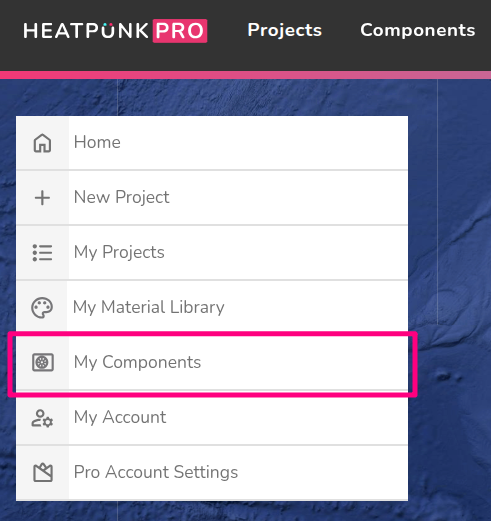](https://help.heatpunk.co.uk/uploads/images/gallery/2026-08/jyjV2RrumALeNekG-image.png) Select from the menu on the left which component you would like to add from the available options. [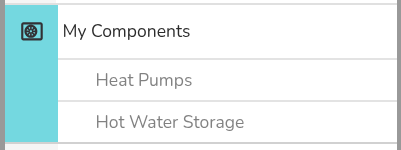](https://help.heatpunk.co.uk/uploads/images/gallery/2026-08/BofhUcwHll8f9jwx-image.png) --- ### Heat pump #### Creating manufacturer When adding any custom heat pump in Heatpunk you first need to add a custom manufacturer category which allows you to organise your custom components. The components added will be categorised by their manufacturer when it comes to select them in a project. [](https://help.heatpunk.co.uk/uploads/images/gallery/2025-07/nRolcCY5PrmIieQB-image.png) #### Inputting information from datasheet After inputting the name for the manufacturer, re-open your custom manufacturer and you will see additional options to add a heat pump. [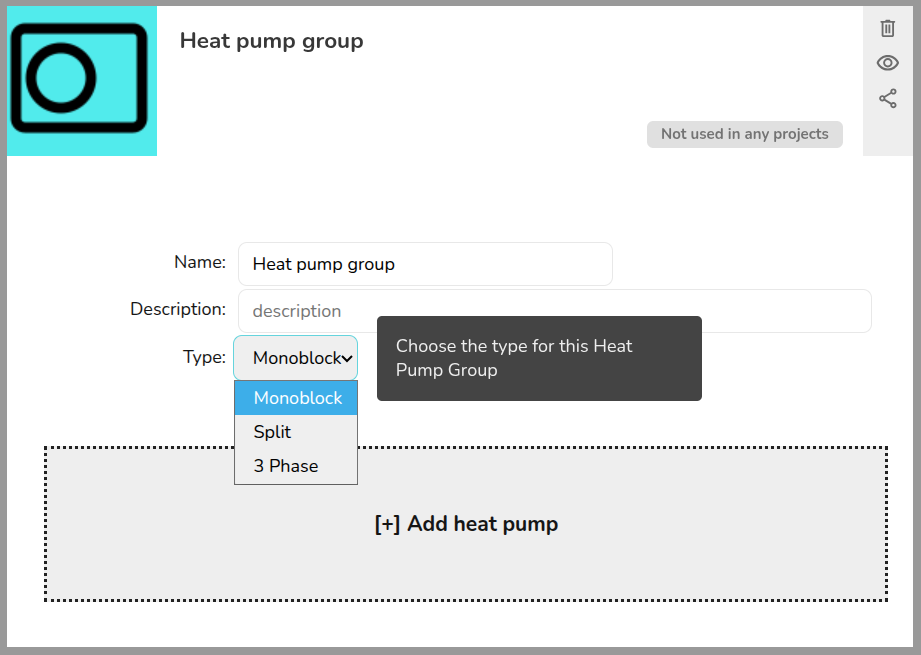](https://help.heatpunk.co.uk/uploads/images/gallery/2026-08/0CEJnF2rpsA03jLM-image.png) You will then need to input the technical information found in the datasheet for the heat pump. [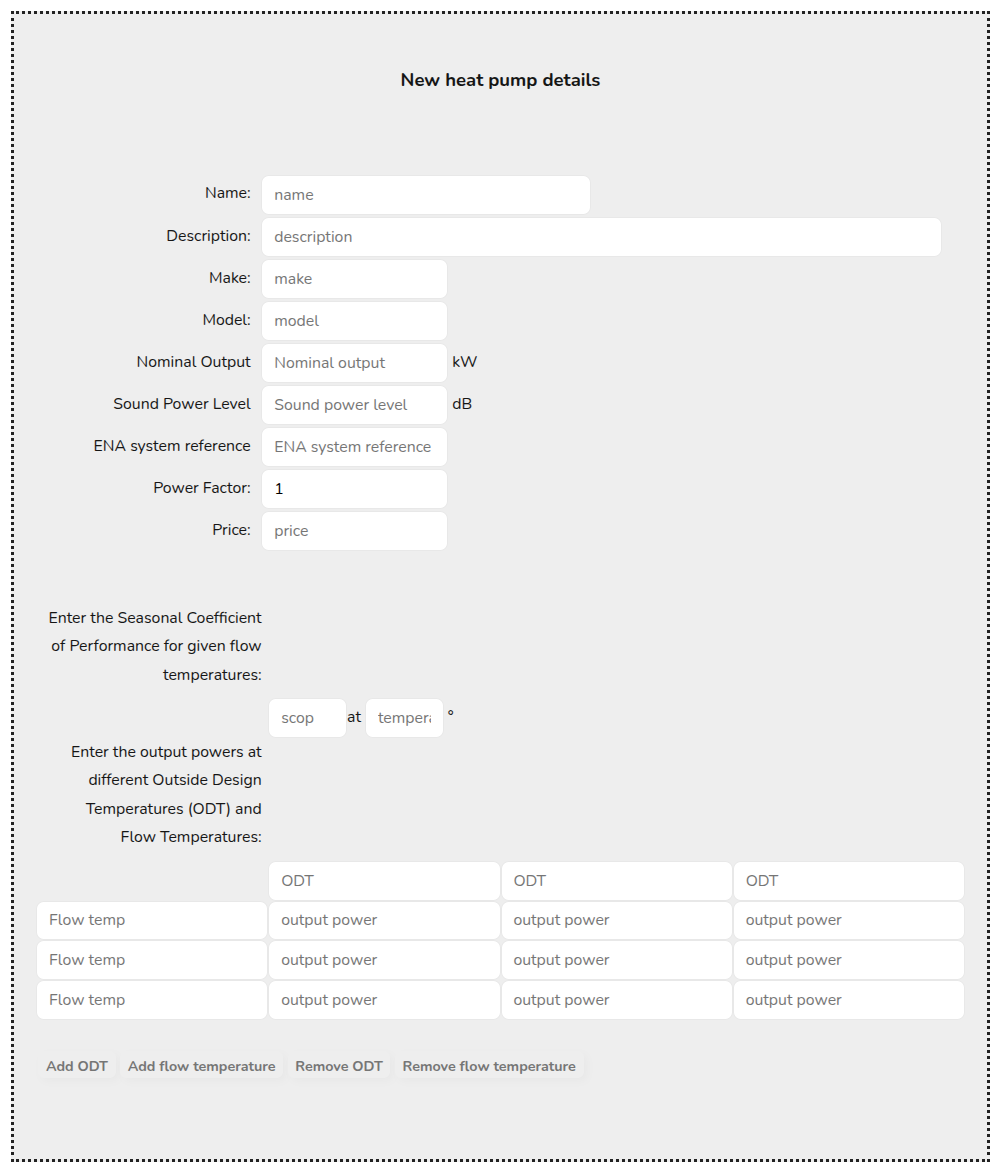](https://help.heatpunk.co.uk/uploads/images/gallery/2025-07/I5pBL1IOzH8fysqM-image.png) Below is a list of each value required to add a custom heat pump alongside some details for each.| **Technical info** | **Details** |
|---|---|
| Nominal output | - Units: kW |
| Sound power level | - Units: dB - This should be measured in accordance with EN12102 |
| ENA system reference | - This can be found on the [ENA Heat Pump Register](https://connect-direct.energynetworks.org/device-databases/search-demand/HP) |
| Power factor | - This will pre-populate as 1. You should edit as necessary |
| **Technical info** | **Details** |
|---|---|
| Nominal output | - Units: L |
| Weight (empty) | - Units: kg |
| Weight (full) | - Units: kg |
| Height | - Units: mm |
| Width | - Units: mm - Enter diameter if cylindrical. |
| Length | - Units: mm - Enter diameter if cylindrical. |
| Standing heat loss | - Units: kWh/24h |
This guide applies to **pro** versions of Heatpunk
Team management allows you to have control over who is on your Heatpunk Team and the permissions (role type) they have. --- ### **Managing your team** You can manage your team settings in **Pro Account Settings** > **General**. The team owner and any users with the admin role type can add and remove users, as well as change their role type. [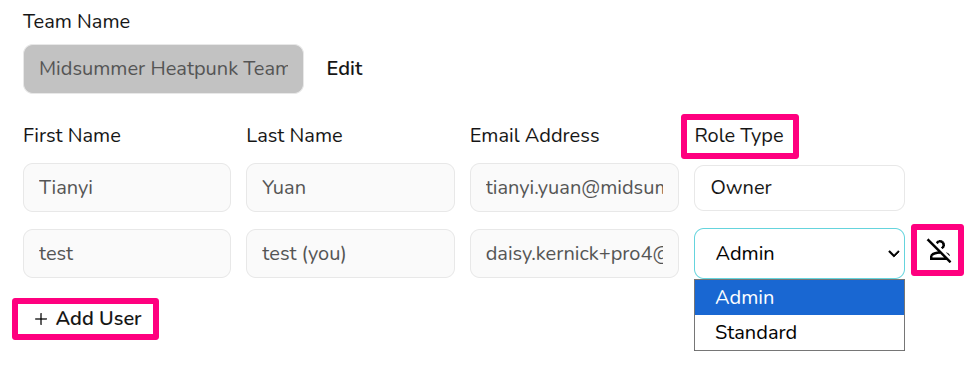](https://help.heatpunk.co.uk/uploads/images/gallery/2025-11/ZJRzhZdIrDVAJ2Tl-image.png) ### **Role types** With Heatpunk pro, different members of the team can have different levels of access. The roles available are: - **Admin**: role includes the ability to view and manage Pro team settings. - **Owner**: this is the user who set up the pro team and this role cannot be selected or changed. They have same permissions as admin but cannot be removed from the team, so make sure this is under an email address you can access even if the owner was to leave the company. - **Standard**: can access all pro features within projects, but cannot view or edit the pro account settings. ### **Adding or removing users** To **add users**, you’ll need the individual’s name and email address (they do not need an existing Heatpunk account). You can then choose the user’s role. This role can be changed at anytime. [](https://help.heatpunk.co.uk/uploads/images/gallery/2025-11/yK5KmPx3Wj2pPy6i-image.png)The cost for adding a new user will be proportional to how much time is left until your next charge date and subsequent direct debits will be automatically updated.
To **remove a user**, click on the icon beside their details. This will disable their account and remove them from the subscription. The owner account cannot be removed so ensure it is under a company email address. ### Editing users User names or email addresses cannot be edited here. This can only be done while logged into the relevant account. If you've made a typo when adding a new user to your team, get in touch with the [support team](mailto:help@heatpunk.co.uk). See here for information on [sharing projects and components](https://help.heatpunk.co.uk/books/getting-started-with-pro/page/pro-share-projects-and-components "Pro: Share projects and components") between team members. --- ## Still Need Help? / Want to know more? - **Related FAQs:** Check out our [Pro FAQs](https://help.heatpunk.co.uk/books/faqs/chapter/pro-and-enterprise) for answers to common questions - **Further guides**: Take a look at our [Pro guides](https://help.heatpunk.co.uk/books/getting-started-with-pro) - **Live training:** [Book onto a live demo session](https://cal.com/midsummer-energy) to see this feature in action **Contact Support:** If you've got further questions, get in touch with our support team at **help@heatpunk.co.uk** (UK) or **help@heatpunk.ie** (IE). *If you are experiencing a bug, to help us look into your issue faster, please include the email address of your account, the name of the project and screenshots of any unexpected behaviour.* # Pro: Share projects and components With Heatpunk pro you're able to collaborate with your team by sharing projects and components. See below how you can configure your sharing settings. --- ## Understanding sharing options You will have the following options when sharing projects and components in Heatpunk: - **View**: Users will be able to view projects or use the component, but not edit it. - **Edit**: Users will be able to view and make changes to the project or component. - **Manage**: Users will be able view, edit and permanently delete the project or component, transfer ownership of the project and change or remove other users or team's access to the project or component**Note**: the **Owner** of a project will get email notifications when a document from that project is [e-signed](https://help.easy-pv.co.uk/books/reports-documents-and-emails/page/pro-e-signing "Pro: E-signing"). The owner will also have Manage permission by default.
--- ## Default sharing Each user in a Pro team can configure default sharing settings for the projects and components they create. Navigate to **My account** > **Preferences** > **General** and then **Default sharing.** In this section, simply select which sharing permissions you would like to be granted automatically when creating a project or component. [](https://help.heatpunk.co.uk/uploads/images/gallery/2026-07/EMwtKFJcSS9HOsaT-defaultpermissionshp.gif)**Note**: This will only apply to *new* projects and components. If you would like to share old projects or components, see below for instructions on manual sharing.
--- ## Manual sharing If you would not like projects or components to share by default, you also have the option to share individual projects or components manually. You will also have the option to transfer ownership to another user when sharing manually.**Note**: You can only configure sharing permissions on projects and components you own or have manage access to.
### Sharing a project You can share a project via your list of projects on the My Projects page, or via the project overview page on a specific project. - From your project list on the **My Projects** page - click on the share icon on the project you want to share [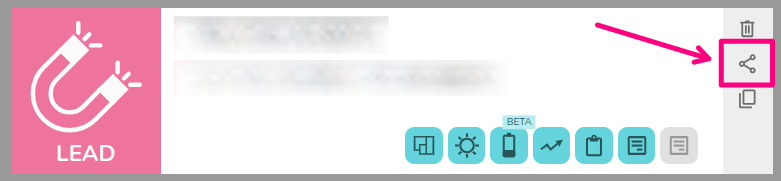](https://help.heatpunk.co.uk/uploads/images/gallery/2026-08/4y7zDs243exaMOih-image.png) - From the **project overview** page of a specific project - click on the share icon in the top left of the project.[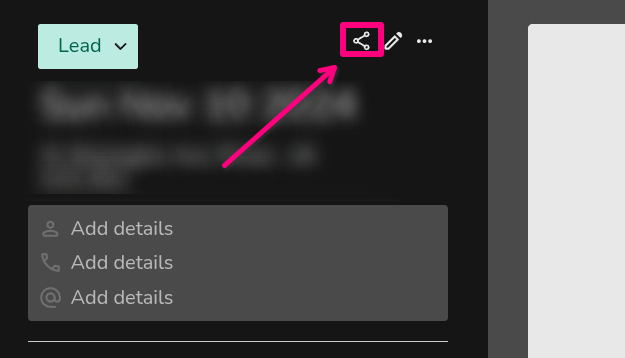](https://help.heatpunk.co.uk/uploads/images/gallery/2025-11/H7uggTr03aCb4olv-image.png) Once you have found the project you want to share, you can then **view who has access to a project** and **edit their permissions**. - **Select permissions**: Select from the drop downs which permissions you'd like given on the project - **Change owner**: If you are the owner of a project or have manage permissions, you will see the option to `Transfer ownership`. Click this to view the list of users you can transfer to and select the new owner. - **Share link**: Click the copy icon to give someone a direct link to view the project. They will need to also have the right sharing access - **Save**: Click `Save` to confirm any changes [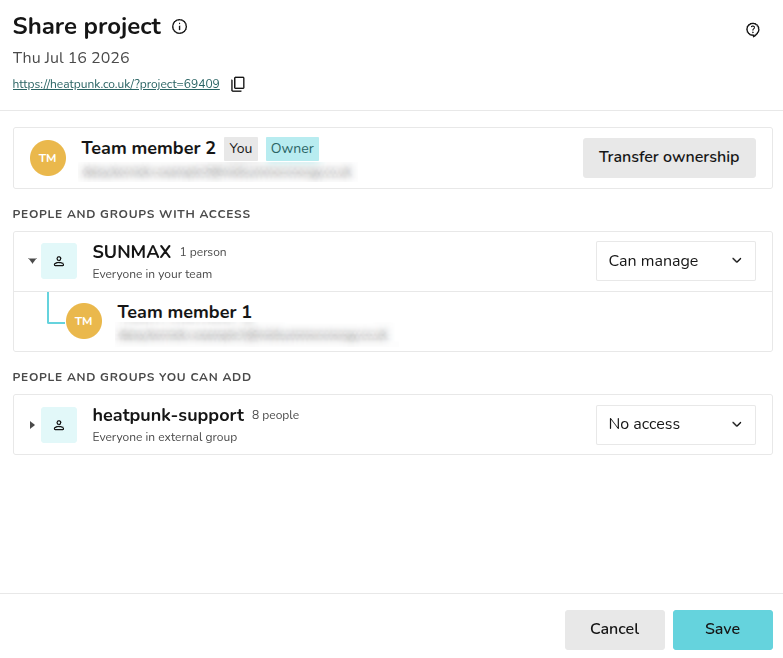](https://help.heatpunk.co.uk/uploads/images/gallery/2026-07/GKpwpVrdPRdSW5gX-image.png) If you are **not the owner** of a project or **do not have manage permissions**, you will not be able to configure the sharing on a project: [](https://help.easy-pv.co.uk/uploads/images/gallery/2026-07/Ui48tGK5AjheTUIV-image.png) If a user with manage permissions has shared on a project, you will see them in the list of 'People and groups with access': [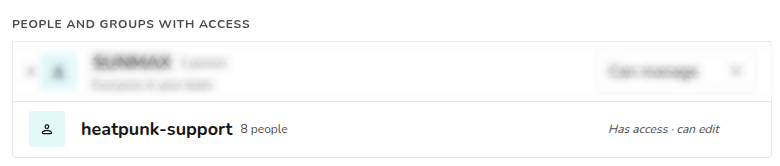](https://help.heatpunk.co.uk/uploads/images/gallery/2026-07/8MNHy0jfaoEWUmc6-image.png) ### Sharing a component If you are using custom components in Heatpunk, you can share those owned by you with other members of your team. Select My Components from the left sidebar and then select the component type to find the component you want to share. Click the share icon to configure sharing for the component. As with projects, you can then view who has access to the component and choose which permissions to give.**Warning**: You need to share both the manufacturer group and the individual component.
[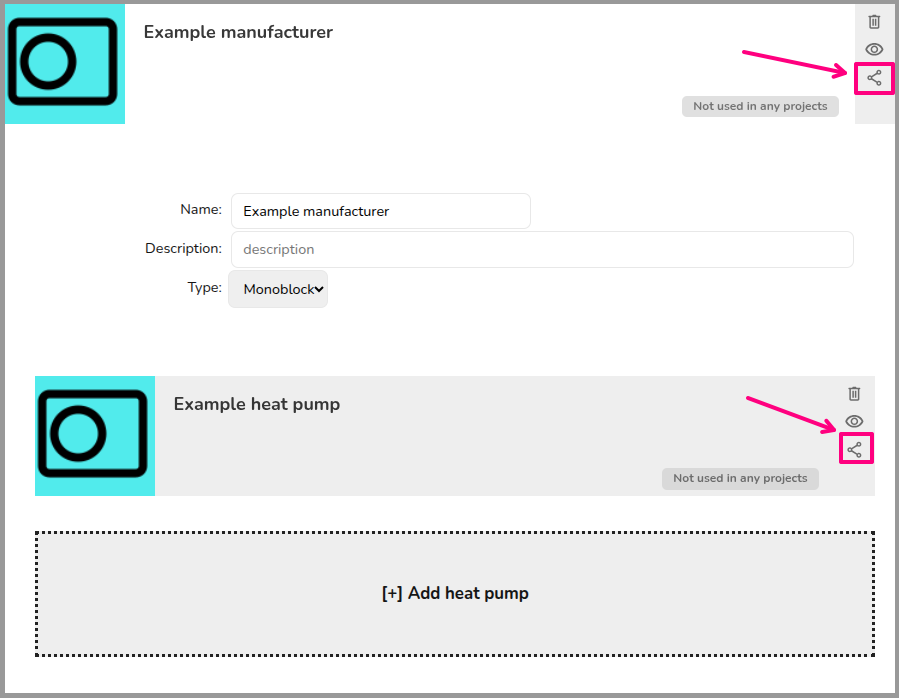](https://help.heatpunk.co.uk/uploads/images/gallery/2026-08/s8DbZQ5rcizL9yKg-image.png) --- ## **Viewing projects shared with you** To view projects shared with you, make sure this option is selected in the project list page: [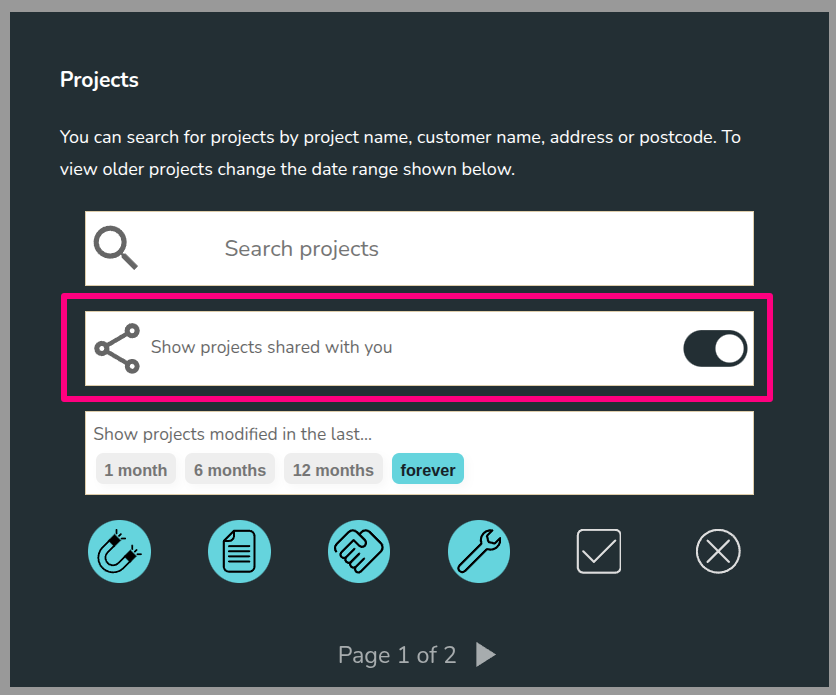](https://help.heatpunk.co.uk/uploads/images/gallery/2025-11/PYOY9hp8thIsVnaJ-image.png) Projects owned by others will say *Owned by \[name\]* in the top right corner of the project: [](https://help.heatpunk.co.uk/uploads/images/gallery/2025-11/WC5KYUMhJgTcDiAg-image.png) If you're having trouble with any of these permissions or would like to share with individual members of your team rather than the whole team, [get in touch with our support team](mailto:help@heatpunk.co.uk). --- ## Still Need Help? / Want to know more? - **Related FAQs:** Check out our [Pro and Enterprise FAQs](https://help.heatpunk.co.uk/books/faqs/chapter/pro-and-enterprise) for answers to common questions - **Further guides**: Take a look at our [Pro help guides](https://help.heatpunk.co.uk/books/getting-started-with-pro) - **Live training:** [Book onto a live demo session](https://cal.com/midsummer-energy/heatpunk-pro) to see this feature in action **Contact Support:** If you've got further questions, get in touch with our support team at **help@heatpunk.co.uk** (UK) or **help@heatpunk.ie** (IE). *If you are experiencing a bug, to help us look into your issue faster, please include the email address of your account, the name of the project and screenshots of any unexpected behaviour.* # Pro: Company Details and Subscription SettingsThis guide applies to the **pro** versions of Heatpunk
You can manage your company details and subscription settings by navigating to **Pro Account Settings** > **General**. --- ## **Company details** You can set default information that will be used across all your team’s user accounts. This includes company name, number, accreditation, logo, address, and postcode. The details you set here will be used where relevant throughout Heatpunk tasks, forms, and reports. ## **Billing information** Here you enter the details we should use for billing your subscription. If you have a separate accounts department, you may wish to use their email address here. We send out invoices by email every month after your subscription payment has been taken. Please [reach out to our support team](mailto:help@heatpunk.co.uk) if you would like to change your billing details. ## **Subscription status** At the bottom of this section you will see your subscription status with your next billing date listed. ## **Cancelling your subscription** In the bottom right, you'll see the option to **Cancel Subscription**. This will cancel your subscription and your team’s accounts will switch back to standard on the date your subscription would have renewed. --- ## Still Need Help? / Want to know more? - **Related FAQs:** Check out our [Pro and Enterprise FAQs](https://help.heatpunk.co.uk/books/faqs/chapter/pro-and-enterprise) for answers to common questions - **Further guides**: Take a look at our [Pro help guides](https://help.heatpunk.co.uk/books/getting-started-with-pro) - **Live training:** [Book onto a live demo session](https://cal.com/midsummer-energy/heatpunk-pro) to see this feature in action **Contact Support:** If you've got further questions, get in touch with our support team at **help@heatpunk.co.uk** (UK) or **help@heatpunk.ie** (IE). *If you are experiencing a bug, to help us look into your issue faster, please include the email address of your account, the name of the project and screenshots of any unexpected behaviour.* # Pro: Email credentialsThis guide applies to the **pro** versions of Heatpunk.
With Heatpunk Pro you can send emails to your customer within the software, by setting up your email credentials it means these emails will send from your domain, rather than from no-reply@heatpunk.co.uk. --- ## **Email configuration** To edit your email settings navigate to **Pro account settings** > **Email.** [](https://help.heatpunk.co.uk/uploads/images/gallery/2025-11/YJpOgUqH6mwB1BuB-image.png) Here you can enter email credentials to allow emails to be sent from your own email address, how this is set up will depend on what email provider you are using. ### **OAuth 2.0 - Gmail or Microsoft 365** If Gmail or Microsoft 365 is your email provider, then simply select **OAuth 2.0**, select the relevant option and click connect, this will direct you to your email where you can approve the connection. Once it is linked, you can send a test email to make sure it's working as intended. ### **SMTP** If you have a different email provider then you will need to set up using the **SMTP** option. What is then required for each field is dependent on provider and you will likely be able to find instructions online by searching for your provider and 'SMTP credentials'. Below is some general guidance for each field| SMTP Username | These credentials are provided by your email service provider and are used to authenticate your email client |
| SMTP From Address | **Optional**: This is the email address that recipients see as the sender of the email. In most cases this will be the same as the SMTP username. |
| SMTP Name | **Optional**: this will appear next to the 'from address'. |
| SMTP Host | This will vary depending on provider. The format will be something like smtp.provider.com. |
| SMTP Password | This will usually be an **App Password** that you need to set up but in some cases it will be your email password. |
| SMTP Port | **Optional**: by default this will be 587 but in some cases this will need to be changed. |
This guide applies to the **Pro** versions of Heatpunk
With Heatpunk Pro, you are able to customise the **proposal document** that you send to your customers. This can help you align the proposal more with your branding and help you stand out! --- ## **What can I customise?** You have the option to: - Add a custom cover page. - Customise colours to match your brand. - Add an 'About us' section to the contents page. - Configure a branded footer to appear on all pages of the proposal document with your logo and company information. - Add your terms and conditions and the scope of work sections to the proposal. - Configure the quote display.If you want further customisation of the proposal or want us to create a document entirely to your own specification, please [contact us](mailto:help@heatpunk.co.uk) about our **Enterprise package**.
## Setting up Navigate to **Pro account settings** > **Customer** **Proposal**. There will also be a **Documents** section in your Pro account settings where you can manage all the images you upload. [](https://help.heatpunk.co.uk/uploads/images/gallery/2025-11/QOxC4PgZtWZRBAh8-image.png) ### Colours Select the colour you would like **headers** to appear in the proposal document. You can precisely match this with your branding colours with the RGB, HSL or HEX code, use the arrows to navigate between these options. [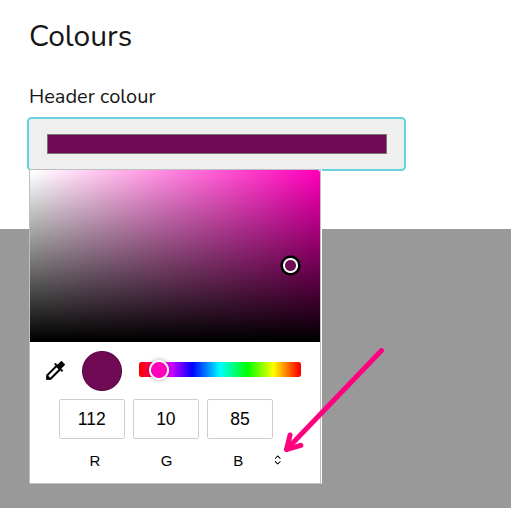](https://help.heatpunk.co.uk/uploads/images/gallery/2025-11/SVofUog1DIcp88H5-image.png) ### Cover page Select whether you would like to include a custom cover page and whether you would like the customer name and address overlaid on your cover page and which colour you'd like this text to be. [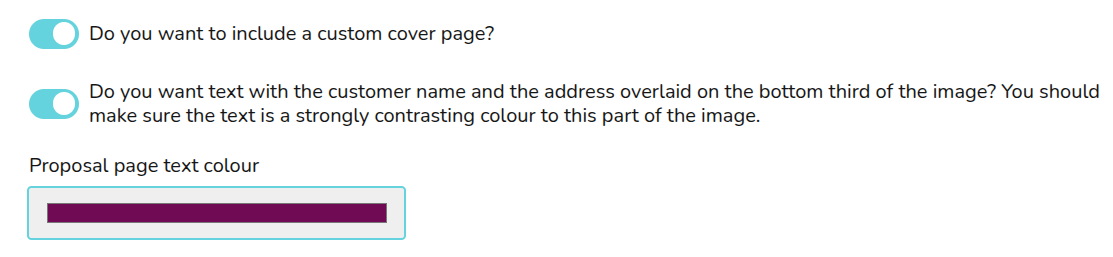](https://help.heatpunk.co.uk/uploads/images/gallery/2025-11/aX1YM7SJRiP5s4mq-image.png)If you don't already have a preferred way of making a cover page, you might find [Canva](https://www.canva.com/) useful. We have created a [template](https://www.canva.com/design/DAGR2EHVTWs/Uni6BIDf_8DWncEe3QOehw/view?utm_content=DAGR2EHVTWs&utm_campaign=designshare&utm_medium=link&utm_source=publishsharelink&mode=preview) with some additional instructions that you can use to create your own cover page design in Canva. When you are finished, click Share, then download, change the file type to PNG or JPG and download.
Once you have your custom cover page, either add it in the **Documents** tab or in the cover page section click **Select from uploaded image** > **Add images**. After uploading you will be able to select your cover page. You also have the option to use an image from a URL. [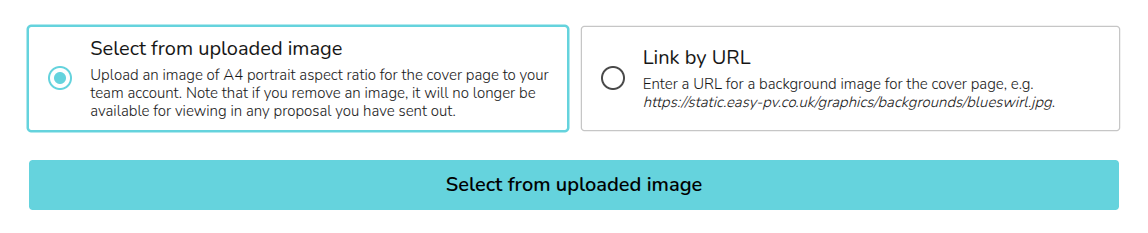](https://help.heatpunk.co.uk/uploads/images/gallery/2025-11/LOyIPf9MrgujSylV-image.png) ### Footer In your custom footer you can input a phone number, address and website. You can also select the footer background and text colour and upload a logo. [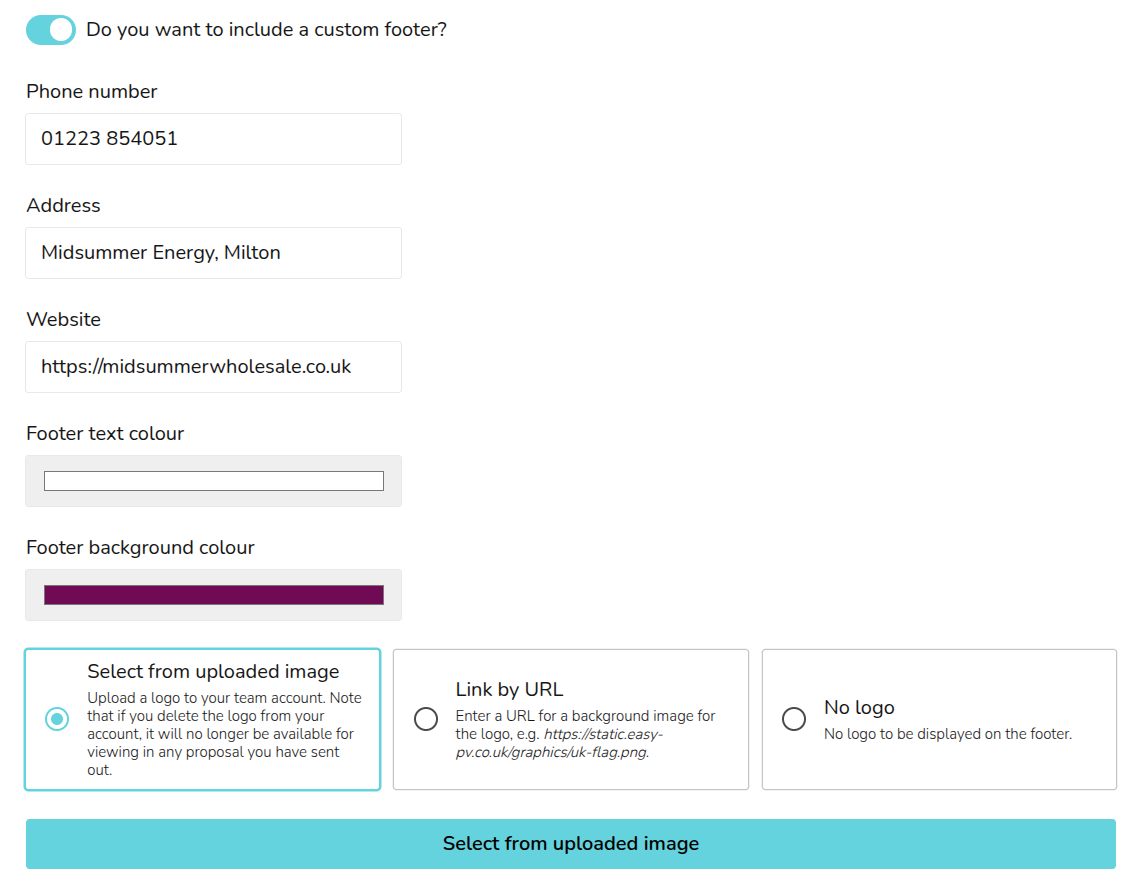](https://help.heatpunk.co.uk/uploads/images/gallery/2025-11/oBpomCaDz5CH3J4w-image.png) Make sure the footer text does not overflow onto a second line when you generate the proposal or this will cause formatting errors. ### Contents page In this section you can add a custom cover letter with a custom header and contents. This can be overridden on a per-project basis. [](https://help.heatpunk.co.uk/uploads/images/gallery/2025-11/9rDUs9RsscaM4XIA-image.png) You can also include an 'About us' section with an optional custom image. The 'About us' section should be a short description, make sure it does not overflow onto the next page of the proposal. [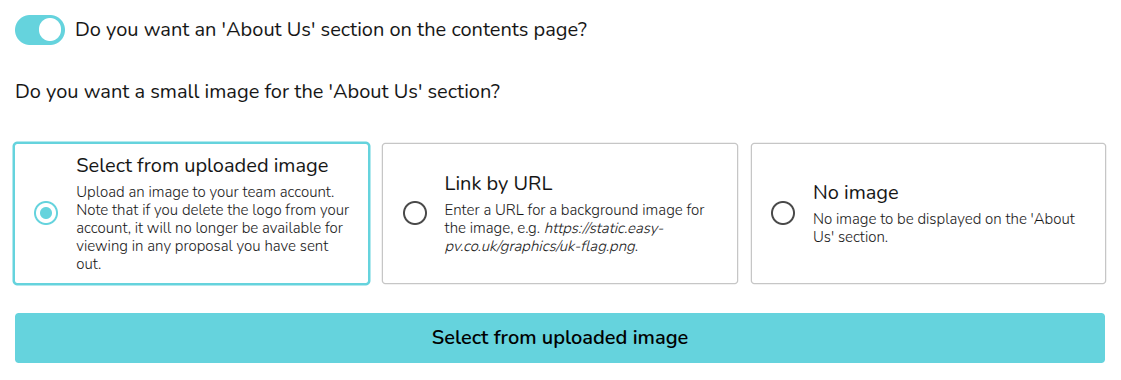](https://help.heatpunk.co.uk/uploads/images/gallery/2025-11/VaeacEjGAJrsuxgR-image.png) ### Terms and conditions and scope of work Here you can input your terms and conditions and scope of work. In each case you can use the options at the bottom of the text box to format the text: [](https://help.easy-pv.co.uk/uploads/images/gallery/2025-06/EmRj4aVeginFVOHH-image.png) Both these options can be overridden on a project by project basis.Changes made to the contents page, terms and conditions and scope of work will **not** automatically refresh in projects where you've already opened the customer proposal task. Click the refresh icon next to where it says 'Customer proposal' to reset those fields to what you've got in your settings.
### Display of Quote In this section you can configure the quote format. Select whether you would like the quote to display goods and services separately and whether you'd like these sections to display as individual lines. [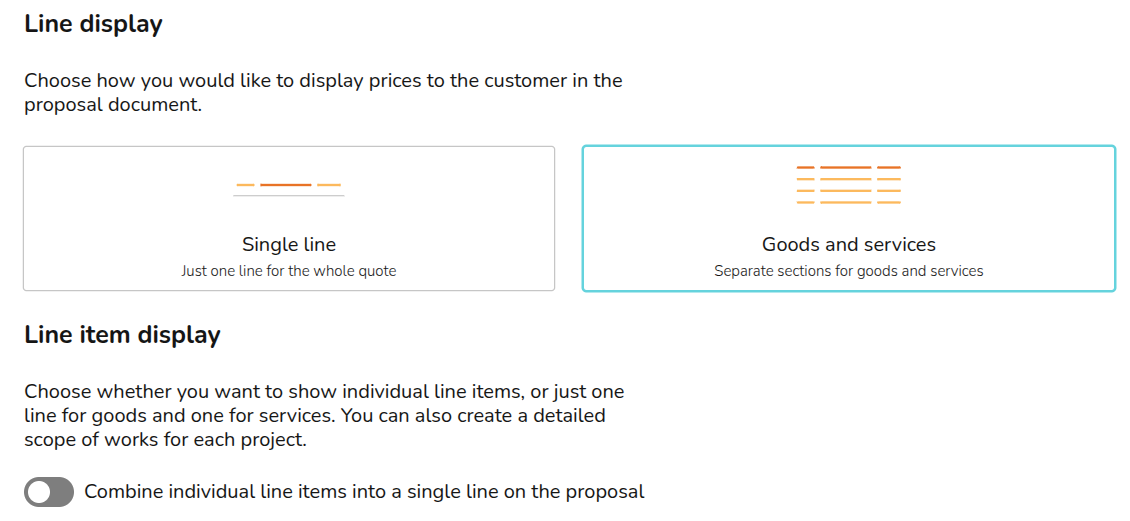](https://help.heatpunk.co.uk/uploads/images/gallery/2025-11/dMBZABlrNchRPbAq-image.png) Finally, you can select whether you'd like prices to display for each line item or for it to only show totals or subtotals. [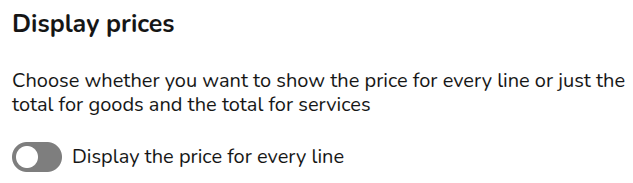](https://help.heatpunk.co.uk/uploads/images/gallery/2025-11/Wnts6A7ucgVbfLyA-image.png) --- ## Still Need Help? / Want to know more? - **Related FAQs:** Check out our [Pro and Enterprise FAQs](https://help.heatpunk.co.uk/books/faqs/chapter/pro-and-enterprise) for answers to common questions - **Further guides**: Take a look at our [Pro help guides](https://help.heatpunk.co.uk/books/getting-started-with-pro) - **Live training:** [Book onto a live demo session](https://cal.com/midsummer-energy/heatpunk-pro) to see these features in action **Contact Support:** If you've got further questions, get in touch with our support team at **help@heatpunk.co.uk** (UK) or **help@heatpunk.ie** (IE). *If you are experiencing a bug, to help us look into your issue faster, please include the email address of your account, the name of the project and screenshots of any unexpected behaviour.* # Pro: Automatic pricing With Heatpunk Pro you can either set pricing based on: - **The cost of materials plus a markup** - Involves cost of material plus a set percentage - Is best for when you use a variety of components - **Custom lookup tables** - Involves using specified prices for each heat pump and hot water storage - Is best for when you always use the same components On top of the cost of materials, you can set up additional charges for delivery of goods, plumbing and electrical labour and travel to the site. Pricing settings can be accessed via **‘Pro Account settings’ > ‘Automatic pricing’**. --- ## **Configuring pricing for your projects** Choose if you are using markup or lookup tables. [](https://help.heatpunk.co.uk/uploads/images/gallery/2024-11/Ej2TBkdcbBHl3urP-image.png) ### **Option 1: Cost of materials plus a markup** When using markup, you enter the percentage markup for goods prices. [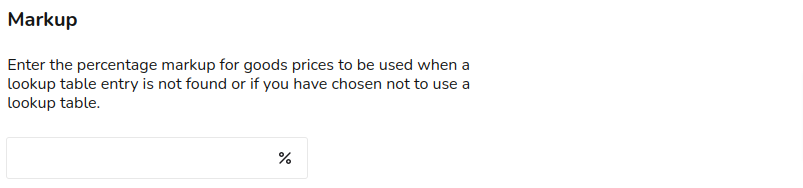](https://help.heatpunk.co.uk/uploads/images/gallery/2024-11/JplAfTk7FhWMP5Mb-image.png) This will apply the specified markup to your Midsummer wholesale price. Ensure your wholesale account is connected, otherwise retail wholesale prices will be applied. See our guide on [Connecting to Midsummer](https://help.heatpunk.co.uk/books/getting-started/page/connecting-to-midsummer) for more information on this. ### **Option 2: Lookup tables** When you have chosen lookup tables, you can first choose to use a markup-based pricing for any designs that don’t match one of the lookup tables you have entered. In this case the marked-up Midsummer wholesale price will be used as a fallback. You can then create your lookup tables for heat pumps and hot water storage by selecting from the options in the drop down menu and adding the respective prices to goods and services. [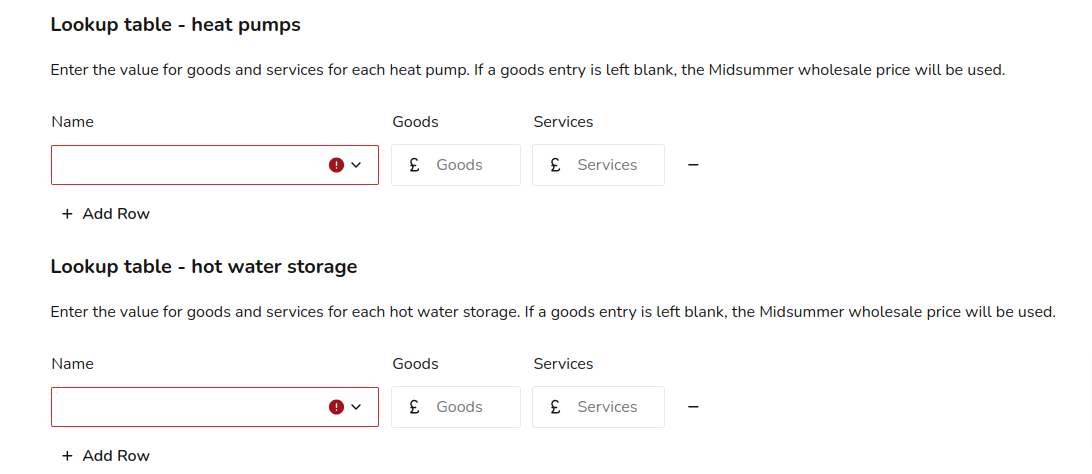](https://help.heatpunk.co.uk/uploads/images/gallery/2024-11/27wdRXAt3CFhmP6k-image.png) Lookup tables are most useful if you install just a few different system combinations. If you use a wide range of kit, it’s probably more efficient to use the ‘markup’ method. Lookup tables also require additional maintenance as the component prices will not change automatically with costs. ### **Additional Radiators** Each radiator added via the *Heat Pump* task will automatically generate an entry in the *Financial* task. Currently, we do not support varying prices for different radiator types. However, here you can enter the cost of goods and labour for different sized radiators. You can also set a default radiator price for cases where the radiators used do not match any of your lookup table entries. [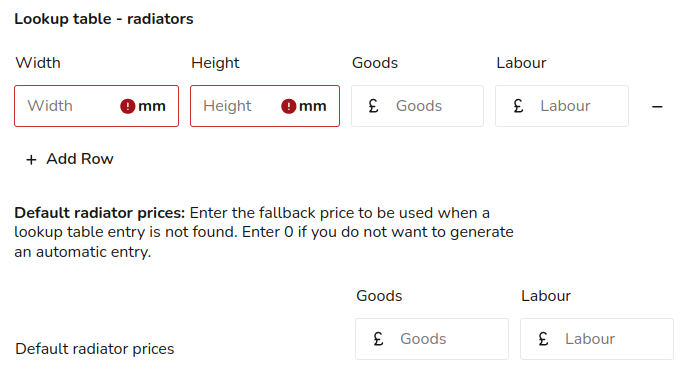](https://help.heatpunk.co.uk/uploads/images/gallery/2025-01/pPz0OB7ZdT8MGrxj-image.png) ### **Other items** With both options above, after setting up your pricing, you can add prices additional items. ##### **Default items** These items will be added to every project by default. Examples include delivery of goods, plumbing labour and electrical labour. ##### **Optional items** These items will be prompted for addition at the start of the Financial task. Examples include an extended warranty or replacement of microbore pipework. In each case, you add the description as you want it to appear on the financial task and then a cost of the goods and labour. ### **Travel** To set up your office location, navigate to 'My Account' > 'Preferences' > 'General' > 'Company Details' and drag the location pin on the map. The travel distance will be automatically calculated as the driving distance from the office to the project address. You can then add any additional costs for travel over a certain distance. [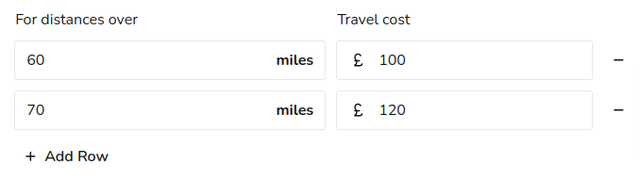](https://help.heatpunk.co.uk/uploads/images/gallery/2024-11/zyragsicfTc2WXPu-image.png) --- ## Still Need Help? / Want to know more? - **Related FAQs:** Check out our [Pro and Enterprise FAQs](https://help.heatpunk.co.uk/books/faqs/chapter/pro-and-enterprise) for answers to common questions - **Further guides**: Take a look at our [Pro help guides](https://help.heatpunk.co.uk/books/getting-started-with-pro) - **Live training:** [Book onto a live demo session](https://cal.com/midsummer-energy/heatpunk-pro) to see this feature in action **Contact Support:** If you've got further questions, get in touch with our support team at **help@heatpunk.co.uk** (UK) or **help@heatpunk.ie** (IE). *If you are experiencing a bug, to help us look into your issue faster, please include the email address of your account, the name of the project and screenshots of any unexpected behaviour.*