# Pro: SEAI sign-off workbook

<span class="corp-pill pill-ireland mceNonEditable" style="user-select: none;"><span class="corp-flag material-symbols-rounded">​</span>heatpunk.ie</span>*This guide applies to Heatpunk Ireland.*

With Heatpunk Pro, you can generate the SEAI sign-off workbook directly as an .xlsx spreadsheet.

---

<div aria-owns="action-menu-parent-container" class="n6owBd awi2gc" data-complete="true" data-epip="["131e6687a5cd4ca7a9074f2892fd5c88.4","ee1b24bfc34f424aabc2ce810032d50f"]" data-hveid="CAIIAQgpEAE" data-processed="true" data-sfc-cp="" data-sfc-root="ep" id="bkmrk--1" jsaction="" jscontroller="TDBkbc#Ml18Xb" jsuid="ixArl_24"></div>## 1. Complete the required forms

To generate the workbook, you first need to complete three documents inside your project:

- **Designer/Installer sign off**
- **Heating design/ radiator output conversion**
- **BER checklist**

Heatpunk will fill out most of the forms automatically using data from your project. You'll need to fill in any remaining information and generate the PDFs:

1. Navigate to the **Forms** tab at the top of the page.
2. Open each of the three documents listed above.
3. Review the pre-populated project data and fill out any remaining details.
4. Click **Generate PDF** on each form.

<p class="callout info">Each completed form can be saved in the **Documents** section on the project overview page, where you can view or download them individually if needed.</p>

## 2. Generate the SEAI workbook

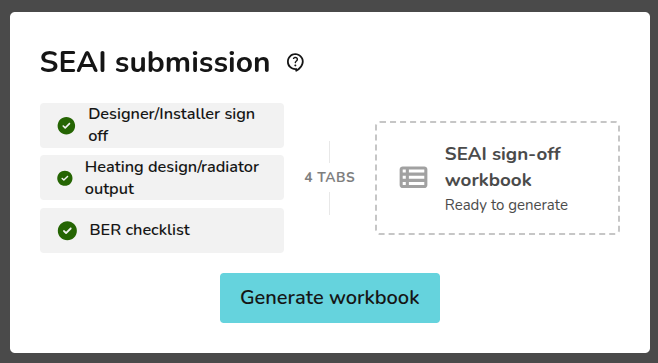
<div aria-owns="action-menu-parent-container" class="n6owBd awi2gc" data-complete="true" data-epip="["131e6687a5cd4ca7a9074f2892fd5c88.4","ee1b24bfc34f424aabc2ce810032d50f"]" data-hveid="CAIIAQgpEAE" data-processed="true" data-sfc-cp="" data-sfc-root="ep" id="bkmrk-once-all-three-forms" jsaction="" jscontroller="TDBkbc#Ml18Xb" jsuid="ixArl_24"><div aria-owns="action-menu-parent-container" class="n6owBd awi2gc" data-complete="true" data-epip="["1be5b603ced04391aee9d56f6dbe60c7.4","b00feaf1a2c14b9392de38ed77366046"]" data-hveid="CAAIQhAB" data-processed="true" data-sfc-cp="" data-sfc-root="ep" jsaction="" jscontroller="TDBkbc#Ml18Xb" jsuid="FCa4qe_3s">Once all three forms are complete, you can generate the workbook by navigating to the **project overview** page. Find<span class="iNqyIf" data-complete="true" data-epip="["1be5b603ced04391aee9d56f6dbe60c7.10","d2bc8d37c4ca463d93f76030e71dce2a"]" data-sfc-cp="" data-sfc-root="ep"> the **SEAI submission** section in the bottom-right corner and c</span><span aria-owns="action-menu-parent-container" class="iNqyIf" data-complete="true" data-epip="["1be5b603ced04391aee9d56f6dbe60c7.21","bab3c2ccd3f940cc88443bf55feecacf"]" data-sfc-cp="" data-sfc-root="ep">lick '**Generate workbook**'.</span></div></div>[![image.png](https://help.heatpunk.co.uk/uploads/images/gallery/2026-11/scaled-1680-/FDUJvtetvDYMEaXn-image.png)](https://help.heatpunk.co.uk/uploads/images/gallery/2026-11/FDUJvtetvDYMEaXn-image.png)

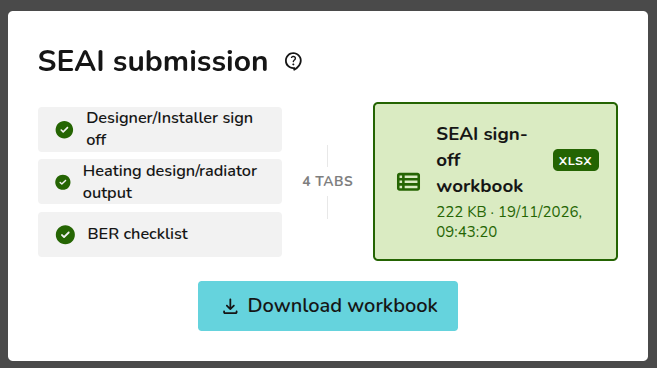
<span class="iNqyIf" data-complete="true" data-epip="["1be5b603ced04391aee9d56f6dbe60c7.21","bab3c2ccd3f940cc88443bf55feecacf"]" data-sfc-cp="" data-sfc-root="ep">Heatpunk will compile your data into the correct format and display a date and time stamp showing when the file was generated. Click '**Download** **workbook**' to save the spreadsheet to your device as an .xlsx file.</span>

[![image.png](https://help.heatpunk.co.uk/uploads/images/gallery/2026-11/scaled-1680-/qaVrujWCGgjFk72M-image.png)](https://help.heatpunk.co.uk/uploads/images/gallery/2026-11/qaVrujWCGgjFk72M-image.png)

## 3. Making changes 

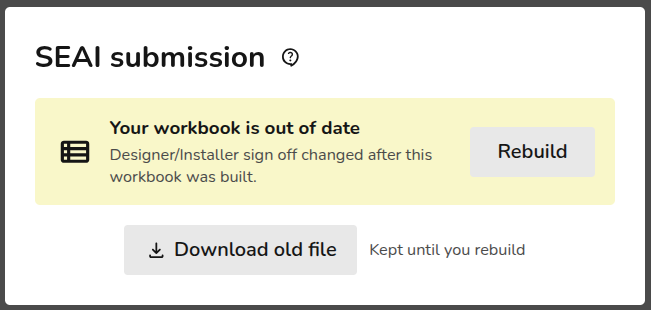
If you make changes after generating your file, go back to the **SEAI submission** section on the project overview page and Heatpunk will prompt you to update your workbook. Click '**Rebuild**' to generate a new workbook to reflect the latest changes.

<div class="n6owBd awi2gc" data-complete="true" data-epip="["392d7990fa71478e9b66f6c94470fd7b.4","d04c785bf95e499b8c56d9ea532207fb"]" data-hveid="CAAIRBAB" data-processed="true" data-sfc-cp="" data-sfc-root="ep" id="bkmrk--4" jsaction="" jscontroller="TDBkbc#Ml18Xb" jsuid="FCa4qe_4s"></div>[![image.png](https://help.heatpunk.co.uk/uploads/images/gallery/2026-11/scaled-1680-/xW8ImRgDNvBG95Yj-image.png)](https://help.heatpunk.co.uk/uploads/images/gallery/2026-11/xW8ImRgDNvBG95Yj-image.png)

<div aria-owns="action-menu-parent-container" class="n6owBd awi2gc" data-complete="true" data-epip="["131e6687a5cd4ca7a9074f2892fd5c88.4","ee1b24bfc34f424aabc2ce810032d50f"]" data-hveid="CAIIAQgpEAE" data-processed="true" data-sfc-cp="" data-sfc-root="ep" id="bkmrk--7" jsaction="" jscontroller="TDBkbc#Ml18Xb" jsuid="ixArl_24">---

</div>## Still Need Help? / Want to know more?


- **Related FAQs:** Check out our [Pro and Enterprise FAQs](https://help.heatpunk.co.uk/books/faqs/chapter/pro-and-enterprise) for answers to common questions
- **Further guides**: Take a look at our [Getting started with Pro guides](https://help.heatpunk.co.uk/books/getting-started-with-pro)
- **Live training: [Book a free online training session](https://cal.com/midsummer-energy) to see this feature in action

**Contact Support:** If you've got further questions, get in touch with our support team at **help@heatpunk.co.uk** (UK) or **help@heatpunk.ie** (IE). *If you are experiencing a bug, to help us look into your issue faster, please include the email address of your account, the name of the project and screenshots of any unexpected behaviour.*