# 3. Scanning & measuring rooms (LiDAR & AR)

<span data-path-to-node="32,0">Each room is measured one at a time and automatically joins onto your floor plan</span><span class="" data-path-to-node="32,1"><sup class="superscript"></sup></span><span data-path-to-node="32,2">.</span>

---

### Tips for a clean scan

- <span data-path-to-node="34,0,0,0">**Close internal doors and turn on lights:** Open doors can cause LiDAR to merge two rooms into one</span><span class="" data-path-to-node="34,0,0,1"><sup class="superscript"></sup></span>
- <span class="" data-path-to-node="34,0,0,1">**Ignore furniture:** Sofas, tables, and kitchen units are automatically filtered out—only walls, doors, windows, and radiators are sent to Heatpunk</span>
- <span class="" data-path-to-node="34,0,0,1"><span data-path-to-node="34,2,0,0">**Keep the phone held up between rooms:** Moving with the camera upright helps the app track your position so the next room snaps neatly beside the previous one</span></span>

---

### Method A: Scanning with LiDAR

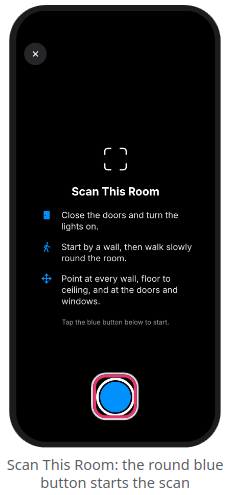
1. <span data-path-to-node="37,0,0,0">Stand close to a wall, point the phone at it, and tap the `round blue button` at the bottom</span><span class="" data-path-to-node="37,0,0,1"><sup class="superscript"></sup></span><span data-path-to-node="37,0,0,2">.</span>
2. <span data-path-to-node="37,0,0,2"><span data-path-to-node="37,1,0,0">Walk slowly around the perimeter (roughly one step per second), sweeping the camera from **floor to ceiling** across every wall, door, and window</span><span class="" data-path-to-node="37,1,0,1"><sup class="superscript"></sup></span><span data-path-to-node="37,1,0,2">.</span></span>
3. <span data-path-to-node="37,0,0,2"><span data-path-to-node="37,1,0,2"><span data-path-to-node="37,2,0,0">**Mark radiators (optional):** Tap directly on any radiator on your screen while scanning to place a marker on the nearest wall</span><span class="" data-path-to-node="37,2,0,1"><sup class="superscript"></sup></span><span data-path-to-node="37,2,0,2">.</span></span></span>
4. <span data-path-to-node="37,0,0,2"><span data-path-to-node="37,1,0,2"><span data-path-to-node="37,2,0,2"><span data-path-to-node="37,3,0,0">Once you have scanned all walls (and at least 3 walls are detected), tap the `round blue button` again to finish and open the Room Steps</span><span class="" data-path-to-node="37,3,0,1"><sup class="superscript"></sup></span><span data-path-to-node="37,3,0,2">.</span></span></span></span>

<span data-path-to-node="37,0,0,2"><span data-path-to-node="37,1,0,2"><span data-path-to-node="37,2,0,2"><span data-path-to-node="37,3,0,2">[![Screenshot_20261119_133242.png](https://help.heatpunk.co.uk/uploads/images/gallery/2026-11/scaled-1680-/2ADfTmXVG5zAsk8R-screenshot-20261119-133242.png)](https://help.heatpunk.co.uk/uploads/images/gallery/2026-11/2ADfTmXVG5zAsk8R-screenshot-20261119-133242.png)</span></span></span></span>

<p class="callout warning"><span data-path-to-node="37,0,0,2"><span data-path-to-node="37,1,0,2"><span data-path-to-node="37,2,0,2"><span data-path-to-node="37,3,0,2"><span data-path-to-node="12,0,1,0,0">**Warning:** Tapping `X` at the top left immediately ends the current scan without asking for confirmation, and the room you are scanning will not be saved</span><span data-path-to-node="12,0,1,0,1"><sup class="superscript"></sup></span><span data-path-to-node="12,0,1,0,2">.</span></span></span></span></span></p>

### Method B: Measuring with AR Measure

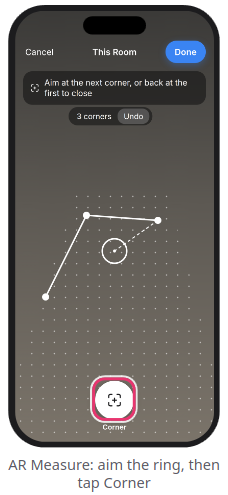
1. <span data-path-to-node="39,0,0,0">Move your phone slowly over the floor until the dotted grid appears</span><span class="" data-path-to-node="39,0,0,1"><sup class="superscript"></sup></span><span data-path-to-node="39,0,0,2">.</span>
2. <span data-path-to-node="39,1,0,0">Aim the centre ring at a floor corner and tap `Corner`</span><span class="" data-path-to-node="39,1,0,1"><sup class="superscript"></sup></span><span data-path-to-node="39,1,0,2">. Repeat around the room, then aim back at the **first corner** and tap `Corner` again to close the room</span><span class="" data-path-to-node="39,1,0,3"><sup class="superscript"></sup></span><span data-path-to-node="39,1,0,4">.</span>
3. <span data-path-to-node="39,2,0,0">**Set Ceiling Height:** Switch to the `Height` tab, aim where a wall meets the ceiling above a corner, and tap `Set` (or tap `Same as last room`)</span><span class="" data-path-to-node="39,2,0,1"><sup class="superscript"></sup></span><span data-path-to-node="39,2,0,2">.</span>
4. <span data-path-to-node="39,2,0,2"><span data-path-to-node="39,3,0,0">**Add Doors, Windows &amp; Radiators:** Use the `Door`, `Window`, and `Radiator` tabs at the bottom to aim and tap opposite corners or edges for each opening or radiator</span><span class="" data-path-to-node="39,3,0,1"><sup class="superscript"></sup></span><span data-path-to-node="39,3,0,2">.</span> </span>
5. <span data-path-to-node="39,2,0,2"><span data-path-to-node="39,4,0,0">Tap `Done` at the top right (use `Undo` at the top if you misplace a point)</span><span class="" data-path-to-node="39,4,0,1"><sup class="superscript"></sup></span><span data-path-to-node="39,4,0,2">.</span> </span>

<span data-path-to-node="39,2,0,2"><span data-path-to-node="39,4,0,2">[![Screenshot_20261119_133300.png](https://help.heatpunk.co.uk/uploads/images/gallery/2026-11/scaled-1680-/muJV71VEyCwILajg-screenshot-20261119-133300.png)](https://help.heatpunk.co.uk/uploads/images/gallery/2026-11/muJV71VEyCwILajg-screenshot-20261119-133300.png)</span></span>

### <span data-path-to-node="39,2,0,2"><span data-path-to-node="39,4,0,2">Moving between rooms &amp; troubleshooting</span></span>

- <span data-path-to-node="39,2,0,2"><span data-path-to-node="39,4,0,2"><span data-path-to-node="42,0,0,0">**Next room or floor:** After completing a room's steps, tap `Next Room` to keep scanning, or tap `More` &gt; `Next Floor` when a floor is finished</span><span class="" data-path-to-node="42,0,0,1"><sup class="superscript"></sup></span></span></span>
- <span data-path-to-node="39,2,0,2"><span data-path-to-node="39,4,0,2"><span class="" data-path-to-node="42,0,0,1"><span data-path-to-node="42,1,0,0">**Rescan or add a missed room:** Tap `...` &gt; `Rescan Room` or `...` &gt; `Add a Missed Room`</span><span class="" data-path-to-node="42,1,0,1"><sup class="superscript"></sup></span></span></span></span>

<span data-path-to-node="39,2,0,2"><span data-path-to-node="39,4,0,2"><span class="" data-path-to-node="42,0,0,1"><span data-path-to-node="42,1,0,0">*<span data-path-to-node="9,0,0,2"><span data-path-to-node="9,1,0,2"><span data-path-to-node="9,2,0,2"><span data-path-to-node="11,0,0,2"><span data-path-to-node="11,1,0,2"><span data-path-to-node="13,1,0,2"><span data-path-to-node="13,2,0,4"><span class="corp-icon material-symbols-rounded icon-expand mceNonEditable" style="user-select: none;">​</span>Expand the sections below for information on issues while scanning</span></span></span></span></span></span></span>*</span></span></span></span>

<details id="bkmrk-what-if-the-phone-lo"><summary>What if the phone loses its place during a scan?</summary>

<span data-path-to-node="17,1,0,0">A phone call, screen lock, or switching to another app can cause the phone to lose track of its position</span><span class="" data-path-to-node="17,1,0,1"><sup class="superscript"></sup></span><span data-path-to-node="17,1,0,2">. Your previously completed rooms remain saved, though the room you were actively scanning must be measured again</span><span class="" data-path-to-node="17,1,0,3"><sup class="superscript"></sup></span><span data-path-to-node="17,1,0,4">.</span>

1. <span data-path-to-node="17,1,0,4"><span data-path-to-node="17,1,1,0,0,0">**Find your place:** The screen displays a photo of where your last scan finished</span><span class="" data-path-to-node="17,1,1,0,0,1"><sup class="superscript"></sup></span><span data-path-to-node="17,1,1,0,0,2">. Walk back there and point the camera at the walls of a room you already scanned until the phone buzzes and `Scan This Room` reappears</span><span class="" data-path-to-node="17,1,1,0,0,3"><sup class="superscript"></sup></span><span data-path-to-node="17,1,1,0,0,4">.</span></span>
2. <span data-path-to-node="17,1,0,4"><span data-path-to-node="17,1,1,0,0,4"><span data-path-to-node="17,1,1,1,0,0">**Or tap `Place by Hand`:** If the phone cannot re-lock onto a previous room, tap `Place by Hand` at the bottom and scan the room as normal</span><span class="" data-path-to-node="17,1,1,1,0,1"><sup class="superscript"></sup></span><span data-path-to-node="17,1,1,1,0,2">.</span> </span></span>
3. <span data-path-to-node="17,1,0,4"><span data-path-to-node="17,1,1,0,0,4"><span data-path-to-node="17,1,1,2,0,0">**Drag the room into place:** After scanning, the floor plan opens so you can drag the room into position (it snaps automatically to surrounding walls)</span><span class="" data-path-to-node="17,1,1,2,0,1"><sup class="superscript"></sup></span><span data-path-to-node="17,1,1,2,0,2">. Use `Turn` to rotate it, or `Line Up Door` to align a shared doorway, then tap `Place` at the top right</span><span class="" data-path-to-node="17,1,1,2,0,3"><sup class="superscript"></sup></span><span data-path-to-node="17,1,1,2,0,4">.</span> </span></span>

</details><details id="bkmrk-common-messages-whil"><summary>Common messages while scanning or measuring</summary>

LiDAR Scan messages:

- **"Your phone is hot. Give it a minute to cool down.":** Stop between rooms for a minute to let the device cool down, then carry on
- **"The phone is low on memory. Finish this room soon.":** Stop the current scan soon so the room saves properly
- <span data-path-to-node="19,1,1,2,0,0">**"This room is taking a while.":** Stop here and scan the remainder of the space as a separate room</span><span class="" data-path-to-node="19,1,1,2,0,1"><sup class="superscript"></sup></span>
- <span class="" data-path-to-node="19,1,1,2,0,1"><span data-path-to-node="19,1,1,3,0,0">**"That scan is of a room already on this floor.":** Walk into the next unmeasured room before starting the scan</span><span class="" data-path-to-node="19,1,1,3,0,1"><sup class="superscript"></sup></span></span>
- <span class="" data-path-to-node="19,1,1,2,0,1"><span class="" data-path-to-node="19,1,1,3,0,1"><span data-path-to-node="19,1,1,4,0,0">**"The scan stopped." / "The phone lost its place." / "This scan got too big.":** Your previously completed rooms are saved—scan the current room again</span><span class="" data-path-to-node="19,1,1,4,0,1"><sup class="superscript"></sup></span></span></span>

<span class="" data-path-to-node="19,1,1,2,0,1"><span class="" data-path-to-node="19,1,1,3,0,1"><span class="" data-path-to-node="19,1,1,4,0,1">AR Measure messages:</span></span></span>

- <span class="" data-path-to-node="19,1,1,2,0,1"><span class="" data-path-to-node="19,1,1,3,0,1"><span class="" data-path-to-node="19,1,1,4,0,1">**"Move your phone slowly over the floor":** The app has not detected the floor plane yet—keep moving the camera slowly</span></span></span>
- <span class="" data-path-to-node="19,1,1,2,0,1"><span class="" data-path-to-node="19,1,1,3,0,1"><span class="" data-path-to-node="19,1,1,4,0,1"><span data-path-to-node="19,1,3,1,0,0">**"Get closer / Aim at the floor":** Move nearer to the corner and angle the camera lower</span><span class="" data-path-to-node="19,1,3,1,0,1"><sup class="superscript"></sup></span></span></span></span>
- <span class="" data-path-to-node="19,1,1,2,0,1"><span class="" data-path-to-node="19,1,1,3,0,1"><span class="" data-path-to-node="19,1,1,4,0,1"><span class="" data-path-to-node="19,1,3,1,0,1"><span data-path-to-node="19,1,3,2,0,0">**"More light, or aim at something with a pattern":** Turn on more lights—plain, shiny floors are difficult for the camera to track</span><span class="" data-path-to-node="19,1,3,2,0,1"><sup class="superscript"></sup></span></span></span></span></span>
- <span class="" data-path-to-node="19,1,1,2,0,1"><span class="" data-path-to-node="19,1,1,3,0,1"><span class="" data-path-to-node="19,1,1,4,0,1"><span class="" data-path-to-node="19,1,3,1,0,1"><span class="" data-path-to-node="19,1,3,2,0,1"><span data-path-to-node="19,1,3,3,0,0">**"That wall would cross another":** The corner was placed in the wrong spot—tap `Undo` and try again</span><span class="" data-path-to-node="19,1,3,3,0,1"><sup class="superscript"></sup></span></span></span></span></span></span>
- <span class="" data-path-to-node="19,1,1,2,0,1"><span class="" data-path-to-node="19,1,1,3,0,1"><span class="" data-path-to-node="19,1,1,4,0,1"><span class="" data-path-to-node="19,1,3,1,0,1"><span class="" data-path-to-node="19,1,3,2,0,1"><span class="" data-path-to-node="19,1,3,3,0,1"><span data-path-to-node="19,1,3,4,0,0">**"Point back at the last corner you placed":** The phone lost tracking—aim back at the previous corner to re-lock</span><span class="" data-path-to-node="19,1,3,4,0,1"><sup class="superscript"></sup></span></span></span></span></span></span></span>

</details>---

### <span class="corp-icon material-symbols-rounded icon-support mceNonEditable" style="user-select: none;">​</span>Still Need Help?

**Contact Support:** If you've got further questions, get in touch with our support team at **help@heatpunk.co.uk** (UK) or **help@heatpunk.ie** (IE). *If you are experiencing a bug, to help us look into your issue faster, please include the email address of your account, the name of the project and screenshots of any unexpected behaviour.*