8. Confirming house materials (Fabric)
Before leaving the property, review and confirm the default construction materials for the whole house. To manage your saved palettes on the web, see the Material library and palettes guide in the Plans task.
Confirming whole-house materials
-
On the survey's page, scroll down to House and tap
Walls, Floors & Windows(marked Not Confirmed in orange). -
Review each category and its U-value:
-
Walls:
External walls,Internal walls - Floor and roof:
Ground floor,Intermediate floor,Roof - Glazing and doors:
Windows,Doors
-
- Tap any row to change its build-up—changing a material here updates every room in the survey unless you have overridden a specific wall or window individually.
- Tap
Confirm fabricat the bottom right.
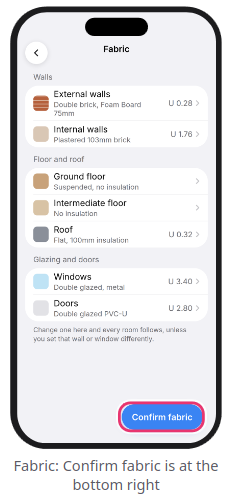
Note: If you change a material after tapping Confirm fabric, the fabric status resets to unconfirmed—remember to tap Confirm fabric again before leaving.
Overriding a single wall or window
If an extension or specific wall is built differently from the rest of the property:
-
Open the wall in the Room Editor (or during Step 1 of the room walk).
- Tap
Built Ofand select the new material. - When prompted, select
Just This Wall(selectingChange Every Outside Wallupdates the whole house).
Still Need Help?
Contact Support: If you've got further questions, get in touch with our support team at help@heatpunk.co.uk (UK) or help@heatpunk.ie (IE). If you are experiencing a bug, to help us look into your issue faster, please include the email address of your account, the name of the project and screenshots of any unexpected behaviour.