Performance and Consumption
Performance Task (UK)
The Performance Task in Heatpunk was updated on 17 March 2025 to be compliant with the new version MCS calculation methods outlined in the updated MCS 031: Heat Pump Pre-sale information and performance calculation standards.
Full details of the MCS standard can be found here: mcscertified.com/an-update-to-mcs-031-the-heat-pump-pre-sale-information-and-performance-calculation.
Compliance with this update is mandatory from 18 March 2025.
How this update affects existing projects
Any existing Heatpunk projects with completed MCS performance estimates prior to this date will remain unchanged within Heatpunk, with the option to switch to the new version: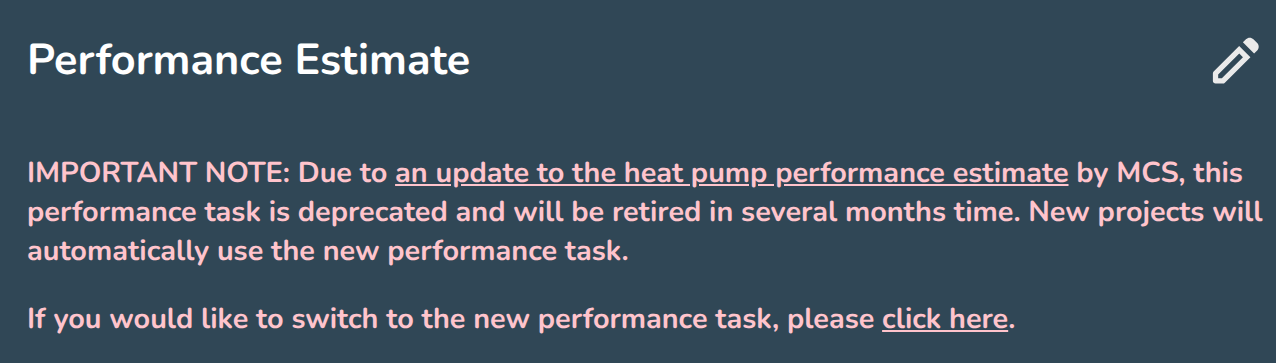
It's recommended that completed project reports are downloaded as PDFs and copies are kept for your records.
How the new task works:
Enter the performance task in your project:
Step 1 - Proposed system:
- Set the purpose of the system: Heatpunk will set the default based on your project settings. If you have added a DHW cylinder then it will assume "space heating and hot water" but this can be overridden if the estimate is being performed prior to the full design being completed.
- Set the Emitter type(s): Again Heatpunk will default based on the emitters added to your design but if you are completing the performance calculation prior to the full design you can adjust this as needed:

- If UFH is selected you will then need to select a type:

Step 2 - Property Details:
For MCS compliance this step needs to be completed using EPC data
Fill out the energy demand for space heating, hot water and total property floor-space from a valid EPC:
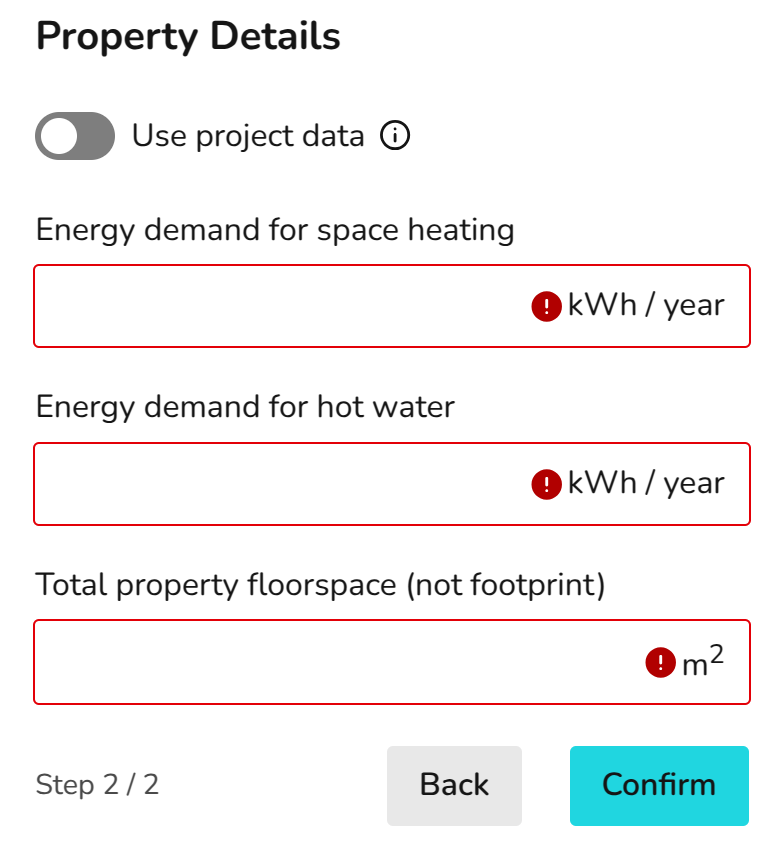
You may choose to switch to project data, doing this will populate the fields from Heatpunk, with a degree day calculation used to give the kWh "energy demand for space heating" figure, and the "energy demand for hot water" coming from the DHW storage selection. To comply with MCS, users must use EPC data to complete the performance calculation. You may then provide a subsequent performance estimate using project data, but you must explain the difference between the two estimates to the customer.
Step 3 - MCS Performance Results:
Heatpunk will do the rest! 
The MCS performance estimate uses 'Outdoor Low Temperature' from the CIBSE guide A 99.6th percentile. This may vary from the project ODT if it has been left on the default 99th percentile temperature. The average watts per square metre is calculated based on the kWh data provided (as per MCS 031) and so when using EPC data this will likely vary from the "project data" values calculated by Heatpunk.
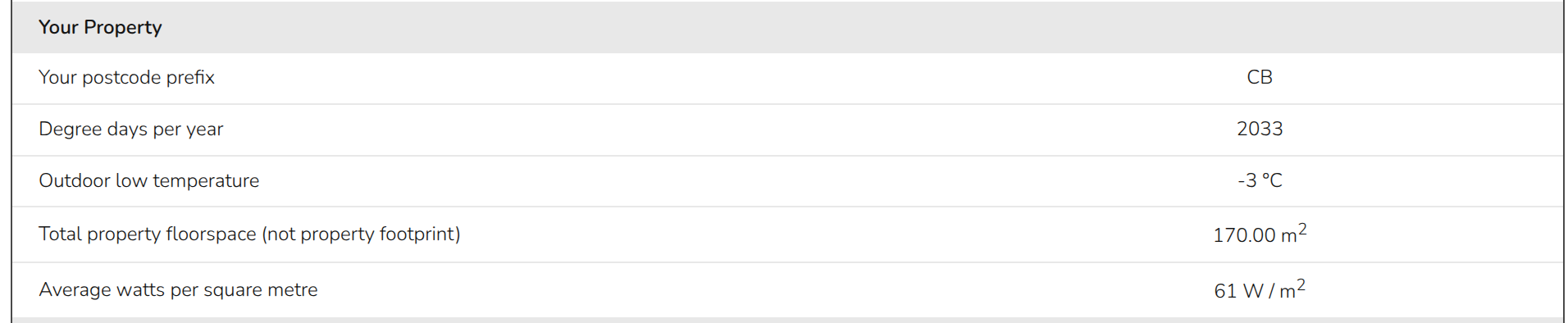
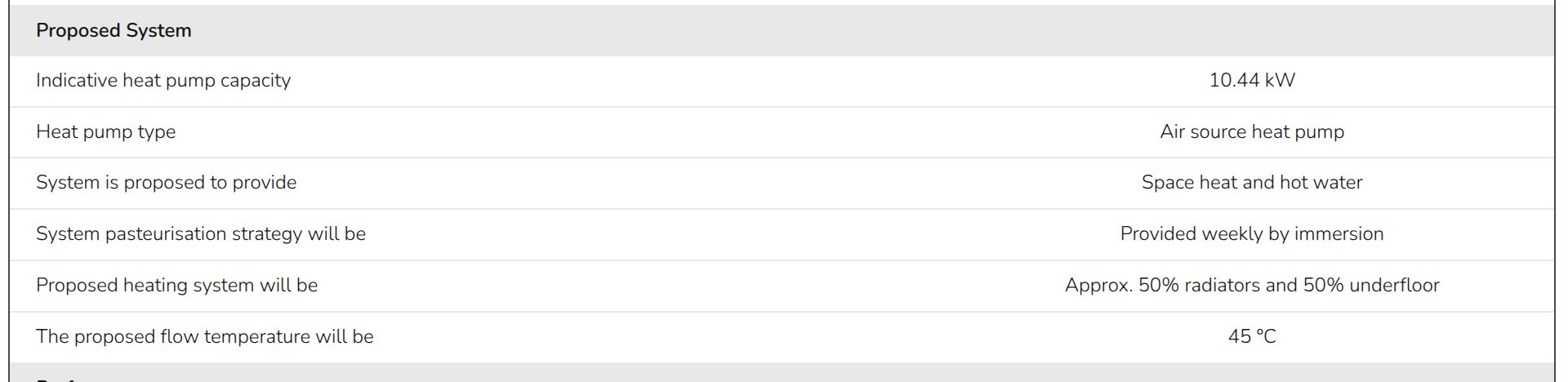
The calculated watts per square metre is then used to give an indicative heat pump capacity, which again may be different than the from your Heatpunk project when using EPC data. If the full heat loss calcs have been done with Heatpunk and the project data has been used to give the estimate, then this value should be closer to the output power of the heat pump being used.
"System pasteurisation strategy" is pulled directly from the DHW storage settings in the heat pump task, and so can be adjust there. This also applies to the proposed flow temperature, with it being pulled from the flow temp slider in the same task.
Rather than using SCOPs as per the previous MCS performance calculation, the new version uses SPF (seasonal performance factor) which is pulled from Table 2: Heat emitter guide of MCS 031 depending on the property specific heat loss (W/m2) and the flow temperature.
This SPF will then be used give an estimate of electricity consumption for space heating. A set performance factor of 1.7 is used for water heating, and the method for system pasteurisation is detailed in MCS 031. The combined estimate of electricity consumption is then converted into a high and low estimate of +/- 10%.
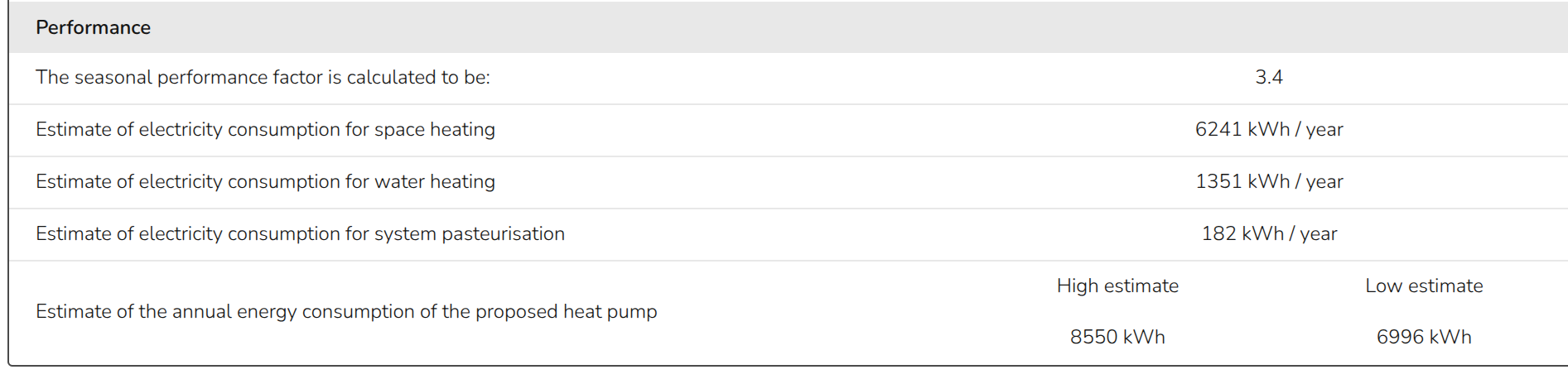
The results of this calculation will be given in the "MCS 031 Performance Calculation" report when using EPC data, as well as the technical report and customer proposal. If the task has been completed using project data, it will not generate the separate MCS 031 report but it will give a performance estimate in the technical report and customer proposal.
Notes
The full table (Table 2: heat emitter guide) is given on page 16 of MCS 031 standard (https://mcscertified.com/wp-content/uploads/2025/01/MCS-031-Heat-Pump-Pre-Sale-Information-and-Calculations-Issue-4.0.pdf).
On the right hand side of the performance task we will display any relevant notes about the system:
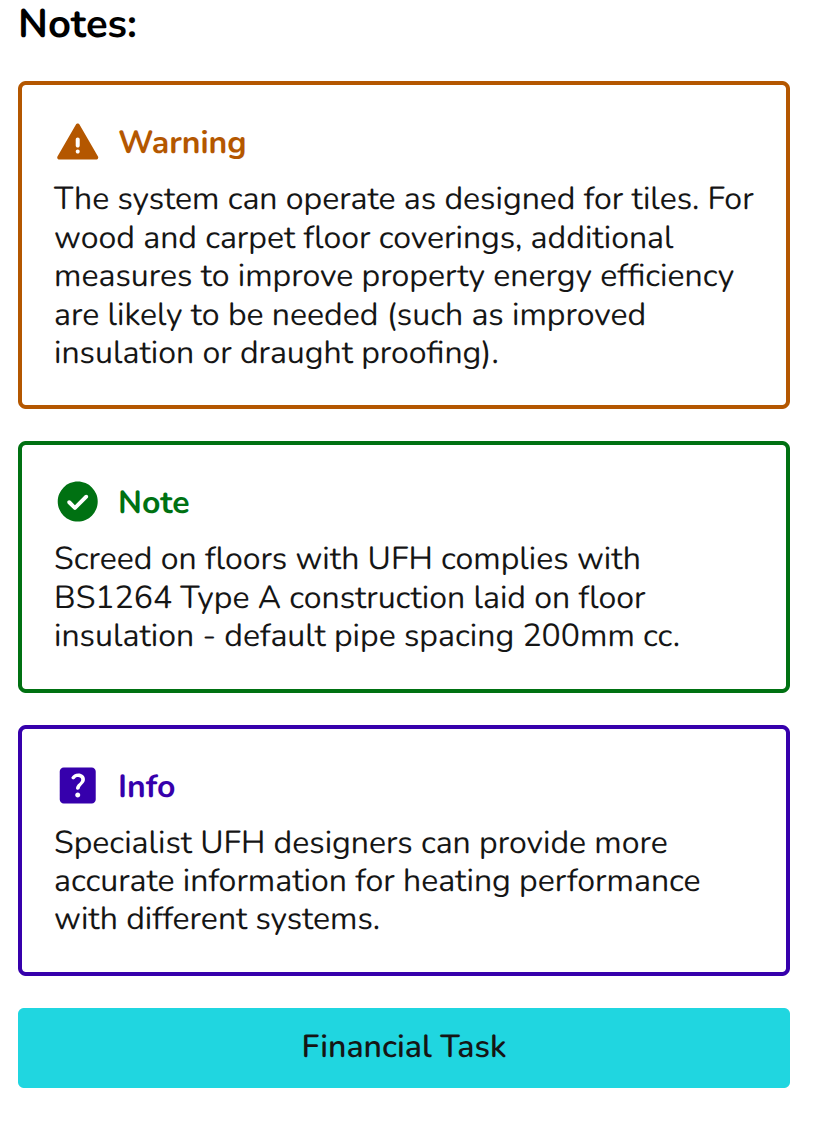
You may need to adjust the proposed flow temp, heat emitters used, or the lower the watts per square metre heat loss (improve building fabric) in order to generate a viable proposal.
Consumption Task
The Consumption Task gives you a complete picture of how a customer’s energy use and running costs will change when switching to a heat pump – including optional modelling for solar PV and batteries. This will help you build trust, handle cost‑related questions with confidence, and present proposals that feel complete, transparent and genuinely helpful.
- Benchmark heat pump costs and savings against other energy sources
- Model how different tariffs affect costs and savings
- Include benefits when paired with solar PV and battery storage
- Forecast the long‑term costs and benefits
- Present clear, data‑driven projections that build confidence in your proposals.
Getting started with the Consumption task
You can access the consumption task via the 'Tasks' drop-down menu or from the task list to the left on the project overview page.
When the Consumption Task opens, a popup will appear. Here, you can configure the settings for calculating the new and old system's consumption. You also have the option to factor in any benefits from solar and a battery.
Navigating the Consumption task
Once you have completed the consumption task inputs, you can then view the insights on the left. In the top right you will also have the following options:
|
|
Edit inputs Update the electricity, hot water and space heating consumption, energy comparison and solar information |
|
|
Help Access this help page directly. |

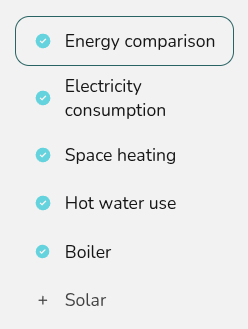
The right-hand sidebar includes options to help you navigate through the different sections of insights.
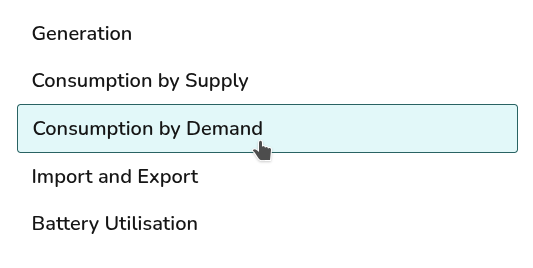
Where solar has not been included Consumption by Supply and Import and Export tabs will not display. Where a battery has not been included, Battery Utilisation will not display.
Consumption task inputs
Energy comparison
Select what you would like to compare the cost and energy usage of the heat pump against for space heating and hot water. You can also select whether you'd like to factor in a solar PV array and a battery.
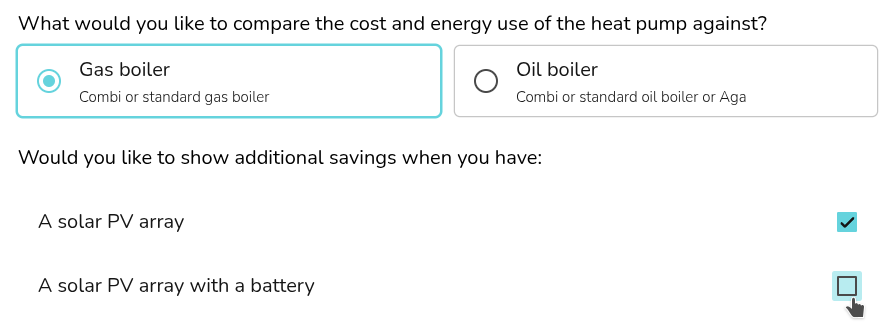
Details for the existing gas boiler and solar system are input in later sections.
UK users can select here whether you'd like to use the SCOP (based on the heat pump and flow temperature selected in the heat pump task) or the SPF (based on MCS 031 and calculated in the the performance task). For IE users, Heatpunk will use the SCoP.

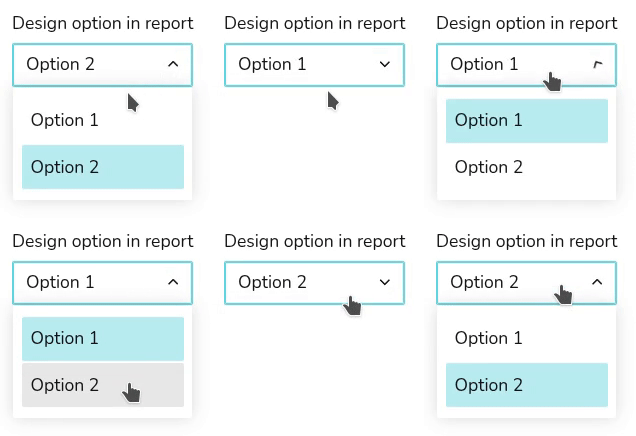
In this section you can also edit your design option:
Electricity consumption
Annual electricity consumption
You can select from the following options to set the annual consumption:

Expand the sections below for more details on these options.
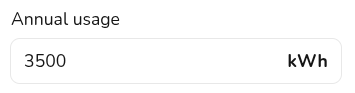
Annual usage
If you know the annual consumption in kWh (for example from an electricity bill) you can enter it here in the annual usage field.
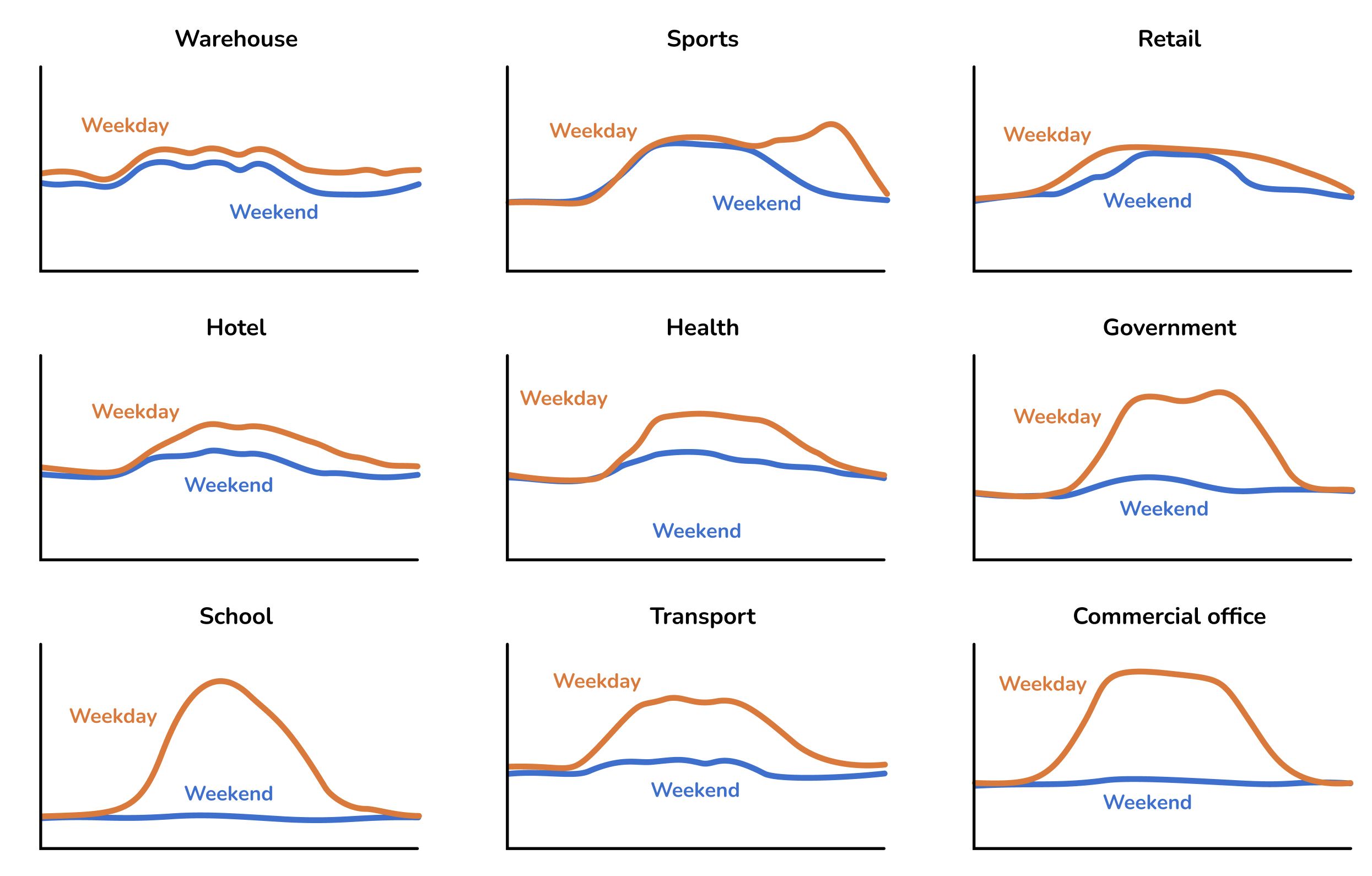
When you use this option you can choose from a variety of domestic and commercial consumption profiles, the consumption profile determines how the energy is used within a week and throughout the year.
The following commercial profiles are available
Meter data
If the property has a smart meter you can upload half-hourly data to get a more accurate projections. The data should ideally span at least a year (but if it contains a minimum of 6 months our algorithm will automatically attempt to fill in gaps where they are detected).
The file must have a .csv file extension. If your data is in another format you can export it as csv from Excel, Google Sheets, Libreoffice or any other spreadsheet editor.
Note that there are many different CSV formats for smart meter data, and we don't support all of them yet. If your upload doesn't work, please send us the spreadsheet at help@easy-pv.co.uk or help@easy-pv.ie and we will see if we can add the format. You can also download our sample spreadsheet here and change your data into this format.
Not sure
If you don't know the electricity consumption in the property and it's domestic, you can use a typical values for the size of property provided here.

These options will assume a domestic consumption profile.
Tariffs
Here you should select the tariffs used. You can select from the drop down or you can create and select a new tariff by selecting + New import/export tariff. Read more about creating tariffs here.
Space heating
Choose the annual space heating demand using Heatpunk's heat loss model or by entering a custom value.

This, along with the relative efficiencies of the systems, will be used to estimate the annual electricity or gas consumption required for this level of heating.
Hot water use
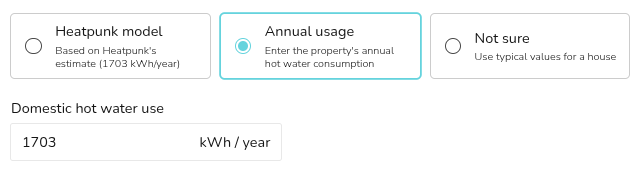
Choose between the Heatpunk model, inputting a custom value or selecting from typical values based on house size.
Boiler
In this section you are specifying important details about the existing system to help estimate the current running costs and potential savings. What displays here depends on what option you are comparing with.
- Gas tariff / Oil price: this will be used to estimate the customers current boiler running costs to be compared with the heat pump running costs.
- Boiler efficiency: this will be used to estimate how much gas/oil is needed to meet the space heating and hot water demand.
- Standing charge (optional, if comparing with gas boiler): this will be added as an additional saving if the customer will be able to disconnect from gas.
Solar
Here you can model a solar array and battery. Select these options under the Energy Comparisons tab if you would like to include them in the model.
For each roof, input the pitch, orientation, array size and level of shading. Add new solar arrays as necessary.
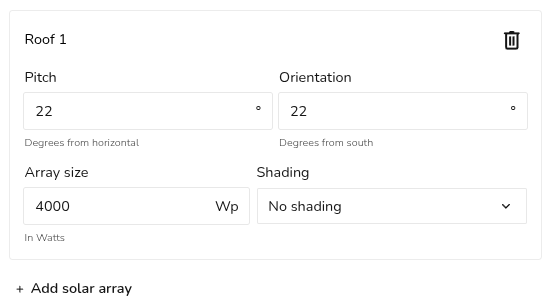
If a battery is being included, add the capacity and charge rate.
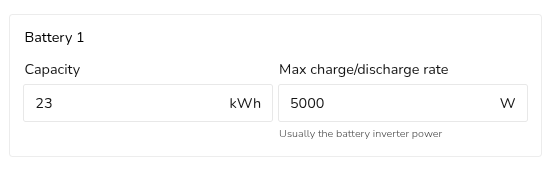
This will then be used to estimate the performance using the method stipulated in MCS 032. If you're using Easy PV - see where you can find these values here.
Editing and Creating Tariffs
Creating a new tariff
1. Set the name of tariff
This name will appear in the quote wording.
2. Set the scope of tariff
Set when you want to be able to use this tariff - just this project, in all projects or accessible to all team members if you're in a pro team.
Once the scope of the tariff has been set, this cannot be edited.
What is the scope of tariff for?
 |
Project level
|
 |
User level
|
 |
Team level
|
3. Input the price bands
Flat tariff: Input a value for the base rate and select save.
Variable tariff: Input each different tariff rate. The first band you enter will be used as the base rate - any time period that doesn't have a price band applied will be priced at this rate.
If you're using £, ensure you're putting this in in p. This value should be greater than 1 (so 15, not 0.15).
4. Set tariff periods (if using variable tariff)
In the tariffs period section you will be able to select the different price bands and indicate when they apply. For some tariffs different rates might apply at the weekend, you can select the days for which the tariff period applies.
Editing existing tariffs
You can view and edit your tariffs from within the consumption task in your projects. Click Edit tariffs on the right side-bar and then Manage tariffs. Then you will see the following options:
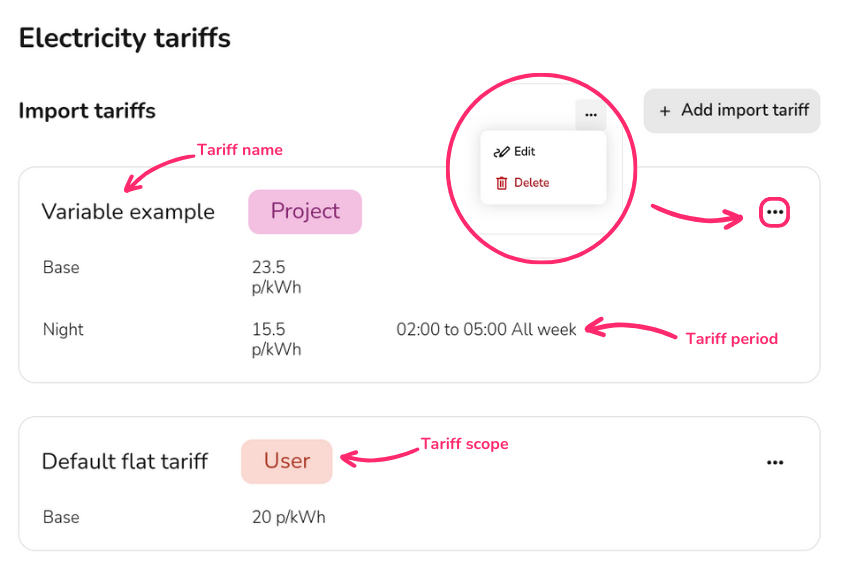
When editing tariffs you can change any of the details, except the tariff scope, but note that any changes you make will affect previous projects that use these tariffs.