If you select *No Presets* and create a palette through a project, it **will not save** to your material library.
[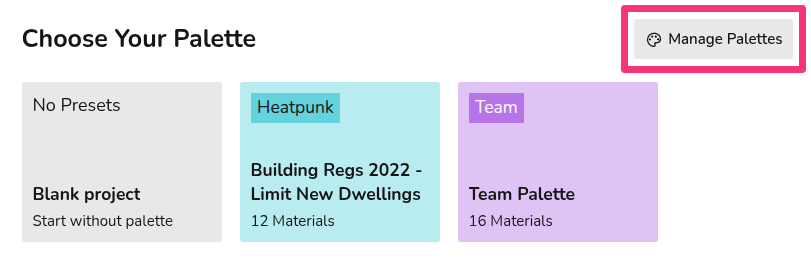](https://help.heatpunk.co.uk/uploads/images/gallery/2026-01/qxbzem4axGJC4CNd-image.png) In your material library, you will be able to **view** and **edit** all your material palettes and **create new ones**. Each palette will have a three-dot menu in the top right which will give the following options:| [](https://help.easy-pv.co.uk/uploads/images/gallery/2025-11/8gb7pLeezNV2Vyih-6m6gz1njnegppmzb-edit.jpg) | **Edit palette** Make changes to the palette. This will not affect projects already using this palette. |
| [](https://help.easy-pv.co.uk/uploads/images/gallery/2025-09/jMO6FxliPQuscMfZ-image.png) | **Clone palette** Make a copy of the palette. |
| [](https://help.easy-pv.co.uk/uploads/images/gallery/2025-09/UcWzpF4HY8xhSg91-image.png) | **Delete palette** Remove the palette from your library. This will not affect projects already using this palette. |
See [here](https://help.heatpunk.co.uk/books/creating-a-floor-plan/page/choosing-a-material-palette "Using Material Palettes within projects") for information on **editing a palette within a project**.
In the top right you can **create a new palette**. [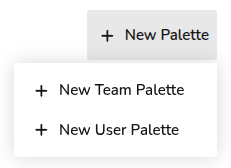](https://help.heatpunk.co.uk/uploads/images/gallery/2026-01/PTCprknlCLLYIFHS-image.png) --- ## Creating a palette See the video and steps below to find out how to create a palette. 1. Click ***+ New Palette*** in the top right, then ***+ New Team/User Palette***. 2. Input the name of the palette and click *OK*. 3. Click on the new palette to add materials. 4. For each section (External walls, Windows, etc.) select the materials you would like to be included in the palette. 5. Click the star next to the material you'd like to be the **default** one used for this palette. 6. Once you have added all the materials you need to a section, click *Next* on the bottom right or navigate to the next section directly from the sidebar. 7. Once you have entered a material for each section and completed your palette then click *Home* on the bottom left to finish.**Default** **materials** (starred) are automatically selected in floor plans, but this can be easily **[overridden or edited](https://help.heatpunk.co.uk/books/creating-a-floor-plan/page/choosing-a-material-palette "Using material palettes (hidden)")** on a per-project basis.
You will then be able to select this palette on any new projects. Please note: - Pre-set materials are based on CIBSE's Domestic Heating Guide, if you can't find the material you need, you can [create a custom material](https://help.heatpunk.co.uk/books/creating-a-floor-plan/page/custom-materials "Custom materials"). - Some floor materials will not list the u-value. This is because in the MCS calculation, floor U-values are dependent on the area of the room and the number of edges which are external and are calculated per room. - Standard users will only be able to make user-level palettes. Pro users will be able to create team-level palettes that will be available when pro team members create a project. ### Incomplete palettes Incomplete palettes will save but will not be selectable on projects. [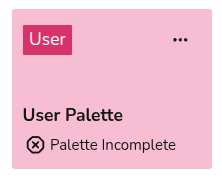](https://help.heatpunk.co.uk/uploads/images/gallery/2026-01/6iqu3kVrdbWGZdIc-image.png) Each section needs **at least one material**, but only materials used in a project will be displayed on reports. The **!** symbol next to each section title signifies that the section is incomplete. Make sure each section has a material, even if you do not plan to use it. [](https://help.heatpunk.co.uk/uploads/images/gallery/2026-01/n1i5HeUc2KxBNl38-image.png) --- ## Still Need Help? / Want to know more? - **Related FAQs:** Check out our [Plans task FAQs](https://help.heatpunk.co.uk/books/faqs/chapter/plans-task-creating-a-surveyed-floor-plan) for answers to common questions - **Further guides**: Take a look at our [Plans task help guides](https://help.heatpunk.co.uk/books/plans-task) - **Live training:** [Book onto a live demo session](https://cal.com/midsummer-energy) to see this feature in action **Contact Support:** If you've got further questions, get in touch with our support team at **help@heatpunk.co.uk** (UK) or **help@heatpunk.ie** (IE). *If you are experiencing a bug, to help us look into your issue faster, please include the email address of your account, the name of the project and screenshots of any unexpected behaviour.* # Choosing a material palette When you create a project, you will be prompted to select a [material palette](https://help.heatpunk.co.uk/books/plans-task/page/managing-your-material-palettes-and-library "Material palettes and library"). This palette determines the composition of the walls, floors, windows, doors and radiators that can be used within a project. Click on each palette to preview what materials are selected for each section (External Wall, Internal Wall, Floor, etc.). You will be able to make adjustments to the selected palette from within the Plan task. Once selected, click *Use Palette* in the bottom left. [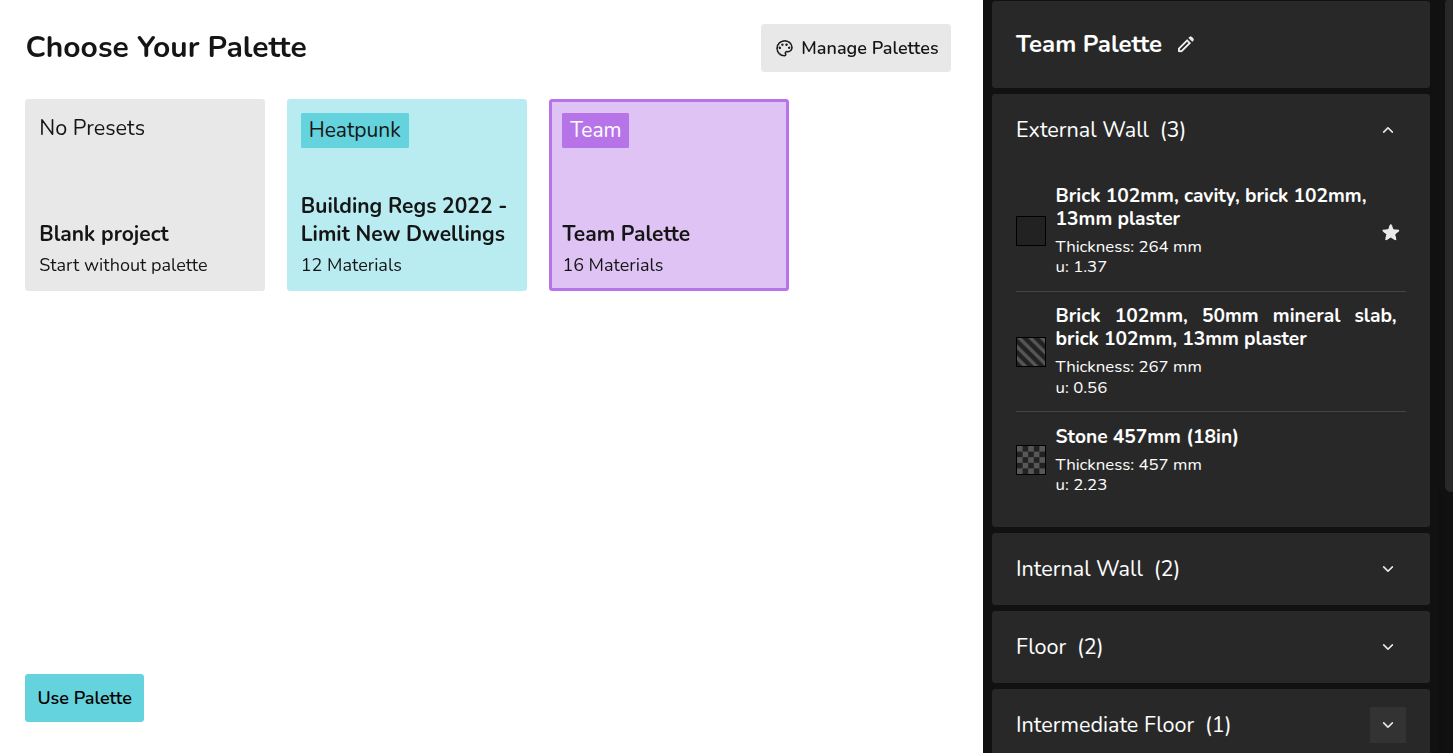](https://help.heatpunk.co.uk/uploads/images/gallery/2026-01/iUCVm59w3To23Usv-image.png)If you select *No Presets*, you can build a palette from scratch but this will not save to your material library. Click *Manage palettes* in the top right to navigate to your material library to [create default palettes](https://help.heatpunk.co.uk/books/plans-task/page/managing-your-material-palettes-and-library#bkmrk-creating-new-palette) or edit existing ones.
### **Using a palette in a project** When creating your floor plan, the **default** (starred) materials will be used for each external wall, internal wall, floor, etc. Each material has a **key** (patterned square) so you can see where each is being used in the floor plan. Click on each component to **view the full material details** and **make changes**.[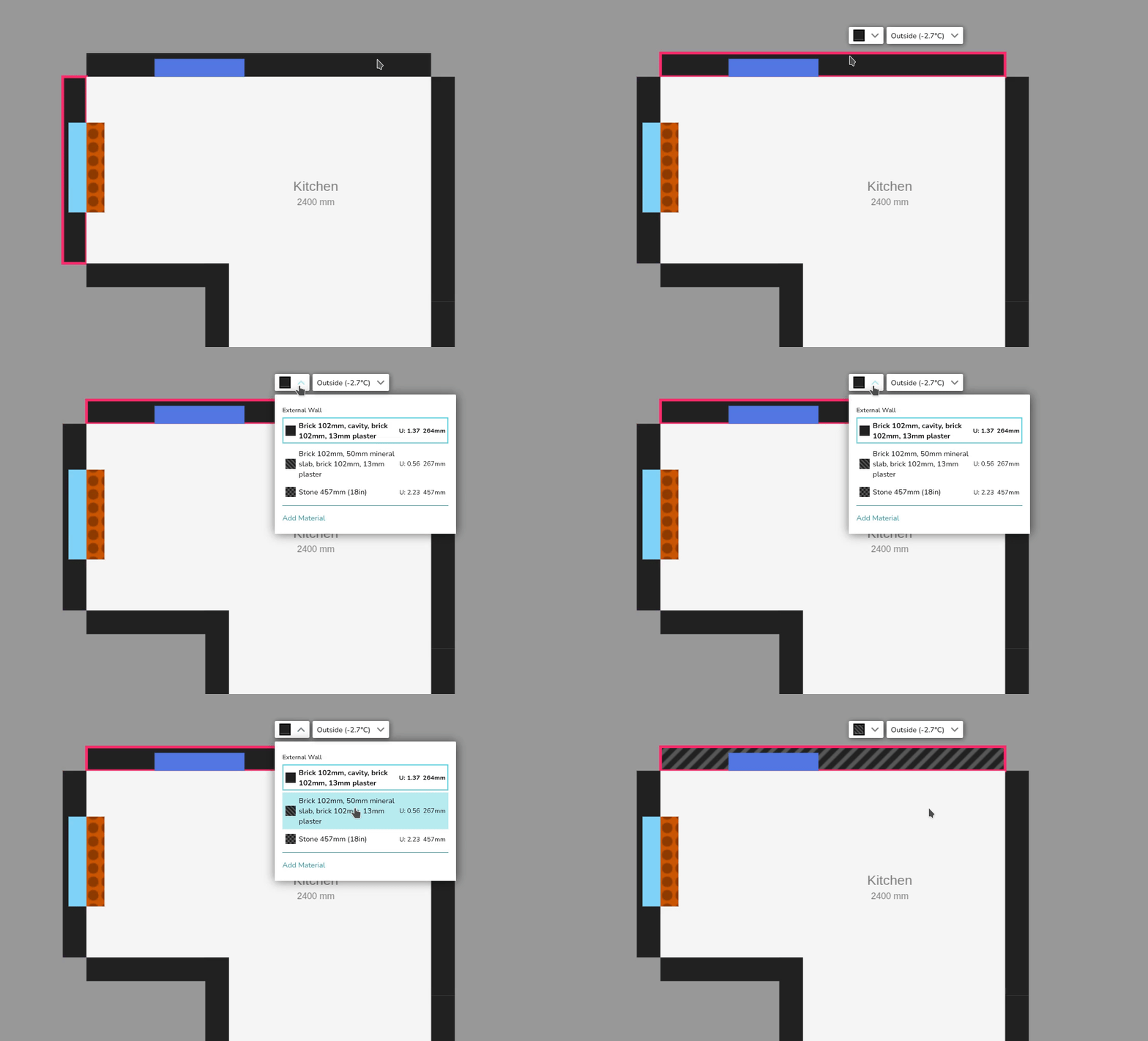](https://help.heatpunk.co.uk/uploads/images/gallery/2026-01/v5lqtUHADDBmGbkq-simplescreenrecorder-2026-01-06-12-51-14-ezgif-com-video-to-gif-converter.gif) ### Editing palette within a project In this same menu, you can click **Add Material** to make project-level changes to the palette. [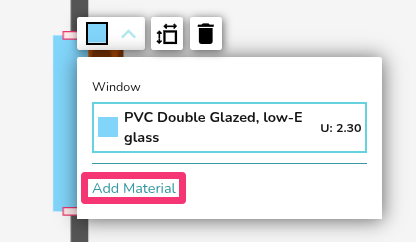](https://help.heatpunk.co.uk/uploads/images/gallery/2026-01/Tki1vWCIZ2585gk0-image.png) Click **Close** in the bottom left to save these changes. --- ## Still Need Help? / Want to know more? - **Related FAQs:** Check out our [Plans task FAQs](https://help.heatpunk.co.uk/books/faqs/chapter/plans-task-creating-a-surveyed-floor-plan) for answers to common questions - **Further guides**: Take a look at our [Plans task help guides](https://help.heatpunk.co.uk/books/plans-task) - **Live training:** [Book onto a live demo session](https://cal.com/midsummer-energy) to see this feature in action **Contact Support:** If you've got further questions, get in touch with our support team at **help@heatpunk.co.uk** (UK) or **help@heatpunk.ie** (IE). *If you are experiencing a bug, to help us look into your issue faster, please include the email address of your account, the name of the project and screenshots of any unexpected behaviour.* # Custom materials When creating or editing a material palette in Heatpunk, you have the option to **create custom materials**. This includes **custom** **walls, floors, roofs, doors, windows and radiators**. ## **Custom materials** To create a custom material, first start by [creating a material palette](https://help.heatpunk.co.uk/books/plans-task/page/managing-your-material-palettes-and-library "Material palettes and library"). Select the relevant section (External walls, Windows, etc.), then in the top right you will see the option to create a custom material. [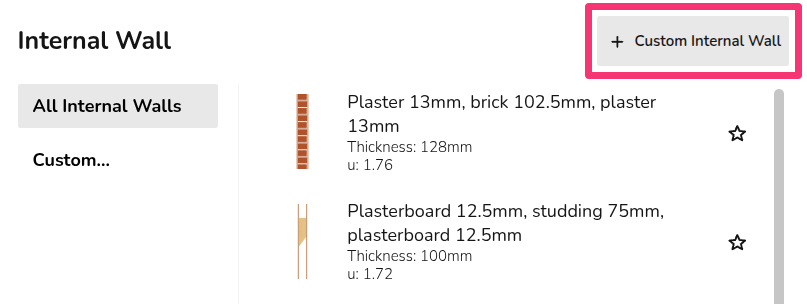](https://help.heatpunk.co.uk/uploads/images/gallery/2026-01/YcGehcZ5U5XDY1an-image.png) There are two options when creating your own material (excluding radiators): - **Build layers** (only for walls and roofs) - **Enter U-value** Custom **radiators** use information from the relevant datasheet.After creating a material (steps below), make sure to **select it on the palette** and star it if you'd like it to be the default material used for that section.
### Managing custom materials across palettes You can view all custom materials you've created across palettes from within a material palette, in the final section on the left-hand sidebar called *Custom*. Click the three-dot menu on the custom material to **edit**, **clone** or **delete it**. Existing projects are not affected by any changes made here. [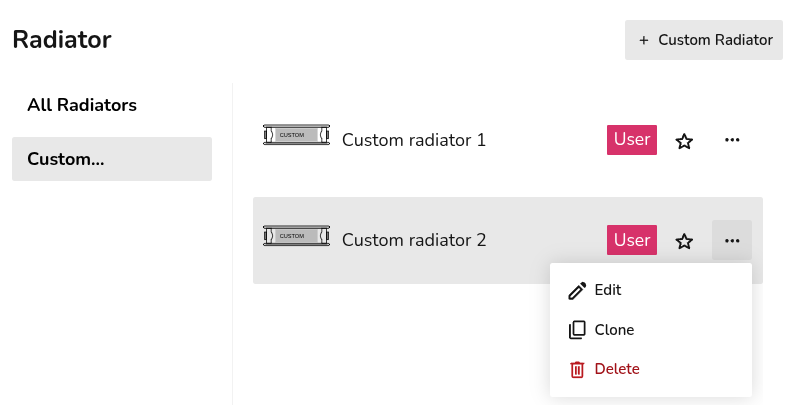](https://help.heatpunk.co.uk/uploads/images/gallery/2026-01/nbxgAZCUYpfJf6J3-image.png)You can only view the custom materials that are within the scope of the palette. For example, if you're creating a team level palette, you will only be able to view team custom materials. Follow the steps below to view and use all custom materials.
When creating a new custom material, you can also **copy the details from existing materials** using the *Copy from* in the top right. Here you will be able to see all custom materials (user and team level) **regardless of the scope of the palette** being viewed. [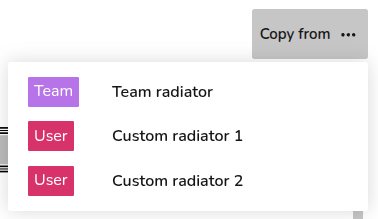](https://help.heatpunk.co.uk/uploads/images/gallery/2026-01/ERnVDmIpsTrMGyhn-image.png) ### Step-by-step #### Custom material using *Build layers* This option is available for custom **walls** and **roofs**: 1. Input the name for the custom material. 2. Select category of material from the drop-down. 3. Select material from the drop-down. 4. Input thickness of that layer. 5. Add row and repeat from step 2 to 4 until each layer is created. 6. Click *Create* in the bottom right. For each layer, Heatpunk will then calculate the k-Factor based on the material and thickness. If you select *Custom* for the material category, you will need to input this k-Factor yourself. The overall thickness and U-value of the material is given at the top. [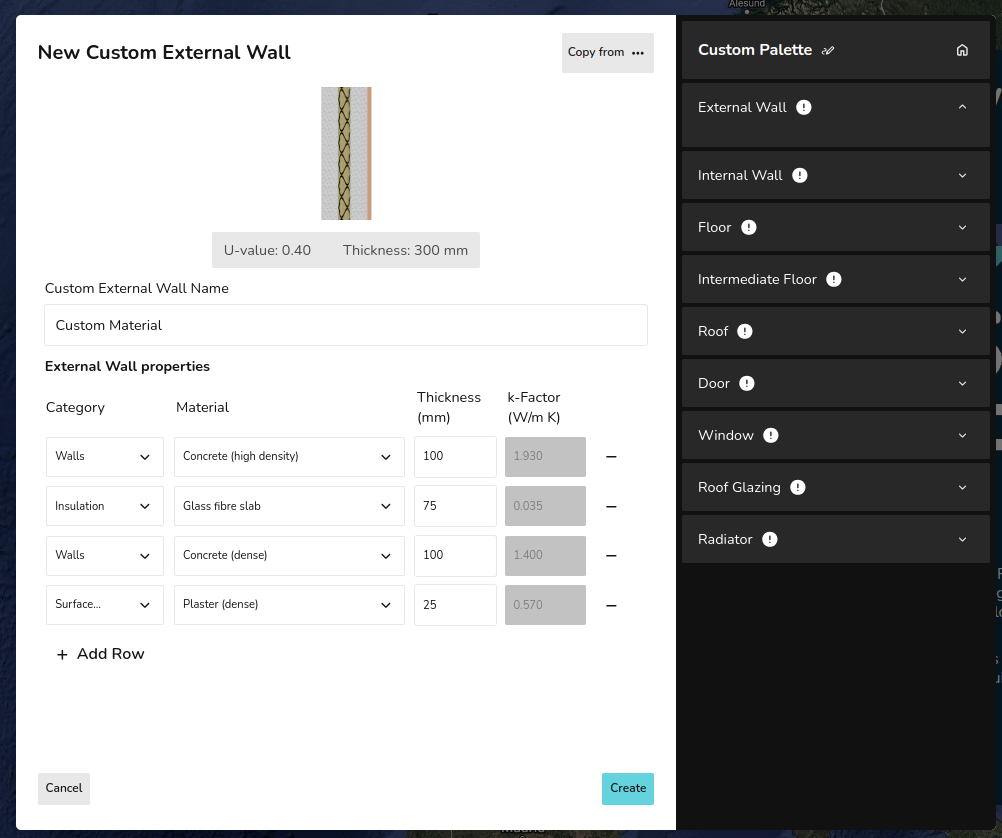](https://help.heatpunk.co.uk/uploads/images/gallery/2026-01/aAeDe6eEAKwUtMBa-image.png) #### Custom material using *Enter U-value* This option is available for all materials (excluding radiators): 1. Input the name for the custom material. 2. Input the U-value and thickness. 3. Click *Create in the bottom right. [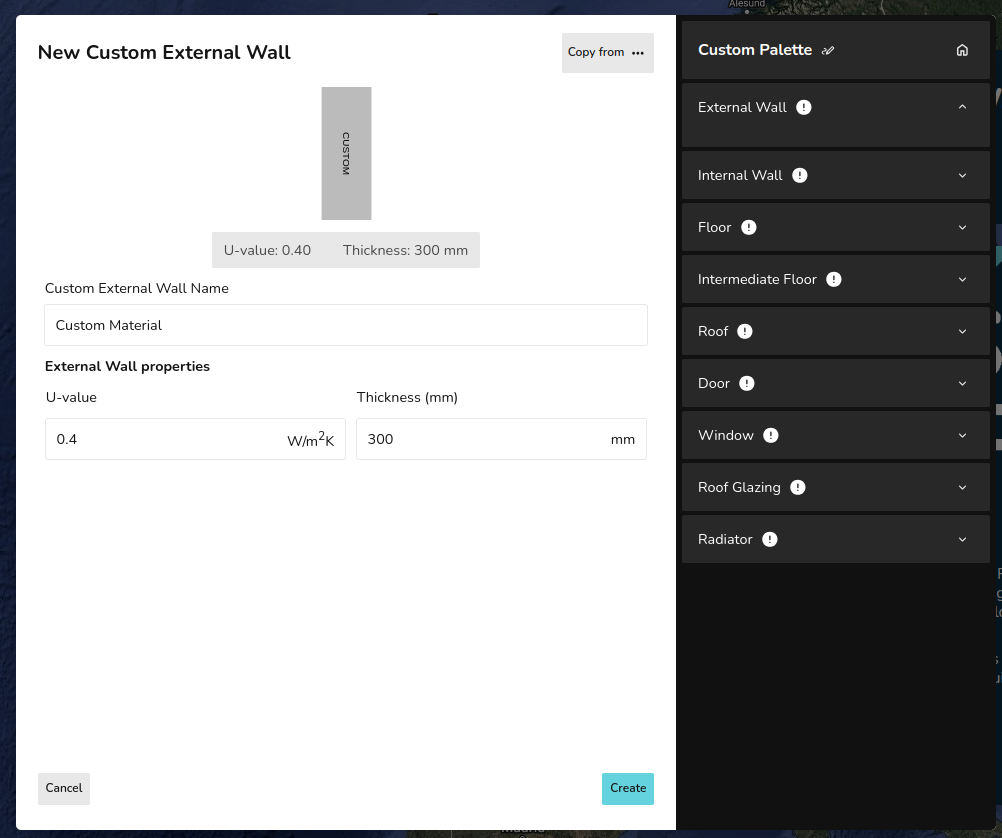](https://help.heatpunk.co.uk/uploads/images/gallery/2026-01/yhwZyCWhaJlyOxiC-image.png) #### Custom radiatorsThe default P+, K1, K2, and K3 radiators in Heatpunk are the Stelrad Classic Compact range. If you are not using these radiators, it's important to create custom radiators so the [outputs](https://help.heatpunk.co.uk/books/faqs/page/how-are-radiator-outputs-calculated) are accurate.
1. Input the name for the custom material. 2. Input the width and height of the radiator. 3. Input the n-coefficient from the datasheet (typically around 1.3) 4. Input the P50 for the corresponding radiator size. 5. Click *Create in the bottom right. [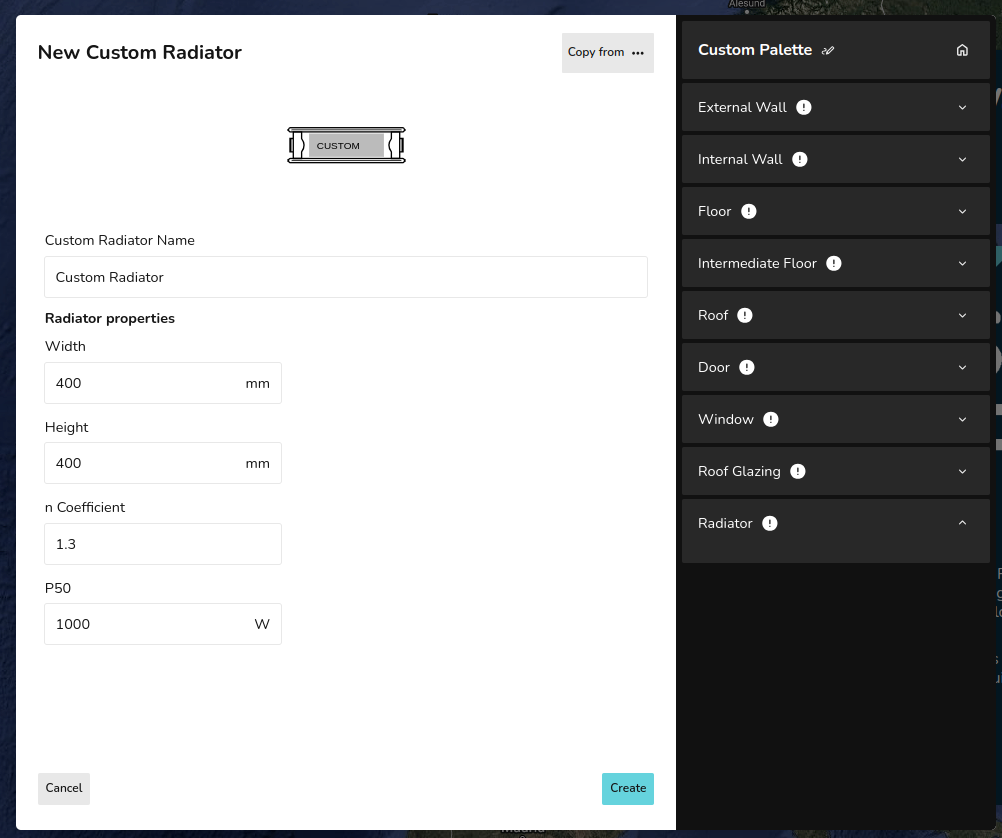](https://help.heatpunk.co.uk/uploads/images/gallery/2026-01/qRSFY3yDozBnDTuC-image.png) --- ## Still Need Help? / Want to know more? - **Related FAQs:** Check out our [Plans task FAQs](https://help.heatpunk.co.uk/books/faqs/chapter/plans-task-creating-a-surveyed-floor-plan) for answers to common questions - **Further guides**: Take a look at our [Plans task help guides](https://help.heatpunk.co.uk/books/plans-task) - **Live training:** [Book onto a live demo session](https://cal.com/midsummer-energy) to see this feature in action **Contact Support:** If you've got further questions, get in touch with our support team at **help@heatpunk.co.uk** (UK) or **help@heatpunk.ie** (IE). *If you are experiencing a bug, to help us look into your issue faster, please include the email address of your account, the name of the project and screenshots of any unexpected behaviour.*