Read more about **[creating a floor plan](https://help.heatpunk.co.uk/books/plans-task/page/creating-a-floor-plan "Creating a Floor Plan")** and how to speed up creating your floor plan by **[uploading architectural plans](https://help.heatpunk.co.uk/books/plans-task/page/pro-importing-floor-plans "Pro: Importing Floor Plans")** with Heatpunk Pro.
All emitters added to the *surveyed plan* will be listed as *Existing* in the Emitters tab. Read more about [emitters](https://help.heatpunk.co.uk/books/plans-task/page/emitters "Emitters") for details on emitter upgrades and UFH. Once you have completed your initial plan, click ***Finish surveyed plan*** at the top. ## Completing design option plan Design options are built on top of the surveyed plan. Here you can model the heat pump, cylinders and emitter upgrades directly onto the plan. [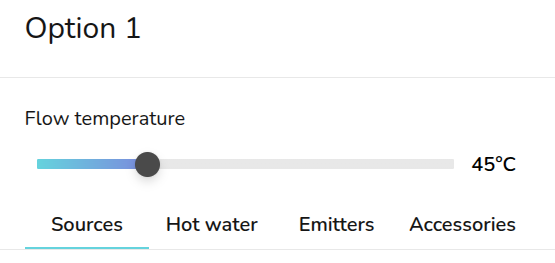](https://help.heatpunk.co.uk/uploads/images/gallery/2026-04/y4FU941YZaIWHfVb-image.png) On the right hand sidebar, you can **adjust the flow temperature** using the slider. From the Sources and Emitters tab, you can view how this affects the heat pump and emitter outputs.Changes made to the **room temperature**, **ACH** and **emitters** are specific to each design option. Changes will not apply across plans. Navigate back to the *surveyed plan* to make any changes to your existing emitters. Any other fabric or layout changes can be made from any design option but will apply to all of them. Read more about **[how design options work](https://help.heatpunk.co.uk/books/drafts-templates-and-archive/page/design-options-3Kw "Design options")**.
### Sources [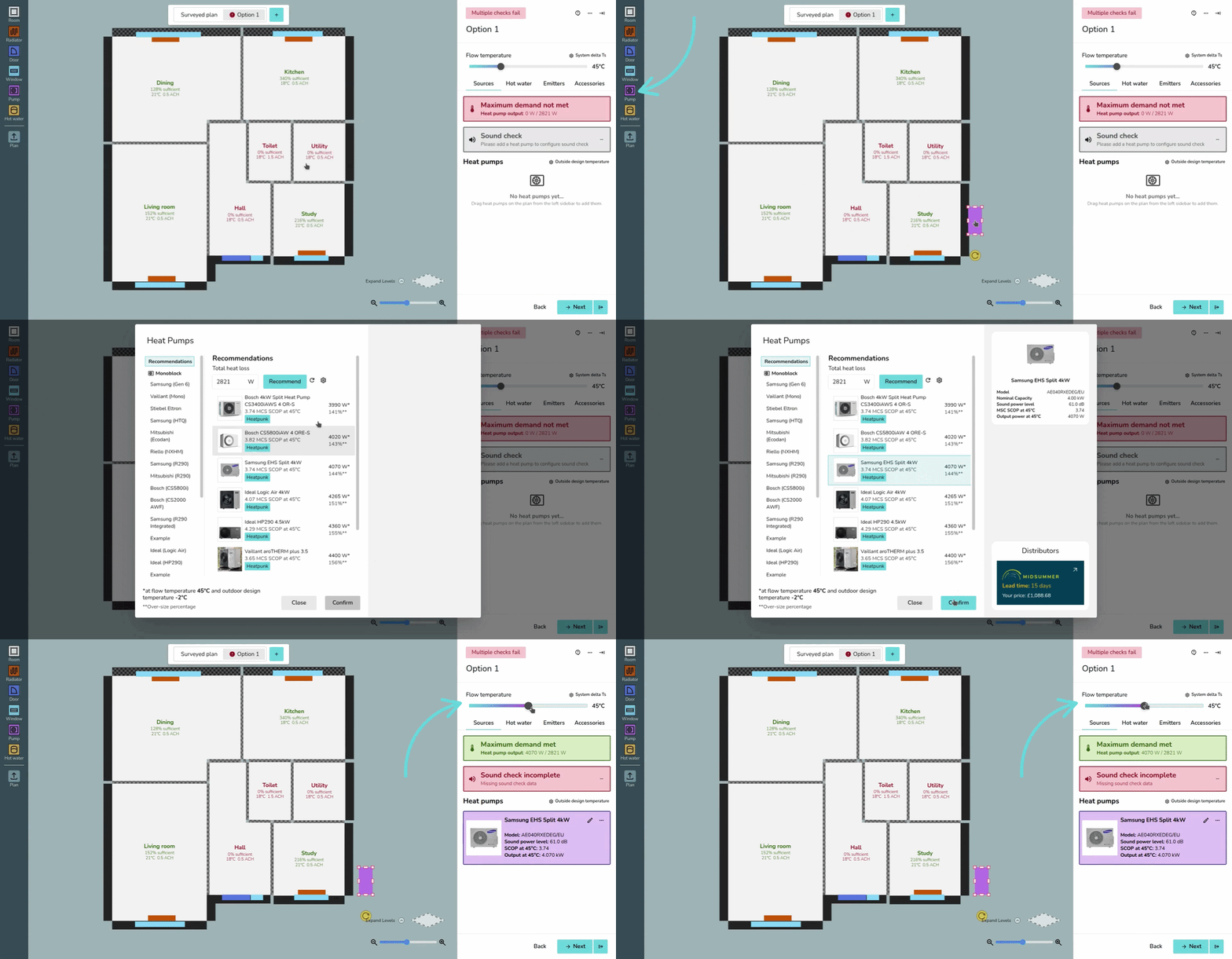](https://help.heatpunk.co.uk/uploads/images/gallery/2026-04/PTdus0mdBXPnJVGo-heatpumpplacement.gif) To add a heat pump, while on a design option drag and drop a *Pump* from the left-hand sidebar. Once you have placed these on the floor plan, a menu will pop up to specify the model. ### Sound check (UK only) heatpunk.co.ukThe sound check status can be seen on the right-hand side. Click the **⋯ three dots** and then the name of the heat pump(s) where the sound check hasn't been completed.Read more about [selecting a heat pump and completing the sound check](https://help.heatpunk.co.uk/books/plans-task/page/sources "Heat sources").
### Hot water [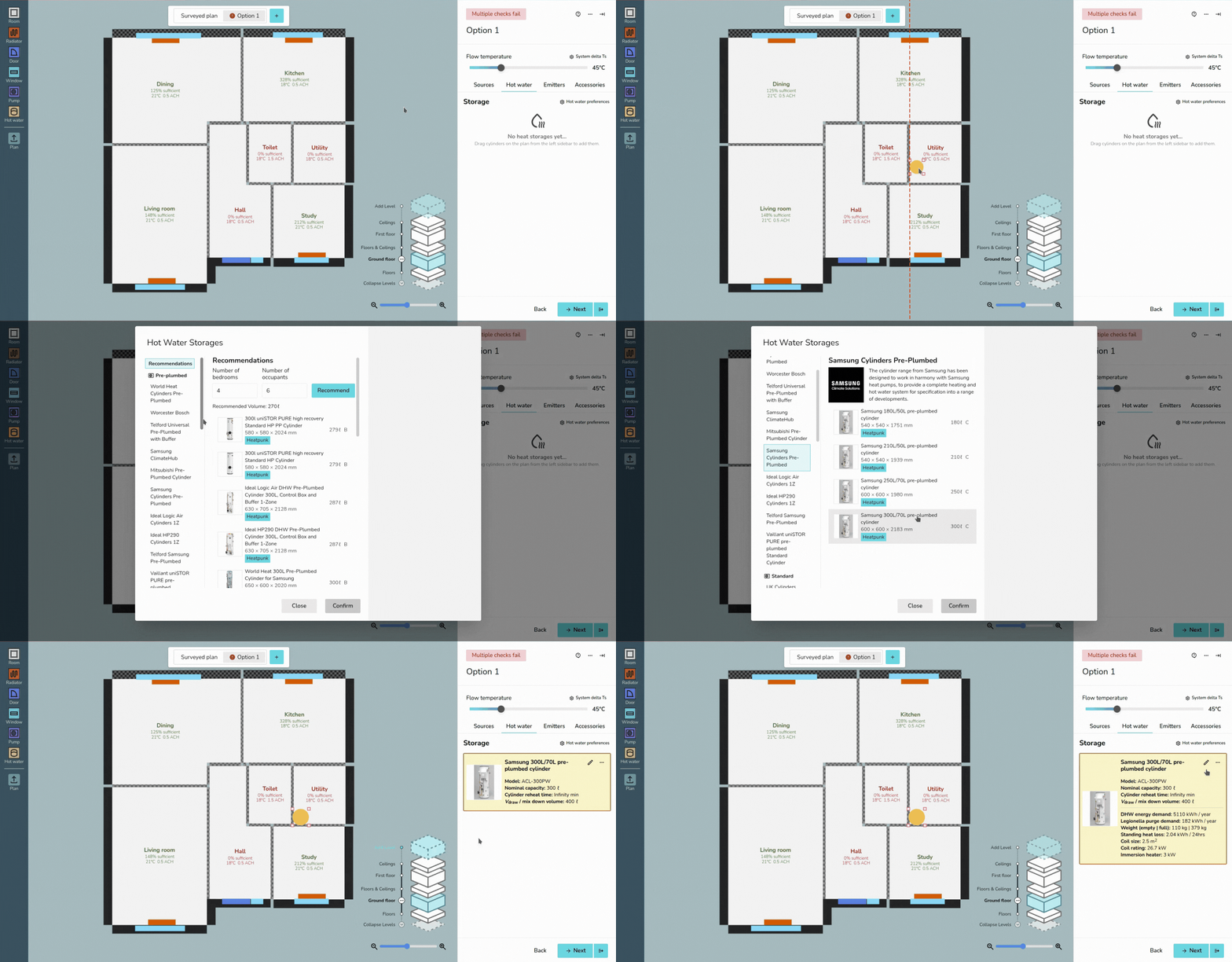](https://help.heatpunk.co.uk/uploads/images/gallery/2026-04/GZuj0C235ygScsya-cylinderplacement.gif) Similarly, to add a hot water storage, drag and drop from *Hot water* on the left-hand sidebar. A menu will then appear to specify the model.Read more about specifying [hot water storage](https://help.heatpunk.co.uk/books/heat-pump-task-and-system-performance/page/hot-water-storage), including information on domestic hot water calculations.
### Emitters From the Emitters tab, you can see the existing, removed and new emitters for each room. You can click the **🡥** icon on each room to see the full room details. You can also add room overrides by clicking the exclamation icon and inputting the reason for the override. [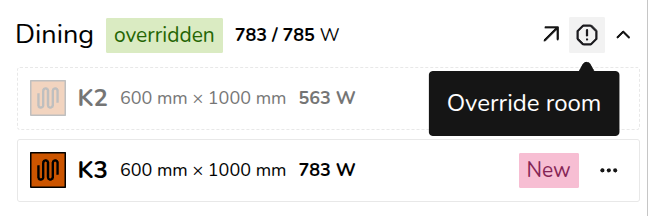](https://help.heatpunk.co.uk/uploads/images/gallery/2026-04/FCxdcsSMauBIV997-image.png) To model emitter upgrades follow the steps outlined below. - To upgrade existing radiators, click on the radiator from the plan and click upgrade. Input the new radiator details and save. - To replace an existing radiator with UFH, delete the radiator from the floor plan and add underfloor heating by clicking the **🡥** icon on each room. Click *Add underfloor heating* and input the output and m2.Read more about [emitters](https://help.heatpunk.co.uk/books/plans-task/page/emitters "Emitters").
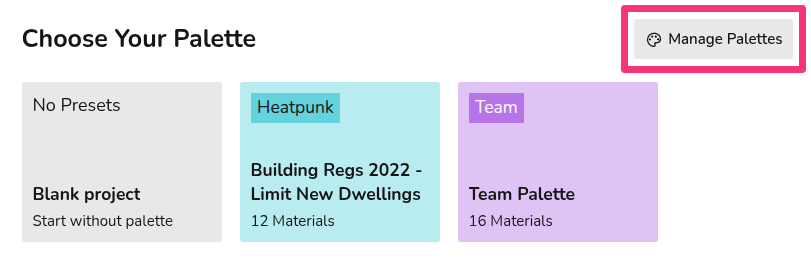
### Accessories Once you have added both a heat pump and hot water storage, a menu will appear to add any accessories. If possible, compatible accessories will be automatically selected. This step can be skipped. [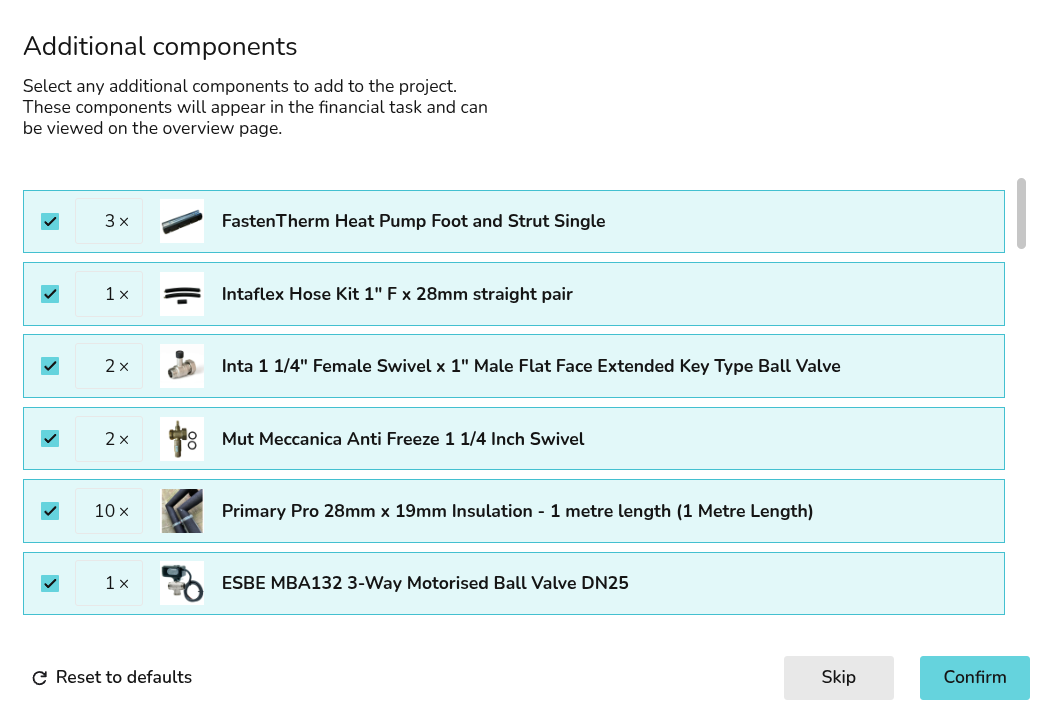](https://help.heatpunk.co.uk/uploads/images/gallery/2026-04/rSsoHAKBvmoaiRO2-image.png) To re-open the accessories menu, navigate to the accessories tab and click **+ Add Accessories**. If you already have accessories selected, click **Edit accessories**. [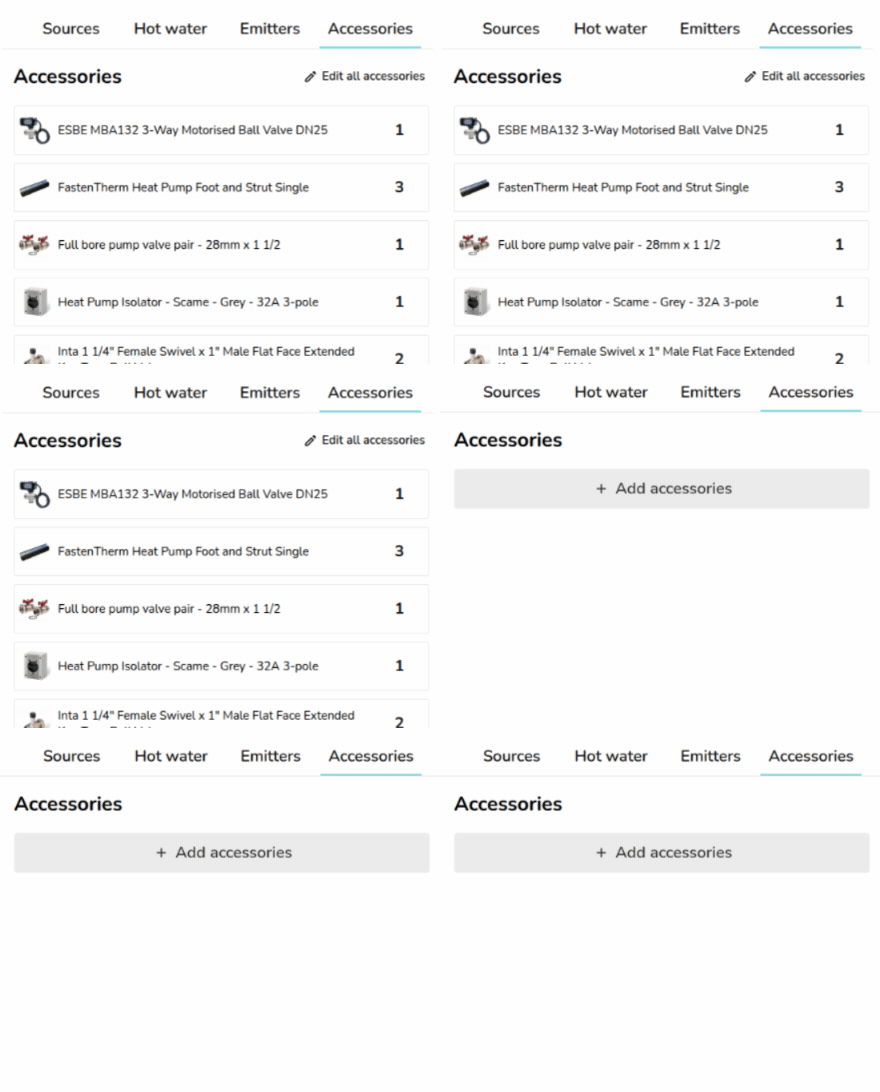](https://help.heatpunk.co.uk/uploads/images/gallery/2026-04/ptSsF62kymJy7yup-download.gif) --- ## Still Need Help? / Want to know more? - **Related FAQs:** Check out our [Plans task FAQs](https://help.heatpunk.co.uk/books/faqs/chapter/plans-task-creating-a-surveyed-floor-plan) for answers to common questions - **Further guides**: Take a look at our [Plans task help guides](https://help.heatpunk.co.uk/books/plans-task) - **Live training:** [Book onto a live demo session](https://cal.com/midsummer-energy) to see this feature in action **Contact Support:** If you've got further questions, get in touch with our support team at **help@heatpunk.co.uk** (UK) or **help@heatpunk.ie** (IE). *If you are experiencing a bug, to help us look into your issue faster, please include the email address of your account, the name of the project and screenshots of any unexpected behaviour.* # Material library and palettes This section covers managing your material library. Skip to creating floor plan or back to the rest of the plans task guides. # Managing your material palettes and library For each Heatpunk project you will need to use a **material palette**. This palette defines the u-value and thickness of the walls, doors, floors, ceilings that make up the property you're modelling. You can create **default palettes** usable on any project via your **material library** or build palettes from scratch for each project. ## Material Library The material library can be accessed from the Heatpunk homepage under *My Material Library*. This library contains all your material palettes. [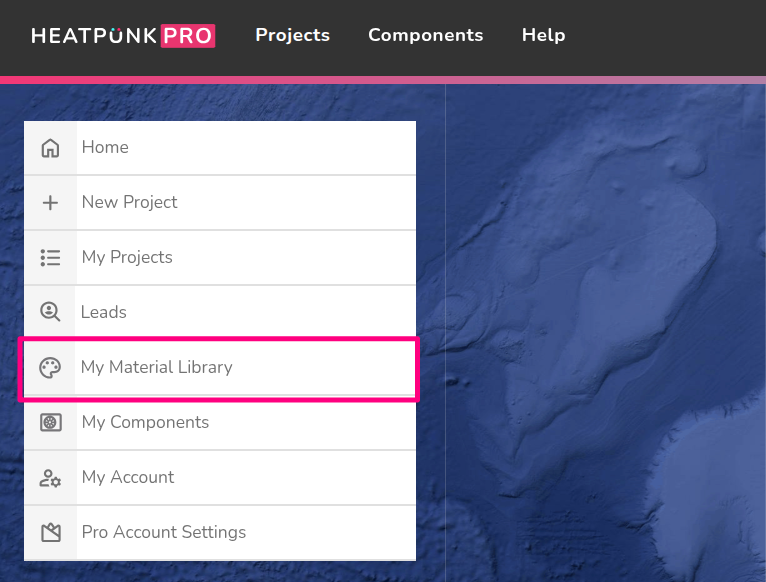](https://help.heatpunk.co.uk/uploads/images/gallery/2026-08/gMvJalChlZVv8yAB-image.png) When you create a project, you will see all your complete palettes and the option to create a palette from scratch (*No Presets*). You can also navigate to the material library from here by clicking *Manage palettes.*If you select *No Presets* and create a palette through a project, it **will not save** to your material library.
[](https://help.heatpunk.co.uk/uploads/images/gallery/2026-01/qxbzem4axGJC4CNd-image.png) In your material library, you will be able to **view** and **edit** all your material palettes and **create new ones**. Each palette will have a three-dot menu in the top right which will give the following options:| [](https://help.easy-pv.co.uk/uploads/images/gallery/2025-11/8gb7pLeezNV2Vyih-6m6gz1njnegppmzb-edit.jpg) | **Edit palette** Make changes to the palette. This will not affect projects already using this palette. |
| [](https://help.easy-pv.co.uk/uploads/images/gallery/2025-09/jMO6FxliPQuscMfZ-image.png) | **Clone palette** Make a copy of the palette. |
| [](https://help.easy-pv.co.uk/uploads/images/gallery/2025-09/UcWzpF4HY8xhSg91-image.png) | **Delete palette** Remove the palette from your library. This will not affect projects already using this palette. |
See [here](https://help.heatpunk.co.uk/books/creating-a-floor-plan/page/choosing-a-material-palette "Using Material Palettes within projects") for information on **editing a palette within a project**.
In the top right you can **create a new palette**. [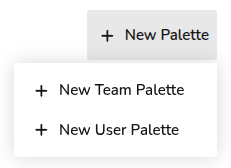](https://help.heatpunk.co.uk/uploads/images/gallery/2026-01/PTCprknlCLLYIFHS-image.png) --- ## Creating a palette See the video and steps below to find out how to create a palette. 1. Click ***+ New Palette*** in the top right, then ***+ New Team/User Palette***. 2. Input the name of the palette and click *OK*. 3. Click on the new palette to add materials. 4. For each section (External walls, Windows, etc.) select the materials you would like to be included in the palette. 5. Click the star next to the material you'd like to be the **default** one used for this palette. 6. Once you have added all the materials you need to a section, click *Next* on the bottom right or navigate to the next section directly from the sidebar. 7. Once you have entered a material for each section and completed your palette then click *Home* on the bottom left to finish.**Default** **materials** (starred) are automatically selected in floor plans, but this can be easily **[overridden or edited](https://help.heatpunk.co.uk/books/creating-a-floor-plan/page/choosing-a-material-palette "Using material palettes (hidden)")** on a per-project basis.
You will then be able to select this palette on any new projects. Please note: - Pre-set materials are based on CIBSE's Domestic Heating Guide, if you can't find the material you need, you can [create a custom material](https://help.heatpunk.co.uk/books/creating-a-floor-plan/page/custom-materials "Custom materials"). - Some floor materials will not list the u-value. This is because in the MCS calculation, floor U-values are dependent on the area of the room and the number of edges which are external and are calculated per room. - Standard users will only be able to make user-level palettes. Pro users will be able to create team-level palettes that will be available when pro team members create a project. ### Incomplete palettes Incomplete palettes will save but will not be selectable on projects. [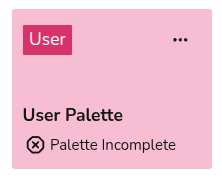](https://help.heatpunk.co.uk/uploads/images/gallery/2026-01/6iqu3kVrdbWGZdIc-image.png) Each section needs **at least one material**, but only materials used in a project will be displayed on reports. The **!** symbol next to each section title signifies that the section is incomplete. Make sure each section has a material, even if you do not plan to use it. [](https://help.heatpunk.co.uk/uploads/images/gallery/2026-01/n1i5HeUc2KxBNl38-image.png) --- ## Still Need Help? / Want to know more? - **Related FAQs:** Check out our [Plans task FAQs](https://help.heatpunk.co.uk/books/faqs/chapter/plans-task-creating-a-surveyed-floor-plan) for answers to common questions - **Further guides**: Take a look at our [Plans task help guides](https://help.heatpunk.co.uk/books/plans-task) - **Live training:** [Book onto a live demo session](https://cal.com/midsummer-energy) to see this feature in action **Contact Support:** If you've got further questions, get in touch with our support team at **help@heatpunk.co.uk** (UK) or **help@heatpunk.ie** (IE). *If you are experiencing a bug, to help us look into your issue faster, please include the email address of your account, the name of the project and screenshots of any unexpected behaviour.* # Choosing a material palette When you create a project, you will be prompted to select a [material palette](https://help.heatpunk.co.uk/books/plans-task/page/managing-your-material-palettes-and-library "Material palettes and library"). This palette determines the composition of the walls, floors, windows, doors and radiators that can be used within a project. Click on each palette to preview what materials are selected for each section (External Wall, Internal Wall, Floor, etc.). You will be able to make adjustments to the selected palette from within the Plan task. Once selected, click *Use Palette* in the bottom left. [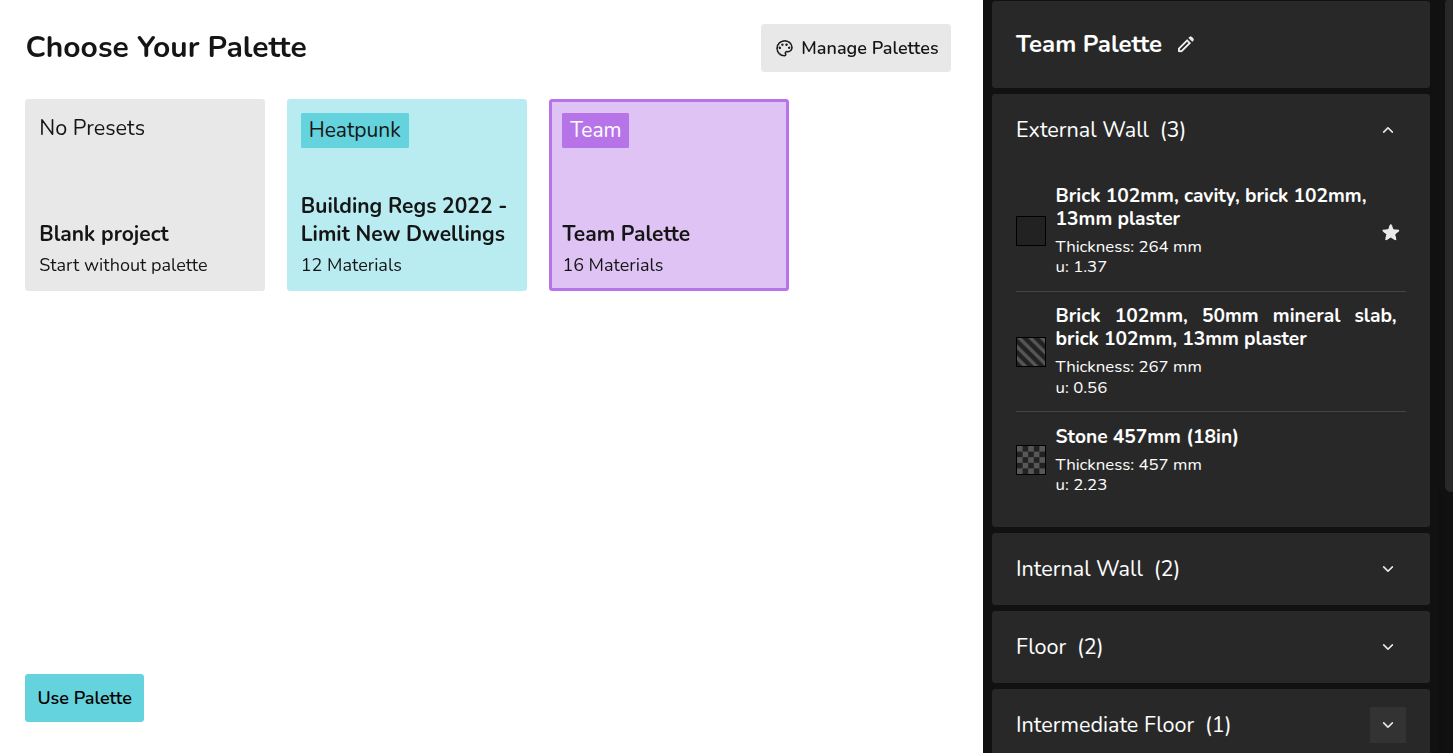](https://help.heatpunk.co.uk/uploads/images/gallery/2026-01/iUCVm59w3To23Usv-image.png)If you select *No Presets*, you can build a palette from scratch but this will not save to your material library. Click *Manage palettes* in the top right to navigate to your material library to [create default palettes](https://help.heatpunk.co.uk/books/plans-task/page/managing-your-material-palettes-and-library#bkmrk-creating-new-palette) or edit existing ones.
### **Using a palette in a project** When creating your floor plan, the **default** (starred) materials will be used for each external wall, internal wall, floor, etc. Each material has a **key** (patterned square) so you can see where each is being used in the floor plan. Click on each component to **view the full material details** and **make changes**.[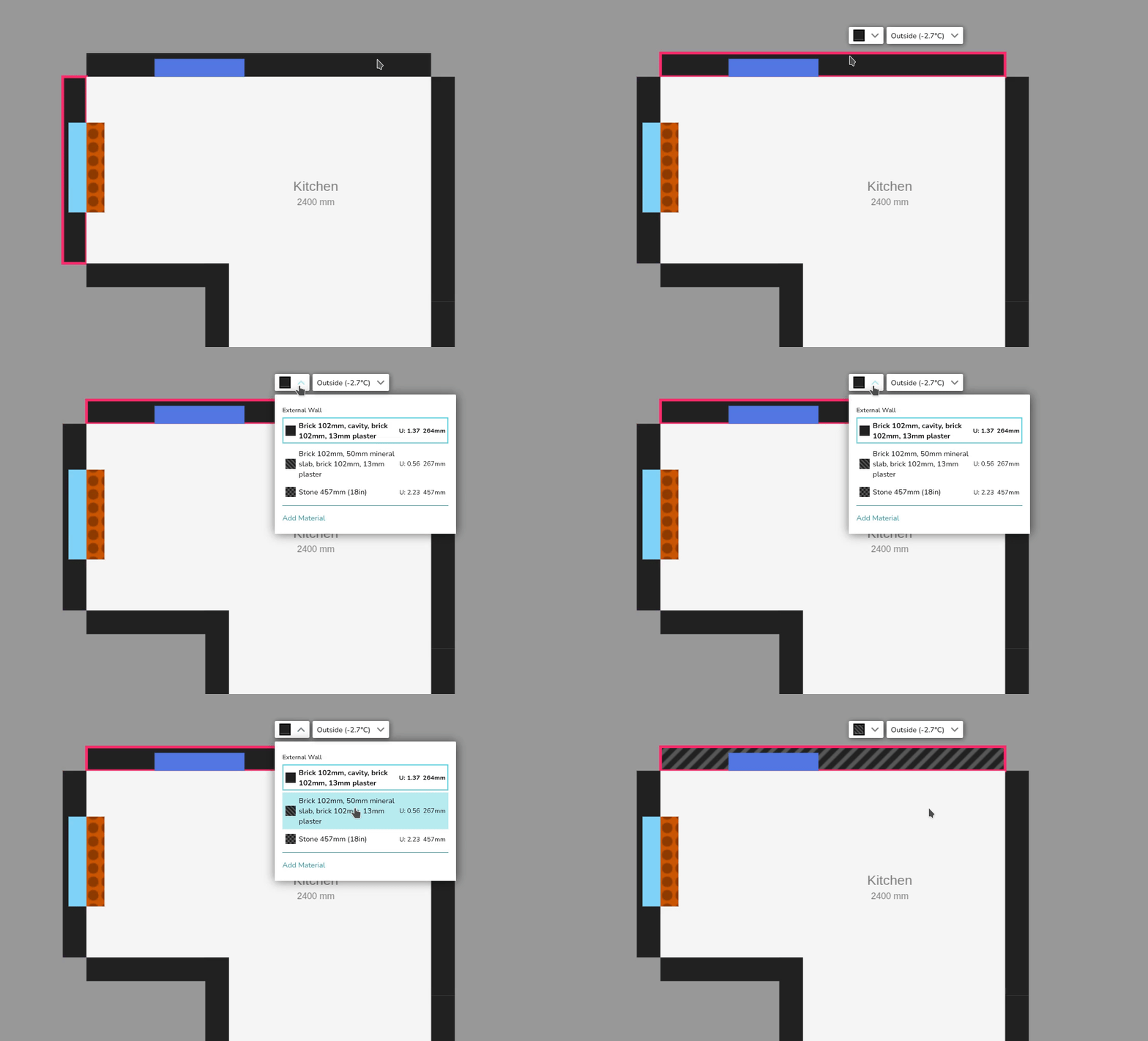](https://help.heatpunk.co.uk/uploads/images/gallery/2026-01/v5lqtUHADDBmGbkq-simplescreenrecorder-2026-01-06-12-51-14-ezgif-com-video-to-gif-converter.gif) ### Editing palette within a project In this same menu, you can click **Add Material** to make project-level changes to the palette. [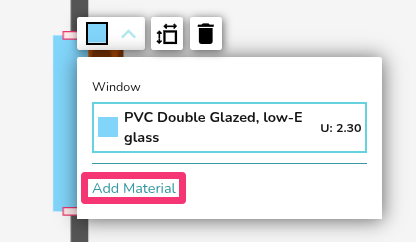](https://help.heatpunk.co.uk/uploads/images/gallery/2026-01/Tki1vWCIZ2585gk0-image.png) Click **Close** in the bottom left to save these changes. --- ## Still Need Help? / Want to know more? - **Related FAQs:** Check out our [Plans task FAQs](https://help.heatpunk.co.uk/books/faqs/chapter/plans-task-creating-a-surveyed-floor-plan) for answers to common questions - **Further guides**: Take a look at our [Plans task help guides](https://help.heatpunk.co.uk/books/plans-task) - **Live training:** [Book onto a live demo session](https://cal.com/midsummer-energy) to see this feature in action **Contact Support:** If you've got further questions, get in touch with our support team at **help@heatpunk.co.uk** (UK) or **help@heatpunk.ie** (IE). *If you are experiencing a bug, to help us look into your issue faster, please include the email address of your account, the name of the project and screenshots of any unexpected behaviour.* # Custom materials When creating or editing a material palette in Heatpunk, you have the option to **create custom materials**. This includes **custom** **walls, floors, roofs, doors, windows and radiators**. ## **Custom materials** To create a custom material, first start by [creating a material palette](https://help.heatpunk.co.uk/books/plans-task/page/managing-your-material-palettes-and-library "Material palettes and library"). Select the relevant section (External walls, Windows, etc.), then in the top right you will see the option to create a custom material. [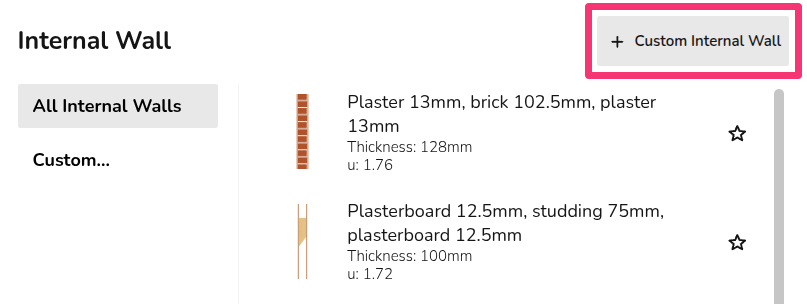](https://help.heatpunk.co.uk/uploads/images/gallery/2026-01/YcGehcZ5U5XDY1an-image.png) There are two options when creating your own material (excluding radiators): - **Build layers** (only for walls and roofs) - **Enter U-value** Custom **radiators** use information from the relevant datasheet.After creating a material (steps below), make sure to **select it on the palette** and star it if you'd like it to be the default material used for that section.
### Managing custom materials across palettes You can view all custom materials you've created across palettes from within a material palette, in the final section on the left-hand sidebar called *Custom*. Click the three-dot menu on the custom material to **edit**, **clone** or **delete it**. Existing projects are not affected by any changes made here. [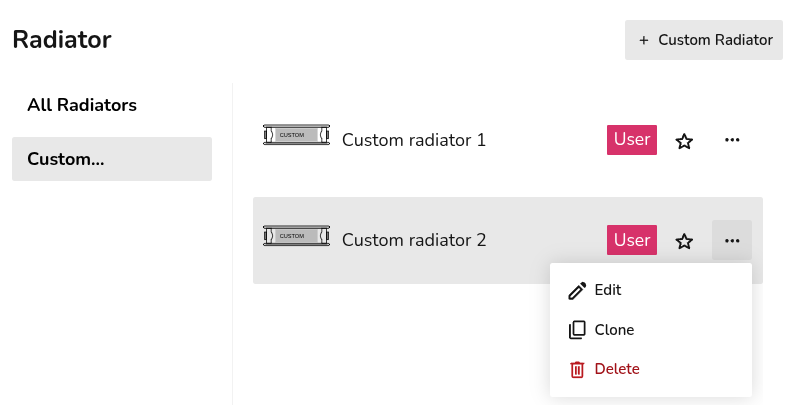](https://help.heatpunk.co.uk/uploads/images/gallery/2026-01/nbxgAZCUYpfJf6J3-image.png)You can only view the custom materials that are within the scope of the palette. For example, if you're creating a team level palette, you will only be able to view team custom materials. Follow the steps below to view and use all custom materials.
When creating a new custom material, you can also **copy the details from existing materials** using the *Copy from* in the top right. Here you will be able to see all custom materials (user and team level) **regardless of the scope of the palette** being viewed. [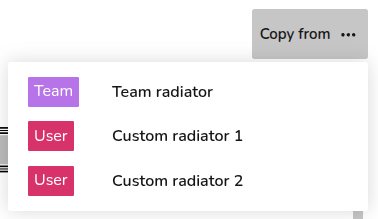](https://help.heatpunk.co.uk/uploads/images/gallery/2026-01/ERnVDmIpsTrMGyhn-image.png) ### Step-by-step #### Custom material using *Build layers* This option is available for custom **walls** and **roofs**: 1. Input the name for the custom material. 2. Select category of material from the drop-down. 3. Select material from the drop-down. 4. Input thickness of that layer. 5. Add row and repeat from step 2 to 4 until each layer is created. 6. Click *Create* in the bottom right. For each layer, Heatpunk will then calculate the k-Factor based on the material and thickness. If you select *Custom* for the material category, you will need to input this k-Factor yourself. The overall thickness and U-value of the material is given at the top. [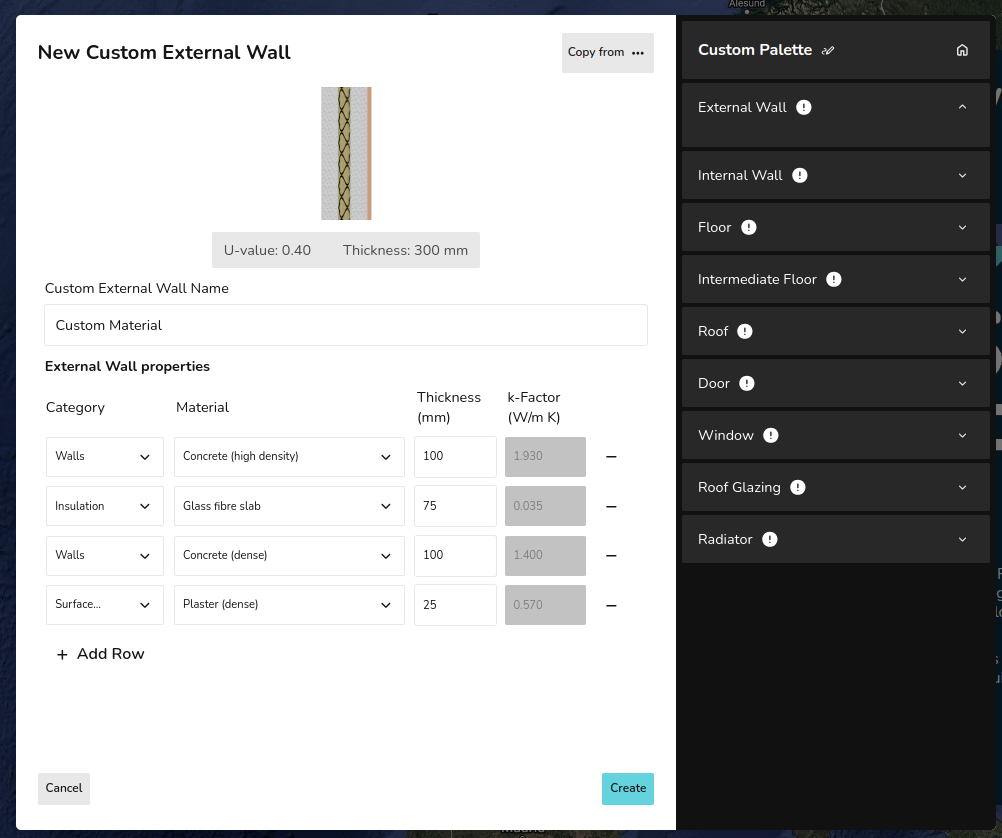](https://help.heatpunk.co.uk/uploads/images/gallery/2026-01/aAeDe6eEAKwUtMBa-image.png) #### Custom material using *Enter U-value* This option is available for all materials (excluding radiators): 1. Input the name for the custom material. 2. Input the U-value and thickness. 3. Click *Create in the bottom right. [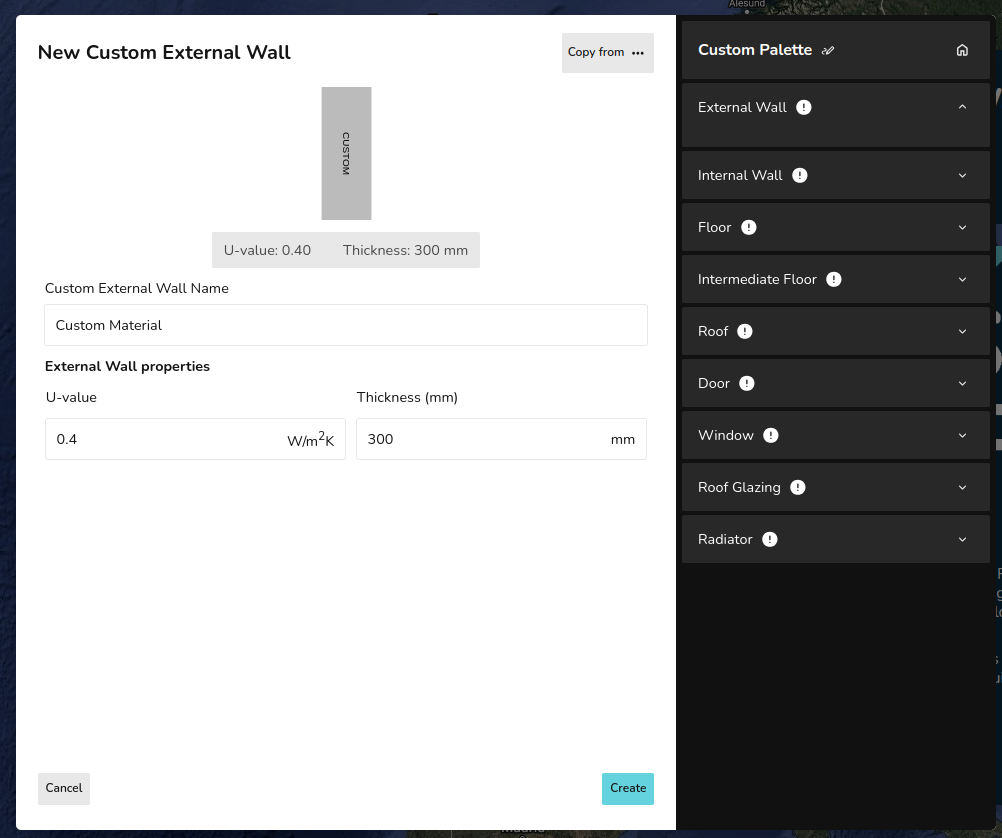](https://help.heatpunk.co.uk/uploads/images/gallery/2026-01/yhwZyCWhaJlyOxiC-image.png) #### Custom radiatorsThe default P+, K1, K2, and K3 radiators in Heatpunk are the Stelrad Classic Compact range. If you are not using these radiators, it's important to create custom radiators so the [outputs](https://help.heatpunk.co.uk/books/faqs/page/how-are-radiator-outputs-calculated) are accurate.
1. Input the name for the custom material. 2. Input the width and height of the radiator. 3. Input the n-coefficient from the datasheet (typically around 1.3) 4. Input the P50 for the corresponding radiator size. 5. Click *Create in the bottom right. [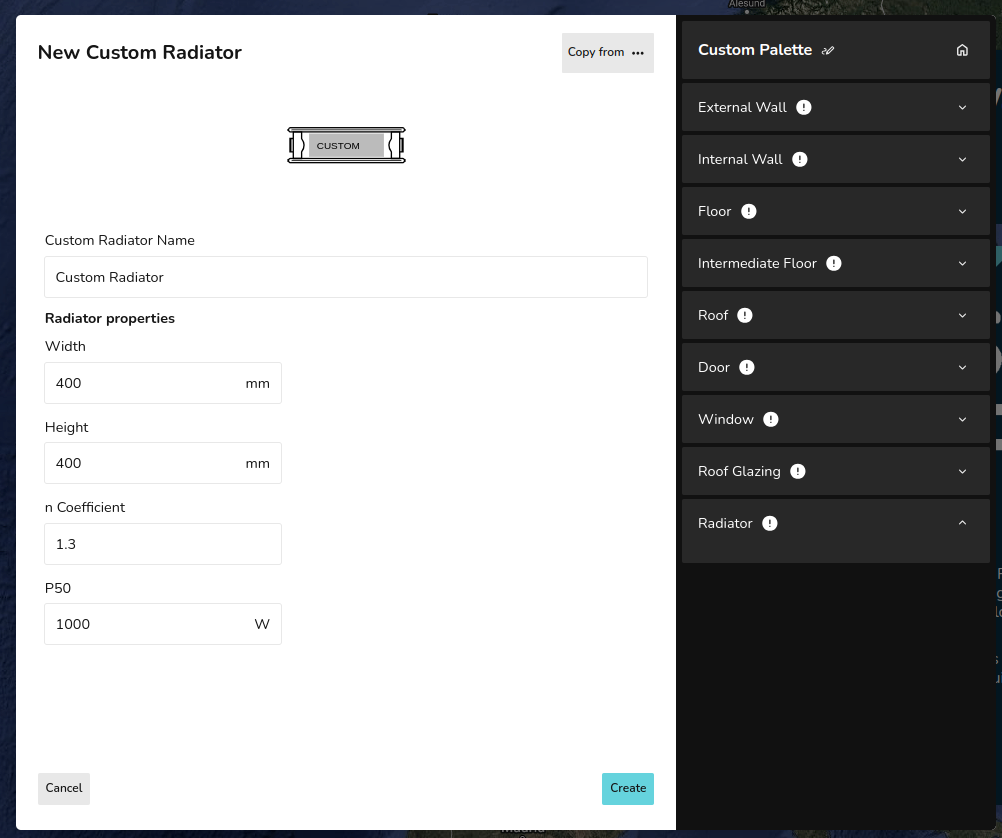](https://help.heatpunk.co.uk/uploads/images/gallery/2026-01/qRSFY3yDozBnDTuC-image.png) --- ## Still Need Help? / Want to know more? - **Related FAQs:** Check out our [Plans task FAQs](https://help.heatpunk.co.uk/books/faqs/chapter/plans-task-creating-a-surveyed-floor-plan) for answers to common questions - **Further guides**: Take a look at our [Plans task help guides](https://help.heatpunk.co.uk/books/plans-task) - **Live training:** [Book onto a live demo session](https://cal.com/midsummer-energy) to see this feature in action **Contact Support:** If you've got further questions, get in touch with our support team at **help@heatpunk.co.uk** (UK) or **help@heatpunk.ie** (IE). *If you are experiencing a bug, to help us look into your issue faster, please include the email address of your account, the name of the project and screenshots of any unexpected behaviour.* # Creating a floor plan This section covers the tools needed to create a floor plan - focusing on the surveyed plan. Go back to material library and palettes or to the rest of the plans task guides. # Creating a floor plan The first step in a project is to create a floor plan. The floor plan you build in Heatpunk is used to model the existing state of the property for **heat loss calculations**, model any **emitter upgrades**, and specify the **location of the heat pump and hot water** storage on the plan. This guide focuses on creating the initial plan, called the ***surveyed plan***. [Emitter upgrades](https://help.heatpunk.co.uk/books/plans-task/page/emitters "Emitters"), [heat pumps](https://help.heatpunk.co.uk/books/plans-task/page/sources "Heat sources") and [hot water storage](https://help.heatpunk.co.uk/books/plans-task/page/hot-water-storage "Hot Water Storage") also use the floor plan but are modelled in [design options](https://help.heatpunk.co.uk/books/plans-task/page/surveyed-plan-and-design-options "Design Options"), rather than the *surveyed plan*. ## Starting a floor plan When you create a project, you will be prompted to [select a material palette](https://help.heatpunk.co.uk/books/plans-task/page/choosing-a-material-palette "Choosing a Material Palette"). This determines the materials you can choose from when modelling the property but can be amended at any stage. You are then prompted to enter the default height for the rooms in the property. [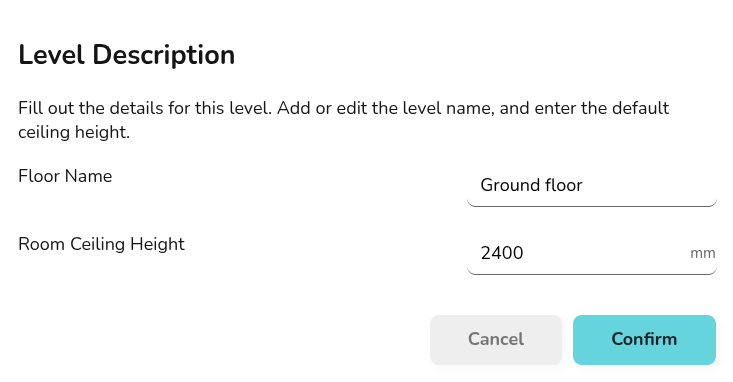](https://help.heatpunk.co.uk/uploads/images/gallery/2026-01/5iIkReriIjUDNf7s-image.png) All of these details can be adjusted as you construct your floor plan.**Heatpunk Pro**: Speed up creating your floor plan by [uploading architectural plans](https://help.heatpunk.co.uk/books/plans-task/page/pro-importing-floor-plans "Pro: Importing Floor Plans") to take measurements from.
## Creating rooms [](https://help.heatpunk.co.uk/uploads/images/gallery/2026-01/pBYeEZIZz3c58XSu-image.png) Drag and drop a room from the left-hand menu into position and [size to the correct shape](https://help.heatpunk.co.uk/books/plans-task/page/creating-rooms "Creating Rooms"). If not using an uploaded floor plan, click the corners of the room to view the dimensions. If using an uploaded floor plan, you can rely on aligning the rooms with the plan below.**Tip:** You can use keyboard shortcuts to speed up building your floor plan. Currently you can use **Copy & Paste** shortcuts for rooms, windows, doors, and radiators. **Copy & Paste:** Select the element you wish to copy, then on your keyboard press `CTRL` + `C` followed by `CTRL` + `V` to paste it. (`CMD` + `C` and `CMD` + `V` on Mac). **Undo / Redo:** Press `CTRL` + `Z` to undo an action, or `CTRL` + `Y` to redo it (`CMD` + `Z` and `CMD` + `Shift` + `Z` on Mac).
## Editing room details Click each room to view the following options:| [](https://help.heatpunk.co.uk/uploads/images/gallery/2026-01/nt3KYZVoKB71sU15-image.png) | **Change height** Adjust the height of the room. Input the height and click the tick to save or the cross to cancel. |
| [](https://help.heatpunk.co.uk/uploads/images/gallery/2026-01/zTpxgDZEuI0pCQ9P-image.png) | **Flue** Select whether there is a flue. Choose from: no flue, throat restrictor fitted to flue, no throat restrictor fitted to flue. |
| [](https://help.heatpunk.co.uk/uploads/images/gallery/2026-01/x1PgLh6onYZNvV7I-image.png) | **Edit name** Change the name of the room. |
| [](https://help.heatpunk.co.uk/uploads/images/gallery/2026-04/Rsz04REktTSW8ixS-notes.png) | **Room notes** Enter any additional notes about this room, such as customer preferences, pipe routes, etc. These notes will be displayed in the technical report. |
| [](https://help.heatpunk.co.uk/uploads/images/gallery/2026-01/RU5qpk7DzqO6I59N-image.png) | **Select room type** Each room needs a type as this determines the ACH, temperature and default name for the room. Select from pre-set options or create a custom room. |
| [](https://help.heatpunk.co.uk/uploads/images/gallery/2026-01/StKzyJAmIjYjUfkp-image.png) | **Delete** Remove the room from the floor plan |
Note if [ceiling regions](https://help.heatpunk.co.uk/books/plans-task/page/floor-and-ceiling-regions "Floors and Ceilings") are added later, they will override height for the room.
On the right-hand side bar, under emitters you can also see each room listed. Click **🡥 See room details**. Here you can view the emitter, annual demand, volume, area, heat loss and element heat loss for the room. You can also adjust the room temperature and ACH, as well as add underfloor heating or other emitters. [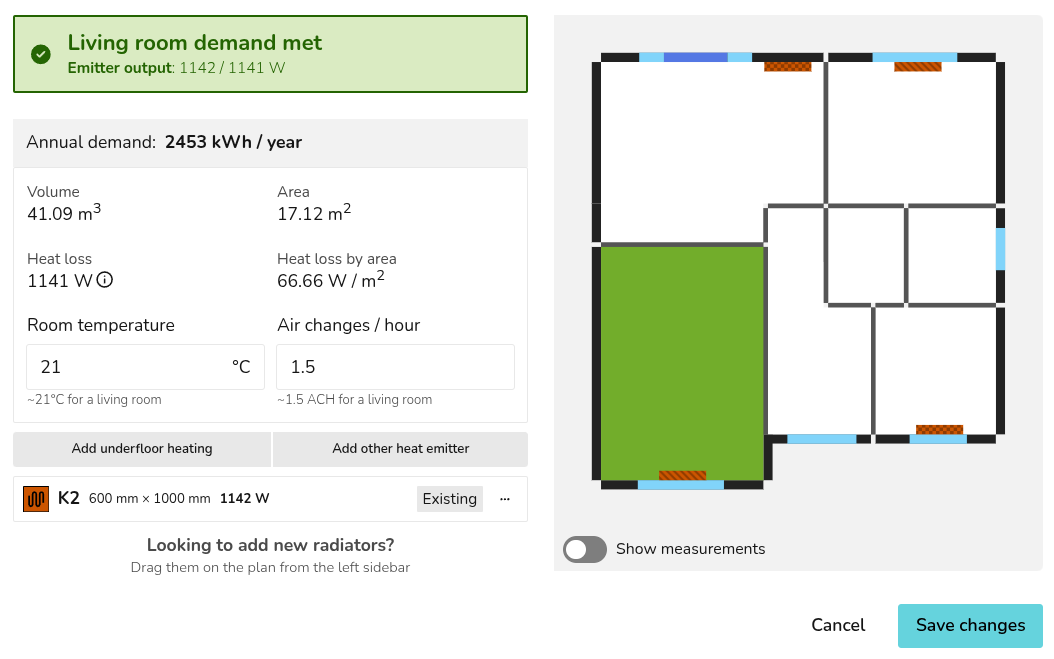](https://help.heatpunk.co.uk/uploads/images/gallery/2026-04/saEx0HqAOb7kEpNS-image.png) ## Adjusting wall properties Click the walls to view the following options:| [](https://help.heatpunk.co.uk/uploads/images/gallery/2026-01/bw3FU9ooyEycUfWX-image.png) | **Change material** Click to view and select from the material options for this palette. Click *Add Materials* to adjust the palette. |
| [](https://help.heatpunk.co.uk/uploads/images/gallery/2026-01/45syHacmLX3lw1o8-image.png) | **External temperature** Set the temperature of the region on the other side of this wall. This will default to the outside design temperature [ODT](https://help.heatpunk.co.uk/books/faqs/page/how-is-the-outdoor-design-temperature-odt-set "How is the Outdoor Design Temperature (ODT) set?") and can be adjusted for walls adjoining [unheated spaces](https://help.heatpunk.co.uk/books/faqs/page/do-i-need-to-model-unheated-spaces "Do I need to model unheated spaces?") or neighbouring properties. The default temperatures of heated and unheated spaces are set according to the CISBE design guide. |
| Don't [overlap walls](https://help.heatpunk.co.uk/books/faqs/page/how-do-i-model-rooms-with-open-doorways "How do I model rooms with open doorways?") | [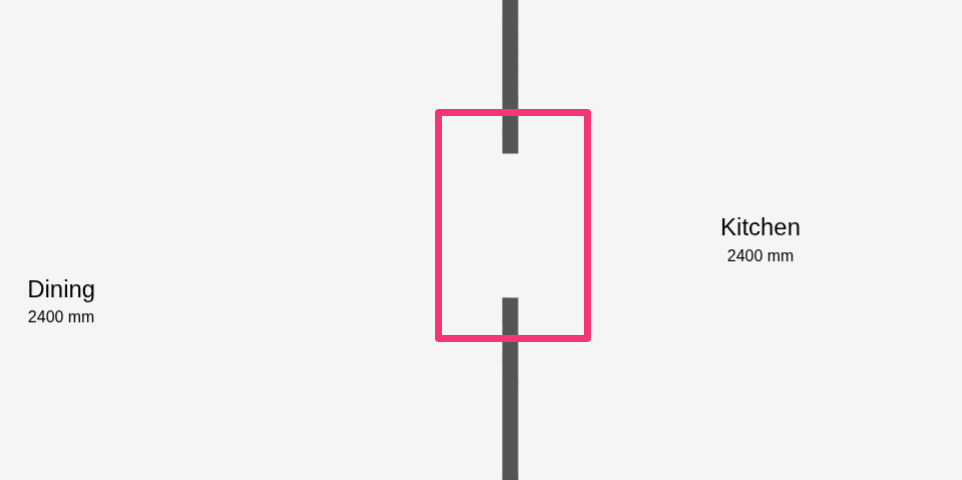](https://help.heatpunk.co.uk/uploads/images/gallery/2026-01/dcNcEPyHOpx5jm0E-image.png) |
| Don't leave large gaps between internal walls | [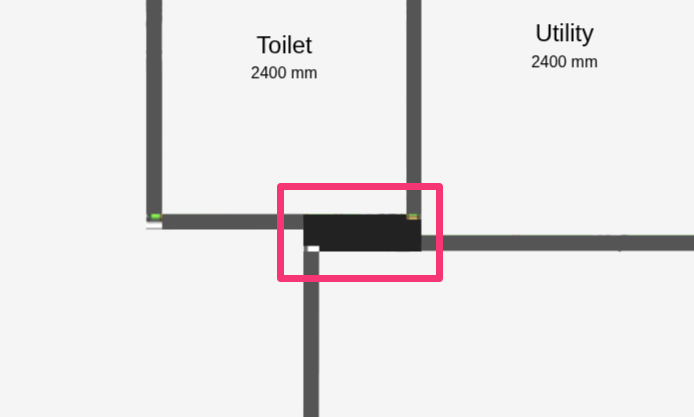](https://help.heatpunk.co.uk/uploads/images/gallery/2026-01/wPg4nba2yGUhIUSY-image.png) |
| [](https://help.heatpunk.co.uk/uploads/images/gallery/2026-01/iDZV7z34GMVcX89r-image.png) | **Change material or type** Click to view and select from the material options for the selected palette. Click *Add Materials* to edit the palette. |
| [](https://help.heatpunk.co.uk/uploads/images/gallery/2026-01/UaxpsdPxtasCajvQ-image.png) | **Adjust dimensions** Input the width and height, then tick to save or cross to cancel. This option will not be available for custom radiators which require a [different P50](https://help.heatpunk.co.uk/books/faqs/page/how-are-radiator-outputs-calculated "How are radiator outputs calculated?") for each radiator size. |
| [](https://help.heatpunk.co.uk/uploads/images/gallery/2026-01/StKzyJAmIjYjUfkp-image.png) | **Delete** Remove the component from the floor plan |
**Internal doors do not need to be included** in the floor plan. Rooms with open doorways should typically be [modelled as one room](https://help.heatpunk.co.uk/books/faqs/page/how-do-i-model-rooms-with-open-doorways).
To add other emitters or underfloor heating, on the room where you want underfloor heating click **🡥 See room details**. Then click *Add underfloor heating* and specify the output per m². You can also see further details on the heat loss calculations in that menu. For information on **emitter upgrades**, see [Emitters](https://help.heatpunk.co.uk/books/plans-task/page/emitters "Emitters"). ### Adding heat pump and hot waterHeat pumps and hot water storage **cannot** be added to the surveyed plan. Create a [design option](https://help.heatpunk.co.uk/books/plans-task/page/surveyed-plan-and-design-options "Design Options") to add these to the plan.
Drag and drop a heat pump or hot water storage option onto the plan. Once you place the heat pump or hot water storage, a menu will appear to select a specific model. Read more about this in [Heat Sources](https://help.heatpunk.co.uk/books/plans-task/page/sources "Heat sources") and [Hot Water Storage](https://help.heatpunk.co.uk/books/drafts-templates-and-archive/page/hot-water-storage-updated "Hot Water Storage - update"). --- ## Still Need Help? / Want to know more? - **Related FAQs:** Check out our [Plans task FAQs](https://help.heatpunk.co.uk/books/faqs/chapter/plans-task-creating-a-surveyed-floor-plan) for answers to common questions - **Further guides**: Take a look at our [Plans task help guides](https://help.heatpunk.co.uk/books/plans-task) - **Live training:** [Book onto a live demo session](https://cal.com/midsummer-energy) to see this feature in action **Contact Support:** If you've got further questions, get in touch with our support team at **help@heatpunk.co.uk** (UK) or **help@heatpunk.ie** (IE). *If you are experiencing a bug, to help us look into your issue faster, please include the email address of your account, the name of the project and screenshots of any unexpected behaviour.* # Pro: Importing floor plansThis feature is only available to users with a Heatpunk Pro subscription.
More information about Pro can be found [here](https://help.heatpunk.co.uk/books/getting-started-with-pro). ### [](https://help.heatpunk.co.uk/uploads/images/gallery/2025-11/92Ak3RgsEhXEY0U1-heatpunk-floor-plan-gif.gif) --- ## Importing floor plan PDF Open an existing project or create a new project and navigate to the floor level you want to upload the plan to. Click on the **plan button** on the left hand side of the page to upload a plan. [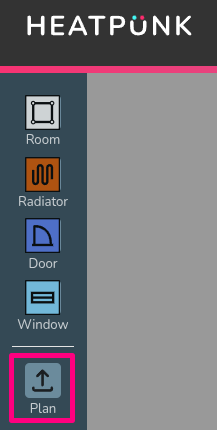](https://help.heatpunk.co.uk/uploads/images/gallery/2026-01/ykjNoISU5p5QD2TS-image.png) ### Step 1: Upload the floor plan PDF Click *Choose file* to browse the files on your computer. If your file has multiple pages, set the specific page that contains the floor plan you want to use. Click *Upload Plan* to continue. [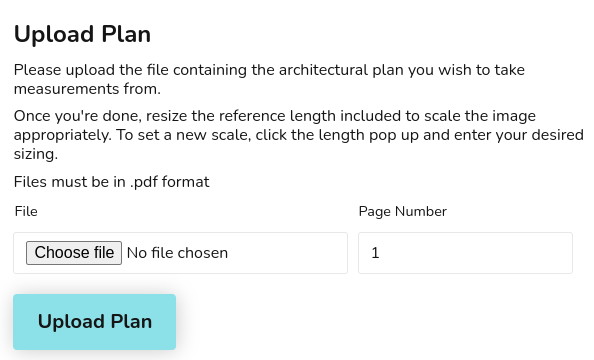](https://help.heatpunk.co.uk/uploads/images/gallery/2024-11/DnWcbKD6cFyvuAfq-image.png)For additional levels it's important to align the floor plan with the floor below so heat loss between levels is calculated correctly. See **[Step 4](https://help.heatpunk.co.uk/books/plans-task/page/pro-importing-floor-plans#bkmrk-step-4%3A-repeat-for-a-1)** for how to do this.
### Step 2: Set the scale Use the purple reference length bar to set the scale. 1. Drag the reference length bar over to the plans scale or an object of known length. 2. Set the size to match and then click on the dimension to enter the relevant value. [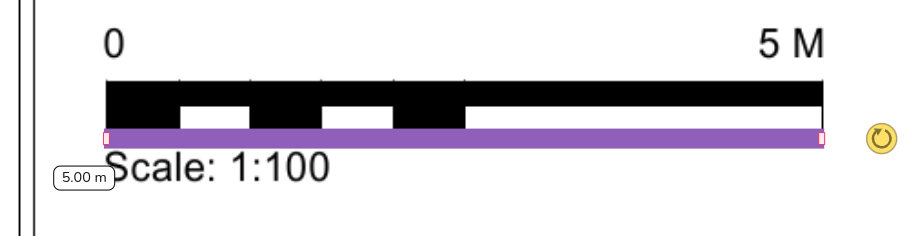](https://help.heatpunk.co.uk/uploads/images/gallery/2024-11/mp5a4kJXajOakax7-image.png) ### Step 3: Add rooms to floor plan Drag and drop rooms to build up the floor plan as normal, using the PDF plan as a guide. Read more about [creating rooms](https://help.heatpunk.co.uk/books/plans-task/page/creating-rooms "Creating Rooms") and [floor plans](https://help.heatpunk.co.uk/books/plans-task/page/creating-a-floor-plan "Creating a Floor Plan") to help with this step. - **Click and hold** the middle of a room to make the rooms transparent and **show the floor plan upload below**. - **Click on the walls** of a room to **turn the transparency off** and view the wall and room properties. [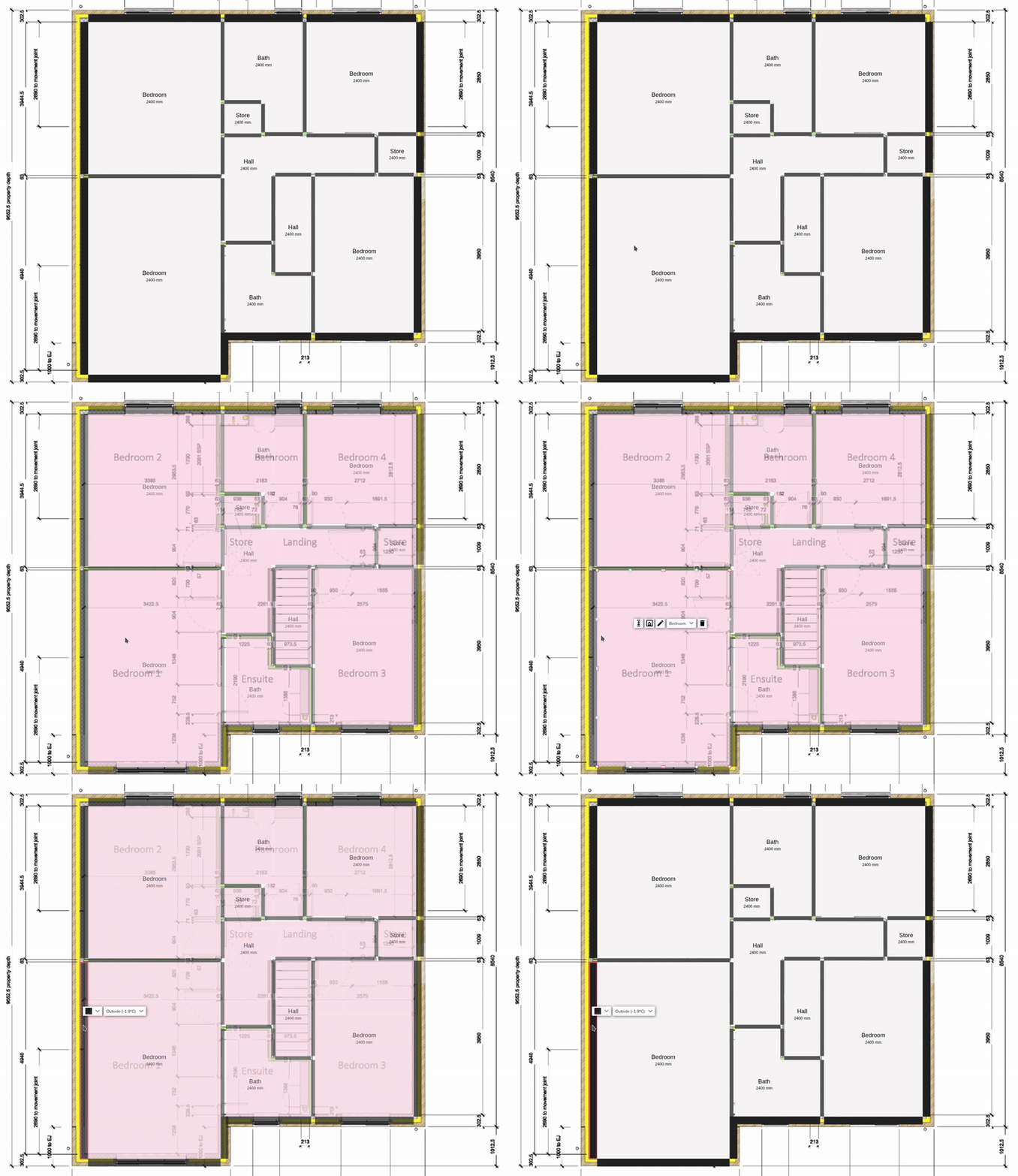](https://help.heatpunk.co.uk/uploads/images/gallery/2026-01/pGD7ONkoNefoNEu7-simplescreenrecorder-2026-01-19-15-25-29-ezgif-com-video-to-gif-converter.gif) ### Step 4: Repeat for additional levels and align plans Add level and repeat step 1-3. After uploading plans for additional floors, ensure the floor plan is correctly aligned with the floor below. **Double click and drag** to make the plan transparent and display the floor below. You can then align the floors correctly.| [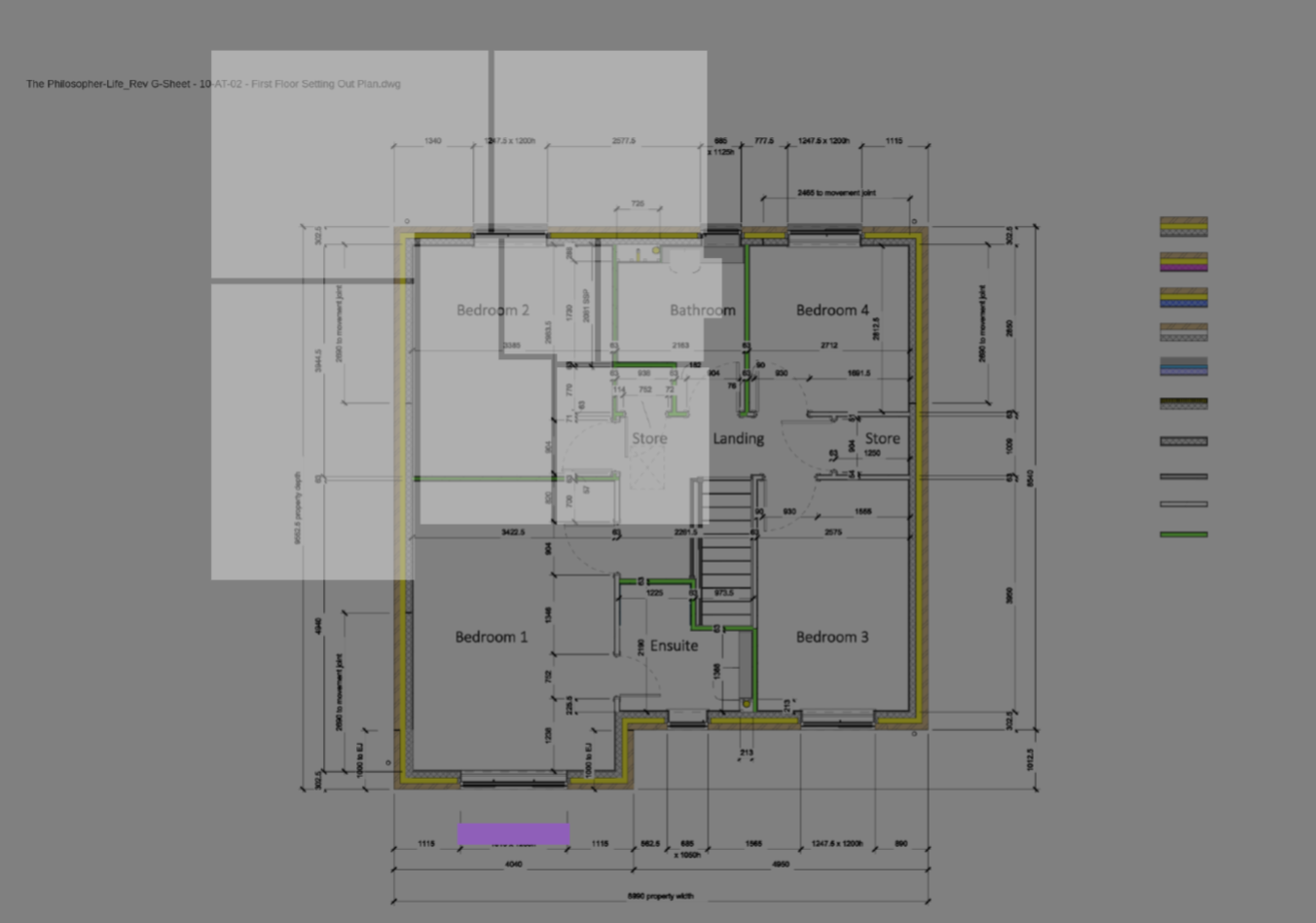](https://help.heatpunk.co.uk/uploads/images/gallery/2026-01/YCYfzbr4RD9Pa6PZ-image.png) | [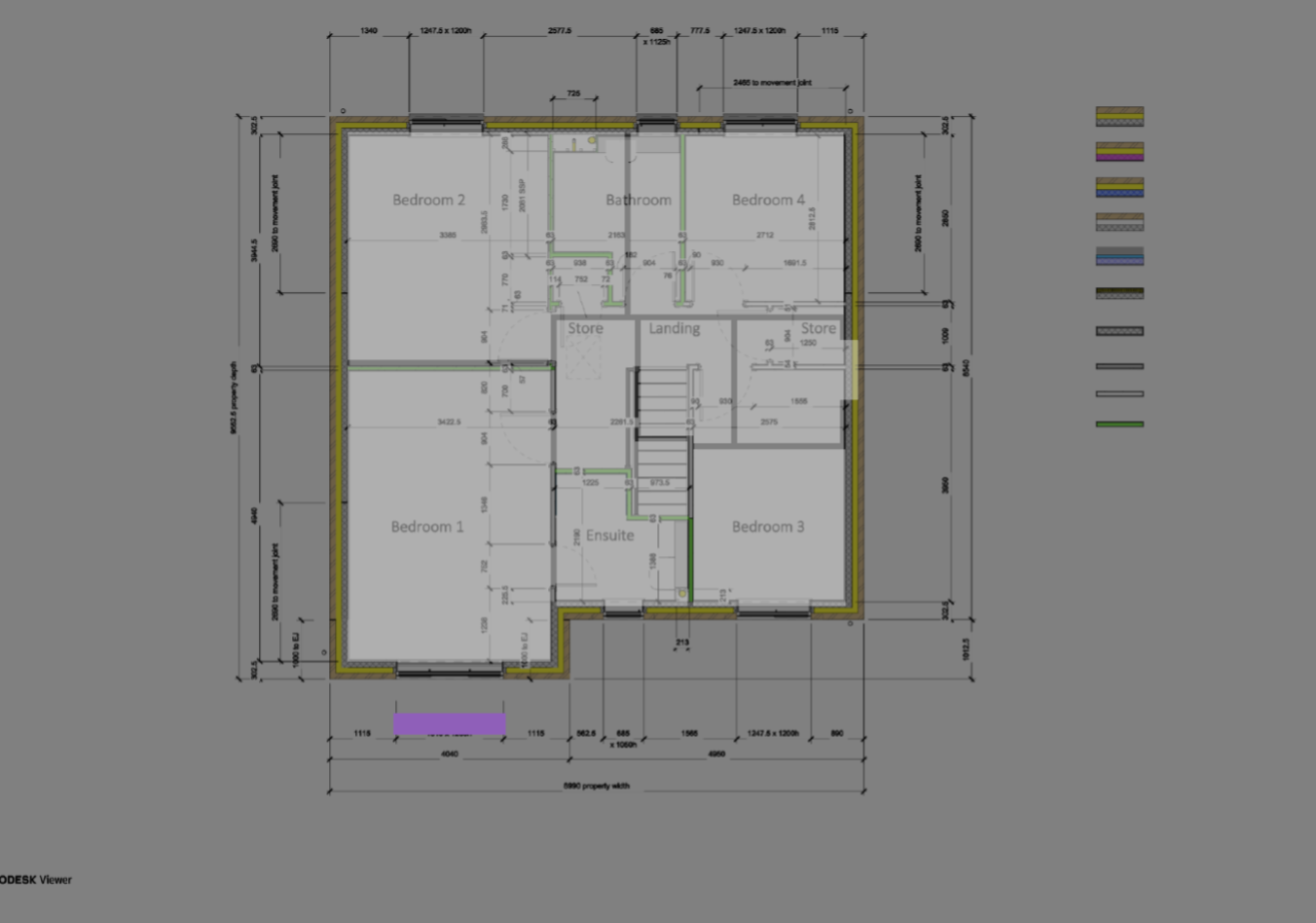](https://help.heatpunk.co.uk/uploads/images/gallery/2026-01/5KbCTiCBd0Cdg5d8-image.png) |
This guide covers how to size a room to the correct shape. For information on adjusting the properties of a room first, see [Creating a Floor Plan](https://help.heatpunk.co.uk/books/plans-task/page/creating-a-floor-plan "Creating a Floor Plan").
Rooms can be dragged and dropped onto your floor plan from the left-hand sidebar. [](https://help.heatpunk.co.uk/uploads/images/gallery/2025-11/OMkYC4uulJuOjz85-image.png) ## Adjusting shape of room When creating a room in the plans task, there are a variety of different handles you can use to accurately adjust the shape of a room: [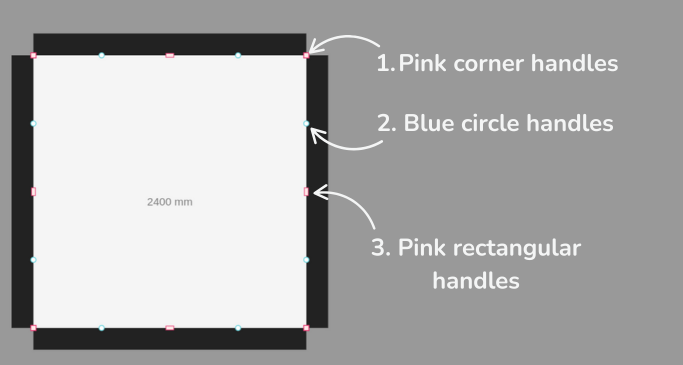](https://help.heatpunk.co.uk/uploads/images/gallery/2025-11/8Y9K7WHvBFToSsrP-image.png) ### 1. Pink corner handles Click the **pink corner handles** to show dimensions of the associated walls. You can then click on the values to manually change these. [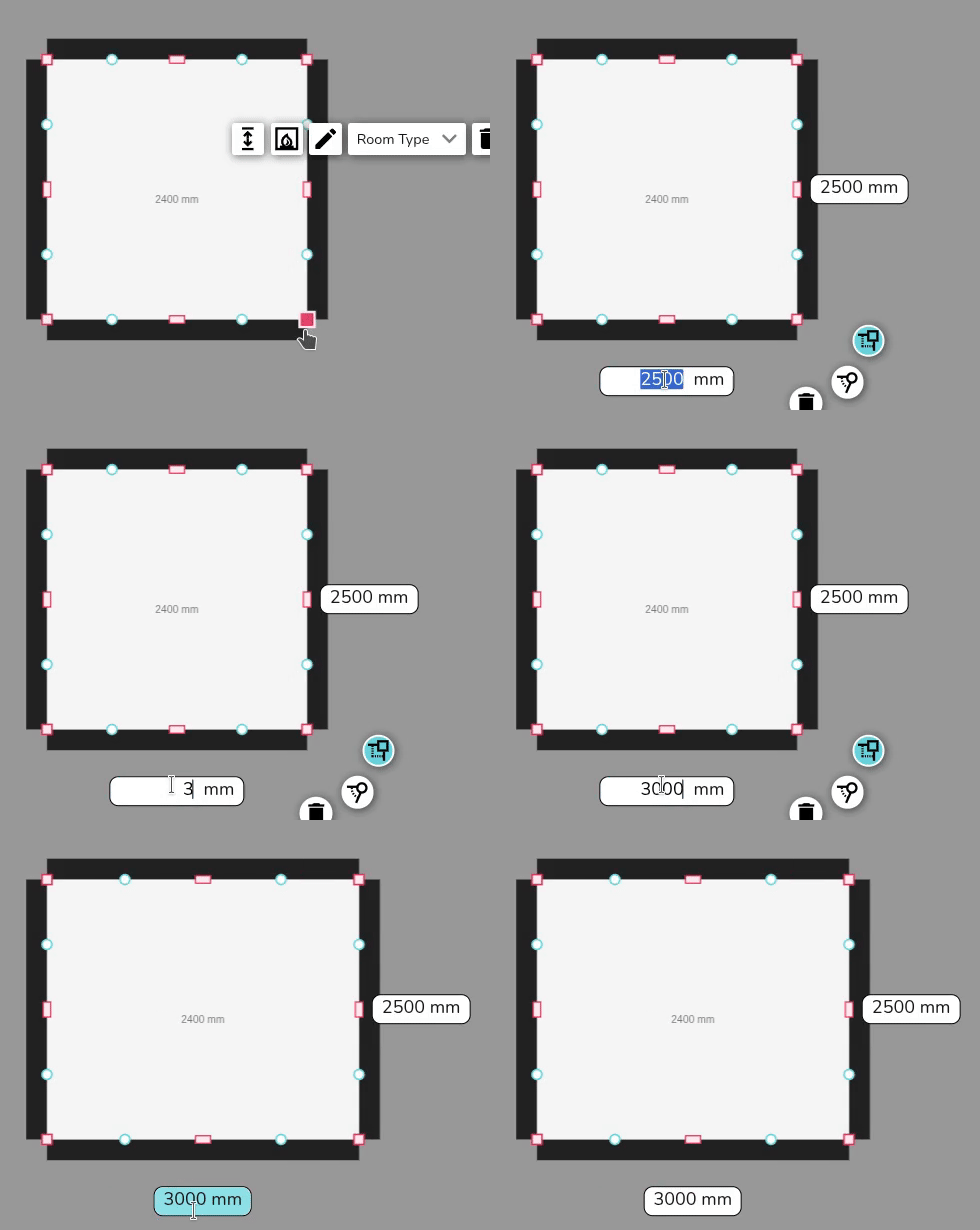](https://help.heatpunk.co.uk/uploads/images/gallery/2025-11/ynLIA86l61ysxirF-simplescreenrecorder-2025-11-07-11-20-27-ezgif-com-video-to-gif-converter.gif) Click on the pink corner handles to switch between a square and circle handle: - Use the **square corner handles** to resize the room whilst keeping the adjacent walls at the **same angle**. - Use the **circle corner handles** to move that point **independently** of the other points to create angled walls. [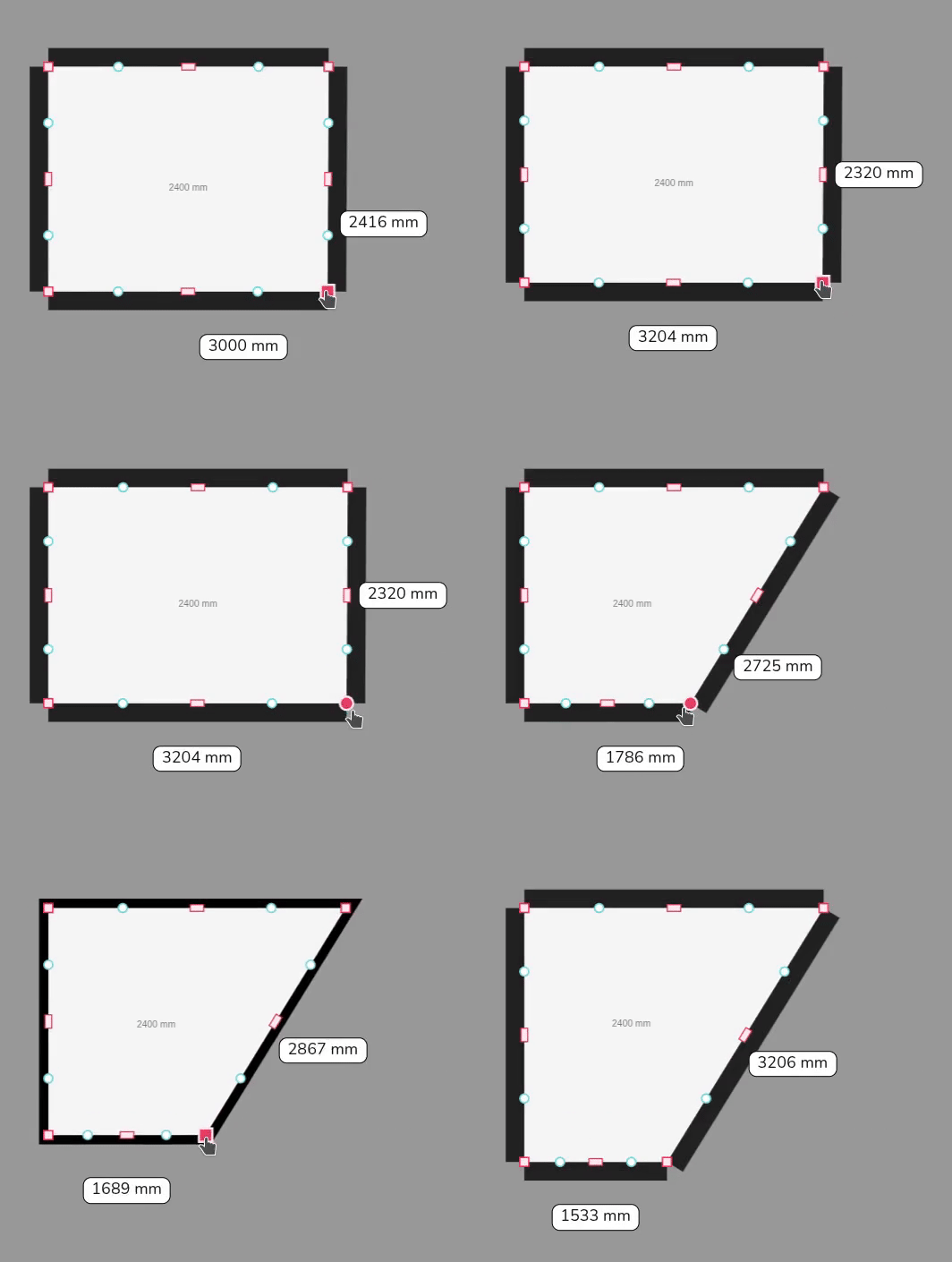](https://help.heatpunk.co.uk/uploads/images/gallery/2025-11/CrySd6xBncVwgzUf-simplescreenrecorder-2025-11-07-11-24-22-ezgif-com-video-to-gif-converter.gif) ### 2. Blue circle handles Click and drag the **blue circle handles** to allow you to split a wall and create irregular shapes. These will then convert to pink handles which you can delete if needed. [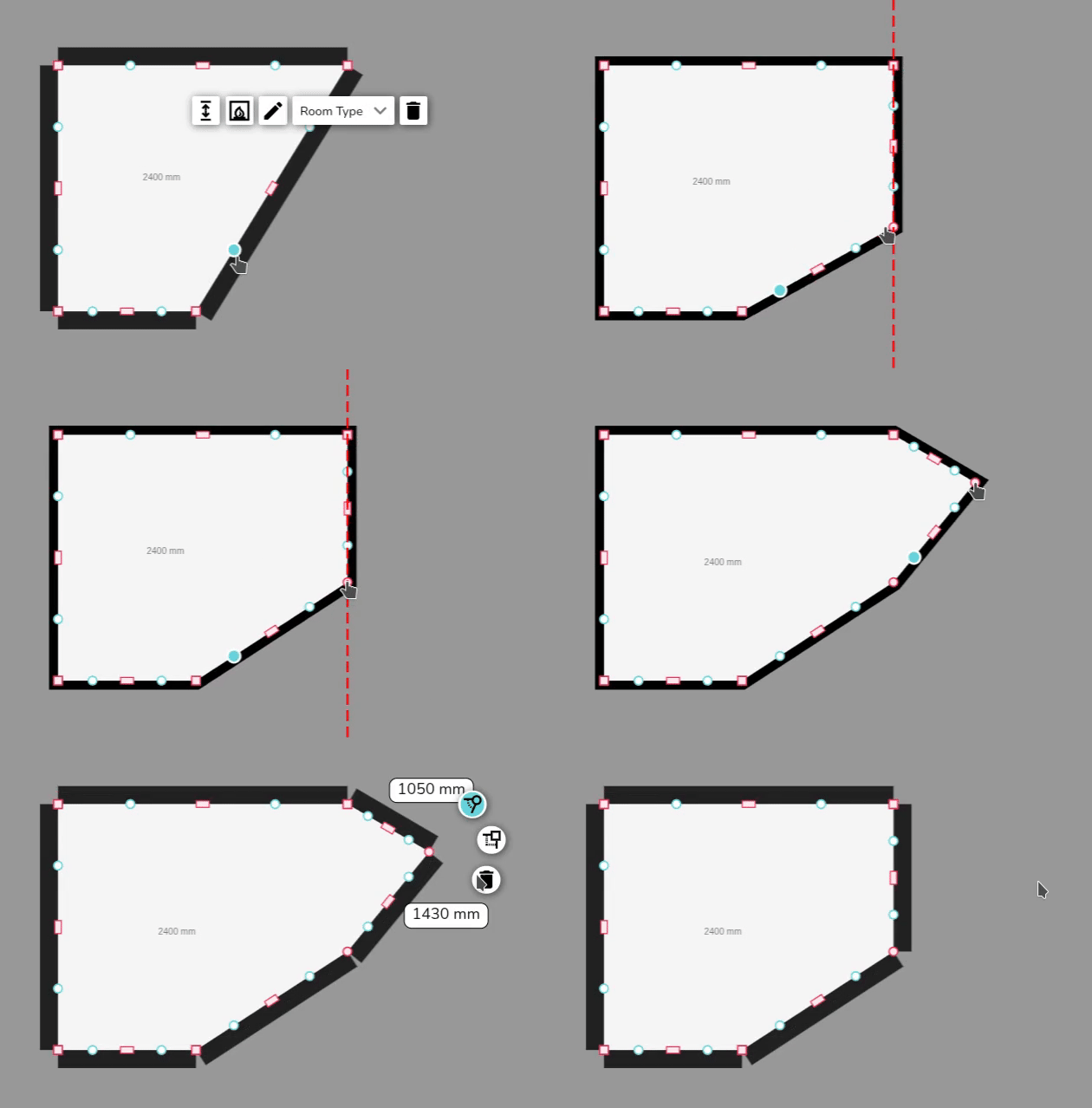](https://help.heatpunk.co.uk/uploads/images/gallery/2025-11/y11VDW5Zbgl9ffyj-simplescreenrecorder-2025-11-07-11-37-35-ezgif-com-video-to-gif-converter.gif) ### 3. Pink rectangular handles Use the rectangular handle to resize the room. Click on the **pink rectangular handles** to toggle between a square and curved cornered handles: - Use the **square cornered handle** to extend a wall out. - Use the **curved cornered handle** to extend the adjoining wall independently of the others. [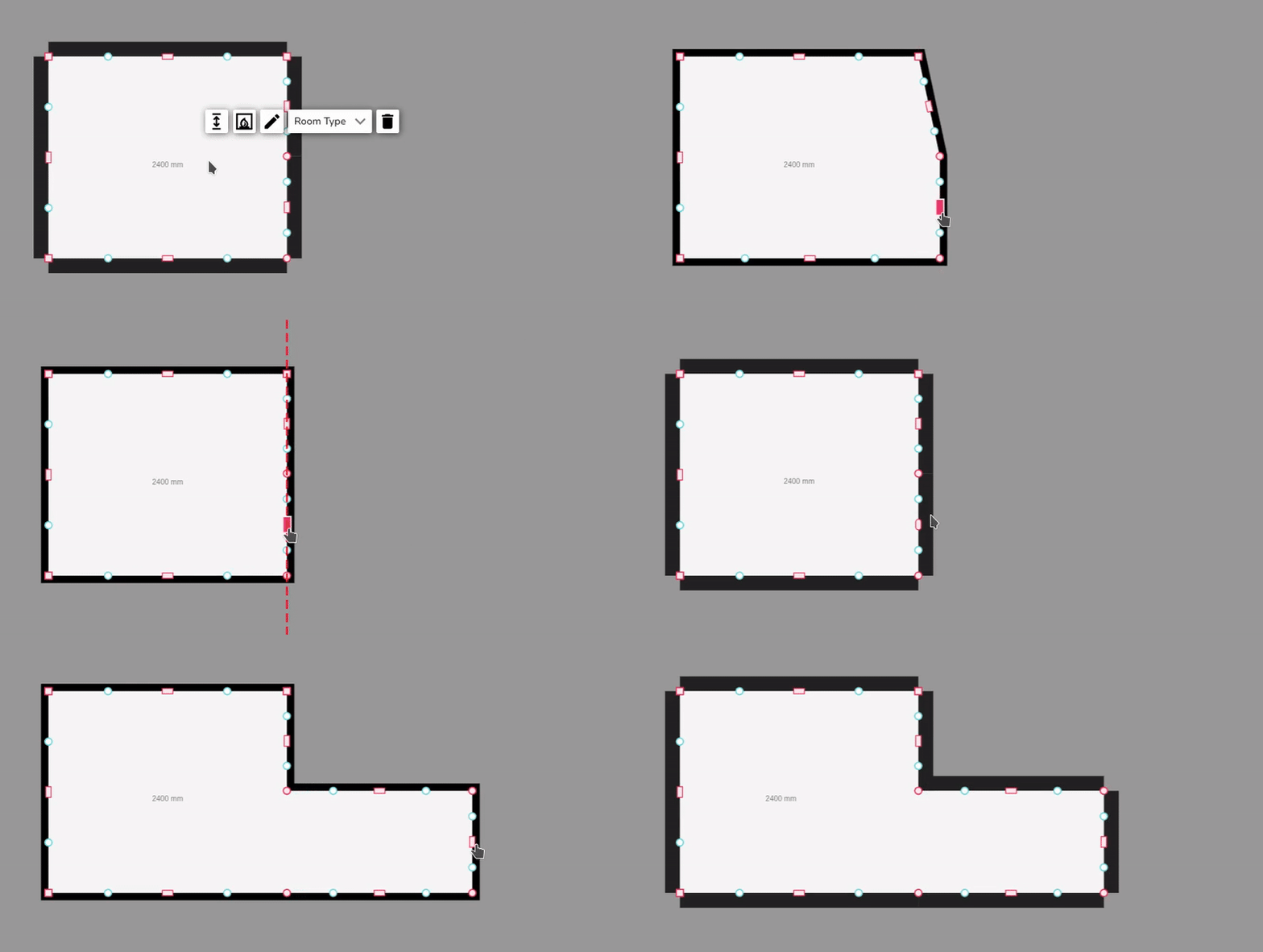](https://help.heatpunk.co.uk/uploads/images/gallery/2025-11/nY6kA9xAsYucEapt-simplescreenrecorder-2025-11-07-11-40-05-ezgif-com-video-to-gif-converter.gif) ### Video demonstration See how these tools work in the video below. --- ## Still Need Help? / Want to know more? - **Related FAQs:** Check out our [Plans task FAQs](https://help.heatpunk.co.uk/books/faqs/chapter/plans-task-creating-a-surveyed-floor-plan) for answers to common questions - **Further guides**: Take a look at our [Plans task help guides](https://help.heatpunk.co.uk/books/plans-task) - **Live training:** [Book onto a live demo session](https://cal.com/midsummer-energy) to see this feature in action **Contact Support:** If you've got further questions, get in touch with our support team at **help@heatpunk.co.uk** (UK) or **help@heatpunk.ie** (IE). *If you are experiencing a bug, to help us look into your issue faster, please include the email address of your account, the name of the project and screenshots of any unexpected behaviour.* # Floor and ceiling regions Heatpunk automatically uses the default material of floors and ceilings defined in your [material palette](https://help.heatpunk.co.uk/books/plans-task/page/managing-your-material-palettes-and-library "Managing Your Material Palettes and Library"). *Regions* are used if the height of a room or material of a ceiling or floor is **different from the default**. If the height and material are the same across the floor and match the default selected in the palette, you **do not need to create a *region***. For more information on how this fits into the rest of your floor plan, see [Creating a Floor Plan](https://help.heatpunk.co.uk/books/plans-task/page/creating-a-floor-plan "Creating a Floor Plan"). --- ## Adding a *region* to change default materialWhen adding *regions*, make sure you only have **one *region*** covering any given area on your floor plan or this will lead to errors in your heat loss calculations.
#### Step 1: Navigate to the relevant floor Navigate to the relevant floor/ceiling in the bottom right of the screen. [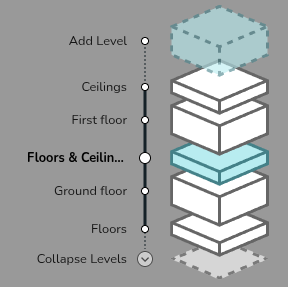](https://help.heatpunk.co.uk/uploads/images/gallery/2025-06/6BI0tWbeAJTTUxy0-image.png) #### Step 2: Add the *region* Drag and drop a *region* in from the left-hand menu. The shape of *regions* can be edited using the same handles as for rooms (see [Creating Rooms](https://help.heatpunk.co.uk/books/plans-task/page/creating-rooms)). [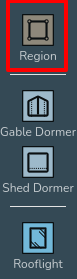](https://help.heatpunk.co.uk/uploads/images/gallery/2025-01/WpILcuG9FX6QvyJr-image.png)**Create as many *regions* as are necessary** to correctly define each area of the floor/ceiling, as long as they do not overlap *regions* can be set to cover the entirety of the floor/ceiling or only certain areas. For areas where a *region* isn't defined, the default material and room height will be used.
#### Step 3: Set the material of the region Once you have added a ***region***, click anywhere on it and use the drop down menu to change the material as required. [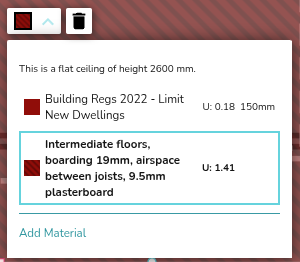](https://help.heatpunk.co.uk/uploads/images/gallery/2025-06/uWMBH8z4nJnWUX3J-image.png) #### Step 4: Set the external temperature For the ground floor or top floor ceiling, you should also set the temperature by defining what is on the other side (heated, unheated, ground) of the floor/ceiling. For intermediate floors, Heatpunk will do this for you. [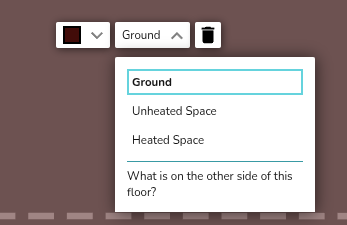](https://help.heatpunk.co.uk/uploads/images/gallery/2025-06/yAZEYumdExQcmf3I-image.png)Unheated and heated spaces are taken to be 10°C and 18°C respectively. The ground temperature is based on your postcode.
--- ## Adding a *region* to change default height – vaulted ceilings and dormers Setting the corner heights of a region overrides the height of the room below. Use this to model a room-in-roof with vaulted ceilings or dormers. [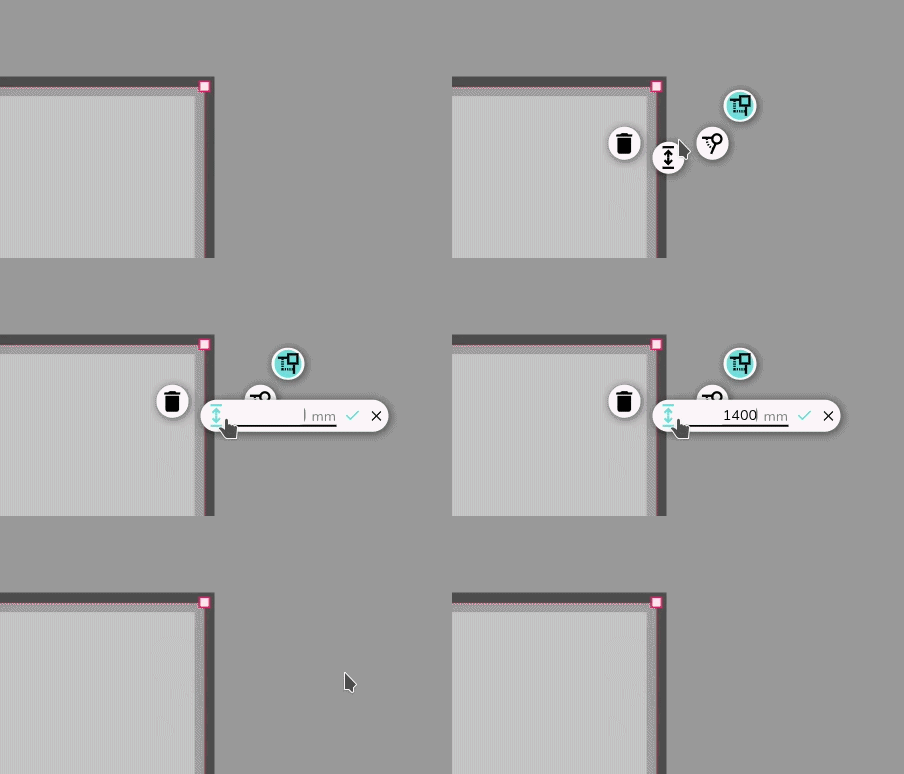](https://help.heatpunk.co.uk/uploads/images/gallery/2026-04/dPWQIESQ4Qosbev4-simplescreenrecorder-2026-04-09-11-29-36-ezgif-com-video-to-gif-converter.gif) See the video below to learn how to add vaulted ceilings and dormers. --- ## Still Need Help? / Want to know more? - **Related FAQs:** Check out our [Plans task FAQs](https://help.heatpunk.co.uk/books/faqs/chapter/plans-task-creating-a-surveyed-floor-plan) for answers to common questions - **Further guides**: Take a look at our [Plans task help guides](https://help.heatpunk.co.uk/books/plans-task) - **Live training:** [Book onto a live demo session](https://cal.com/midsummer-energy) to see this feature in action **Contact Support:** If you've got further questions, get in touch with our support team at **help@heatpunk.co.uk** (UK) or **help@heatpunk.ie** (IE). *If you are experiencing a bug, to help us look into your issue faster, please include the email address of your account, the name of the project and screenshots of any unexpected behaviour.* # Surveyed plan and design options When you first create a project, you will [create a plan](https://help.heatpunk.co.uk/books/plans-task/chapter/creating-a-floor-plan) of the property as surveyed. This is called the *surveyed plan*. Heatpunk allows you to create multiple design options, so you can specify different systems on the same initial floor plan. The surveyed floor plan is used in these design options. In design options, you can place [heat pumps](https://help.heatpunk.co.uk/books/plans-task/page/sources "Sources - adding a heat pump"), [cylinders](https://help.heatpunk.co.uk/books/plans-task/page/hot-water-storage "Hot Water Storage"), and model [radiator upgrades](https://help.heatpunk.co.uk/books/plans-task/page/emitters "Emitters"). ## Surveyed plan When you first create a project, you must first create the *Surveyed plan*. This model is the building floor plan as surveyed. Note that: - Emitters added to this plan are tagged as *existing* in the [emitters tab](https://help.heatpunk.co.uk/books/plans-task/page/emitters "Emitters"). - Heat pumps and cylinders cannot be added to this plan. - Design options do **not** yet support fabric or ventilation upgrades, so these upgrades must be included in the *surveyed plan*. After creating your *surveyed plan*, click *Finish surveyed plan* to create a design option. [](https://help.heatpunk.co.uk/uploads/images/gallery/2026-04/cx0HwmWdCXHaZ1ti-image.png) Navigate between the *surveyed plan* and design options at the top of the page. [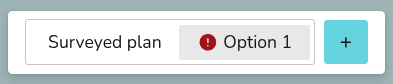](https://help.heatpunk.co.uk/uploads/images/gallery/2026-04/dGUCkL2JphhRiYp8-image.png)Most changes made to the *surveyed plan* apply to all design options. Read more about this [below](https://help.heatpunk.co.uk/books/plans-task/page/plans-and-design-options#bkmrk-editing-design-optio).
## Design option plans Design option plans allow you to model emitter upgrades and specify kit changes based on the *surveyed plan*. Read more about this in [Sources](https://help.heatpunk.co.uk/books/plans-task/page/sources "Heat sources"), [Hot Water](https://help.heatpunk.co.uk/books/plans-task/page/hot-water-storage "Hot Water Storage") and [Emitters](https://help.heatpunk.co.uk/books/plans-task/page/emitters "Emitters"). Click the **+** to add new design options. You can either duplicate and existing option or create a new option based on the *surveyed plan*. [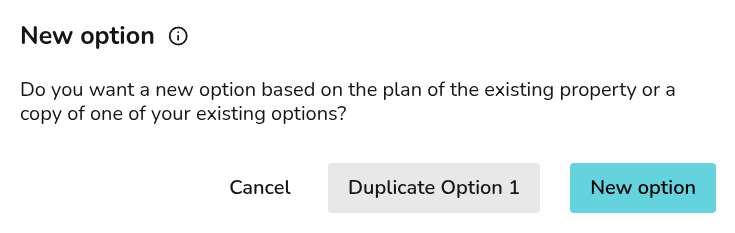](https://help.heatpunk.co.uk/uploads/images/gallery/2026-04/ktstlSTW8UCj19Yh-image.png) In the corner of the right-hand sidebar, you can **rename**, **duplicate** and **delete** the selected design option: [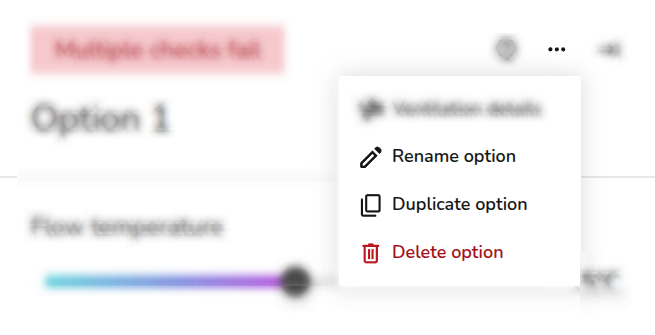](https://help.heatpunk.co.uk/uploads/images/gallery/2026-04/9eDw4a7wj4TkuOZZ-image.png)Most changes, excluding building fabric or layout changes, made while on a design option will only apply to that design option. Read more about this [below](https://help.heatpunk.co.uk/books/plans-task/page/plans-and-design-options#bkmrk-editing-design-optio).
After the *Plan task*, you can only proceed with one design option in forms and reports. Make sure you have the correct option selected before continuing onto the next task.
## Editing plans Some changes apply to all plans and some only apply to the selected plan. Below is a summary of how changes affect the *surveyed plan* and each design option.| **Changes** | **Impact on *surveyed Plan* or design options** |
| *Emitters* | Edits to existing emitters apply to all plans. To upgrade an emitter, delete it and add a new one or click *Upgrade* on a radiator from within a design option. |
| *ODT* | Changes to ODT apply across the *surveyed plan* and design options. |
| *Building (walls, floors, windows, doors) fabric and room layout* | Changes to room layout or building fabric apply across the *surveyed plan* and design options. |
| *Room temperature and ACH* | Changes to the *surveyed plan* apply to design options, unless the value has already been changed in that option. Changes to design options only apply to the selected option. Values in a design option appear with a \* if they differ from the *surveyed plan.* |
| *Heat pump and hot water storage* | Changes to the selected heat pump or hot water storage only apply to the selected design option. |
| *Hot water settings* | Changes to hot water settings only apply to the selected design option. |
Edits to existing emitters from the *Emitters* tab apply to all plans. Read about [emitter upgrades](https://help.heatpunk.co.uk/books/plans-task/page/emitters#bkmrk-radiator-upgrades) below.
While on the *Emitters* tab, as you adjust the **flow temperature**, you can see directly on the floor plan whether the heat loss is being met: [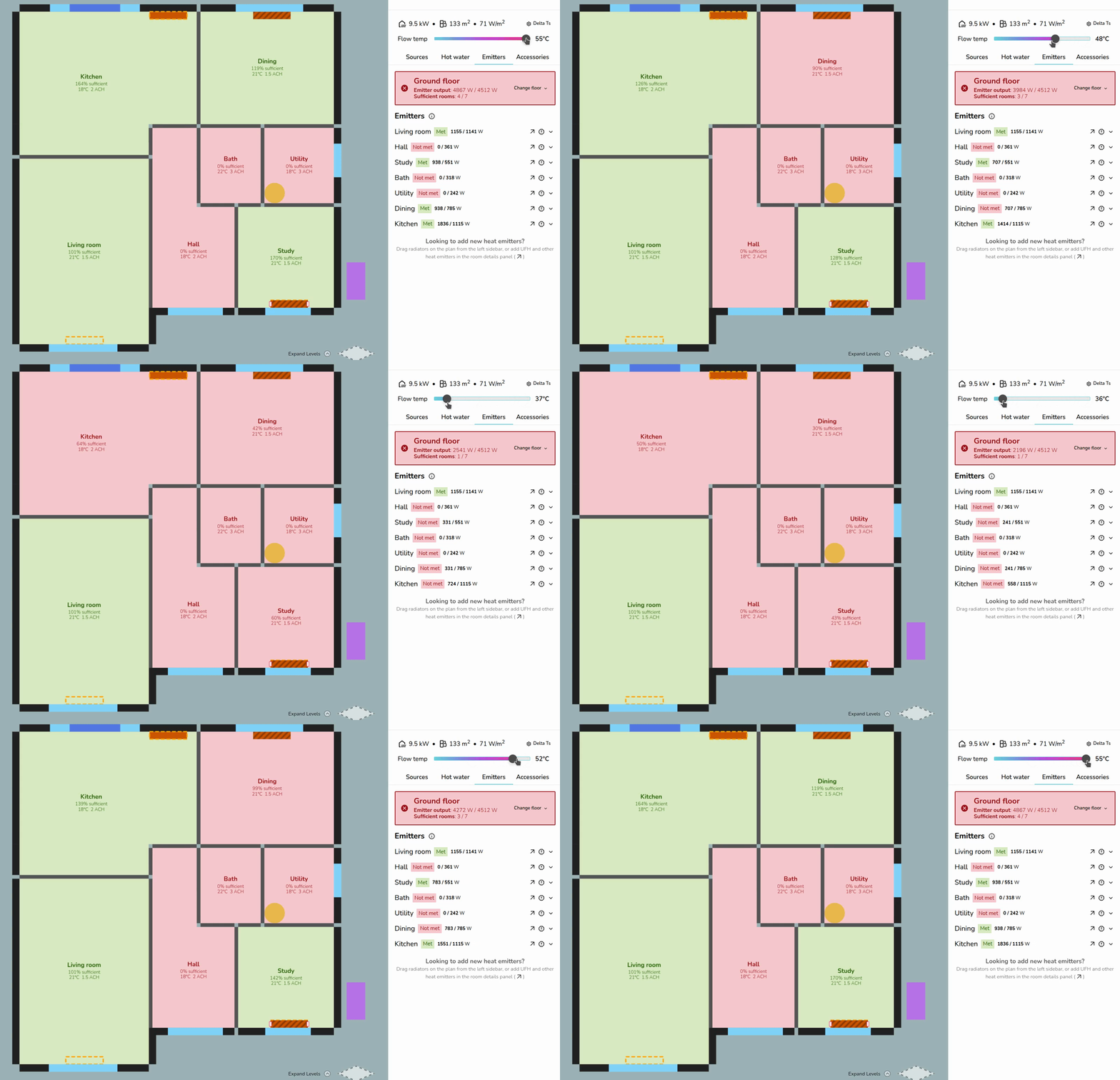](https://help.heatpunk.co.uk/uploads/images/gallery/2026-04/3jW0dGBH6qDRBEJl-adjustflowtempfloorplanview.gif)UFH and other non-radiator emitters have a **fixed output** that does not change with flow temperature in Heatpunk. As seen above, the living room output remains the same.
--- ## Adding emitters You can add emitters in both the *surveyed plan* and design options. Emitters added to the *surveyed plan* will be added to all design options, while emitters added within a design option are only added to that option. ### Adding radiators To place radiators on a floor plan, drag and drop from the right-hand sidebar. [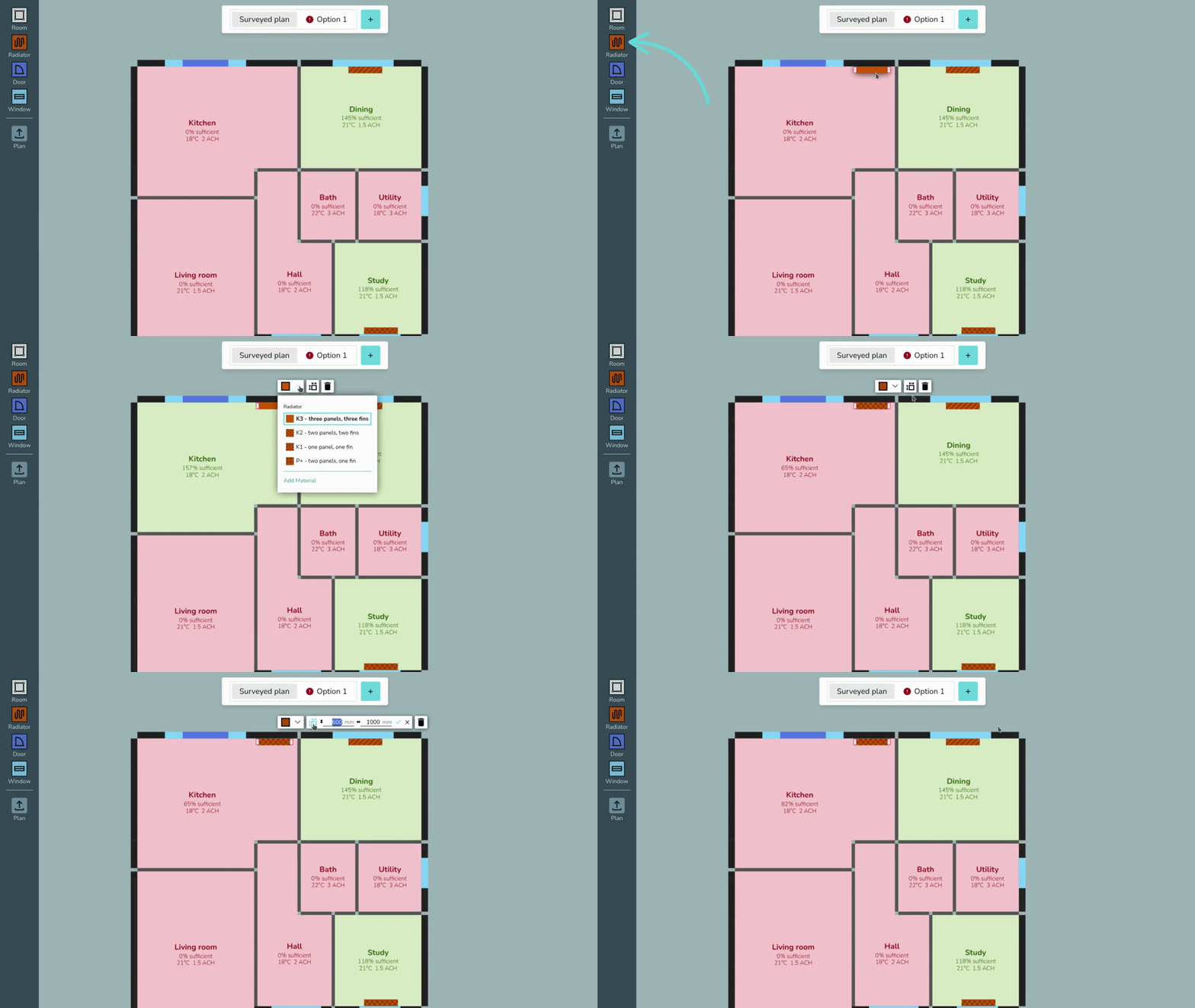](https://help.heatpunk.co.uk/uploads/images/gallery/2026-04/tFs7e8EjbJKxhdfs-placingradiator.gif) Click on the radiator to edit the type and size or remove from the plan. If the type you are looking for isn't listed, click *Add Material* to add radiators to your [material library](https://help.heatpunk.co.uk/books/plans-task/page/managing-your-material-palettes-and-library "Managing Your Material Palettes and Library"). [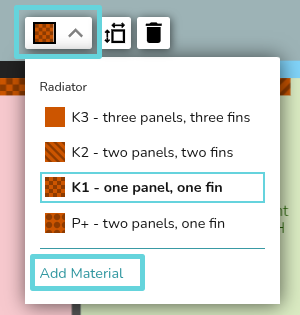](https://help.heatpunk.co.uk/uploads/images/gallery/2026-04/ZiBw0kjDjoau5Qo6-image.png)The radiators built into Heatpunk are **Stelrad Classic Compacts with Bottom Opposite End connection**. If you are using radiators where the outputs differ significantly, you should add them in as a [custom radiator](https://help.heatpunk.co.uk/books/plans-task/page/custom-materials "Custom Materials"). If you are using other varieties of connections for pipework, you must also account for this to ensure the outputs are calculated correctly.
### Adding underfloor heating or other emitters To add underfloor heating, navigate to the **Emitters tab** and click **🡥 See room details on the room. Below the room details, then click *Add underfloor heating* or *Add other emitters*. Fill in the details and then save changes. [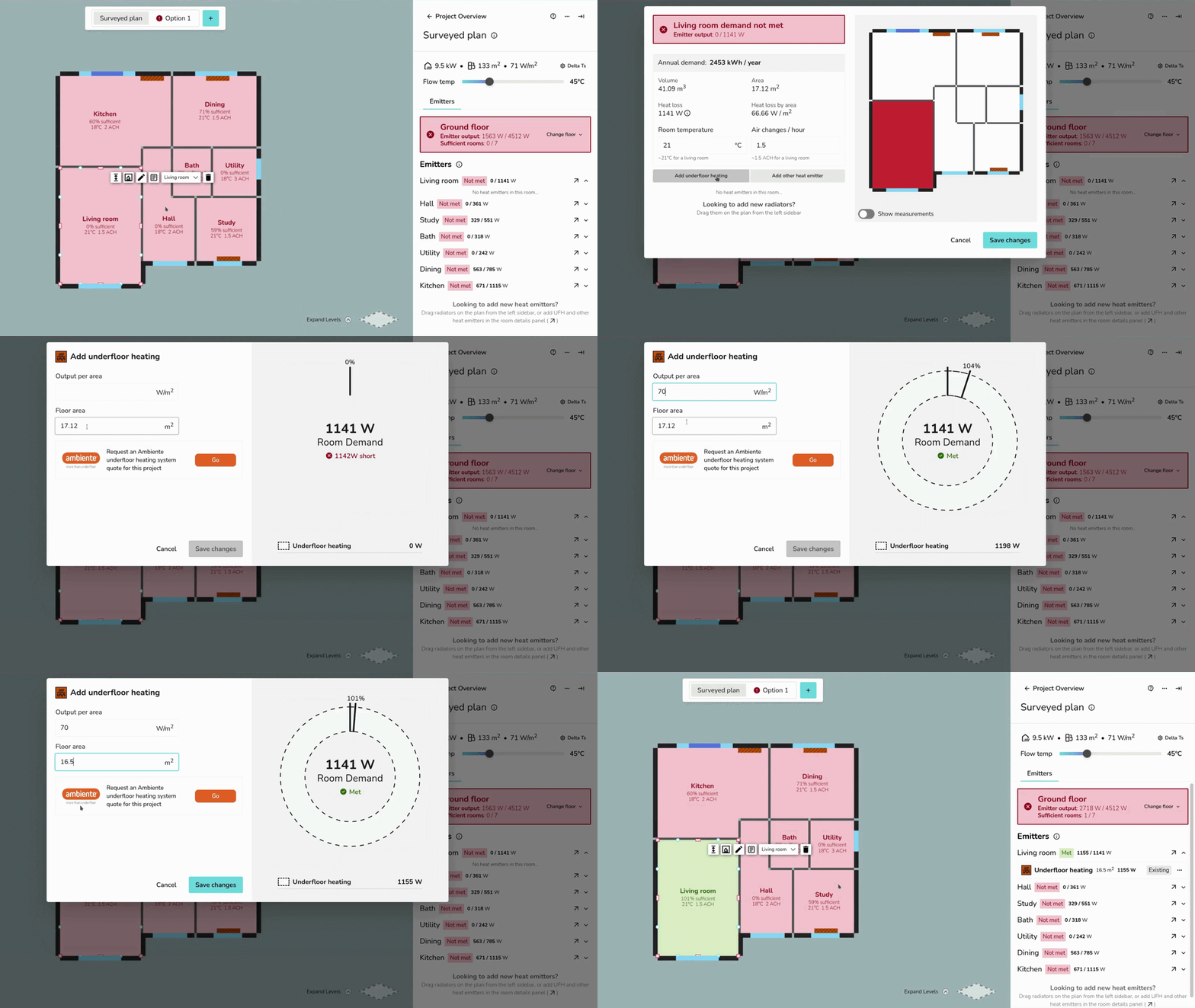](https://help.heatpunk.co.uk/uploads/images/gallery/2026-04/gwZHuN2Ql6YDZKvC-ufh-ezgif-com-video-to-gif-converter.gif) ### Emitter upgrades To complete emitter upgrades, make sure you have a **design option** selected. When you add, upgrade, or remove emitters, this is clearly labelled for each room: [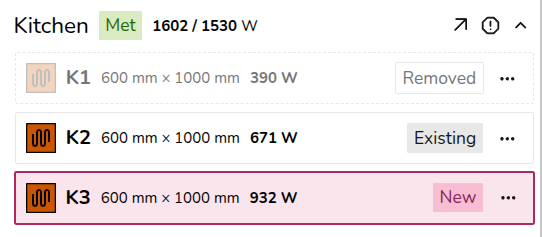](https://help.heatpunk.co.uk/uploads/images/gallery/2026-04/x8RnO4sw2BpHixLn-image.png) - **Existing**: emitters added to the *surveyed plan* - **Removed**: existing emitters deleted or replaced on a design option - **New**: emitters added to a design optionIf a radiator you've added is of the wrong type, remove the radiator, navigate to the correct floor plan (surveyed plan or a design option) and re-add the radiator.
### Radiator upgrades Click on the radiator on the plan and then click upgrade. [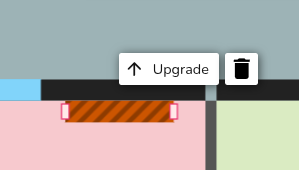](https://help.heatpunk.co.uk/uploads/images/gallery/2026-04/cGC8FGKc49UT8xm7-image.png) You can then edit the details of the existing emitter. [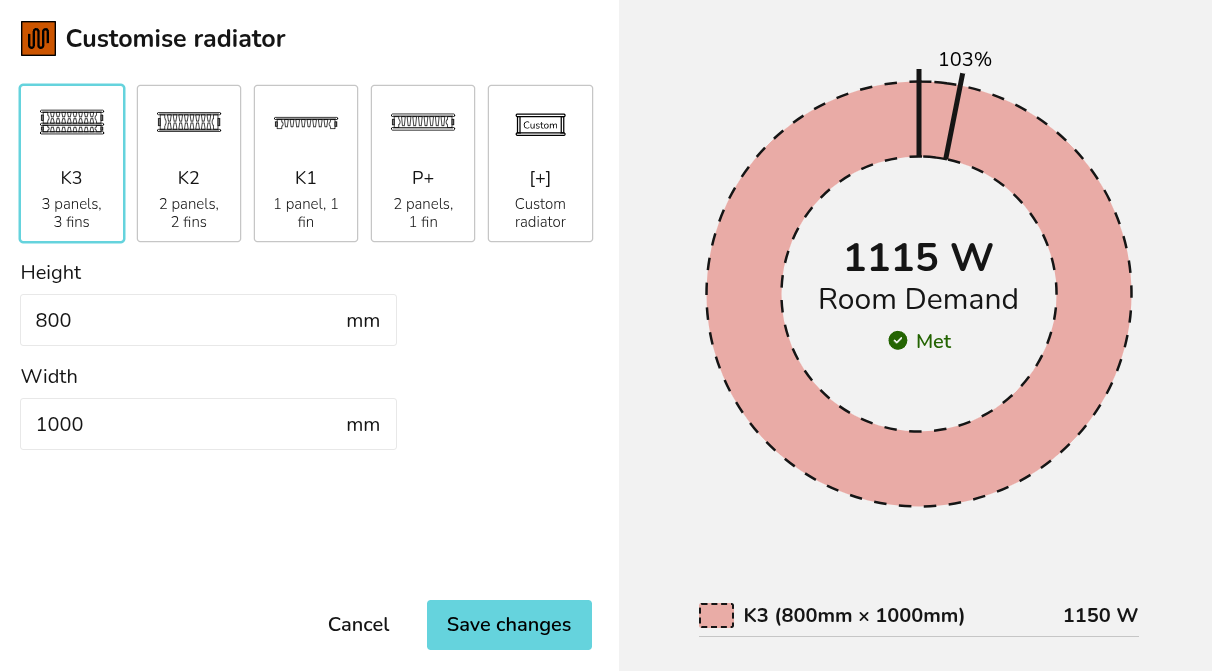](https://help.heatpunk.co.uk/uploads/images/gallery/2026-04/rg0oHHdZs9rcXXEH-image.png) Clicking *Save changes* will delete the existing radiator from the floor plan and replace it with the new radiator. [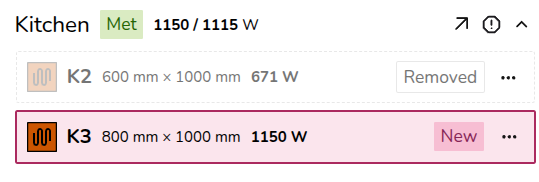](https://help.heatpunk.co.uk/uploads/images/gallery/2026-04/GX9qjHq8HG5v44C6-image.png) ### Underfloor heating and other emitters upgrades If you are replacing the radiator with underfloor heating (or another emitter), **delete** the radiator from the plan and follow the steps [above](https://help.heatpunk.co.uk/books/plans-task/page/emitters#bkmrk-adding-underfloor-he) to add UFH/other emitters to a project. ## Overriding heat loss To override the heat loss on a room, click the **exclamation** icon. Input the reason for the override and save. That text will then display in the **technical report**. [](https://help.heatpunk.co.uk/uploads/images/gallery/2026-04/FCxdcsSMauBIV997-image.png) The text will also appear on the floor plan. To view the full text, click **🡥 See room details**. --- ## Still Need Help? / Want to know more? - **Related FAQs:** Check out our [Plans task FAQs](https://help.heatpunk.co.uk/books/faqs/chapter/plans-task-creating-a-surveyed-floor-plan) for answers to common questions - **Further guides**: Take a look at our [Plans task help guides](https://help.heatpunk.co.uk/books/plans-task) - **Live training:** [Book onto a live demo session](https://cal.com/midsummer-energy) to see this feature in action **Contact Support:** If you've got further questions, get in touch with our support team at **help@heatpunk.co.uk** (UK) or **help@heatpunk.ie** (IE). *If you are experiencing a bug, to help us look into your issue faster, please include the email address of your account, the name of the project and screenshots of any unexpected behaviour.* # Sources ## Adding a heat pump [](https://help.heatpunk.co.uk/uploads/images/gallery/2026-04/PTdus0mdBXPnJVGo-heatpumpplacement.gif) Heat pumps are added to a design within the [***Plan task***](https://help.heatpunk.co.uk/books/plans-task/page/introduction-to-the-plans-task "Introduction to the Plan Task"). While on a [design option](https://help.heatpunk.co.uk/books/plans-task/page/surveyed-plan-and-design-options "Plans and Design Options"), drag and drop a *Pump* from the left-hand sidebar to place a heat pump in the plan. After placing the heat pump, you can select the model. Choose from the **recommendations** or scroll through the sections on the left, sorted by **brand and type** (monoblock and split). When a heat pump is selected, on the right you will see specs, and Midsummer stock levels and pricing. If your account is [connected to Midsummer](https://help.heatpunk.co.uk/books/getting-started/page/connecting-to-midsummer "Connecting to Midsummer"), you will also see your specific pricing. ## Sources tab On the *Sources* tab, you will see: [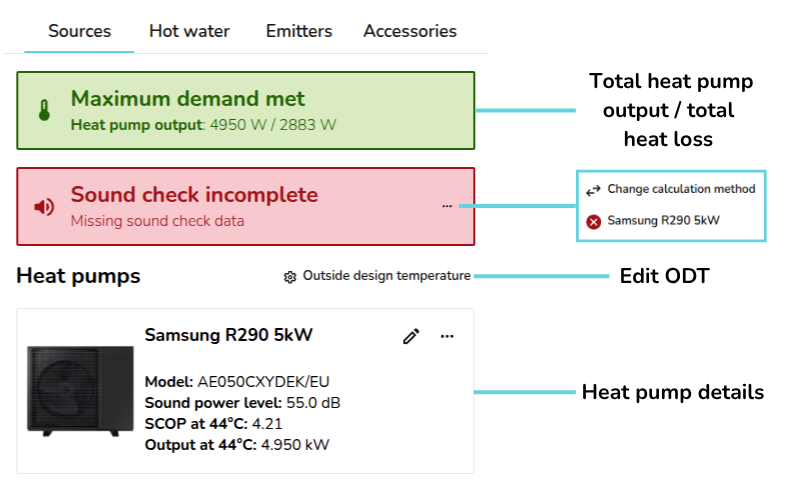](https://help.heatpunk.co.uk/uploads/images/gallery/2026-04/1KLixuYD0iQnfl8d-image.png) - Total heat pump output / maximum demand - Sound check information (UK only): choose sound check method and complete sound check for each heat pump - Outside design temperature (ODT) settings - Details of selected heat pumps ### Heat pumps [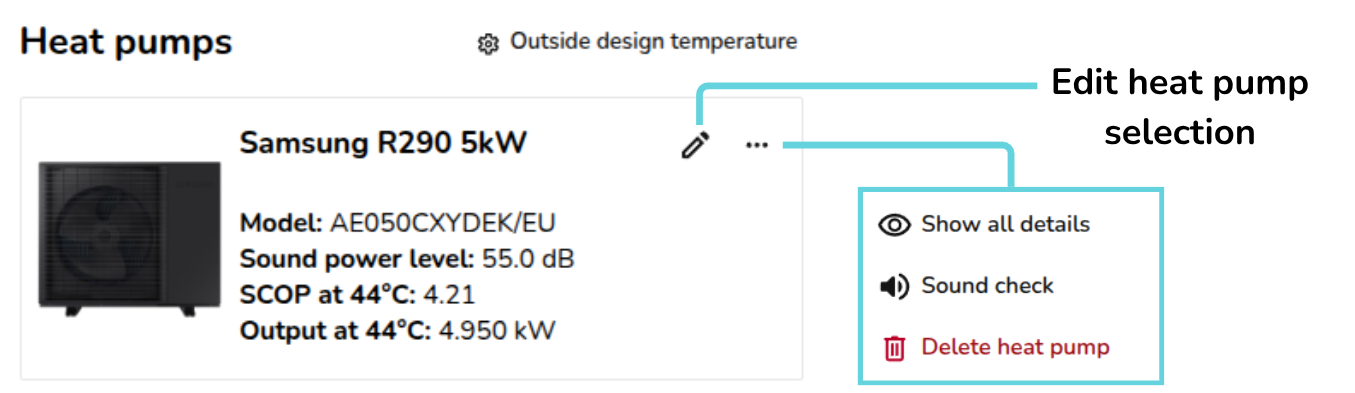](https://help.heatpunk.co.uk/uploads/images/gallery/2026-04/UCM2P6iRIjxVzv6Z-image.png) To **edit** or **delete** the selected heat pump(s), either delete directly from the design option floor plan or navigate to the *Sources* tab where you can:| [](https://help.heatpunk.co.uk/uploads/images/gallery/2026-04/ZXEkzMpqNIMrgUR3-edit.jpg) | **Edit heat pump** Re-open the heat pump selector menu to change the heat pump. |
| [](https://help.heatpunk.co.uk/uploads/images/gallery/2026-04/eCyT19q8ARDdtQEa-image.png) | **Show all details** Show/hide the nominal capacity and ENA registration number. |
| [](https://help.heatpunk.co.uk/uploads/images/gallery/2026-04/evzlTJfSqao4f6FL-image.png) | **Sound check** Complete sound check for this heat pump. Read more about this below. |
| [](https://help.heatpunk.co.uk/uploads/images/gallery/2026-01/yXEEcfO2NaTOkGHU-image.png) | **Delete heat pump** Remove heat pump from this design option. |
Sound checks on multiple heat pumps can only be completed using MCS 020 a) (2025 method). **Read more about the [sound check](https://help.heatpunk.co.uk/books/plans-task/page/sound-check-uk-only "Sound Check (UK)").**
### Editing ODT settings To change the ODT for the project, select ⚙ *Outside design temperature* next to *heat pumps*: [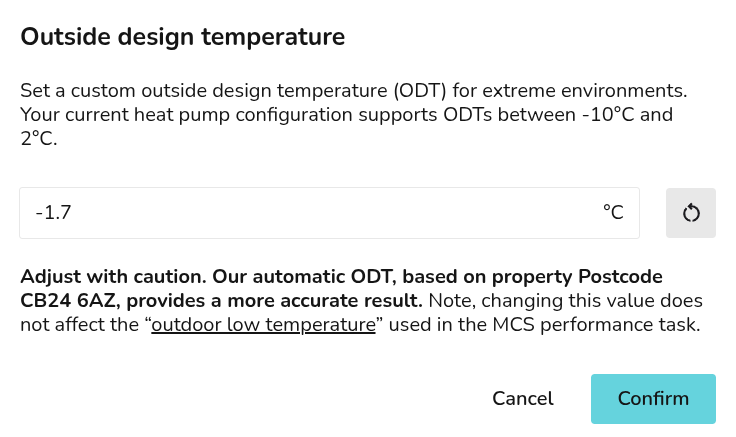](https://help.heatpunk.co.uk/uploads/images/gallery/2026-04/rx5LJ8IaSuZy1W8R-image.png) Read more about [ODT in Heatpunk](https://help.heatpunk.co.uk/books/news-and-updates/page/changes-to-outdoor-design-temperatures-odt "Changes to outdoor design temperatures (ODT)"). --- ## Still Need Help? / Want to know more? - **Related FAQs:** Check out our [Plans task FAQs](https://help.heatpunk.co.uk/books/faqs/chapter/plans-task-creating-a-surveyed-floor-plan) for answers to common questions - **Further guides**: Take a look at our [Plans task help guides](https://help.heatpunk.co.uk/books/plans-task) - **Live training:** [Book onto a live demo session](https://cal.com/midsummer-energy) to see this feature in action **Contact Support:** If you've got further questions, get in touch with our support team at **help@heatpunk.co.uk** (UK) or **help@heatpunk.ie** (IE). *If you are experiencing a bug, to help us look into your issue faster, please include the email address of your account, the name of the project and screenshots of any unexpected behaviour.* # Hot water storage Heatpunk helps you specify a hot water storage solution that's compatible with selected heat pump and sized based on property details. Once selected, you can view specs, domestic hot water (DHW) calculations and *Legionella* calculations. You can fine tune these calculations for the specific requirements of the installation and share these details with customer in the **technical report** and customer **proposal**. ## Adding hot water storage [](https://help.heatpunk.co.uk/uploads/images/gallery/2026-04/GZuj0C235ygScsya-cylinderplacement.gif) Hot water storage is selected in the [***Plan task***](https://help.heatpunk.co.uk/books/plans-task/page/introduction-to-the-plans-task "Introduction to the Plan Task"). While on a [design option](https://help.heatpunk.co.uk/books/plans-task/page/surveyed-plan-and-design-options "Plans and Design Options"), drag and drop hot water storage from the left-hand sidebar to place the hot water storage in the plan. After placing it, you can **select a hot water storage** option from the **recommendations** or scroll through the sections on the left sorted by **brand and type** (pre-plumbed, standard, pre-plumbed slimline, slimline and horizontal).| [](https://help.heatpunk.co.uk/uploads/images/gallery/2026-04/WLSobjebKEv8Tayi-untitled-design-5.png) | **Hot water preferences** Edit DHW and *Legionella* calculations. Read more about this below. |
| [](https://help.heatpunk.co.uk/uploads/images/gallery/2026-04/ZXEkzMpqNIMrgUR3-edit.jpg) | **Pencil** Edit hot water selection for this design option |
| [](https://help.heatpunk.co.uk/uploads/images/gallery/2026-04/eCyT19q8ARDdtQEa-image.png) | **Show/hide all details** Show/hide DHW energy and *Legionella* purge demand, weight, standing heat loss, coil size and immersion heater power. Read more about these details below. |
| [](https://help.heatpunk.co.uk/uploads/images/gallery/2026-01/yXEEcfO2NaTOkGHU-image.png) | **Delete cylinder** Remove hot water storage from this design option |
Changes to these settings will only affect the selected [design option](https://help.heatpunk.co.uk/books/plans-task/page/surveyed-plan-and-design-options "Plans and Design Options").
--- ## Still Need Help? / Want to know more? - **Related FAQs:** Check out our [Plans task FAQs](https://help.heatpunk.co.uk/books/faqs/chapter/plans-task-creating-a-surveyed-floor-plan) for answers to common questions - **Further guides**: Take a look at our [Plans task help guides](https://help.heatpunk.co.uk/books/plans-task) - **Live training:** [Book onto a live demo session](https://cal.com/midsummer-energy) to see this feature in action **Contact Support:** If you've got further questions, get in touch with our support team at **help@heatpunk.co.uk** (UK) or **help@heatpunk.ie** (IE). *If you are experiencing a bug, to help us look into your issue faster, please include the email address of your account, the name of the project and screenshots of any unexpected behaviour.* # Ventilation calculations in Heatpunkheatpunk.co.uk This guide primarily applies to the UK version of Heatpunk. For the IE version, S.R.50-2021 (UK *Legacy Method*) is still the primary method used and will be selected by default. Information on the other two available methods can be found below but disclaimers about MCS and the *Legacy method* can be ignored.
## Choosing a method Ventilation calculations are completed at the start of the *[Plan](https://help.heatpunk.co.uk/books/plans-task/page/introduction-to-the-plans-task "Introduction to the Plan Task")*[ task](https://help.heatpunk.co.uk/books/plans-task/page/introduction-to-the-plans-task "Introduction to the Plan Task"). In each project will you have the following options: - **Standard method**: based on BS EN 12831-1:2017, using assumed values for measured air permeability. - **Measured air permeability**: based on BS EN 12831-1:2017, using measured values for air permeability. - **Design air change rate**: choose a custom design air change rate. - **Legacy calculation**: based on BS EN 12831:2003. ### Standard method and measured air permeability After selecting either BS EN 12831-1:2017 method, you must then select 'How sheltered from the wind is the building?': [](https://help.heatpunk.co.uk/uploads/images/gallery/2025-12/1CztHmAmWcu2rRUZ-image.png) For the **Measured air permeability** option, you will also be asked to input an air tightness test result: [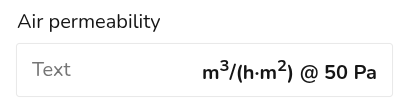](https://help.heatpunk.co.uk/uploads/images/gallery/2025-12/ZlW65COFz2BGQkLZ-image.png) For the **Standard method** this value is assumed based on the minimum ventilation rate required for the number of bedrooms in the property. Heatpunk will then execute the calculation [detailed below](https://help.heatpunk.co.uk/books/drafts-templates-and-archive/page/ventilation-calculations-wip#bkmrk-how-are-ventilation-). ### Legacy methodFor **UK** projects, MCS certification in accordance with MIS 3005-D now requires heat loss calculations comply with BS EN 12831-1:2017. Please only select this method when viewing old projects. For **IE** projects this is called S.R.50-2021 and is still the default option.
If opening a project created before Dec 2025, the Legacy method will be selected. This calculation is a sum of the individual ventilation losses of each room. For each room the following calculation is done: **Room ventilation losses = 0.33 \* ACH \* Volume \* Temperature difference**, where the ACH was taken from Table 3.8 of the CIBSE Domestic Heating Design Guide (2026). #### Editing calculation Once completed, you can edit the ventilation calculation by clicking click the **⋯ three dots** in the top right corner and then selecting *Ventilation details*. [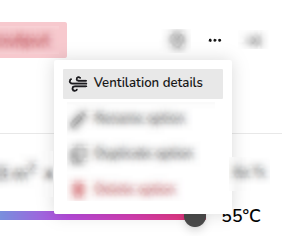](https://help.heatpunk.co.uk/uploads/images/gallery/2026-04/UTiY5nyhcDZn5a1s-image.png) ### **Custom Design air change rate** You will be asked to input the air changes per hour and select from the dropdown menu at what pressure the ACH is given. ### How are ventilation losses calculated? Under BS EN 12831-1:2017, the ventilation losses for a building are not a simple sum of the ventilation losses for each room. Instead ventilation losses are calculated both at a room level (Equation 17) and then separately on a building (or zone) level (Equation 16): [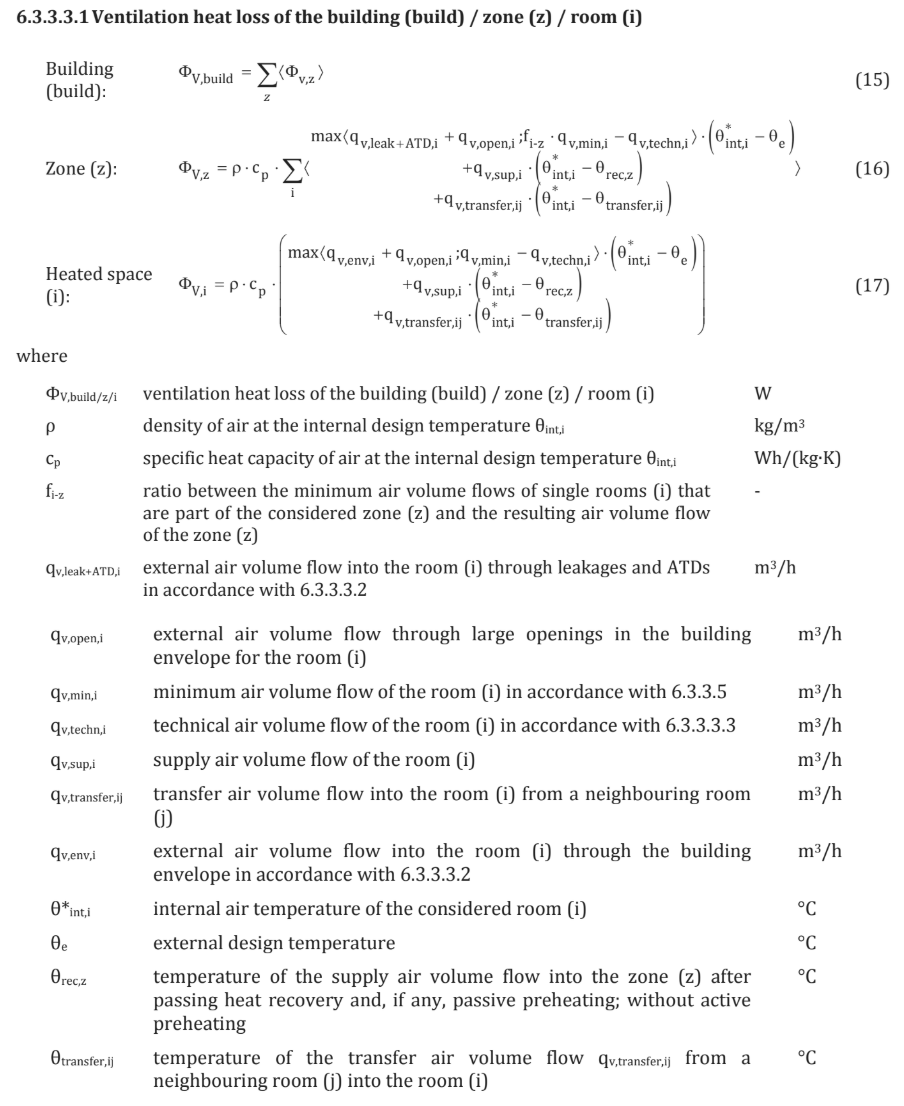](https://help.heatpunk.co.uk/uploads/images/gallery/2025-12/wVEqG6J0Wz581SKR-image.png) This is because some of the air flow into a room may be pre-warmed from another room. Rooms facing the wind may have cold outside air pushed into them, but then the warm air from those rooms will flow into other internal rooms. This reduces the amount of cold air entering a room not facing the wind, so not all warm air is lost to the outside. This then reduces the overall ventilation heat loss for the building compared to the individual rooms.By using Heatpunk, you are acknowledging and accepting this methodology.
--- ## Still Need Help? / Want to know more? - **Related FAQs:** Check out our [Plans task FAQs](https://help.heatpunk.co.uk/books/faqs/chapter/plans-task-creating-a-surveyed-floor-plan) for answers to common questions - **Further guides**: Take a look at our [Plans task help guides](https://help.heatpunk.co.uk/books/plans-task) - **Live training:** [Book onto a live demo session](https://cal.com/midsummer-energy) to see this feature in action **Contact Support:** If you've got further questions, get in touch with our support team at **help@heatpunk.co.uk** (UK) or **help@heatpunk.ie** (IE). *If you are experiencing a bug, to help us look into your issue faster, please include the email address of your account, the name of the project and screenshots of any unexpected behaviour.* # Sound check (UK only)The information provided here does not apply to [heatpunk.ie](https://help.heatpunk.co.uk/heatpunk.ie).
heatpunk.co.uk The sound check is part of the plan task and helps determine whether the planned installation position will generate excessive noise that could disturb neighbouring properties. The results of the sound check will be displayed in the customer proposal and technical reports. --- ## Completing the sound assessmentThere are currently two sound assessment calculation methods published by MCS. Permitted Development Rights in England and Wales require you to use the 2025 calculation method which is based on [**MCS 020 a)**](https://mcscertified.com/wp-content/uploads/2025/04/MCS-020-a-Issue-1.1-Final.pdf). Other UK nations, where they have not changed their Permitted Development Rights, may still require you to use the legacy calculation method based on [**MCS 020**](https://mcscertified.com/wp-content/uploads/2021/10/MCS-020.pdf). Please contact your local planning authority if you are unsure which method to use.
The sound assessment is completed in the [Plan task](https://help.heatpunk.co.uk/books/plans-task/page/introduction-to-the-plans-task "Introduction to the Plan Task"). Make sure you have a [design option plan](https://help.heatpunk.co.uk/books/plans-task/page/surveyed-plan-and-design-options "Plans and Design Options") selected and a heat pump added to the project. [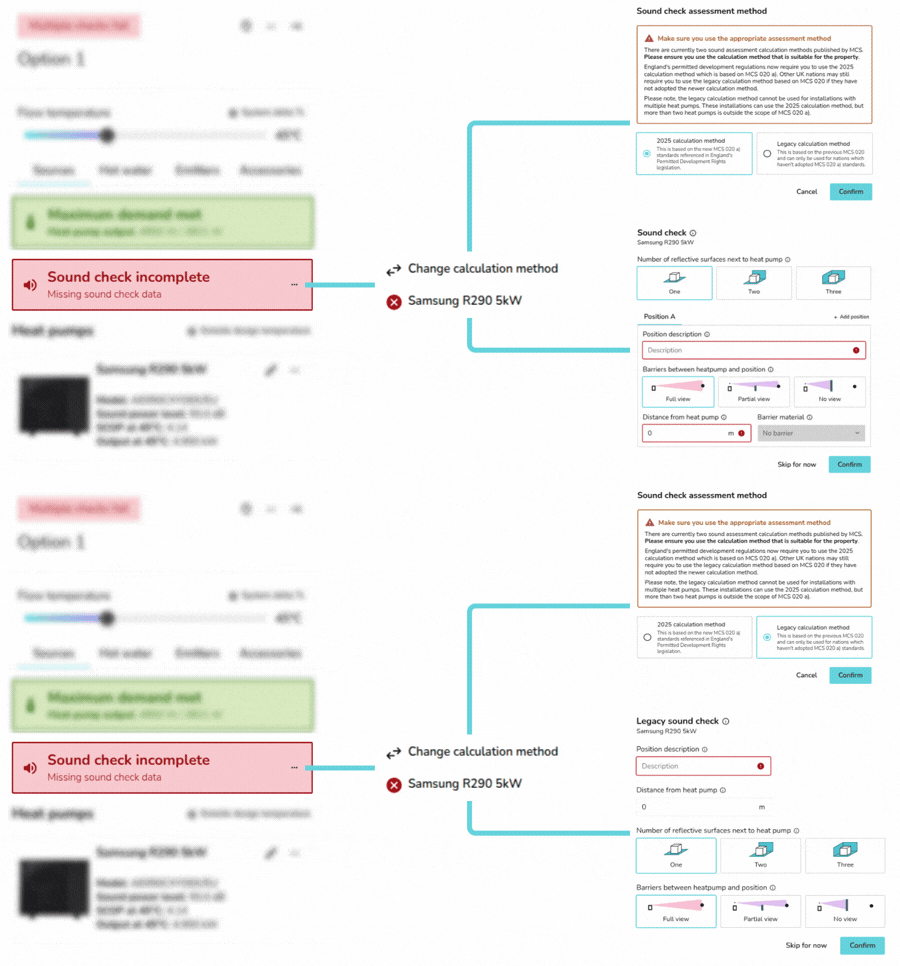](https://help.heatpunk.co.uk/uploads/images/gallery/2026-04/b6HkzGtANVymDUKd-soundcheck.gif) Click the **⋯ three dots** and then ***Change calculation method*** to make sure the correct **assessment method** is selected on the *Sources* sidebar. Then follow these steps: 1. Click the **⋯ three dots** and then the name of the heat pump you would like to complete the sound assessment for. 2. Input the details about the **heat pump position** and **assessment points**. 3. Once you have completed the sound check for all the heat pumps in the project the project, the **results** will display on the right-hand sidebar under *Sources*. To edit the details of the sound check click the **⋯ three dots** and the name of the heat pump again. --- ### Using the 2025 calculation method - MCS 020 a) To comply with MCS 020 a), the calculated noise level at each assessment position must be below 37 dB. Under MCS 020 a), it is vital to include **multiple assessment positions**, as more distant locations without a barrier may experience higher noise levels than closer positions that are shielded. [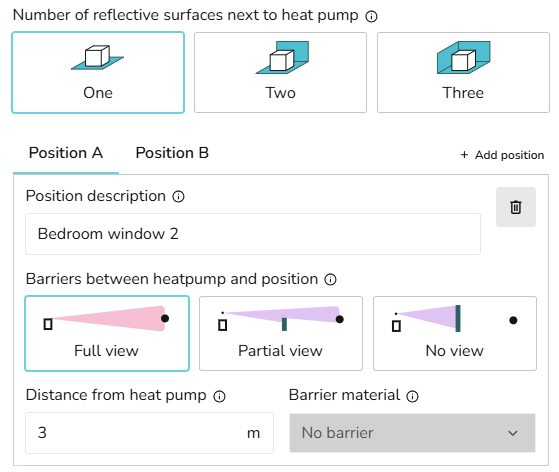](https://help.heatpunk.co.uk/uploads/images/gallery/2025-06/dXsZRcrl0N3vvtl8-image.png) In order to comply with MCS 020 a) standard, start by making sure the **2025 calculation method** is selected. 1. Select the number of reflective surfaces next to the heat pump. 2. Add details for the first assessment position, including the description, distance and details of any barriers. 3. Add additional assessment positions by clicking *+ Add position*. 4. Delete any positions you no longer need using the dustbin icon. 5. Click *Confirm* to view the sound check results. See [MCS guidelines](https://mcscertified.com/wp-content/uploads/2025/04/MCS-020-a-Issue-1.1-Final.pdf) for further information on the calculation. --- ### Using the legacy calculation method - MCS 020 To comply with the legacy MCS 020 standard, the noise level at a single assessment position must be below 42 dB. [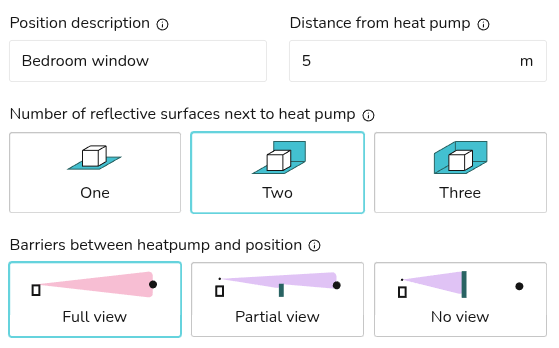](https://help.heatpunk.co.uk/uploads/images/gallery/2025-06/p8opArN7nldWRfnC-image.png) In order to comply with the previous MCS 020 standards, make sure the legacy calculation method is selected. 1. Add details for the assessment position, including the description, distance, number of reflective surfaces and details of any barriers. 2. Click C*onfirm* to view the sound check results. See [MCS guidelines](https://mcscertified.com/wp-content/uploads/2021/10/MCS-020.pdf) for further information on the calculation. --- ## Still Need Help? / Want to know more? - **Related FAQs:** Check out our [Plans task FAQs](https://help.heatpunk.co.uk/books/faqs/chapter/plans-task-creating-a-surveyed-floor-plan) for answers to common questions - **Further guides**: Take a look at our [Plans task help guides](https://help.heatpunk.co.uk/books/plans-task) - **Live training:** [Book onto a live demo session](https://cal.com/midsummer-energy) to see this feature in action **Contact Support:** If you've got further questions, get in touch with our support team at **help@heatpunk.co.uk** (UK) or **help@heatpunk.ie** (IE). *If you are experiencing a bug, to help us look into your issue faster, please include the email address of your account, the name of the project and screenshots of any unexpected behaviour.*