If you select *No Presets* and create a palette through a project, it **will not save** to your material library.
[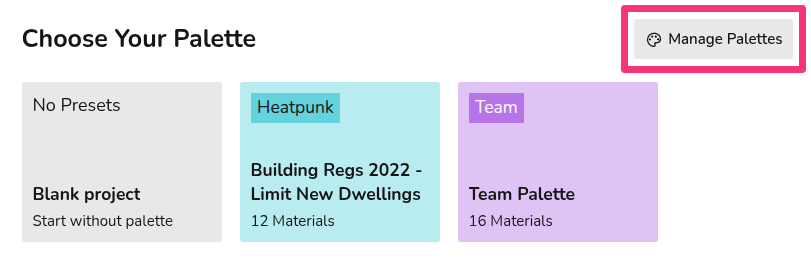](https://help.heatpunk.co.uk/uploads/images/gallery/2026-01/qxbzem4axGJC4CNd-image.png) In your material library, you will be able to **view** and **edit** all your material palettes and **create new ones**. Each palette will have a three-dot menu in the top right which will give the following options:| [](https://help.easy-pv.co.uk/uploads/images/gallery/2025-11/8gb7pLeezNV2Vyih-6m6gz1njnegppmzb-edit.jpg) | **Edit palette** Make changes to the palette. This will not affect projects already using this palette. |
| [](https://help.easy-pv.co.uk/uploads/images/gallery/2025-09/jMO6FxliPQuscMfZ-image.png) | **Clone palette** Make a copy of the palette. |
| [](https://help.easy-pv.co.uk/uploads/images/gallery/2025-09/UcWzpF4HY8xhSg91-image.png) | **Delete palette** Remove the palette from your library. This will not affect projects already using this palette. |
See [here](https://help.heatpunk.co.uk/books/creating-a-floor-plan/page/choosing-a-material-palette "Using Material Palettes within projects") for information on **editing a palette within a project**.
In the top right you can **create a new palette**. [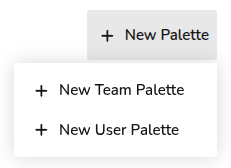](https://help.heatpunk.co.uk/uploads/images/gallery/2026-01/PTCprknlCLLYIFHS-image.png) --- ## Creating a palette See the video and steps below to find out how to create a palette. 1. Click ***+ New Palette*** in the top right, then ***+ New Team/User Palette***. 2. Input the name of the palette and click *OK*. 3. Click on the new palette to add materials. 4. For each section (External walls, Windows, etc.) select the materials you would like to be included in the palette. 5. Click the star next to the material you'd like to be the **default** one used for this palette. 6. Once you have added all the materials you need to a section, click *Next* on the bottom right or navigate to the next section directly from the sidebar. 7. Once you have entered a material for each section and completed your palette then click *Home* on the bottom left to finish.**Default** **materials** (starred) are automatically selected in floor plans, but this can be easily **[overridden or edited](https://help.heatpunk.co.uk/books/creating-a-floor-plan/page/choosing-a-material-palette "Using material palettes (hidden)")** on a per-project basis.
You will then be able to select this palette on any new projects. Please note: - Pre-set materials are based on CIBSE's Domestic Heating Guide, if you can't find the material you need, you can [create a custom material](https://help.heatpunk.co.uk/books/creating-a-floor-plan/page/custom-materials "Custom materials"). - Some floor materials will not list the u-value. This is because in the MCS calculation, floor U-values are dependent on the area of the room and the number of edges which are external and are calculated per room. - Standard users will only be able to make user-level palettes. Pro users will be able to create team-level palettes that will be available when pro team members create a project. ### Incomplete palettes Incomplete palettes will save but will not be selectable on projects. [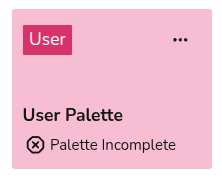](https://help.heatpunk.co.uk/uploads/images/gallery/2026-01/6iqu3kVrdbWGZdIc-image.png) Each section needs **at least one material**, but only materials used in a project will be displayed on reports. The **!** symbol next to each section title signifies that the section is incomplete. Make sure each section has a material, even if you do not plan to use it. [](https://help.heatpunk.co.uk/uploads/images/gallery/2026-01/n1i5HeUc2KxBNl38-image.png) --- ## Still Need Help? / Want to know more? - **Related FAQs:** Check out our [Plans task FAQs](https://help.heatpunk.co.uk/books/faqs/chapter/plans-task-creating-a-surveyed-floor-plan) for answers to common questions - **Further guides**: Take a look at our [Plans task help guides](https://help.heatpunk.co.uk/books/plans-task) - **Live training:** [Book onto a live demo session](https://cal.com/midsummer-energy) to see this feature in action **Contact Support:** If you've got further questions, get in touch with our support team at **help@heatpunk.co.uk** (UK) or **help@heatpunk.ie** (IE). *If you are experiencing a bug, to help us look into your issue faster, please include the email address of your account, the name of the project and screenshots of any unexpected behaviour.*