Reports, document storage and emails
- Pro: DNO Application via Connect Direct
- Pro: Survey Task and Installation record
- Pro: Document Management
- Pro: Sending Emails From Heatpunk
- Pro: E-signing
Pro: DNO Application via Connect Direct
This guide applies to the UK Pro version of Heatpunk.
Heatpunk Pro’s DNO application feature allows you to effortlessly create and submit a DNO application directly based on your Heatpunk design. It will take information from your project to pre-populate some of the fields in a specially designed online form.
Making an Application
It is possible to begin the DNO application form once you have completed the design stage of your project and you have a bill of materials. At the Project Overview screen select Start on the DNO Application box on the right-hand side.
Further info on form sections
MPAN number
Firstly you need to fill in the customer’s unique MPAN number. This is the 13 digit unique identifier found on the customer's energy bill.
Once this is filled in, Heatpunk will add the correct DNO for that address (this can also be set manually). If your DNO is not listed, you can select "Other/IDNO". Connect Direct will use the MPAN to ensure that the application is sent to the correct DNO.
Customer and installer details
Your customer’s name, address, and contact details along with your own details will be pre-populated here (provided you have entered this data earlier in the design phase). These can also be edited or added here if required.
New Heat Pumps Being Installed
Heatpunk will also have pre-filled the manufactuer's reference number for the heat pump that has been used in your design.
At this point, you need to choose an Installation Date. This date must be in the future, as only pre-installation applications are supported by Connect Direct.
Supply details
Some of these options will auto-fill if they have been completed in the survey task. Otherwise, you will need to fill them in now.
You need to upload a clear image of the 'cut-out' of the electrical supply for the property, something like the image shown here. This image will then be automatically scanned so it must be an accurate image for your application to progress.
Once all other fields are completed, you can press submit application, which will automatically send the information as a formal application to the designated DNO.
Status of the application
You will receive updates from the DNO directly about whether the application has been rejected or approved. You can also view the status of your application from the project overview screen and refresh to check back for updates.
Amending an Application
Applications cannot be amended. If you make an error in your application, you should submit a new application.
Pro: Survey Task and Installation record
The survey task allows the surveyor to enter all information required to plan out the installation in one location. Surveyors can answer the questions and add additional comments. Certain information captured in the Survey task will pre-populate in other areas of Heatpunk, such as your DNO Connect Direct application.
The installation record works in many of the same ways as the survey task, it instead allows you to keep a good record of your install should any issues arise in the future. This form can also be e-signed by the installer and surveyor.
In both forms you can upload images and apply image annotations. A PDF report of the survey and installation record can be generated from the reports drop-down in the main navigation.
Accessing and filling out the survey and installation record
From any project, click the Tasks option in the main navigation menu, then select Surveys or Installation record.
Filling in survey and installation record
Both forms are divided into sections that can be viewed and navigated between using the right-hand menu.
|
|
|
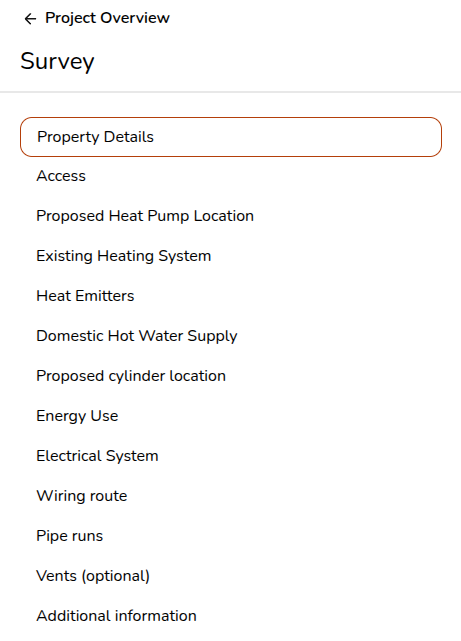
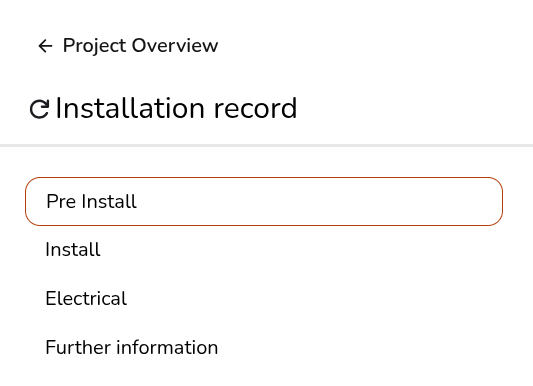
On the left, for each section you'll see each question to answer:
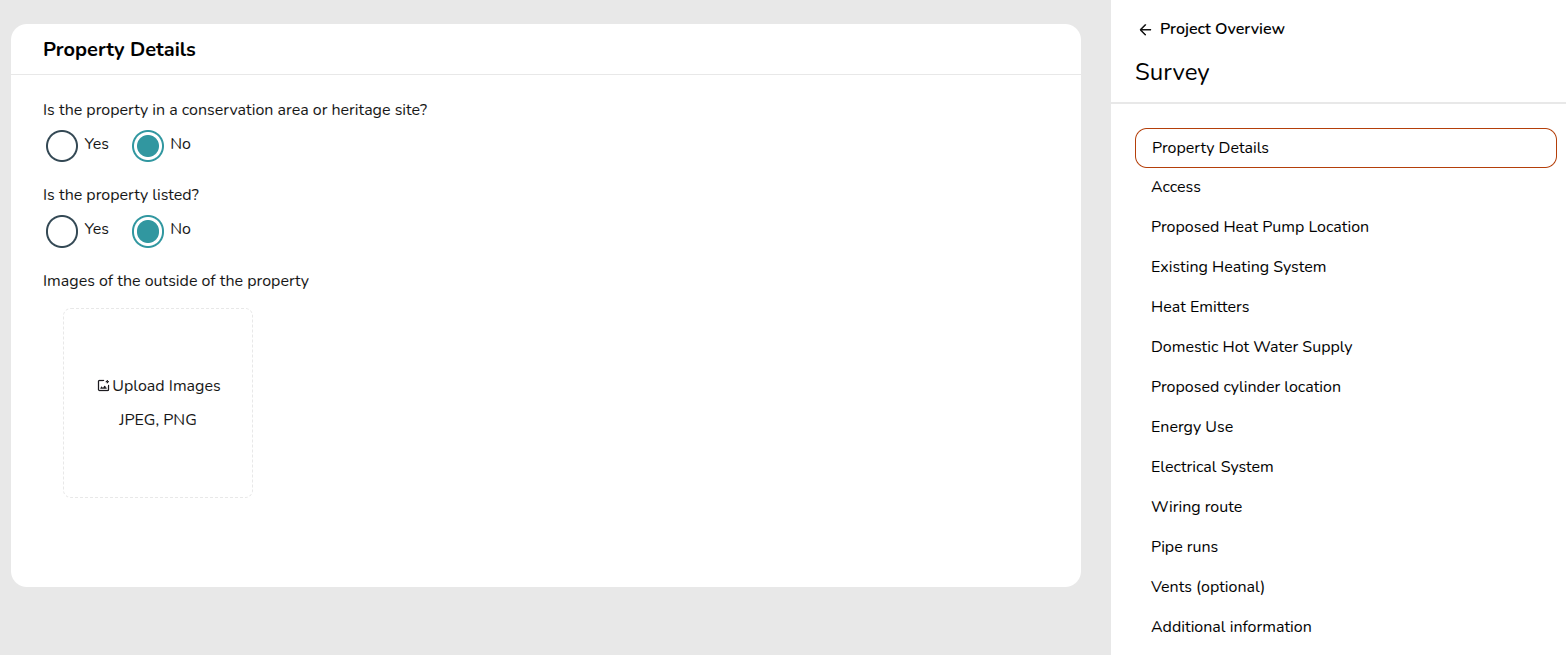
If you think an important question is missing from the survey or installation records, get in touch at help@heatpunk.co.uk and we can look into including it.
Uploading and annotating an image
There are various places throughout the survey and installation record where pictures can be uploaded and annotated.
Click on the Upload Images box and it will bring up the option to upload a picture from your files. If you are on a mobile or tablet device it will give you the option to take a photo. You can repeat this step to add multiple images.
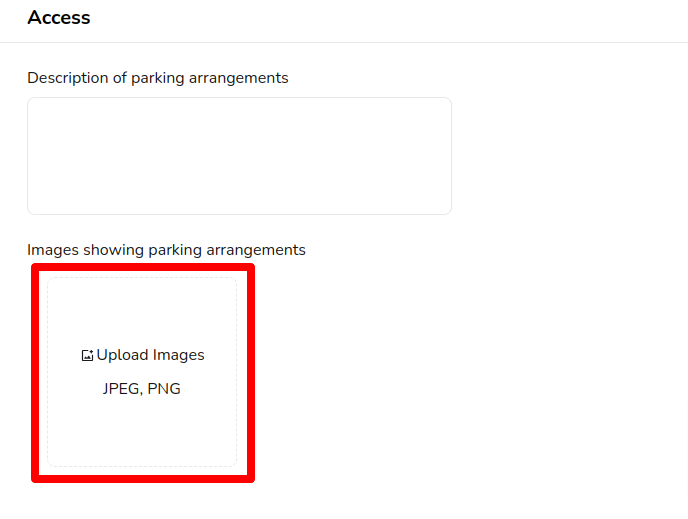
Note that HEIC files (usually from mobile devices) are not supported at this time. If your phone, tablet, or camera is set to save pictures in this file format, please change this to save .jpg files in settings.
Once the file has been uploaded, you can click on the picture to bring up the annotation options.
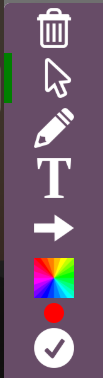 |
Use the bin button to delete annotations or the whole image.
The cursor lets you select annotations you have added to the image.
The pencil allows you to draw or write free-form.
The ‘T’ is used to create a text box.
The arrow lets you draw an arrow.
The colour box is where you can change the colour of annotations.
The tick mark saves your annotations and exits the annotations editor. |
The green bar at the left indicates which tool you are currently using.
Accessing your survey and installation record as a PDF report
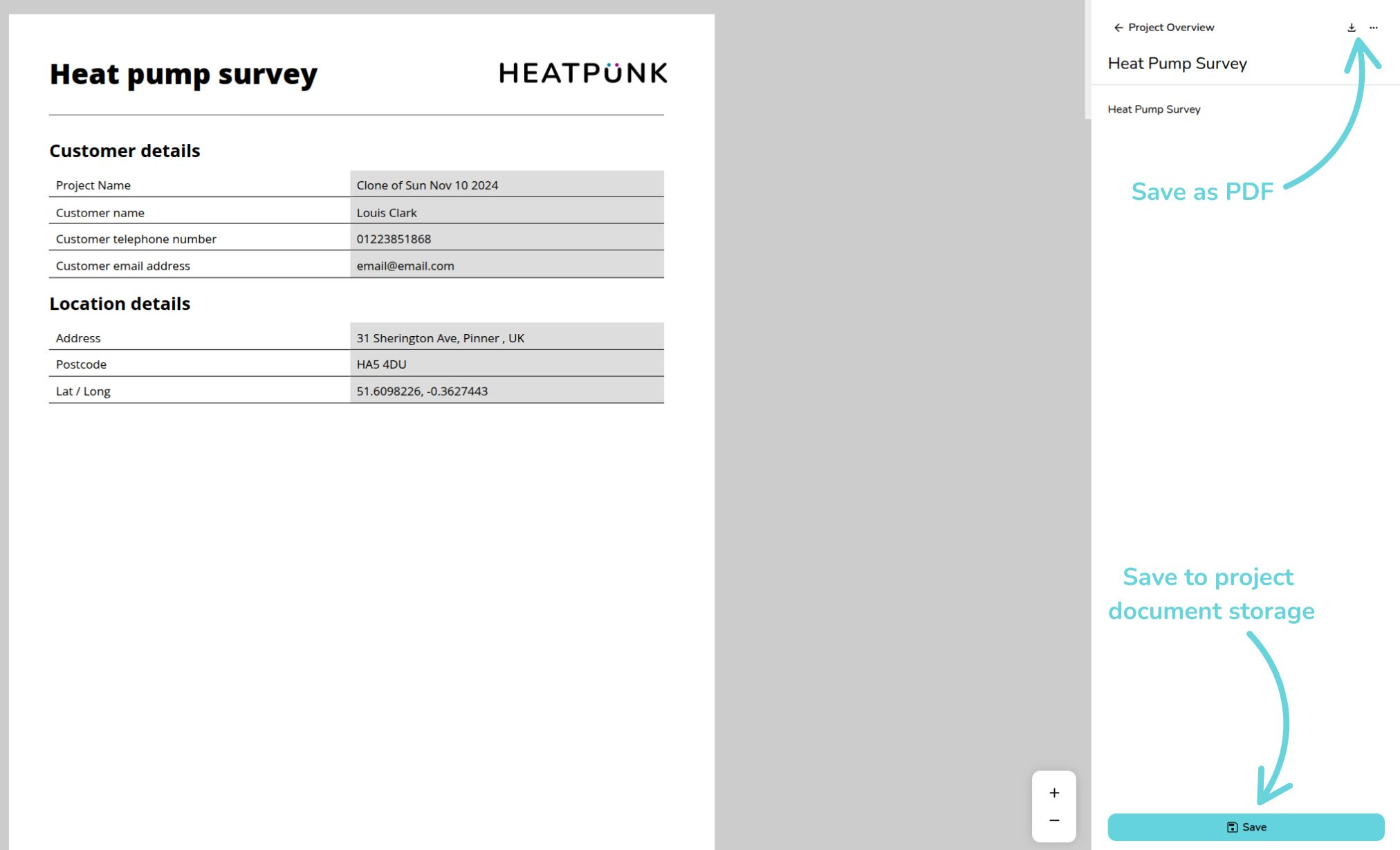
After the form is complete, the report can be found in the Reports drop-down. Annotated images, question responses, and an image of the roof layout will be carried forward to the survey report.
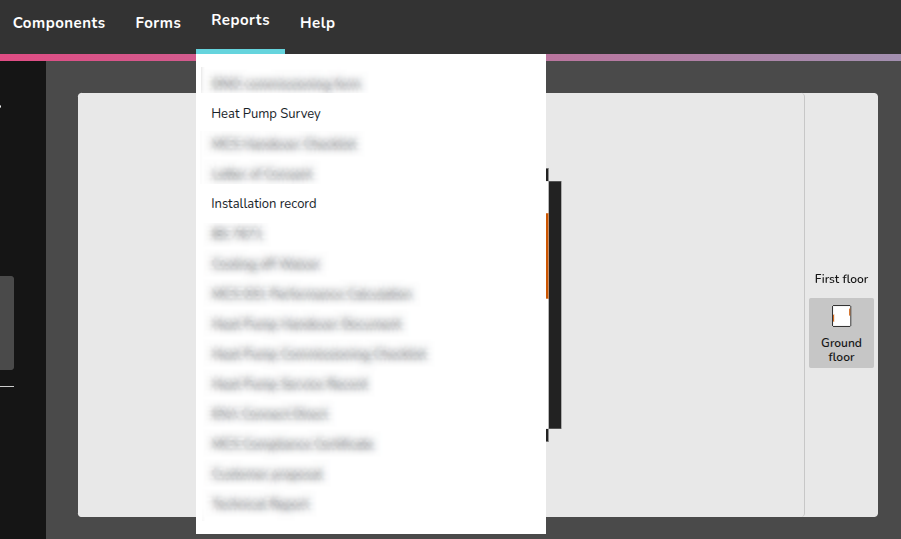
You can then scroll through the document with all your inputs, save as a PDF or save to your project's document storage
E-signing installation record
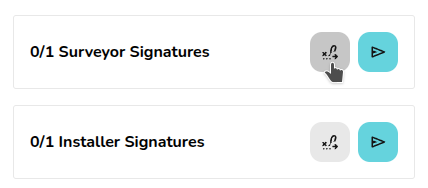
For the installation record, you also have the option for the surveyor and installation to sign the PDF. This can be done directly through Heatpunk or can be sent as an email for signing.
Pro: Document Management
This guide applies to the pro versions of Heatpunk
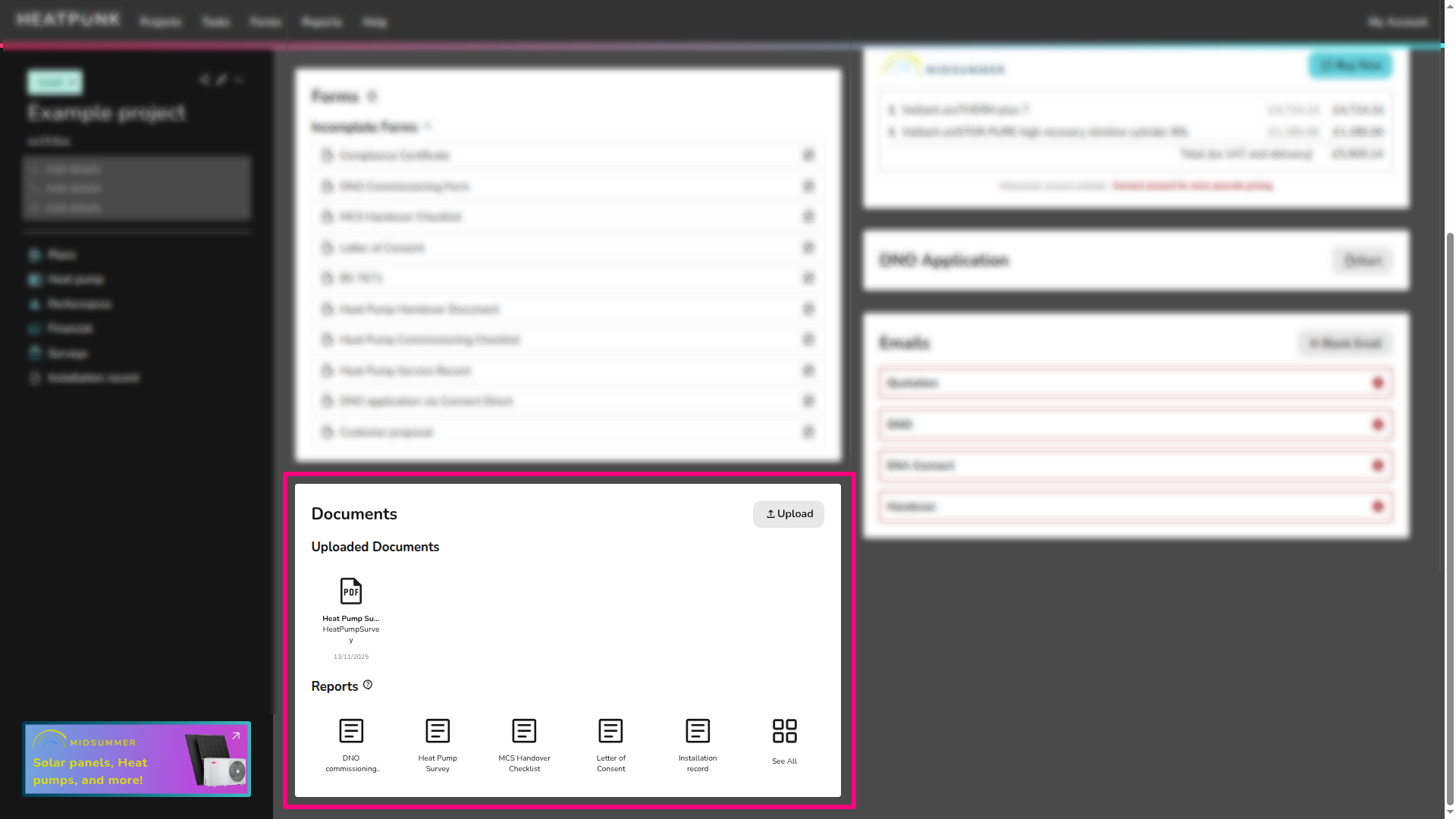
Pro enables you to upload and store documents within a project, allowing you to keep track of everything you need for a project in one place. Documents uploaded here can also be attached to any emails sent within Heatpunk.
The document management section can be found at the bottom left of the project overview.
Uploading files to the document manager
Files can be saved directly from a project or uploaded from your device. These can also be sent in emails through Heatpunk. If you have team files you'd like accessible on all projects when sending emails, you can upload these to your team uploads.
Saving a Heatpunk report to the document manager
When previewing any report in Heatpunk, you will see a menu on the right-hand side with a save button at the bottom. This will save the file to the document manager.
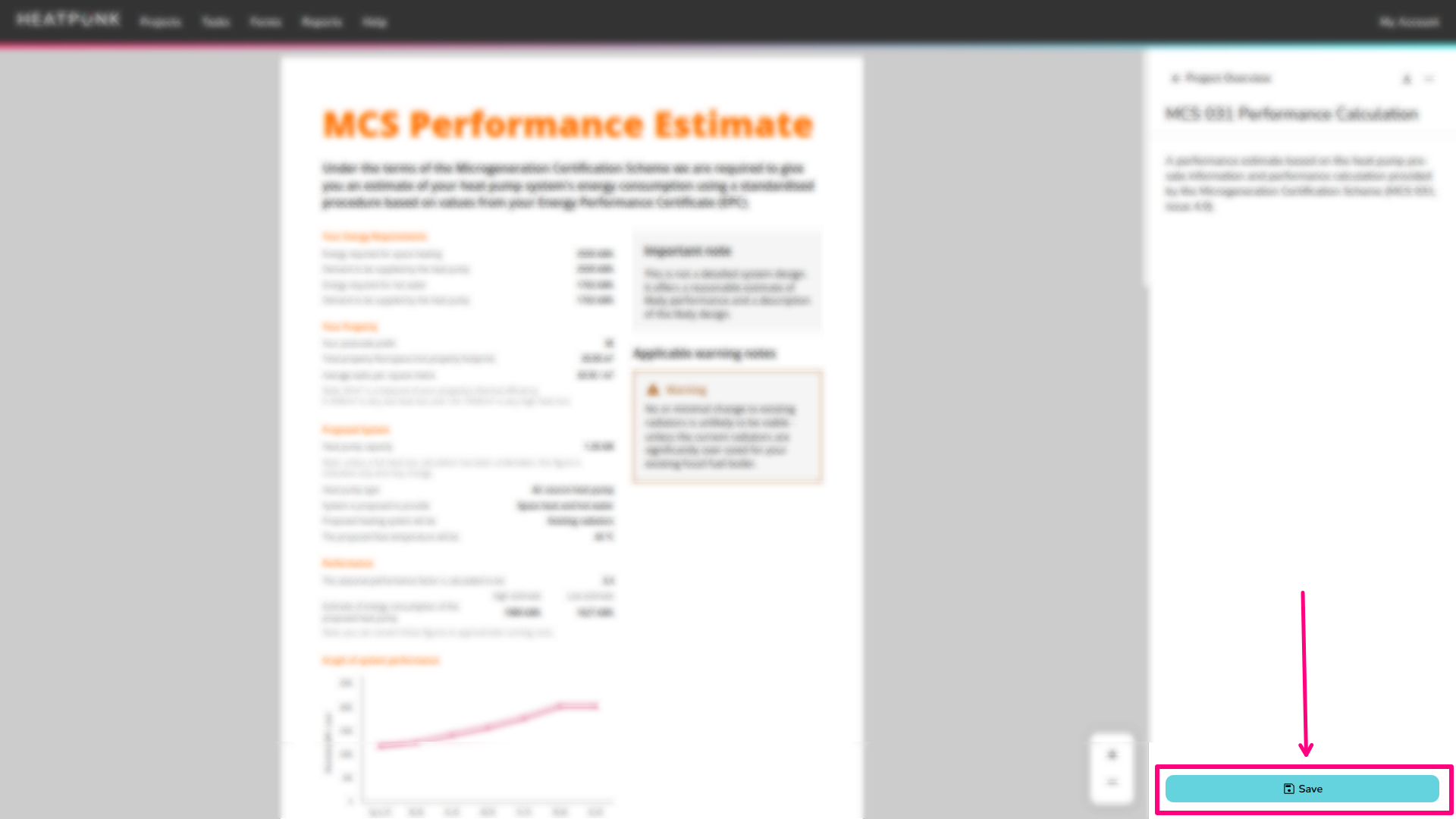
If you make changes to a document, you will need to re-save it for the updates to appear in the document manager.
Upload a document from your device
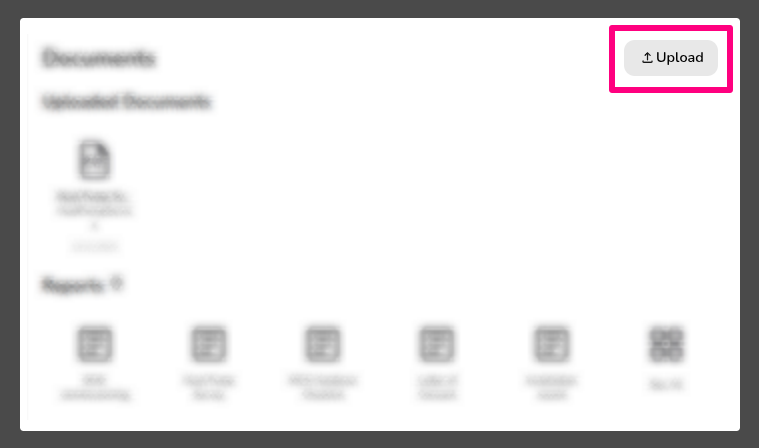
To upload a document from your device, click the Upload button. Then use the Upload File button to find the document you wish to upload.
Options on saved files
To edit the details on any saved files, click the three dots
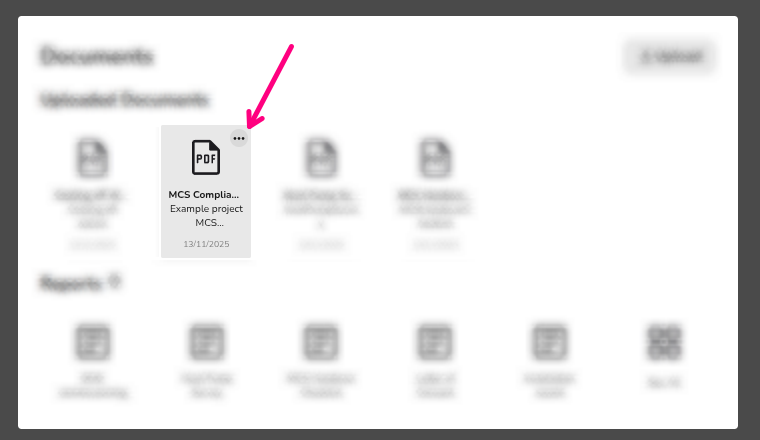
You will then see the following options:
 |
Rename The file name will display if it's sent in any emails in Heatpunk. You can change the name of a file by clicking Rename. |
 |
Reassign Each file you upload has a type, this is used when sending emails in Heatpunk. To reassign this type, click the three dots and select Reassign. |
 |
Download If you’d like to download any of the files you’ve added to your project, click the Download button. |
 |
Delete To delete a document, click Delete. This will delete the saved version of the document from the file management section of your project. |
Pro: Sending Emails From Heatpunk
This guide applies to the pro versions of Heatpunk
With pro, you have the option to send emails without needing to leave Heatpunk. This includes sending e-signing links and uploading any attachments from your project or team documents.
Sending emails in Heatpunk
Emails can be sent from the templates in the project overview or from within individual documents.
If you'd like to send a document for e-signing, these must be sent from within individual documents.
Emails from the project overview
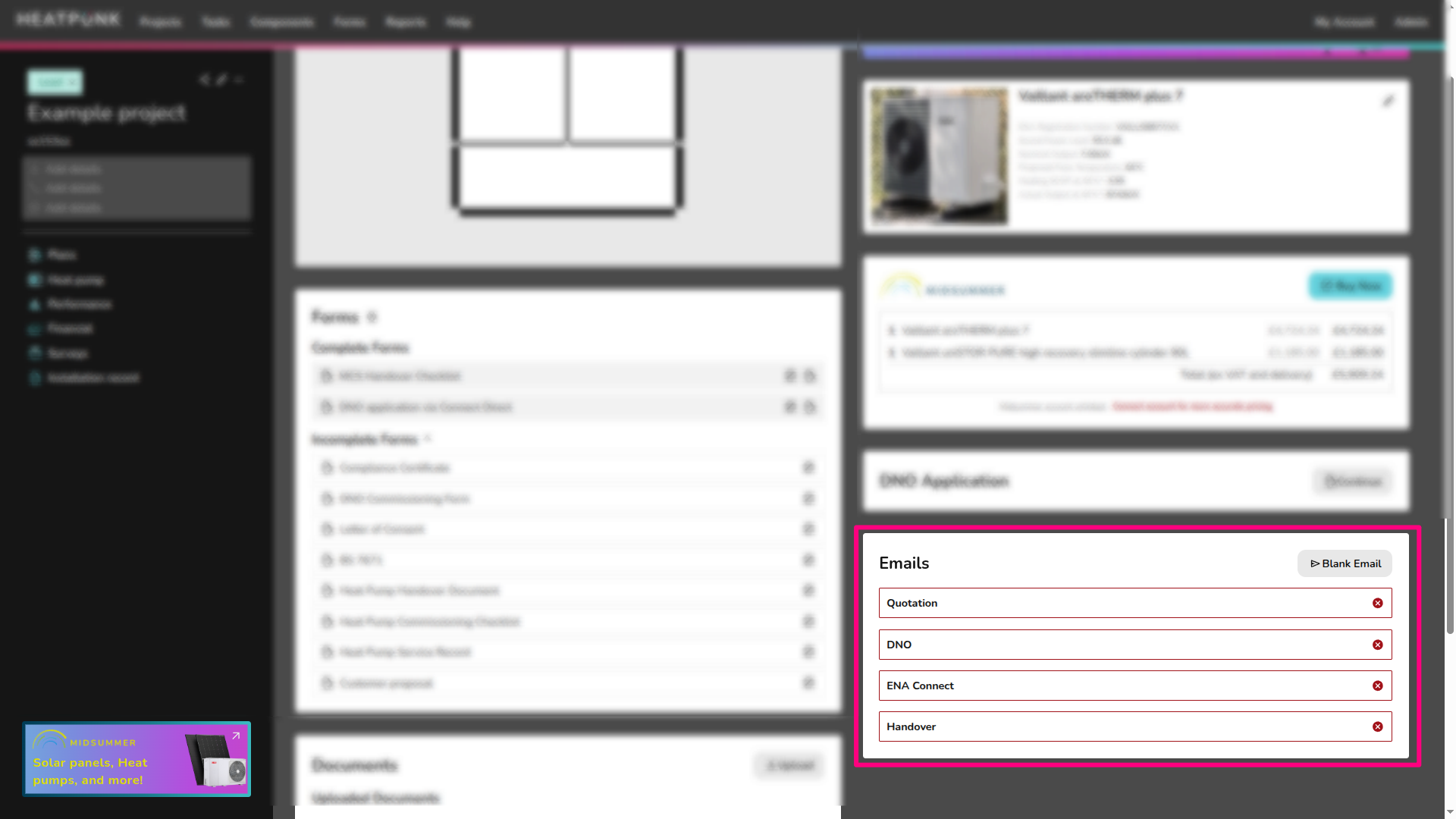
You can access the email management section via the project overview. Here you can keep track of emails that have been sent. Emails that have not yet been sent will be outlined in red with a cross. Once you have sent an email, it will be outlined in green with a tick.
To send emails from this section just click on the one you'd like to send or 'blank email' and follow the steps below.
Required attachments
Emails from the project overview will have required attachments, if you have already uploaded the file to the project, these will automatically attach.
If you would like to use a different document to one generated in Heatpunk. For example you would like to use a different quotation, then you can upload this to the document management and reassign the type to 'Quotation'. After doing this, it will automatically attach to any emails that require a quotation.
Emails for e-signing
Documents that can be sent for e-signing will display this in the document form:

When you generate the PDF, you will then see the option in the bottom left to send the e-signing link as an email:
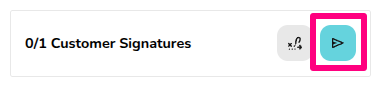
Read here for more information on e-signing.
Editing and sending an email
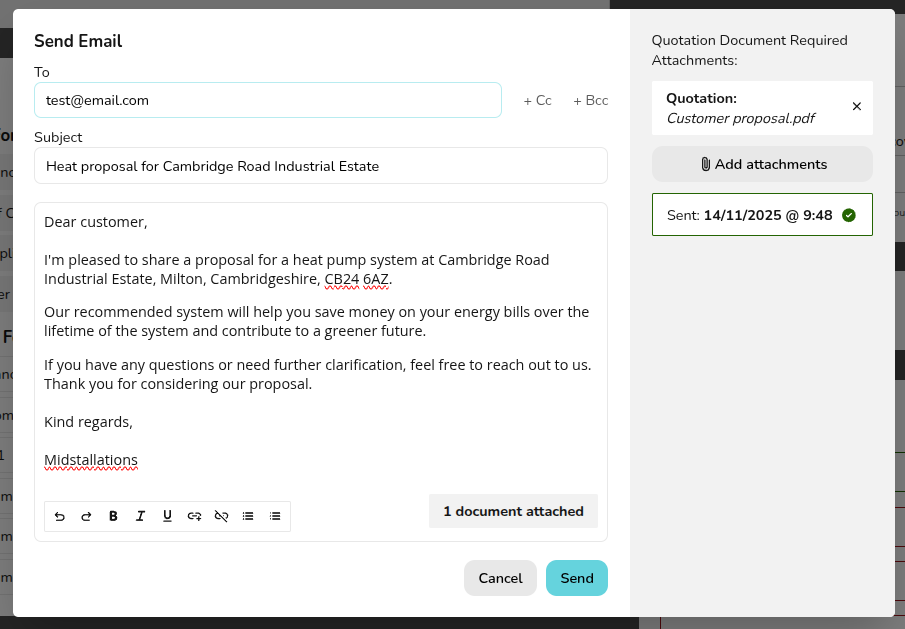
When you select one of the options detailed above, it will open an email window like the one shown below. If you have filled in the customer's email in the project details, this will automatically populate in the 'To' field.
Then any required documents will automatically attach to the email if it has been saved to the file management section. You can add other attachments and then click Send when you are ready to send.
After you have sent the email, you will see on the left of the email the date and time that it was sent with a green tick.
Sending emails from your domain
By default, emails in Heatpunk will send from a no reply address but these can be set up to send from your email address.
Pro: E-signing
This guide applies to pro versions of Heatpunk
The e-signing functionality makes it quick and easy to get important documents signed by your team or customer.
E-signing a document
In Heatpunk you have the option to send documents for e-signing via email or to e-sign within the document.
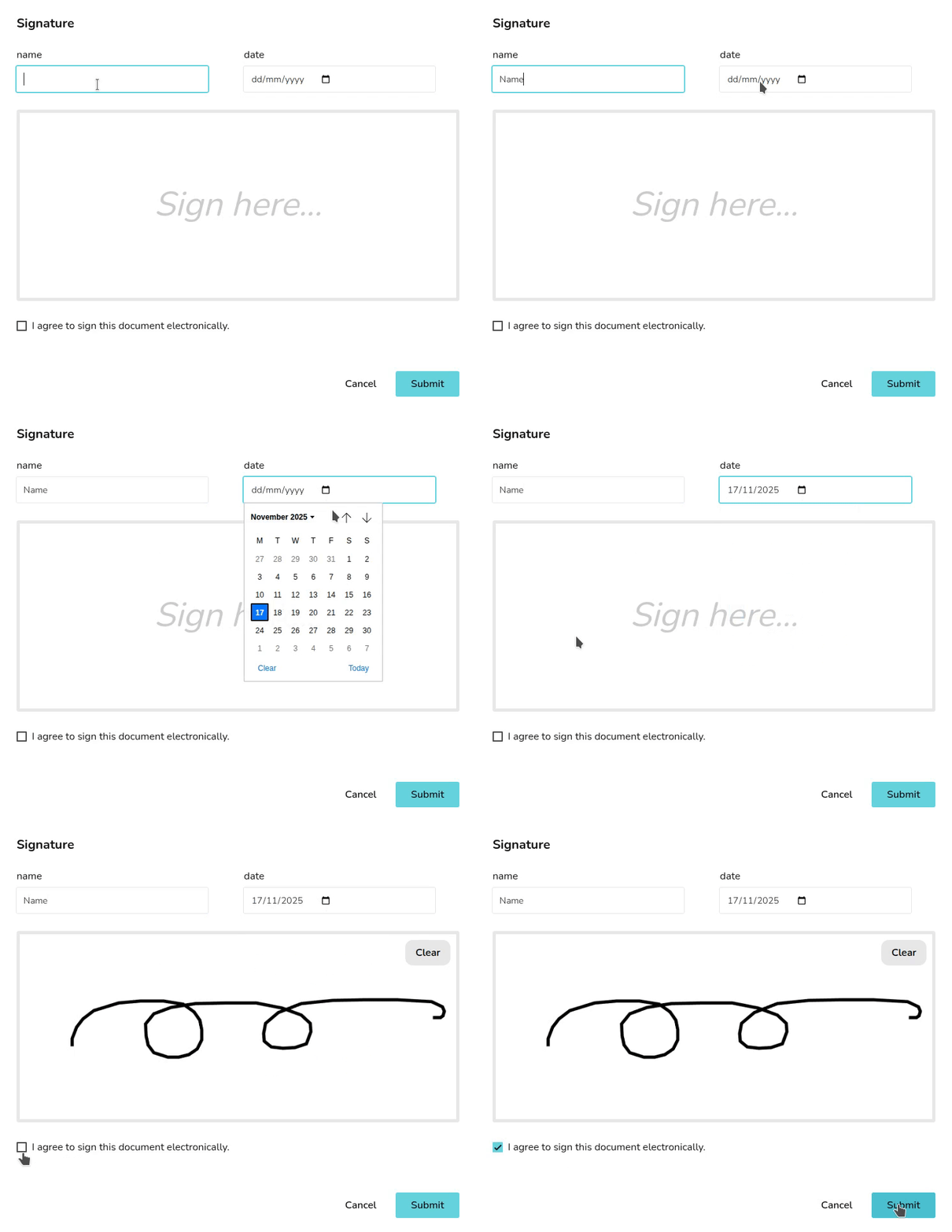
Send a document for e-signing by email

This will open an email menu that contains a link for signing the document. You can edit the email as required, adding any additional attachments, and then click Send.
The recipient will receive the email which will include a link for them to review and sign the document. Once they have signed the document, you will receive an email notifying you that the document has been signed.
E-signing within a document
You also have the option to e-sign from within the documents. Select the icon outlined below to navigate directly to the next e-signing location:
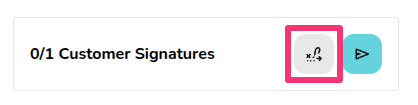
Then click where it says sign and e-sign the document.
View a signed document
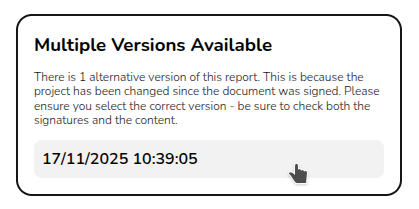
To view the signed version of the document, navigate to the document via the reports drop-down in the main navigation. On the right side bar it will then say Multiple versions available with a date below it, the signed version of the document can be loaded by selecting the date version you want to view: