This guide applies to **pro** versions of Heatpunk
The e-signing functionality makes it quick and easy to get important documents signed by your team or customer. --- ### E-signing a document In Heatpunk you have the option to send documents for e-signing via email or to e-sign within the document. ### **[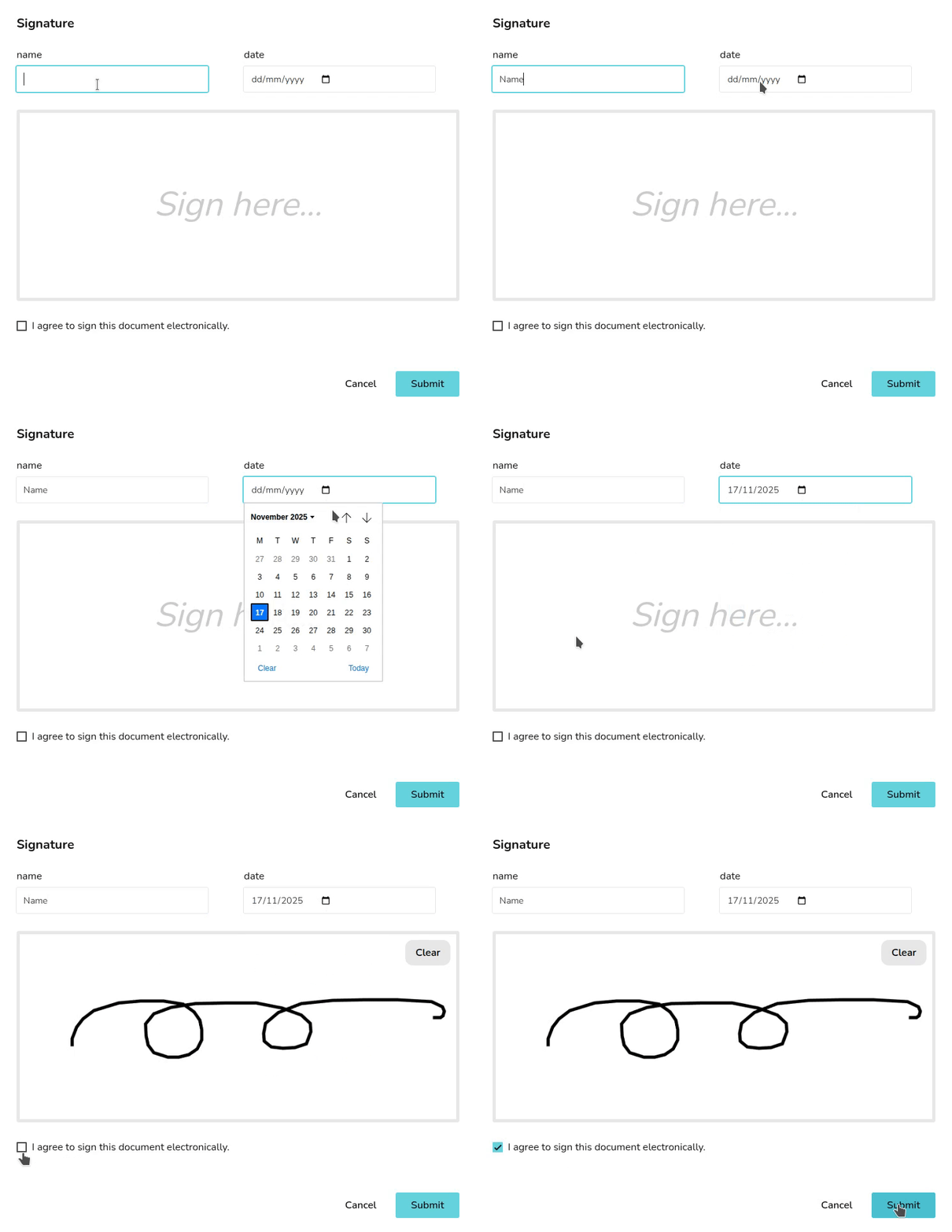](https://help.heatpunk.co.uk/uploads/images/gallery/2025-11/swZzXF6ufqjXgxuy-simplescreenrecorder-2025-11-17-11-17-00-ezgif-com-video-to-gif-converter.gif)** #### Send a document for e-signing by email Navigate to the report you want to send for signing via the Reports drop-down in the main site navigation. **Click the send for signing button** outlined below. [](https://help.heatpunk.co.uk/uploads/images/gallery/2025-11/sXdB0iRovrIFMr7S-image.png) This will open an email menu that contains a link for signing the document. You can [edit the email as required](https://help.heatpunk.co.uk/books/reports-document-storage-and-emails/page/pro-sending-emails-from-heatpunk#bkmrk-editing-and-sending-), adding any additional attachments, and then click **Send**. The recipient will receive the email which will include a link for them to review and sign the document. Once they have signed the document, you will receive an email notifying you that the document has been signed. #### E-signing within a document You also have the option to e-sign from within the documents. Select the icon outlined below to navigate directly to the next e-signing location: [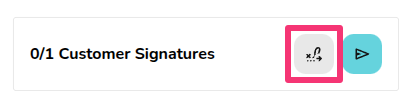](https://help.heatpunk.co.uk/uploads/images/gallery/2025-11/gHkAPGe2I3KUNYFC-image.png) Then click where it says sign and e-sign the document. ### **View a signed document** To view the signed version of the document, **navigate to the document via the reports drop-down** in the main navigation. On the right side bar it will then say **Multiple versions available** with a date below it, the signed version of the document can be loaded by selecting the date version you want to view: [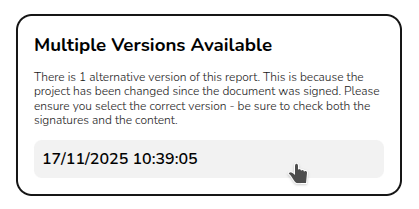](https://help.easy-pv.co.uk/uploads/images/gallery/2025-11/mKOlCJ5Cp5r3zy35-image.png)