# Shrunk Punk

# Setting Up Shrunk Punk

Shrunk Punk is an instant heat loss calculator and lead generation tool that can be embedded in your website to allow your customers to get an immediate indication of the suitability of their property for a heat pump. Leads generated by the tool are imported into your Heat Punk account, so that you can turn them into projects.

### Enabling the tool in Pro Account Settings

To configure Shrunk Punk, navigate to **Pro Account Settings** and go to the **Shrunk Punk** tab.

[![image.png](https://help.heatpunk.co.uk/uploads/images/gallery/2024-11/scaled-1680-/Z9Od21MYcwKUlMpG-image.png)](https://help.heatpunk.co.uk/uploads/images/gallery/2024-11/Z9Od21MYcwKUlMpG-image.png)
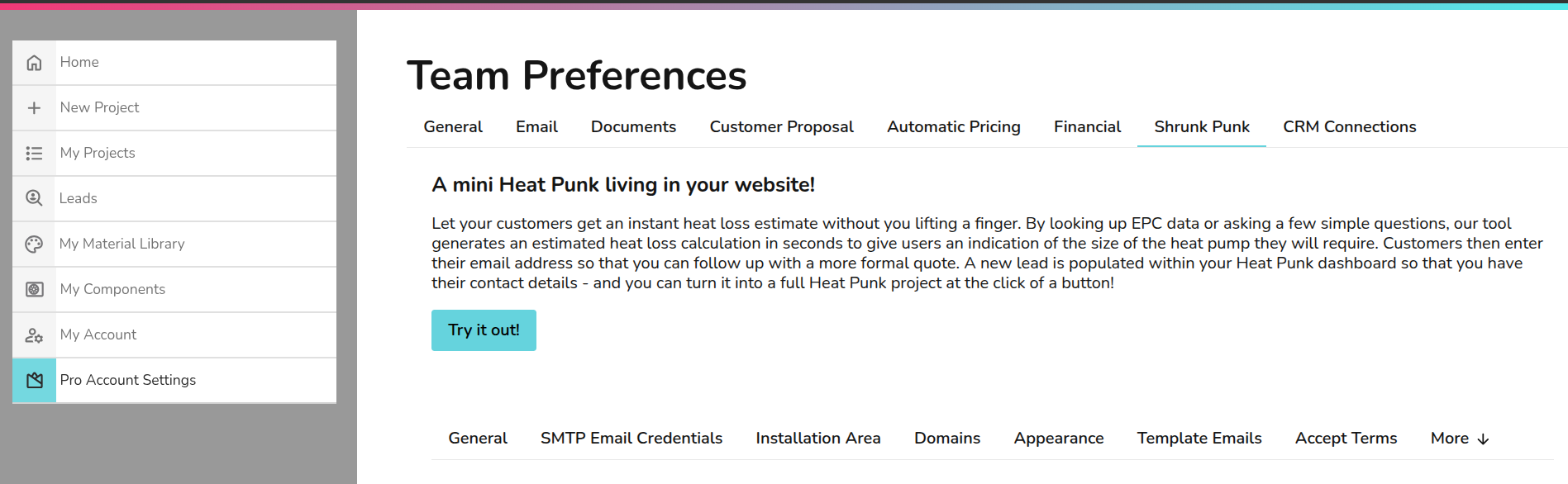
You will then need to set up:

- SMTP email credentials (this is different for different email providers - there are guides online).
- Installation area
- Website domains
- Appearance
- Email templates

---

#### Emails

You can optionally configure SMTP email credentials for one of your email addresses so emails will be sent from that address instead of a no reply at Heat Punk email address.

You can also add in other email addresses to copy in on the emails that are sent so that could be an email for your sales team or another generic mailbox.

---

#### Installation Area

<div class="tab-content-text" id="bkmrk-enter-the-postcodes-">Enter the postcodes for the area that you cover as a comma separated list. You can specify whole postcode districts (eg 'CB' for Cambridgeshire, or 'EH' for Edinburgh), or outward codes (eg 'CB1' or 'SW1A') if you want to specify smaller areas. An example might be 'EH, ML, FK1, FK2, FK3' for an installer that covered Edinburgh, Motherwell and the eastern Falkirk postcode areas.</div><div class="tab-content-text" id="bkmrk--4"></div><div class="tab-content-text" id="bkmrk-if-a-customer-visits">If a customer visits your site and uses the tool to request a heat loss check, it will still work even if they are not located in a postcode you serve. Instead of you being notified of the lead however, the lead will come to us. We will endeavour to find installers in their area who are able to provide a quote. This works both ways - we can pass on leads from other installers to you when they have requests for estimates for customers who are not in their area!</div>---

#### Setting up website domain

Start by putting in the website domain for the websites you want to host the tool on. If you would like to embed it in more than one website, then add an additional row to your list of URLs. If you would like to remove a domain, click the option highlighted below.

Please note you only need to include the *domain* of the website, not the full address. For example, if the tool will appear at "www.mywebsite.com/heat-loss-tool then you only need to input "www.mywebsite.com" into the URLs section.

---

#### Appearance

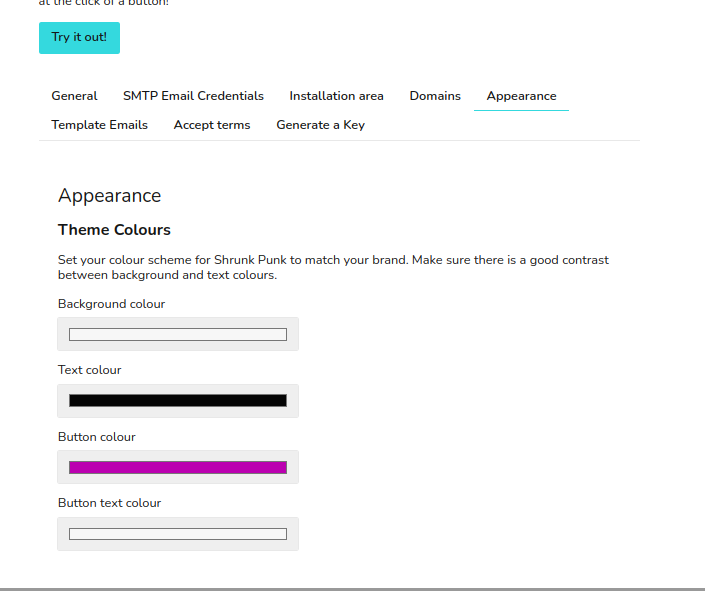
On the appearance tab, you can set the primary colour to use for the iconography colour scheme and any buttons in the tool.

[![image.png](https://help.heatpunk.co.uk/uploads/images/gallery/2024-11/scaled-1680-/wegipI3010ZQe2b3-image.png)](https://help.heatpunk.co.uk/uploads/images/gallery/2024-11/wegipI3010ZQe2b3-image.png)
---

#### Template Emails

Here you can customise the automated email that goes out to new leads, follow emails, quick quotes and lead rejection emails.

---

#### Terms

On the terms tab, read through the specific terms for Shrunk Punk and once you're happy, click I accept the terms of use.

**Please note: You will need to update your websites Privacy Policy to reflect the use of Shrunk Punk**

---

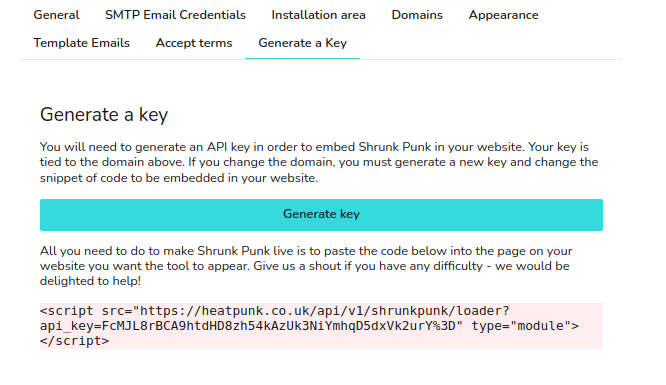
#### Generate Key

[![image.png](https://help.heatpunk.co.uk/uploads/images/gallery/2024-11/scaled-1680-/AAfC5Oqh80fVizCc-image.png)](https://help.heatpunk.co.uk/uploads/images/gallery/2024-11/AAfC5Oqh80fVizCc-image.png)

Once that's all done, you can then start using the tool in your website! If you have any questions, please contact our support team at <help@heat-punk.co.uk>

# Embedding Shrunk Punk into your website

Shrunk Punk is a lead generation tool that can be embedded into your website for customers to use when they visit your site. It appears in the bottom right corner as a little widget that allows customers to get a quick estimate of how suitable their home would be for a heat pump. The leads generated by the tool link straight into your HeatPunk account so that you can create projects and quotes off the back of these leads.

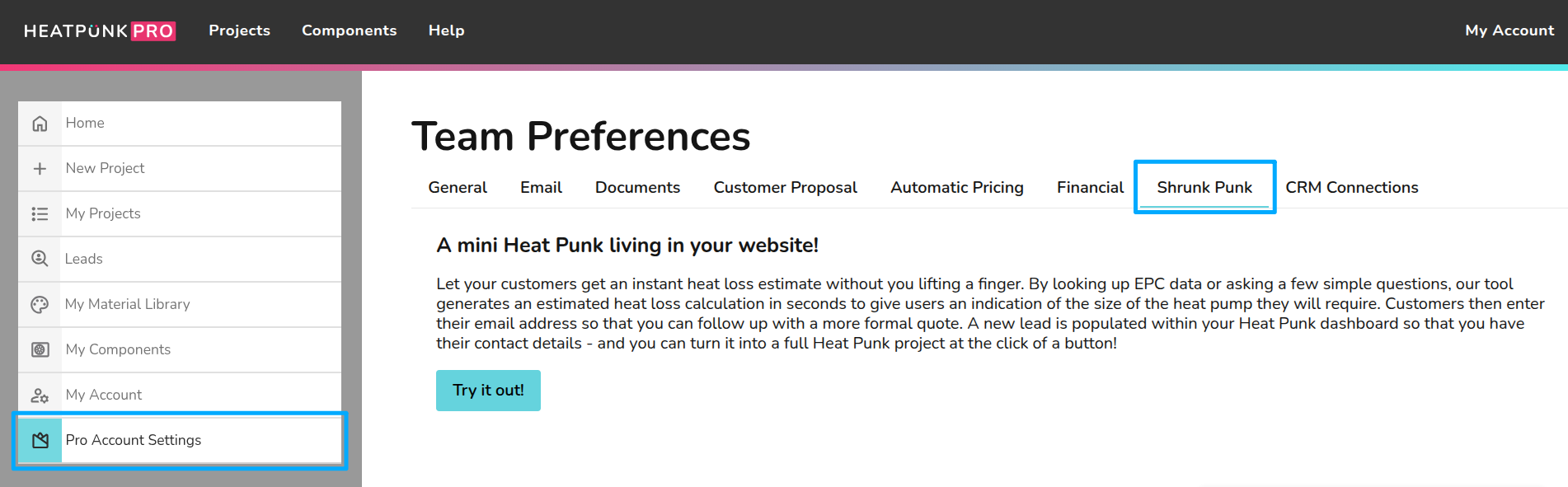
In order to embed Shrunk Punk into your website, you’ll first need to log into your HeatPunk Pro account, and navigate to **Pro Account Settings**. Next, click on **Shrunk Punk** tab in the top navigation bar, and you should be greeted with all of the Shrunk Punk configuration settings.

[![shrunk-punk-1.png](https://help.heatpunk.co.uk/uploads/images/gallery/2024-11/scaled-1680-/Pnfe35vQPEZtdxba-shrunk-punk-1.png)](https://help.heatpunk.co.uk/uploads/images/gallery/2024-11/Pnfe35vQPEZtdxba-shrunk-punk-1.png)
Next, you’ll need to work your way through the settings and make sure that you’ve filled out the necessary fields. If you want to customise the colour of your Shrunk Punk widget, you can do so - just make sure that there is sufficient contrast between the text and background colours, and between the button text and background colours!

If you’d like the emails sent out to your customers to come from your own company email, rather than our generic no-reply address, we recommend you set up your SMTP email credentials in the Email tab before enabling the widget too. It will still work without doing so, but it’ll make it easier for your customer to get in touch with you and remember who the estimate was from if it’s coming from your own email and not ours.

Note that further down in the page you are able to customise the emails that are sent out to your customers through the tool. At time of writing, only the **Automated heat loss email** is sent after the customer uses your tool to generate an estimate, but soon we will be adding support for you to be able to easily get in contact, decline, nudge etc. regarding the leads.

You’ll need to fill out the postcodes for the area that you cover in the **Installation area** section of the Shrunk Punk tab, to make sure that you aren’t wrongly charged for leads that you can’t feasibly complete installations for, e.g. if you’re based in Cornwall, you won’t want to be dealing with leads in Scotland!

Next, enter your website domain and make sure you **only include the domain itself**, e.g. heatpunk.co.uk, and **not** the full URL like [https://heatpunk.co.uk/home](https://heatpunk.co.uk/home).

[![shrunk-punk-2.png](https://help.heatpunk.co.uk/uploads/images/gallery/2024-11/scaled-1680-/u88R8qVggd6m4T0i-shrunk-punk-2.png)](https://help.heatpunk.co.uk/uploads/images/gallery/2024-11/u88R8qVggd6m4T0i-shrunk-punk-2.png)

Then, you can click **Generate key** which will produce an API key linked to your domain — if you ever change your domain, you’ll need to generate a new key and update the code snippet in your website in order for Shrunk Punk to appear. If you re-generate this key, be aware that it will cause existing instances of Shrunk Punk on your website to break — they will need to be updated with the new key.

[![shrunk-punk-2.5.png](https://help.heatpunk.co.uk/uploads/images/gallery/2024-11/scaled-1680-/wxQlVTmVEWyI80iO-shrunk-punk-2-5.png)](https://help.heatpunk.co.uk/uploads/images/gallery/2024-11/wxQlVTmVEWyI80iO-shrunk-punk-2-5.png)

Then, make sure you’ve read and accepted the Shrunk Punk terms of use and billing conditions by toggling the switch under **Accept terms**.

[![shrunk-punk-4.png](https://help.heatpunk.co.uk/uploads/images/gallery/2024-11/scaled-1680-/8Kfizu3E9UMeRbHA-shrunk-punk-4.png)](https://help.heatpunk.co.uk/uploads/images/gallery/2024-11/8Kfizu3E9UMeRbHA-shrunk-punk-4.png)

Finally, you’ll need to embed the code snippet generated by the tool into your website’s code. You should see a string of random letters and numbers after `api_key=`, that’s the key that you just generated which links the tool to your domain.

[![shrunk-punk-3.png](https://help.heatpunk.co.uk/uploads/images/gallery/2024-11/scaled-1680-/HF9MsNmtRcyhybzv-shrunk-punk-3.png)](https://help.heatpunk.co.uk/uploads/images/gallery/2024-11/HF9MsNmtRcyhybzv-shrunk-punk-3.png)

<div class="p-rich_text_section" id="bkmrk--5"></div><div class="p-rich_text_section" id="bkmrk--6"></div><div class="p-rich_text_section" id="bkmrk-copy-the-code-snippe">Copy the code snippet and paste it anywhere in your website’s HTML - it shouldn’t matter whatsoever whether you put it in the header, or the main body of the page. If you’re struggling to paste the code, try clicking where you want to paste and using the keyboard shortcut Ctrl + V instead.</div>You can include the snippet in as many pages as you need or want, as long as they are on the same domain that you just linked it to. Here’s an example of what your code may look like once you’ve pasted the `<script>` tag in:

```html

<html lang="en">
<head>
    <meta charset="UTF-8">
    <meta name="viewport" content="width=device-width, initial-scale=1.0">
    <title>Pure Heat Solutions</title>    
</head>
<body>
    <h1>Welcome to SunMax</h1>
    <p>At Pure Heat Solutions, we specialize in providing top-quality heating installation services to help you get the most from your money. Contact us today to learn more about how a heat pump or underfloor heating could benefit your home or business!</p>
    <h2>Get an instant estimate with our easy-to-use tool! Click the widget in the bottom right corner to get started.</h2>
    <script src="https://heatpunk.co.uk/api/v1/shrunkpunk/loader?api_key=yourAPIkeyHere" type="module"></script>
    # no doubt you will have much more page content than this!
</body>
</html>
```

##### Custom launch widget

If you want another button on your site to open Shrunk Punk, add the class ‘get-started’ to it. For example:

```html
<button class=get-started>Get an instant heat pump recommendation!</button>
```

<div class="p-rich_text_section" id="bkmrk-to-hide-the-standard">To hide the standard launch widget, add the following style rule in a &lt;style&gt; section at the top of your page or in a linked CSS file: `#hp-start-div {display:none'}` </div>That’s all you need to do! Shrunk Punk should now appear on your website, and it’s ready to start generating leads for you!

If you use a website building tool, such as Squarespace, or Wix, please read on for more guidance on how to embed the tool into your website.

### Embedding with Wix

Wix allows you to embed code snippets into your website directly through the advanced settings.

Firstly, you’ll need to navigate to your website’s dashboard, then scroll down in the left-hand menu to **Settings**. Scroll to the bottom of the **Settings** page to the **Advanced** section where you should see **Custom code**.

Click on **Custom code** and then you’re greeted with three sections titled **Head**, **Body - Start**, and **Body - End**. You’ll need to click **Add code** under the **Head** section and insert the `<script>` tag from Heatpunk in there. **Delete** the `type="module"` part of the code snippet highlighted below.

[![wix-embed-1.png](https://help.heatpunk.co.uk/uploads/images/gallery/2024-11/scaled-1680-/Clyof0wm5OLywc4c-wix-embed-1.png)](https://help.heatpunk.co.uk/uploads/images/gallery/2024-11/Clyof0wm5OLywc4c-wix-embed-1.png)

You’ll be prompted to choose whether you want it to appear on all pages, or specific pages: choose **Choose specific pages** and then select the page(s) you want the tool to appear on from the dropdown options.Then click **Apply**. For more help, you can visit the [Wix Help Center page about adding custom code](https://support.wix.com/en/article/embedding-custom-code-on-your-site).

[![wix-embed-2.png](https://help.heatpunk.co.uk/uploads/images/gallery/2024-11/scaled-1680-/beTa8fnq5Ak96oHI-wix-embed-2.png)](https://help.heatpunk.co.uk/uploads/images/gallery/2024-11/beTa8fnq5Ak96oHI-wix-embed-2.png)

Then, save your changes and publish your site. That should be it! You should now be able to see Shrunk Punk in your webpage!

### Embedding with Squarespace

Squarespace also allows you to embed custom code snippets into your website directly through their editor. You have a couple of options on how to do this:

##### If you want it to appear on one particular page:

irstly you’ll need to hover over the page you want Shrunk Punk to appear on in the **Pages** panel. Then click the cog icon to enter the settings. Click **Advanced**, there should be an option called **Page Header Code Injection** where you’ll need to add the `<script>` tag from HeatPunk. Once you’ve added it, make sure you click **Save**.

---

Note: Squarespace’s help page advises that “the code won’t appear if you turn off your site header’s transparency” in version 7.1. Please see their [help page](https://support.squarespace.com/hc/en-us/articles/205815908-Using-code-injection#toc-per-page-code-injection) for more detailed information.

---

##### If you want it to appear on your whole site:

In the left-hand panel, scroll down to Utilities, and click **Website Tools**. Then click **Code Injection** and paste the `<script>` tag into the **Header** box. Make sure to save your changes, and you should be all done!

If you need more detailed information, please see the [Squarespace Help Center page](https://support.squarespace.com/hc/en-us/articles/205815928-Adding-custom-code-to-your-site "https://support.squarespace.com/hc/en-us/articles/205815928-Adding-custom-code-to-your-site").

That’s all! You should now be able to see Shrunk Punk in your webpage!

### Embedding with WordPress

WordPress allows embedding of custom code content through the use of a free plugin called [Insert Headers and Footers](https://wordpress.com/plugins/insert-headers-and-footers "https://wordpress.com/plugins/insert-headers-and-footers") by WPCode. We can’t directly provide support for the installation and activation of the plugin, but here are the steps you’ll need to take after doing so.

##### If you want it to appear on your whole site:

In the WordPress admin menu bar, you should navigate to **Code Snippets** and then click **Header and Footer**. Paste the `<script>` tag from HeatPunk into the **Header** text box, and then click the **Save Changes** button.

##### If you want it to appear on one specific page:

In the WordPress admin menu bar, go to the **Code Snippets** section, and click **Add New**. Then, click **Add your custom code (new snippet)** and choose **Javascript** from the **Code Type** dropdown menu. Name the code snippet something appropriate like Shrunk Punk, and then paste the `<script>` tag into the **Code preview** area. Click **Save snippet** when you’re done, and scroll down to the **Insertion** section below. Then, you can choose to use **Auto Insert** or **Shortcode**. If you choose **Auto Insert**, you’ll be asked to choose whether it runs on every page, or only on specific page(s). **Shortcode** will generate a shortcode for it which you’re then able to manually paste into any page(s) you want. When you’ve decided on a method, make sure you **activate** the snippet by clicking the **Active/Inactive** toggle in the top right corner. If you need further information, please consult the [WPCode help pages](https://wpcode.com/insert-scripts-in-wordpress/ "https://wpcode.com/insert-scripts-in-wordpress/").

---

If you use a different website creation service that we haven’t covered here and need some guidance, or you have any further questions, feel free to get in touch at <help@heatpunk.co.uk>.

</body></html>

# Leads Dashboard

#### **Where to find your leads?**

Leads that have been submitted through the Shrunk Punk tool can be located in the Leads tab on the Heat Punk homepage.

[![image.png](https://help.heatpunk.co.uk/uploads/images/gallery/2025-08/scaled-1680-/rqJHXCqsdwEH1rBV-image.png)](https://help.heatpunk.co.uk/uploads/images/gallery/2025-08/rqJHXCqsdwEH1rBV-image.png)

To see the full details of the lead, click on the lead:

[![image.png](https://help.heatpunk.co.uk/uploads/images/gallery/2025-08/scaled-1680-/5cg8RHBxQzU24p2R-image.png)](https://help.heatpunk.co.uk/uploads/images/gallery/2025-08/5cg8RHBxQzU24p2R-image.png)

These details will include

- the system summary
- EPC or form data
- Heat loss figures
- Quick quote
- Contact options

[![image.png](https://help.heatpunk.co.uk/uploads/images/gallery/2025-08/scaled-1680-/MLN7AhOyxe8I23sr-image.png)](https://help.heatpunk.co.uk/uploads/images/gallery/2025-08/MLN7AhOyxe8I23sr-image.png)

---

#### **Following up leads**

You can email your new leads directly through Heat Punk by clicking the contact button. This will bring up an email template which is fully customisable, with custom colours, and can be set up to come from your company email.

[![image.png](https://help.heatpunk.co.uk/uploads/images/gallery/2025-08/scaled-1680-/u7yPbMgm2VT93lvE-image.png)](https://help.heatpunk.co.uk/uploads/images/gallery/2025-08/u7yPbMgm2VT93lvE-image.png)

You can also send a customer a 'quick quote' using the quick quotation tool. Just navigate to the 'quick quote' tab, select the pump and cylinder you'd like to use and input any missing costs.

[![image.png](https://help.heatpunk.co.uk/uploads/images/gallery/2025-08/scaled-1680-/cTr5cmBBPRXZwIUV-image.png)](https://help.heatpunk.co.uk/uploads/images/gallery/2025-08/cTr5cmBBPRXZwIUV-image.png)

You can then send the quote as an email to the customer

---

#### **Converting leads to projects on Heat Punk**

It is quick and easy to convert a lead into a project on Heat Punk by clicking the 3 dots menu and then 'Convert To Project'.

[![image.png](https://help.heatpunk.co.uk/uploads/images/gallery/2025-08/scaled-1680-/4puKdtCGr2x3tMED-image.png)](https://help.heatpunk.co.uk/uploads/images/gallery/2025-08/4puKdtCGr2x3tMED-image.png)

From here you can complete the remaining tasks, send formal quotes and proposals and also order your kit from Midsummer Wholesale!

---

#### **Wondering how to generate more leads through your website?**

We recommend that you sign up to our free lead generation training session for useful tips on how to generate more traffic to your website and how to maximise results from leads!

[![image.png](https://help.heatpunk.co.uk/uploads/images/gallery/2024-11/scaled-1680-/giE9puDsHrBT5UJ8-image.png)](https://help.heatpunk.co.uk/uploads/images/gallery/2024-11/giE9puDsHrBT5UJ8-image.png)

# How does Shrunk Punk calculate the heat loss for a property?

**Shrunk Punk uses the information from a property’s EPC (or details you enter manually) to build a simple model of the home.** It looks at the property type, age, floor area, and the descriptions of walls, roof, floor, and windows. From these, it assigns typical insulation values (known as U‑values) and estimates the size of each surface based on the building form. It then multiplies the surface areas by their U‑values to work out how much heat is lost through each part of the building, and adds them together to give the total heat loss per degree of temperature difference. Finally, this is scaled to the design temperature (for example, 21 °C indoors versus –3 °C outdoors) to give the overall heat loss in kilowatts, along with a breakdown showing how much is lost through walls, roof, floor, and windows.

<p class="callout warning">**Important note:** Shrunk Punk is designed as a quick, indicative tool to give an early estimate of a property’s heat loss. **It does not replace a full room‑by‑room heat loss calculation or account for ventilation/infiltration in line with CIBSE or MCS standards, which is required for system design and installation sign‑off.** </p>

If a user of Shrunk Punk submits their details at the end of the process, they'll show as a lead in the leads dashboard in Heatpunk. You can convert a lead into a full Heatpunk project and then do a detailed survey, floor plan and heat loss calculation. [Read this guide for more information about the Leads Dashboard.](https://help.heatpunk.co.uk/books/shrunk-punk-tSH/page/leads-dashboard)