
Material palettes and library
For each Heatpunk project you will need to use a material palette. This palette contains all the materials that make up the property you're modelling.
You can create default palettes usable on any projects through your material library or build palettes from scratch for each project.
Material library
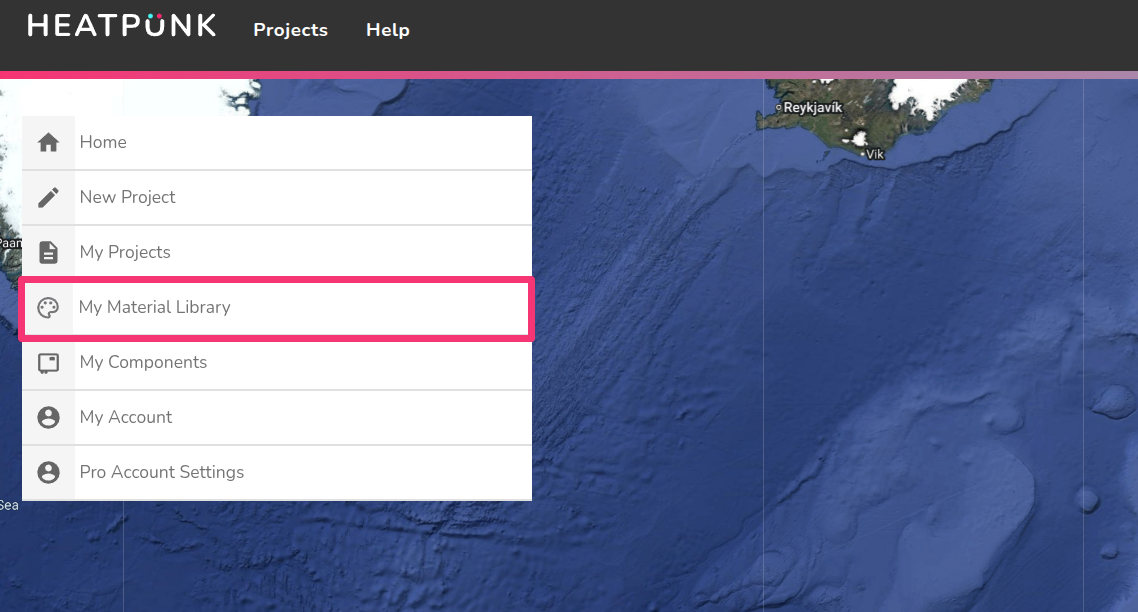
The material library can be accessed from the Heatpunk homepage under My Material Library.
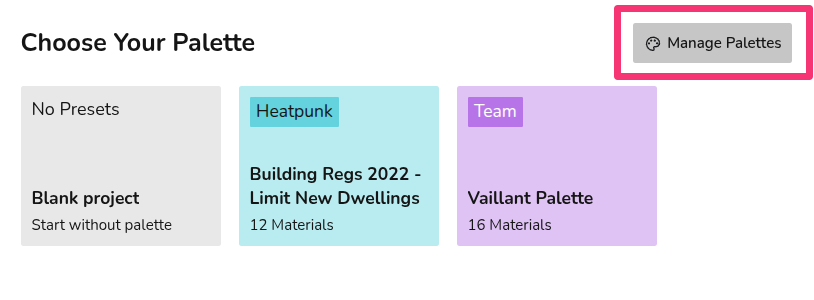
When you create a project you will see all your palettes and the option to create a palette from scratch (No Presets). You can also navigate to the material library by clicking Manage palettes.
Note if you select No Presets and create a palette through a project, it will not save to your material library.
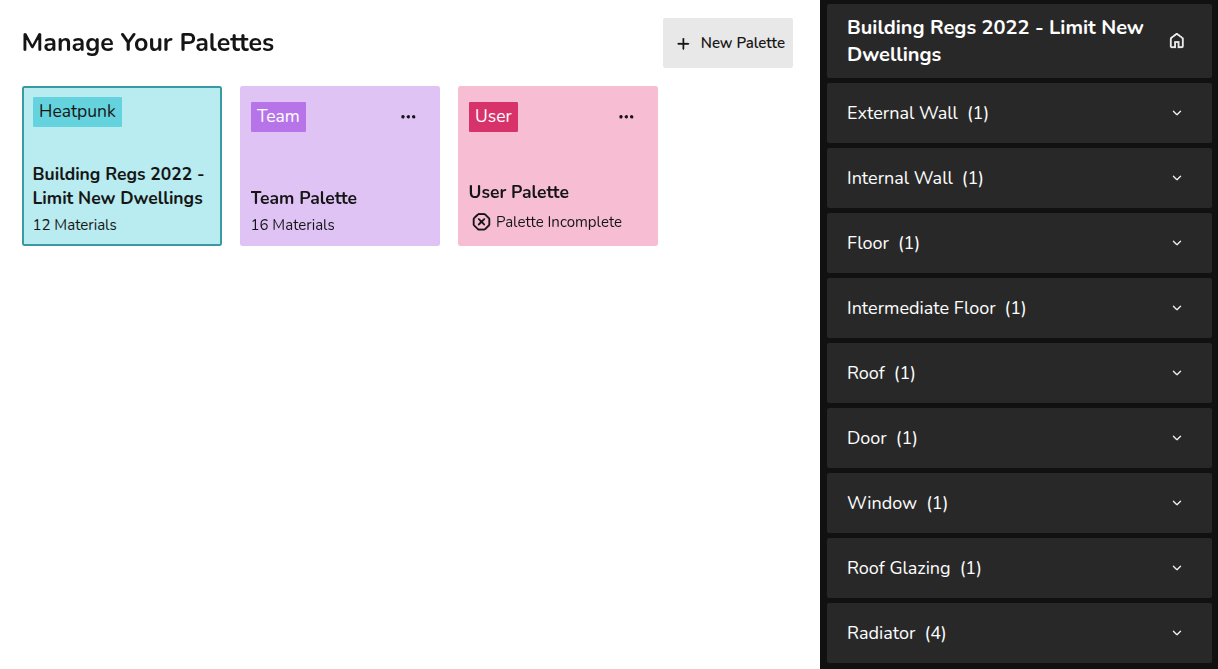
In your material library, you will be able to view and edit all your material palettes and create new ones.
Creating a palette
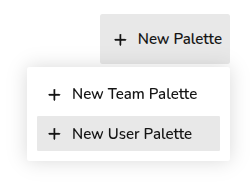
- Click + New Palette in the top right, then + New Team/User Palette. Standard users will only be able to make user palettes that are available to them. Pro users will be able to create team palettes that will be available to members of their pro team.

- Input the name of the palette and click OK
- Click on the new palette to add materials to it
- For each section (external walls, windows, etc.) select the materials you would like to be included in the palette. Click the star next to the material you'd like to be the default.
Can't find the material you need? Create a custom material.
- Once you have added all the materials you need to a section click the next button at the bottom to continue or hover over the next section and click the edit button.
- Once you have entered a material for each section and completed your palette then click the home button to finish.
Incomplete palettes
Incomplete palettes will save but will not be selectable on projects, the ! symbol next to each section title signifies that the section is incomplete. Each section needs at least one material, but only materials used in a project will be displayed on reports

Managing material palettes
From the material library, each palette will have a three dots menu in the top right, clicking this will give the following options:
 |
Edit palette Edit any of the selected materials for the palette. See here for information on editing a palette within a project. |
 |
Clone palette Make a copy of the palette to make changes. |
|
|
Delete palette This cannot be undone. |

Any changes made will not affect projects already using that palette. Read about using material palettes within a project.