
Payment options
A payment option is a method by which the customer can pay for a project. Payment options can be created, viewed and edited in the the financial task. You can also set up payments in your account financial settings. If you are a member of a Pro team, this will be set by your team admin in the Pro account financial settings.
Creating a new payment option
New payment options can be created within projects through the financial task on the Payment tab or by navigating to the financial settings in your user or pro team settings. Click + New payment option and follow the steps outlined below.
1. Overview
Name: Input the name you'd like to appear on the proposal for this payment option. 
Scope: The option will only appear if you're creating a payment option from within a project. Select whether you'd like this option to appear for just this project or to be available on future projects. If you are in a pro team, you will also see the option to make it available for you team.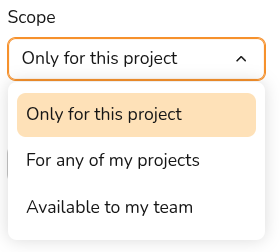
Payment type: Select between Pay in full or Finance depending on what payment option you need. For both options you can set up multiple payment stages and for finance options you can model paying off some or all of the cost of the system with a loan. This can be changed at any point. 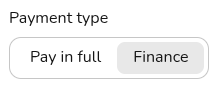
Default checkbox: This option will only appear if your scope is set to User or Team. If you check this box, this payment option will be selected on all future projects. 
2. Payment
In this section you can configure the payment stages for the quote. This is optional if you selected Finance as the payment type.
Payment format: set whether you'd like payments to be defined as percentages or as constant values. 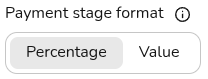
Payment stages: add rows to define additional payment stages, set the name of the stage to appear on the quote, the amount (% or £) and when the stage will be payable. If Finance was selected, the final (or only) stage will be from 'Finance Payments'. 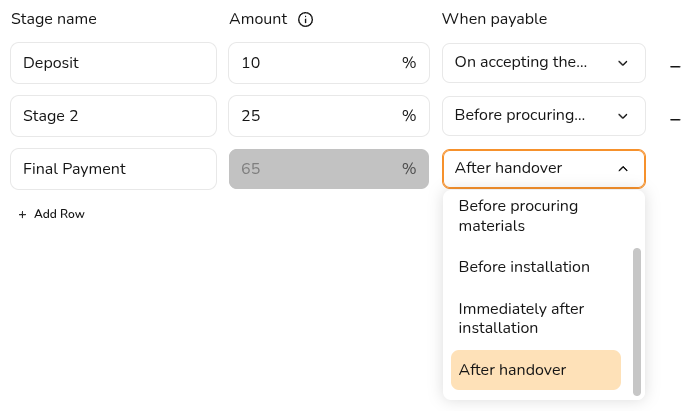
3. Finance
Here you can configure the details of the finance payments. This section will not appear if you've selected Pay in full.
Finance provider: This is the organisation or lender that provides finance or a lease for a project. Select from the drop down menu from your pre-configured finance providers or select + New provider.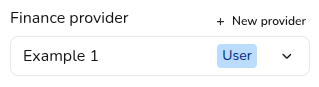
When creating a new provider you will need to input the name of the provider, the scope (if you're creating within a project) and an optional description.
Repayment: set the repayment term, the repayment frequency and the repayment type. For most domestic installations, the repayment type will be fixed. 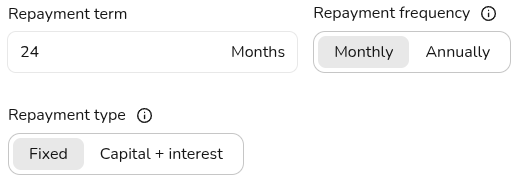
Interest: set the loan interest rate and whether you want the interest to compound monthly or annually. 
4. Disclaimer
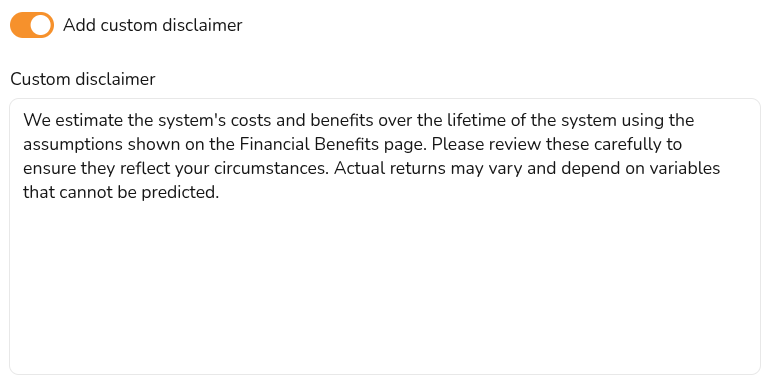
Set whether you'd like to include a custom disclaimer - this will appear next to the financial calculations for this payment option.
Editing existing payment options
If you would like to edit existing payment options, this can be done within a project or in your financial settings. All details listed above can be edited on your payment options except the scope. To change the scope of a payment option, duplicate the option within a project and set the new scope from the overview tab.
Financial settings
Open your user or team settings, navigate to the 'Financial' tab and scroll down to Payment options and providers. Here you can see all your payment options and providers and create new ones.
On each payment option, you'll have the following options:
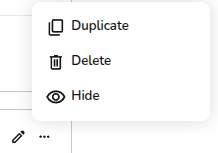
- Edit
Click the pencil to edit existing options. - Click the ⋯ three dots to view the following options:
- Duplicate
Copy and edit an existing payment option or provider if you need to make small changes to an existing option - Delete
This will delete the payment option or provider and cannot be undone. Previous projects using these options will be unchanged - Hide
This will no longer show as a payment option or provider but will still show in this menu. It can be un-hidden at anytime from your financial settings
- Duplicate
Within a project
In a project you can select the payment methods you'd like to make available to the customer. You can create a new payment method for your current project (or any future project by setting the scope to User or Team) by clicking + New Payment Option. Update your existing methods in your settings with the Edit option at the top.
Note: project level payment options can be edited, deleted and duplicated but user and team level options cannot be edited or deleted from within a project. Navigate to your financial settings to edit user or team level payment options or duplicate to make a project level copy.
Still Need Help?
Contact Support: If you've got further questions, get in touch with our support team at help@heatpunk.co.uk (UK) or help@heatpunk.ie (IE). If you are experiencing a bug, to help us look into your issue faster, please include the email address of your account, the name of the project and screenshots of any unexpected behaviour.