
Consumption task
Getting started with the Consumption task
You can access the consumption task via the 'Tasks' drop-down menu menu or from the task list to the left on the project overview page.
When the Consumption Task opens, a popup will appear. Here, you can configure the settings for calculating the new and old system's consumption. You also have the option to factor in any benefits from solar and a battery.
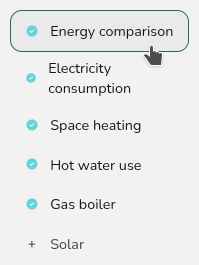
Navigating the Consumption task
Once you have completed the consumption task inputs, you can then view the insights on the left. In the top right you will also have the following option:
|
|
Edit inputs Update the electricity, hot water and space heating consumption, energy comparison and solar |
The right-hand sidebar includes options to help you navigate through the different sections of insights.
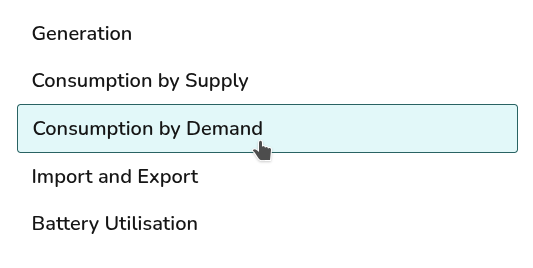
Where solar has not been included Consumption by Supply and Import and Export tabs will not display. Where a battery has not been included, Battery Utilisation will not display.
Consumption task inputs
Energy comparison
Select what you would like to compare the cost and energy usage of the heat pump against for space heating and hot water. You can also select whether you'd like to factor in a solar PV array and a battery.
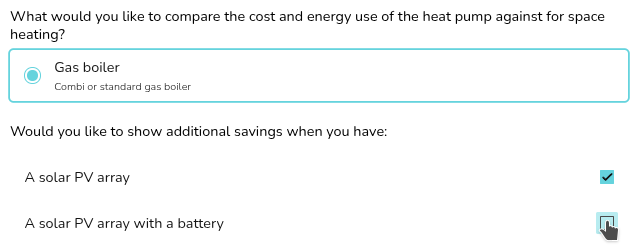
Details for the existing gas boiler and solar system are input in later sections.
You can also select here whether you'd like to use the SCOP (based on the heat pump and flow temperature selected in the heat pump task) or the SPF (based on MCS 031 and calculated in the the performance task)

Electricity consumption consumption
Annual electricity consumption
You can select from the following options to set the annual consumption:

Expand the sections below for more details on these options.
Annual usage
If you know the annual consumption in kWh (for example from an electricity bill) you can enter it here in the annual usage field.
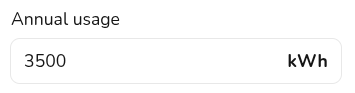
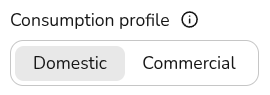
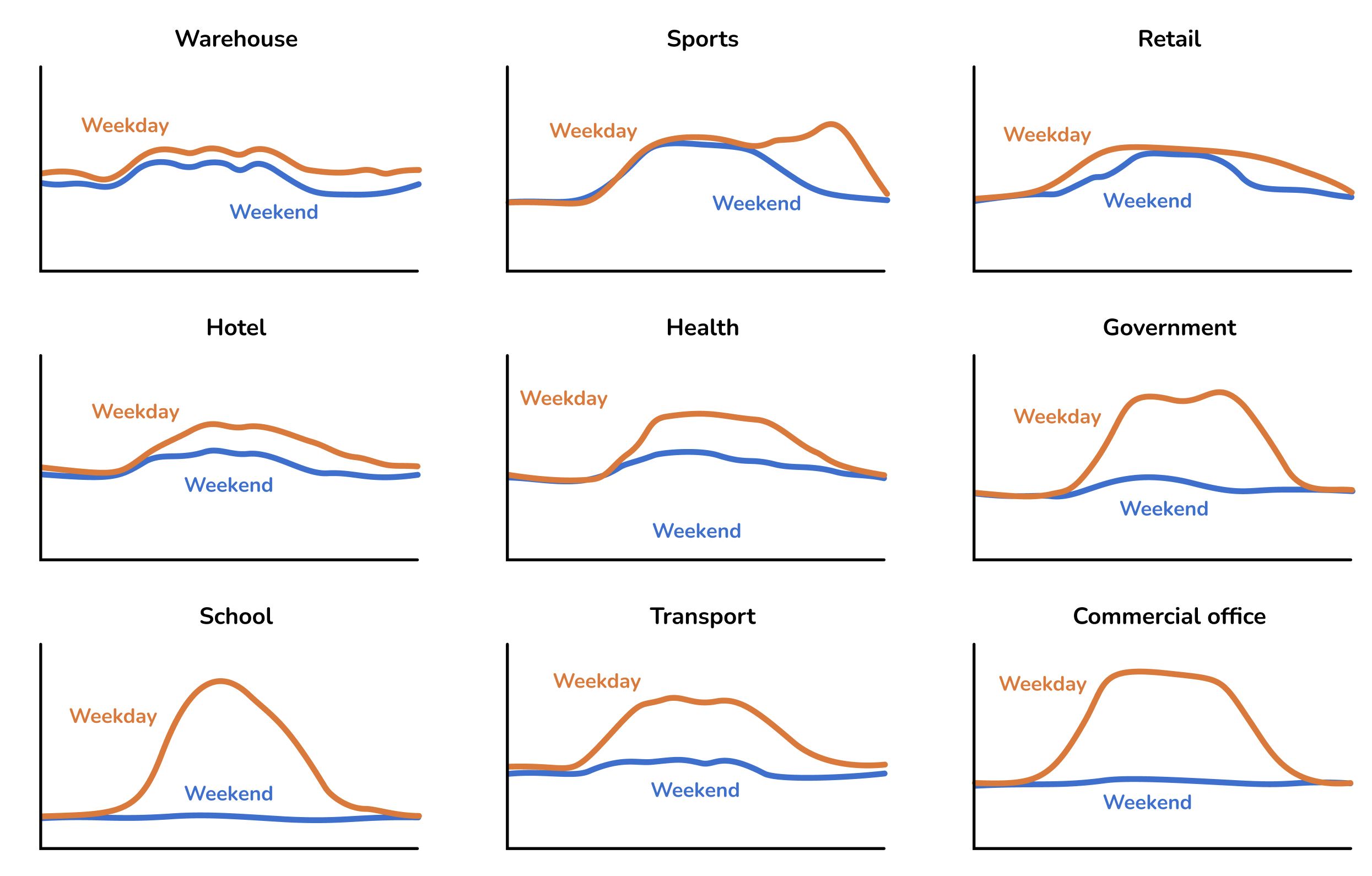
When you use this option you can choose from a variety of domestic and commercial consumption profiles, the consumption profile determines how the energy is used within a week and throughout the year.
The following commercial profiles are available
Meter data
If the property has a smart meter you can upload upload half-hourly hourly data to get a more accurate projections. The data should ideally span at least a year (but if it contains a a minimum of 6 months months our algorithm will automatically attempt to fill in gaps where they are detected).
The file must have a .csv file extension. If your data is in another format you can export it as csv from Excel, Google Sheets, Libreoffice or any other spreadsheet editor.
Note that there are many different CSV formats for smart meter data, and we don't support all of them yet. If your upload doesn't work, please send us the spreadsheet at at help@easy-pv.co.uk or or help@easy-pv.ie and we will see if we can add the format. You can also download our sample spreadsheet spreadsheet here and change your data into this format.
Not sure
If you don't know the electricity consumption in the property and it's domestic, you can use a typical values for the size of property provided here.

These options will assume a domestic consumption profile.
Tariffs
Here you should select the tariffs used. You can select from the drop down or you can create and select a new tariff by selecting + New import/export tariff. Read more about creating tariffs here.
Space heating
Choose the annual space heating demand using Heatpunk's heat loss model or by entering a custom value.

This, along with the relative efficiencies of the systems, will be used to estimate the annual electricity or gas consumption required for this level of heating.
Hot water use
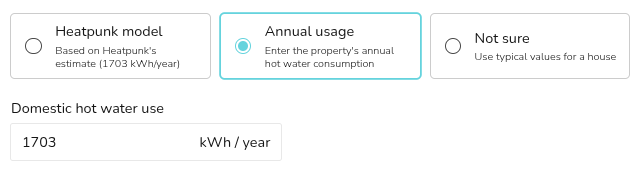
Choose between the Heatpunk model, inputting a custom value or selecting from typical values based on house size.
Gas boiler
In this section you are specifying important details about the existing system to help estimate the current running costs and potential savings. Input the following:
- Gas tariff: this will be used to estimate the customers current boiler running costs to be compared with the heat pump running costs.
- Boiler efficiency: this will be used to estimate how much gas is needed to meet the space heating and hot water demand.
- Standing charge (optional): this will be added as an additional
savingsaving if the customer will be able to disconnect from gas.
Solar Solar
Here you can model a solar array and battery. Select these options under the Energy Comparisons tab if you would like to include them in the model.
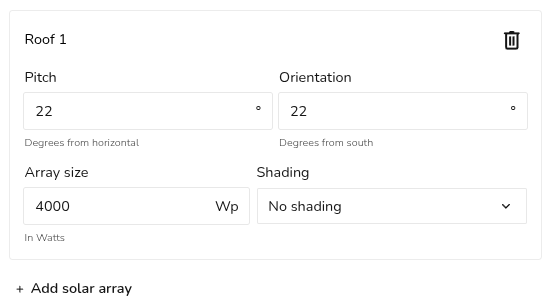
For each roof, input the pitch, orientation, array size and level of shading. Add new solar arrays as necessary.
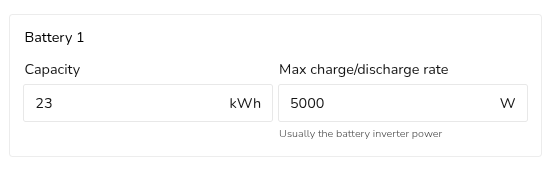
If a battery is being included, add the the capacity and charge rate.
This will then be used to estimate the performance using the method stipulated in MCS 032. If you're using Easy PV - see where you can find these values values here.