
4. Completing room details, radiators & photos
Immediately after scanning a room, a 5-step card workflow opens at the bottom of the screen (or in the right-hand panel on iPad).
Room type, name & shape (Step 1 of 5)
-
Room Type & Name: Tap
Room Typeand select the room's function (Heatpunk uses this to set design room temperatures; selectUnheatedif the room has no heating). Optionally add aCustom Name(e.g., Front Bedroom), then tapContinue. - Check the Shape: Compare the room outline against the real room.
- Drag corner dots to adjust angles or wall dots to move walls, or tap a wall to type its exact length in mm.
- Tap
Looks Rightto continue.
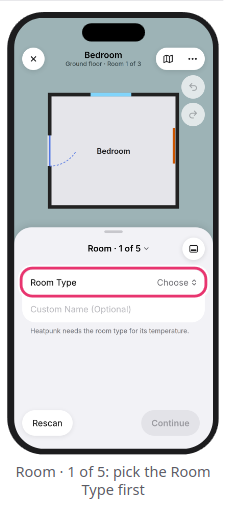
Radiators (Step 2 of 5)
Every radiator must have a measured size before you send the survey to Heatpunk.
- Tap
+ Add Radiator(or tap a radiator you marked during the LiDAR scan). -
Choose how to record its dimensions:
-
Tap the Radiator(LiDAR only): Point the camera at the middle of the radiator to auto-measure, then tapUse This Tap Two Corners(LiDAR only): Aim at two opposite corners with the cameraEnter Manually: Select the wall, pick the radiator type, and enter Width and Height in mm
-
- Tap
Add Photoon the radiator row to photograph the TRV, lockshield, pipe tails, and any nearby plug socket. - Tap
Continue(swipe left on a radiator row toDeleteit).
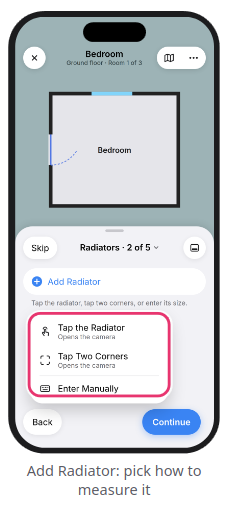
Warning: Every radiator must have a measured size before you send the survey—Heatpunk will leave out any radiator that has no size.
In This Room (Step 3 of 5)
-
Verify the Ceiling Height in mm.
- If applicable, tap
Stopcock is hereorBoiler is hereto take a photo. - If the scan detected a fireplace, specify whether its chimney is open (
No flue,Flue with a throat, orFlue with no throat). - Answer any room-specific prompts (such as vents, hot water cylinder, or consumer unit) by tapping
Here(to take a photo) orNot Here, then tapContinue.
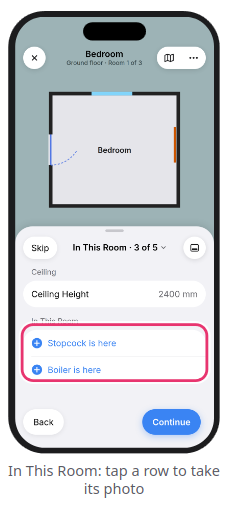
Photos & Notes (Steps 4 & 5 of 5)
-
Photos (4 of 5): Tap
Take Photosto capture general room photos, then tapDone. - Notes (5 of 5): Type notes into the text box, or tap
Tap to Dictateto record a voice note. - Tap
Doneto finish the room, then selectNext RoomorMore.
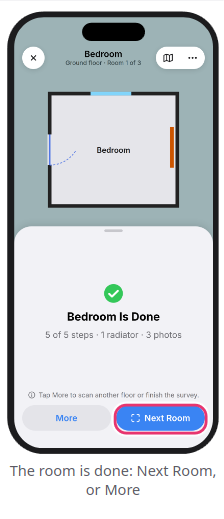
Need to skip a step? You can tap Skip on Steps 2–5 to come back later. Any skipped items are automatically flagged in Before You Leave before you upload the survey.
Still Need Help? / Want to know more?
Contact Support: If you've got further questions, get in touch with our support team at help@heatpunk.co.uk (UK) or help@heatpunk.ie (IE). If you are experiencing a bug, to help us look into your issue faster, please include the email address of your account, the name of the project and screenshots of any unexpected behaviour.