
4. Completing room details, radiators & photos
Immediately after scanning a room, a 5-step card workflow opens at the bottom of the screen (or in the right-hand panel on iPad).
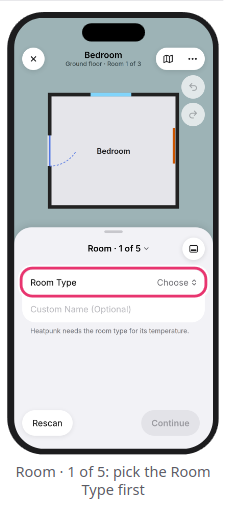
Room type, name & shape (Step 1 of 5)
-
Room Type & Name: Tap
Room Typeand select the room's function (Heatpunk uses this to set design room temperatures; selectUnheatedif the room has no heating). Optionally add aCustom Name(e.g., Front Bedroom), then tapContinue. - Check the Shape: Compare the room outline against the real room.
- Drag corner dots to adjust angles or wall dots to move walls, or tap a wall to type its exact length in mm.
- Tap
Looks Rightto continue.
Radiators (Step 2 of 5)
Every radiator must have a measured size before you send the survey to Heatpunk.
- Tap
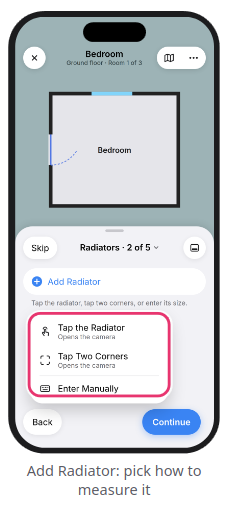
+ Add Radiator(or tap a radiator you marked during the LiDAR scan). -
Choose how to record its dimensions:
-
Tap the Radiator(LiDAR only): Point the camera at the middle of the radiator to auto-measure, then tapUse This Tap Two Corners(LiDAR only): Aim at two opposite corners with the cameraEnter Manually: Select the wall, pick the radiator type, and enter Width and Height in mm
-
- Tap
Add Photoon the radiator row to photograph the TRV, lockshield, pipe tails, and any nearby plug socket. - Tap
Continue(swipe left on a radiator row toDeleteit).
Warning: Every radiator must have a measured size before you send the survey—Heatpunk will leave out any radiator that has no size.
In This Room (Step 3 of 5)
-
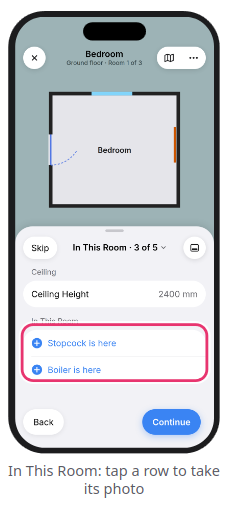
Verify the Ceiling Height in mm.
- If applicable, tap
Stopcock is hereorBoiler is hereto take a photo. - If the scan detected a fireplace, specify whether its chimney is open (
No flue,Flue with a throat, orFlue with no throat). - Answer any room-specific prompts (such as vents, hot water cylinder, or consumer unit) by tapping
Here(to take a photo) orNot Here, then tapContinue.
Photos & Notes (Steps 4 & 5 of 5)
-
Photos (4 of 5): Tap
Take Photosto capture general room photos, then tapDone. - Notes (5 of 5): Type notes into the text box, or tap
Tap to Dictateto record a voice note. - Tap
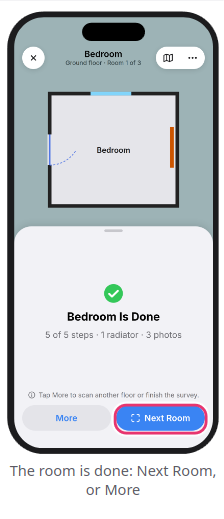
Doneto finish the room, then selectNext RoomorMore.
Need to skip a step? You can tap Skip on Steps 2–5 to come back later. Any skipped items are automatically flagged in Before You Leave before you upload the survey.
Still Need Help?
Contact Support: If you've got further questions, get in touch with our support team at help@heatpunk.co.uk (UK) or help@heatpunk.ie (IE). If you are experiencing a bug, to help us look into your issue faster, please include the email address of your account, the name of the project and screenshots of any unexpected behaviour.