
6. Drawing floor & ceiling regions, rooflights & dormers
By default, Heatpunk assumes the lowest floor sits on the ground and the highest ceiling is a standard flat roof. You only need to use the Floor and Ceiling layers when part of a property differs—such as a room over an unheated garage, a suspended timber floor, a flat roof extension, or a room in the roof. For more background on how regions work on the web, see the Floor and ceiling regions guide in the Plans task.
Warning: Regions on the same layer must not overlap by more than 0.5 m², or you will not be able to send the survey.
Adding a floor or ceiling region
-
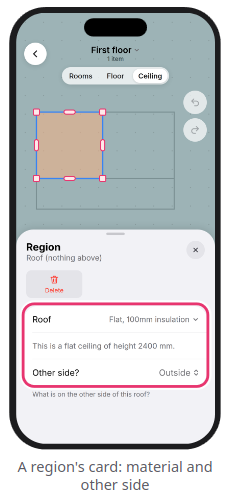
Open the floor plan, select the relevant floor at the top, and toggle the top switch from
RoomstoFloor(between this floor and the floor below) orCeiling(between this floor and the floor above). - Tap
+ Add>Region. - Drag the region and use its corner and edge handles to snap it over the relevant area.
- On the region card, select the Material build-up and set
Other side?(Ground,Outside,Unheated Space, orHeated Space).
Drawing a sloped ceiling (room in the roof)
-
On the
Ceilinglayer, draw aRegioncovering the sloped portion of the ceiling. - Select the region, tap a corner dot, and enter the ceiling height at that corner in mm. Tap the
tickto confirm. - Repeat for the remaining corners—a red arrow will appear on the plan pointing down the slope. (All corner heights must form a single flat plane.)
Adding rooflights and dormers
-
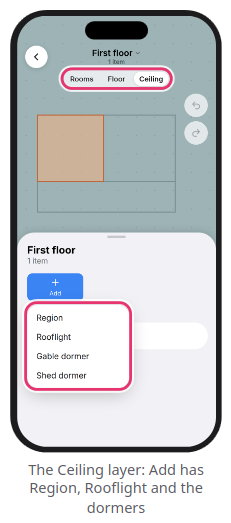
Rooflight: On the top floor's
Ceilinglayer, tap+ Add>Rooflight, drag it onto the roof region, and set its glazing material,Aspect(PlanorRoof), and dimensions in mm - Dormer: First draw the sloped ceiling region, then tap
+ Add>Gable dormerorShed dormer. Drag it wholly inside the sloped ceiling region, enter the roof and wall materials, gutter height (A), and ridge height (B), then tap the dormer window strip to set the window size
Adding a material not in your palette
If a wall, floor, roof, or window build-up is missing from your dropdown list, scroll to the bottom and tap + Add material to search Heatpunk's full material library and add it to the current survey.
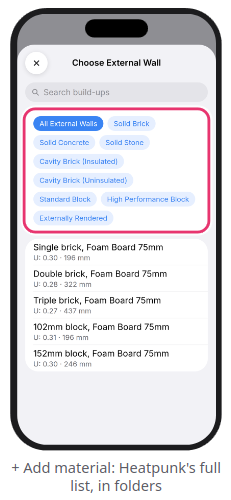
Note: Adding a material via + Add material adds it only to the current survey—it does not change your saved palettes on the Heatpunk website.
Still Need Help? / Want to know more?
Contact Support: If you've got further questions, get in touch with our support team at help@heatpunk.co.uk (UK) or help@heatpunk.ie (IE). If you are experiencing a bug, to help us look into your issue faster, please include the email address of your account, the name of the project and screenshots of any unexpected behaviour.