
Creating a Floor Plan
This guide covers and update coming to Heatpunk UK April 27th 2026. Read more about it here. View the old guide here.
The first step in a project is to create a floor plan. The floor plan you build in Heatpunk is used to model the existing state of the property for heat loss calculations, model any emitter upgrades, and specify the location of the heat pump and hot water storage on the plan.
This guide focuses on creating the initial plan, called the Surveyed plan. Emitter upgrades, heat pumps and hot water storage also use the floor plan but are modelled in design options, rather than the surveyed plan.
Starting a floor plan
When you create a project, you will be prompted to select a material palette. This sets the default material used in the heat loss calculation. You are then prompted to enter the default height for the rooms in the property.
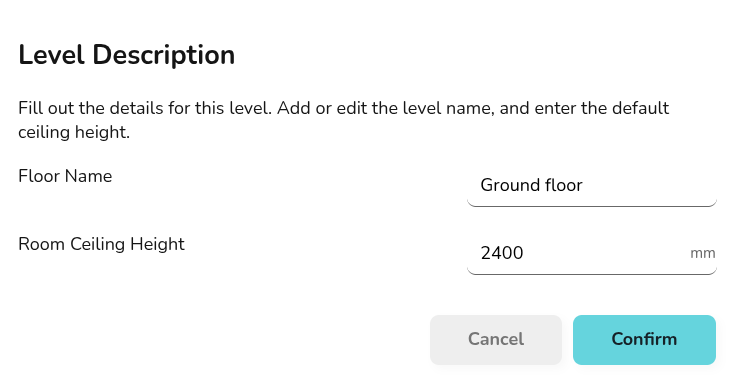
All of these details can be adjusted as you construct your floor plan.
Heatpunk Pro: Speed up creating your floor plan by uploading architectural plans to take measurements from.
Examples - need new examples
[demo video - recreate general demo and uploading floor plan videos - this is not urgent as this functionality is the same]
Join our weekly training session for a live example.
Creating rooms
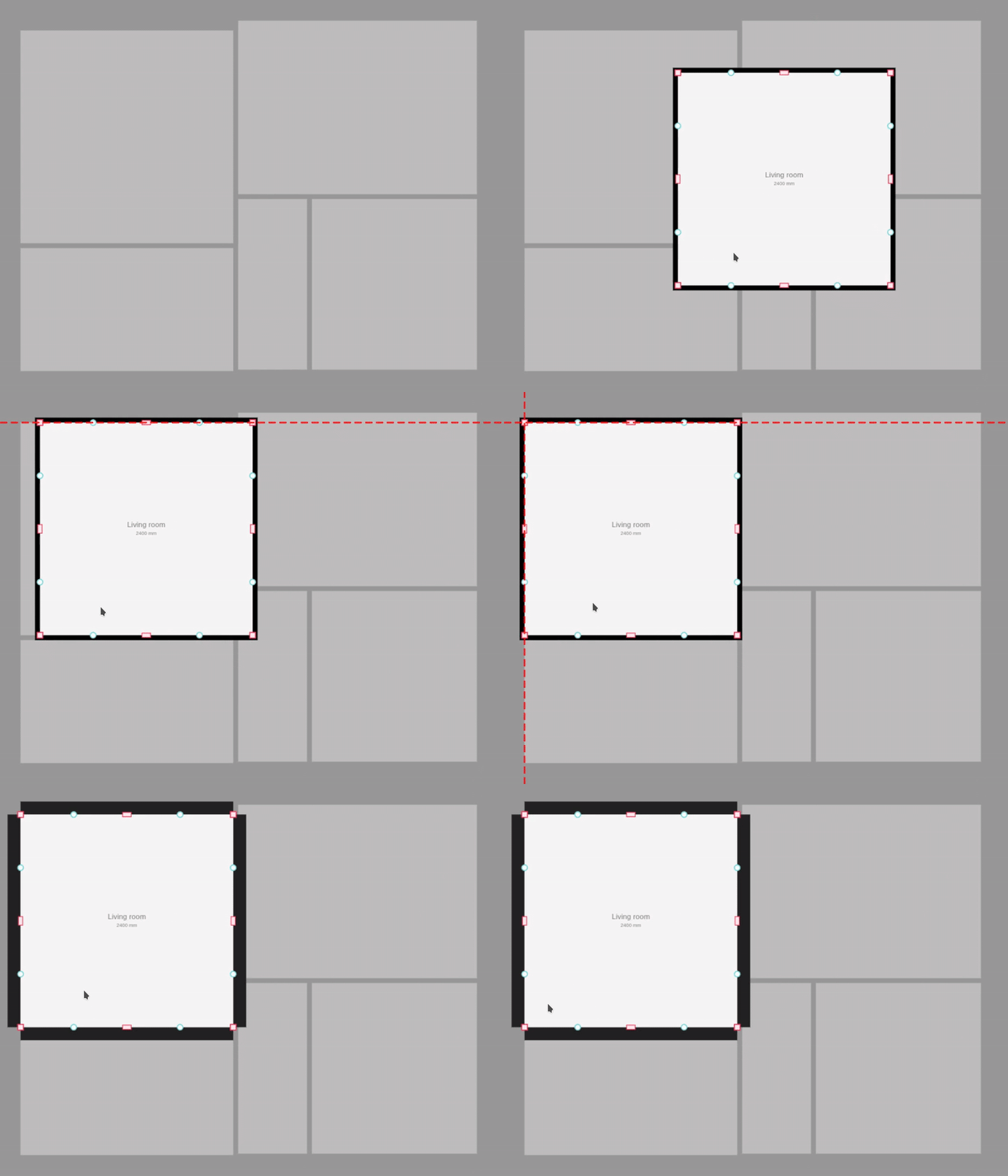
Drag and drop a room from the left-hand menu into position and size to the correct shape. If not using an uploaded floor plan, click the corners of the room to view the dimensions. If using an uploaded floor plan, you can rely on aligning the rooms with the plan below.
Adjusting room properties
Click each room to view the following options:
 |
Change height Adjust the height of the room. Input the height and click the tick to save or the cross to cancel. |
 |
Flue Select whether there is a flue. Choose from: no flue, throat restrictor fitted to flue, no throat restrictor fitted to flue. |
 |
Edit name Change the name of the room. |
 |
Select room type Each room needs a type as this determines the ACH, temperature and default name for the room. Select from pre-set options or create a custom room. |
 |
Delete Remove the room from the floor plan |
Note if ceiling regions are added later, they will override height for the room.
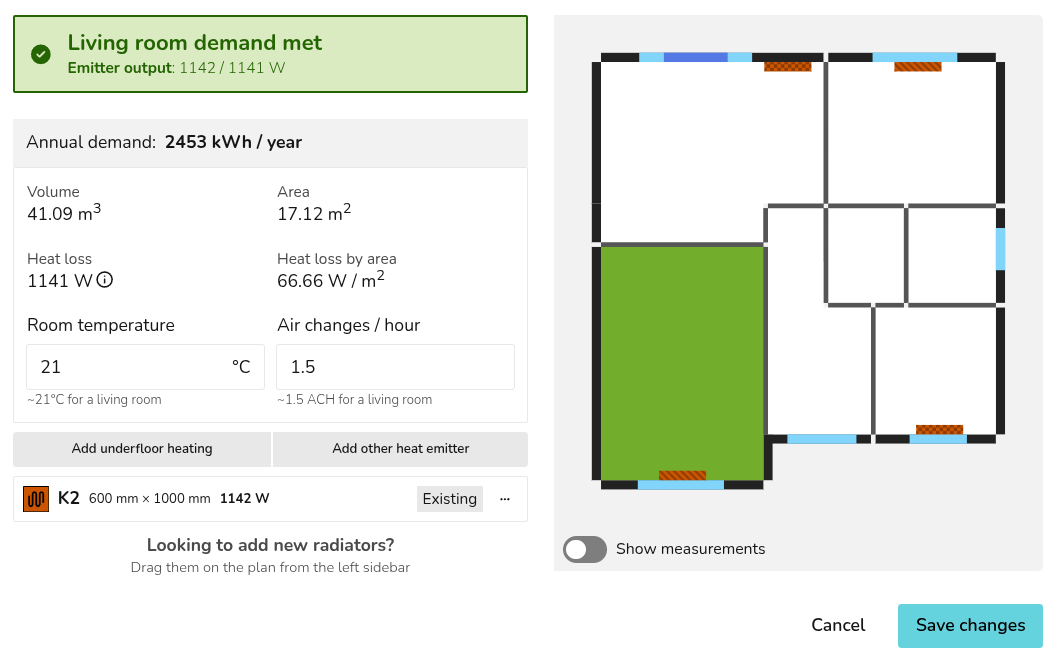
On the right-hand side bar, under emitters you can also see each room listed. Click 🡥 See room details. Here you can view the emitter, annual demand, volume, area, heat loss, heat loss by area for the room. You can also adjust the room temperature and ACH, as well as add underfloor heating or other emitters.
Adjusting wall properties
Click the walls to view the following options:
 |
Change material Click to view and select from the material options for this palette. Click Add Materials to adjust the palette. |
 |
External temperature Set the temperature of the region on the other side of this wall. This will default to the ODT and can be adjusted for walls adjoining unheated spaces or neighbouring properties. |
External and internal walls
Each wall is either an external or internal wall. This is detected automatically based on whether there is an adjoining room.
As you drag rooms into your plan, it's important that they lock together with existing walls correctly so external/internal walls are correctly identified. Only external walls will have the external temperature setting, external walls are also a darker grey colour.
Walls should not overlap and there typically should not be external walls within the interior of a property. Below are some common errors that will lead to errors in the heat loss calculation.
|
Don't overlap walls |
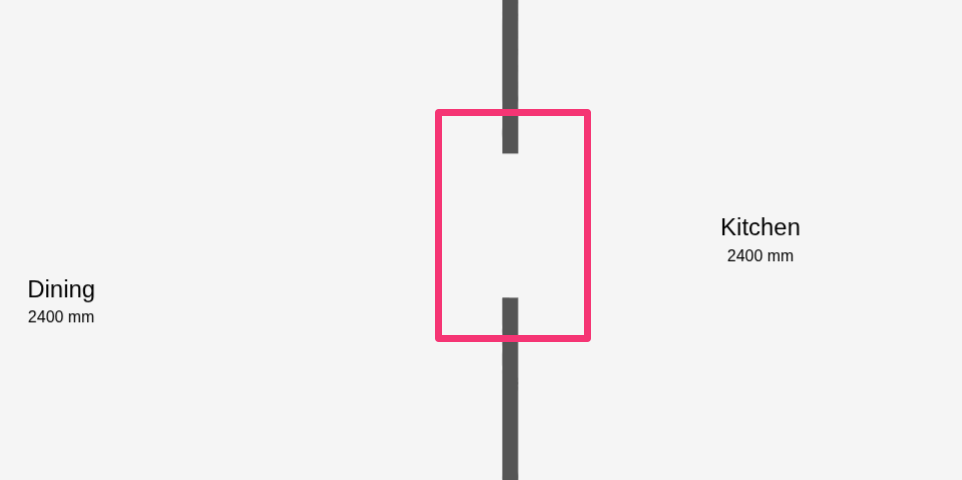 |
|
Don't leave large gaps between internal walls |
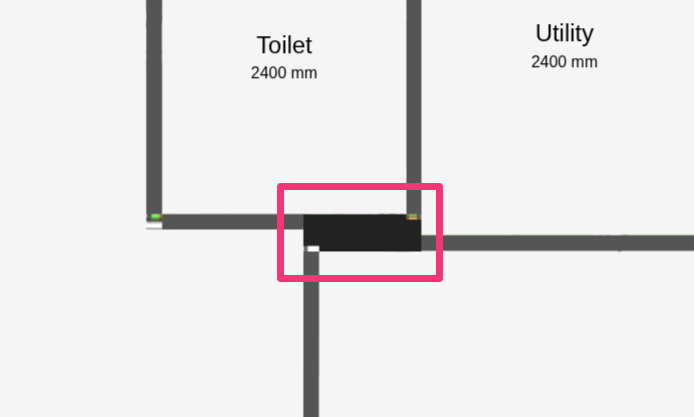 |
Adding floors
You can add different floors by clicking the transparent box next to Add Level. Move between floors using the expanded view in the bottom-right.
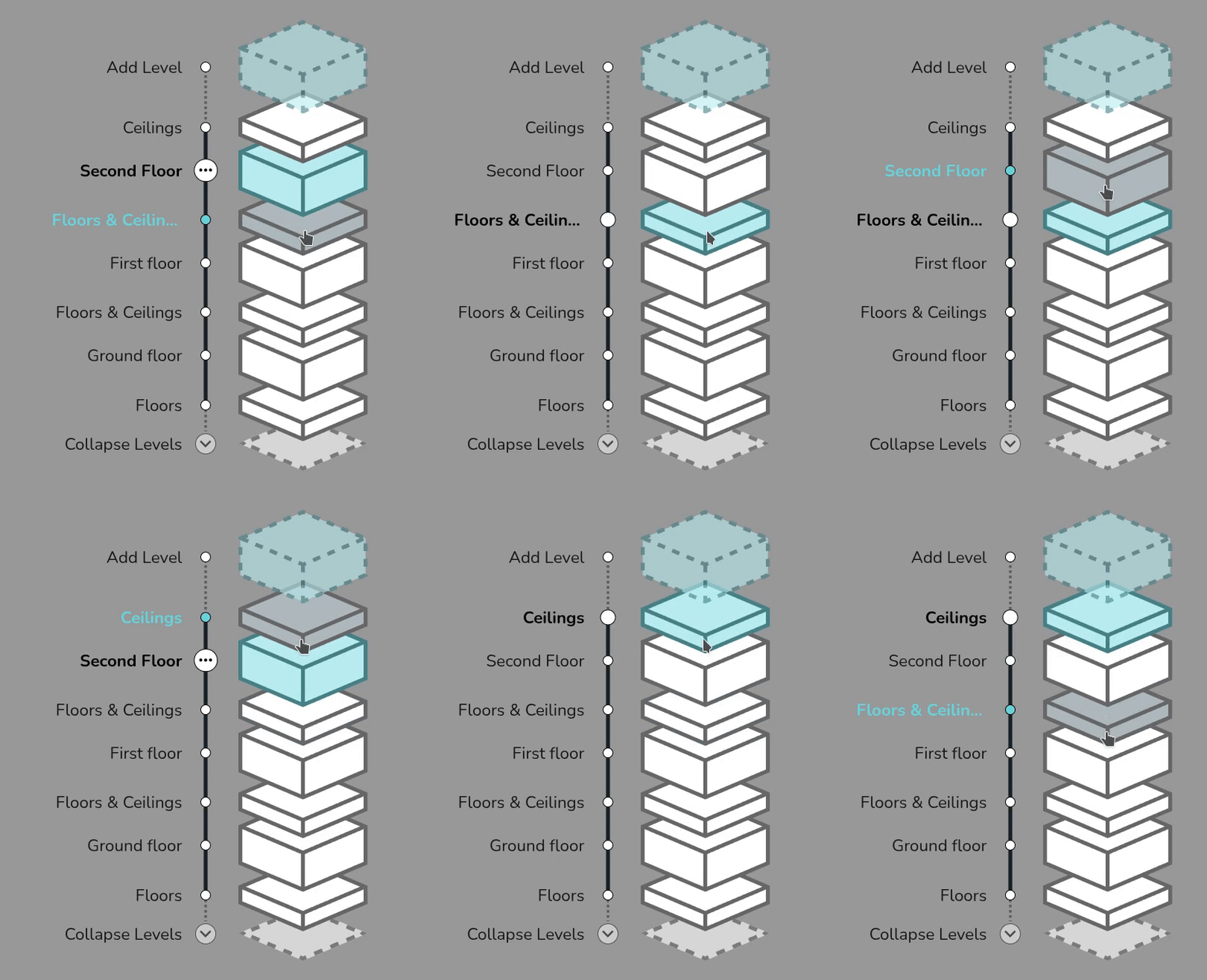
You can change the ceiling height on the whole floor by clicking on the three dots to the right of the relevant floor and selecting Edit. You can also change the name of the floor here. To delete an entire floor, select Delete.
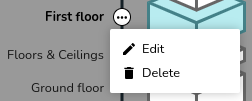
Where the floor and ceiling materials are the default on the selected palette, there is no need to add a region. If the floor and ceiling region has a different material or height to the rest of the space, you can use regions to model this.
Read more on configuring floor and ceiling regions, including adding vaulted ceilings and dormers.
A light grey footprint of the floor below will be displayed, ensure the above rooms are correctly aligned with the floor below. Misalignment will lead to errors in the heat loss.
Adding room components

On the left-hand sidebar you will have the above options. Drag and drop an icon to place the component on your floor plan.
Adding emitters, doors and windows
Drag and drop a radiator, door or window from the left-hand menu into the room and snap it into position on a wall. Click the component to view and adjust the following options:
 |
Change material or type Click to view and select from the material options for the selected palette. Click Add Materials to edit the palette. |
 |
Adjust dimensions Input the width and height, then tick to save or cross to cancel. This option will not be available for custom radiators which require a different P50 for each radiator size. |
|
Delete Remove the component from the floor plan |
Internal doors do not need to be included in the floor plan. Rooms with open doorways should typically be modelled as one room.
To add other emitters or underfloor heating, on the room where you want underfloor heating click 🡥 See room details. Then click Add underfloor heating and specify the output per m². You can also see further details on the heat loss calculations in that menu.
For information on emitter upgrades, see Emitters and Design options.
Adding heat pump and hot water
Heat pumps and hot water storage cannot be added to the surveyed plan. Create a design option to add these to the plan.
Drag and drop a heat pump or hot water storage option onto the plan. Once you place the heat pump or hot water storage, a menu will appear to select a specific model.
Read more about this in Heat Sources and Hot Water Storage.