
Emitters
Emitters
You can find many controls and details on the Emitters tab:
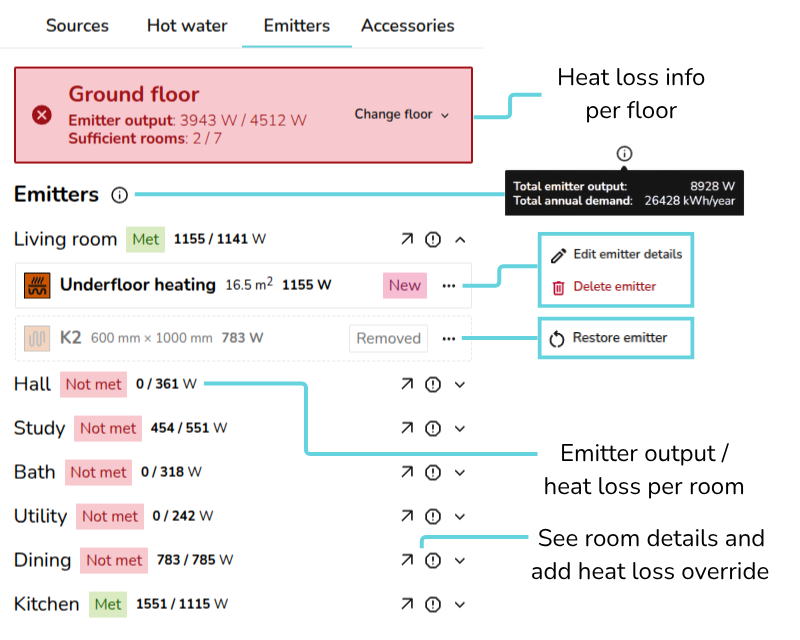
- View heat loss information per floor and navigate between floors
- Emitter output: total floor emitter output / total floor heat loss
- Hover over the 🛈 icon next to Emitters to view the total emitter output and annual demand for the property
- Each room will display whether the heat loss is met alongside the room emitter output / room heat loss
- Click 🡥 to see the full room details and the exclamation icon to add a room override.
- On new or existing emitters you can edit or delete. For removed emitters, you can restore.
Adding Emitters
Below is a quick video demonstrating how to add and upgrade radiators and underfloor heating.
Adding radiators
To place radiators on a floor plan, drag and drop from the right-hand sidebar.
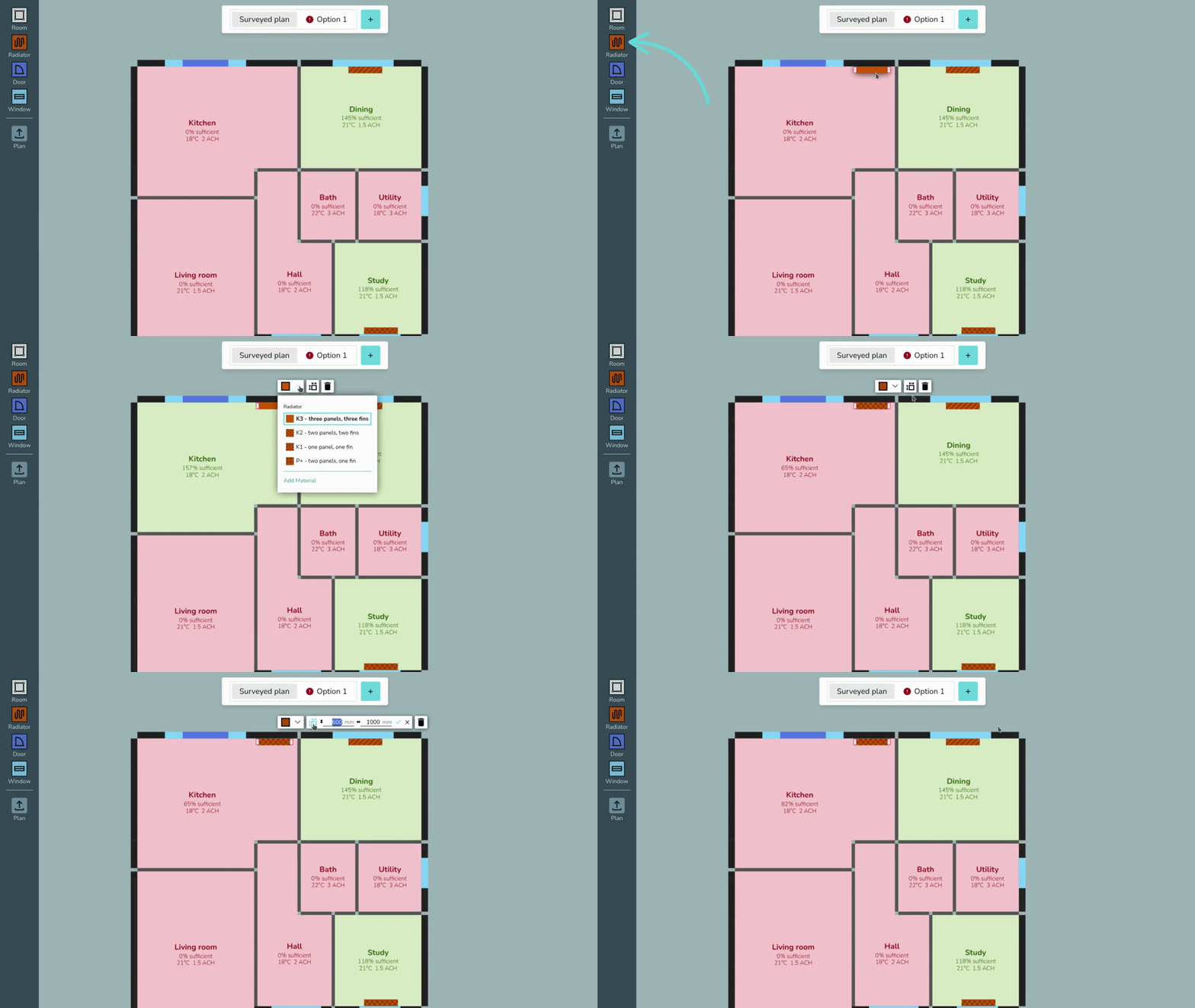
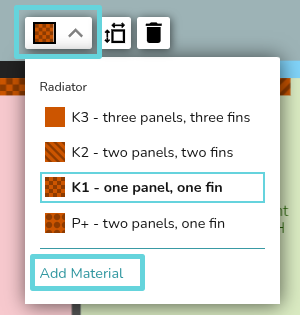
Click on the radiator to edit the type and size. If the type you are looking for isn't listed, click Add materials to add new radiators to your material library.
Adding underfloor heating or other emitters
To add underfloor heating, navigate to the Emitters tab > 🡥 See room details for the room where you're adding UFH or other emitters.
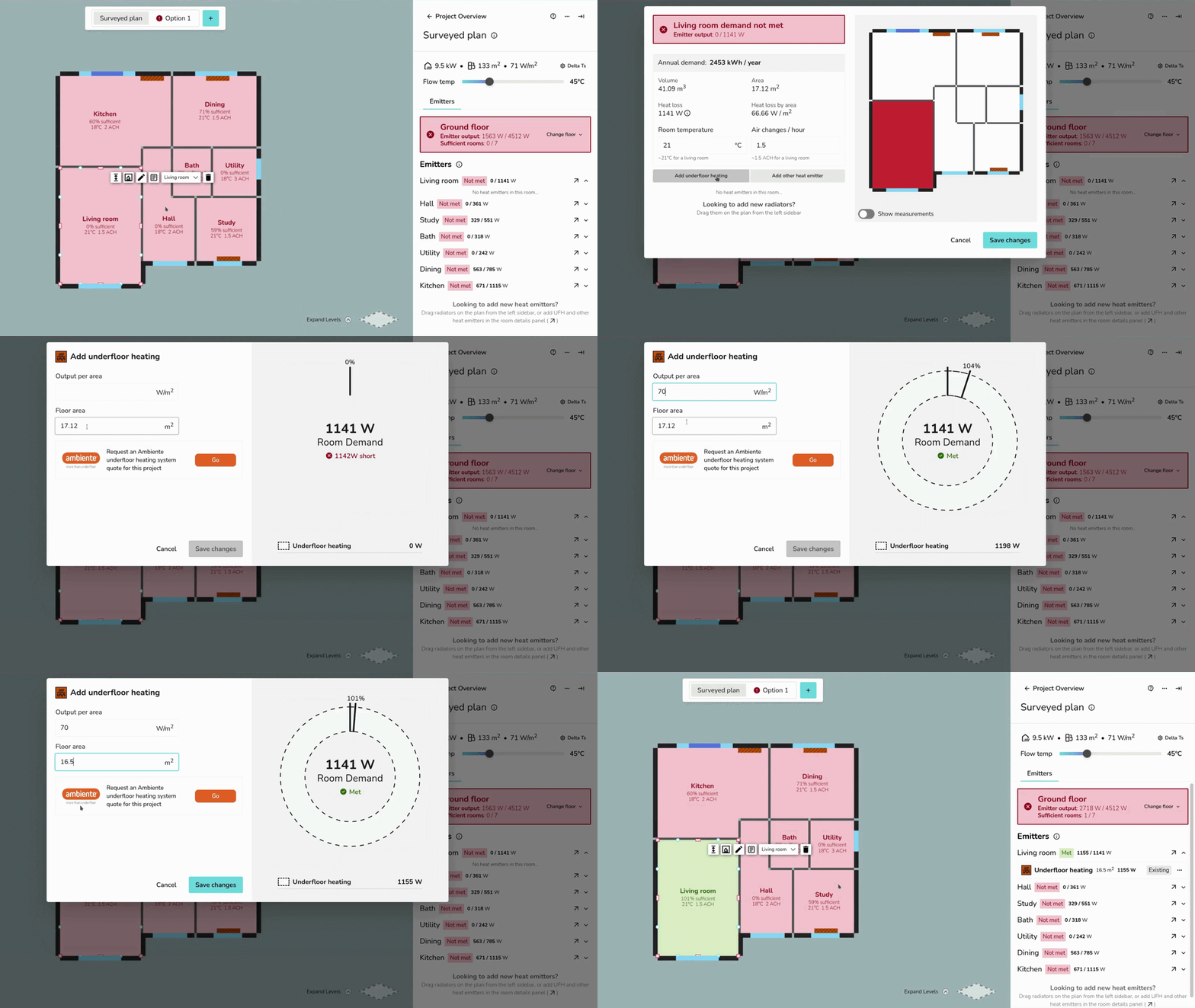
For other emitters, specify the name and the output:
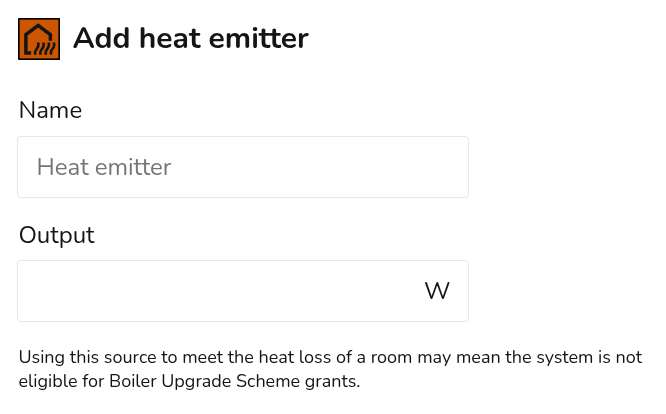
UFH and other non-radiator heat emitters have a fixed output that does not change with the flow temperature in Heatpunk. Make sure the output is correct for the chosen flow temperature.
Emitter upgrades
Existing emitters should be added to the Surveyed plan. Radiator upgrades should be completed on design options. Make sure emitters are being added to the correct floor plan.
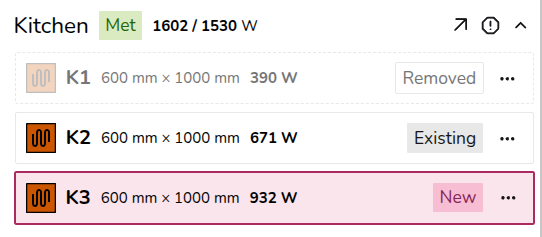
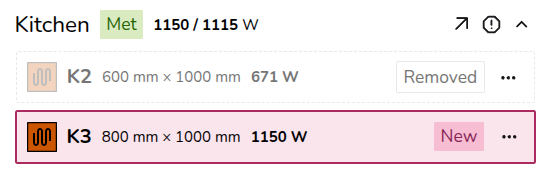
From the Emitters tab, existing, removed and new emitters will be clearly labelled for each room:
Radiator upgrades
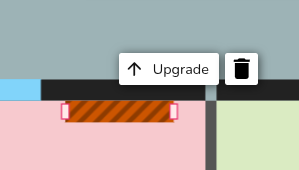
Click on the radiator on the plan and then click upgrade.
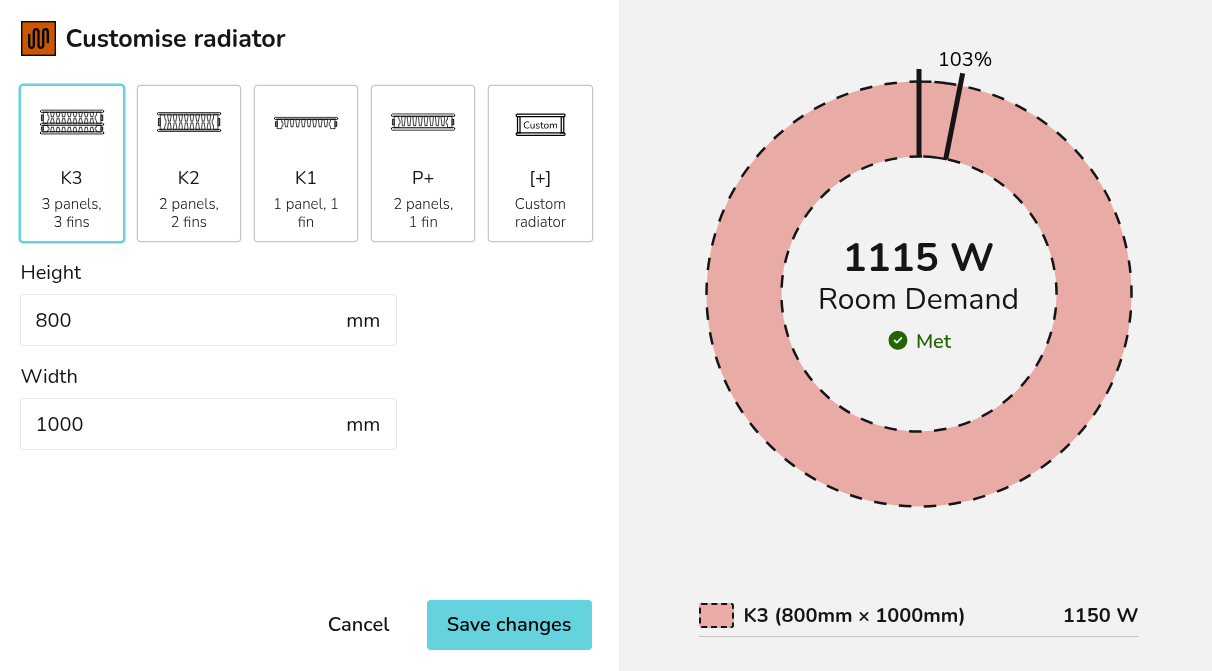
Clicking Save changes will delete the existing radiator from the floor plan and replace it with the new radiator.
Underfloor heating and other emitters upgrades
If you are replacing the radiator with underfloor heating (or another emitter), delete the radiator from the plan and follow the steps above to add UFH/other emitters to a project.
Overriding heat loss
To override the heat loss on a room, click the exclamation icon next to the 🡥 icon. Input the reason for the override and save.
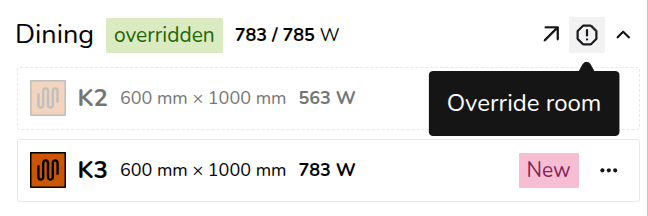
The text will then appear on the floor plan. To view the full text, click 🡥 See room details.