
Plan Task Overview
Overview
[video/gif like 3D overview video and design modes video. Overview of sections (side bars, design area), sped up design. Wait til it's on staging. Purpose of this video is to show the flow of the task]
In the plan task, you model your surveyed plan and create design options based on the surveyed plan. In the design options you can then:
- Complete sound assessment (UK only)
- Complete ventilation calculations
- Place where new radiators, the heat pump and cylinder will go on the plan and specify any relevant accessories
- Specify emitters, view room details and input any heat loss overrides.
Changes made to the room temperature, ACH and emitters are specific to each option. Changes will not apply across plans. Adjust the Plan if you would like changes to apply to each option. Read more about how design options work.
When completing the plan, elements can be dragged and dropped from the left-hand sidebar or added to each room from the right-hand sidebar on the emitters tab. On the emitters tab, you can also access key details about the plan:
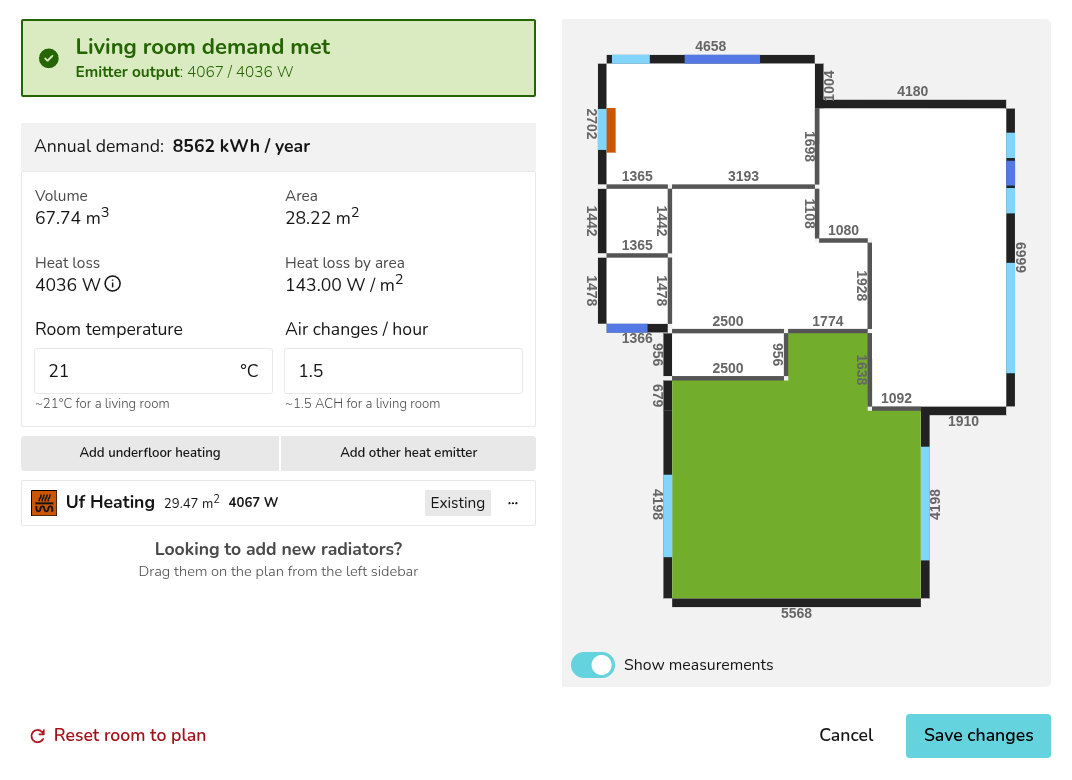
Click ⋮ three dots icon > 🡥 See room details to:
- View the annual demand, volume, area and heat loss for that room.
- View the measurements for that floor.
- Add underfloor heating or other heat emitters.
- Edit room temperature and ACH.
- Reset the room to the surveyed plan.
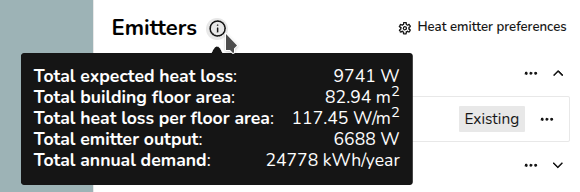
Hover over the 🛈 info icon next to emitters to view:
- Total expected heat loss.
- Total building floor area.
- Total heat loss per floor area.
- Total emitter output.
- Total annual demand.
Starting your surveyed floor plan
PRO: Speed up creating your floor plan by uploading architectural plans to design atop of and take measurements from.
Once you have selected your material library and input the default ceiling height, you can complete the as surveyed plan. Read more about creating a floor plan.
Once you have completed your surveyed plan, click Finish Plan at the top. This will then take you to a plan called Option 1 where you can model emitter changes, heat pump and hot water placement and any accessories.
Ventilation calculations
When you finish your plan, you will be prompted to complete the ventilation calculation. For Heatpunk UK/IE, choose from:
- Legacy MCS method / S.R.50-2021
- Standard method / BS EN 12831-1:2017 using assumed air permeability
- BS EN 12831-1:2017 using measured air permeability
Once completed, to edit ventilation calculations, in the top right corner click ⋯ three dots menu > Ventilation details.
Ventilation settings are consistent across plans, but the calculation is done per plan or option based on ACH and room temperature. To create an option with proposed MVHR, duplicate the project and input the air permeability in the ventilation menu.
Sound check (UK)
[this cannot be written yet because it's not been moved]
Completing design options
Once the sound check and ventilation calculations are completed, you can start speccing the heat pump, cylinders and any emitter upgrades. You can also specify the location of the heat pump and cylinder on the plan.
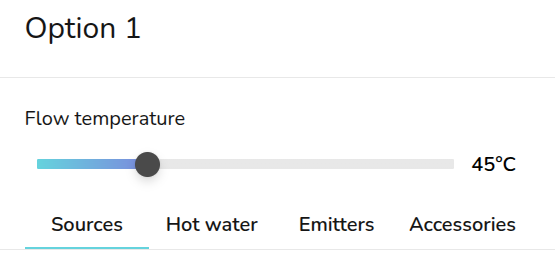
On the right hand sidebar, you can adjust the flow temperature using the slider. From the sources and emitters tab, you can view how this affects the outputs.
Heat sources
[gif showing dragging heat pump - only when on staging because dev site has no component images]
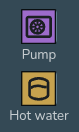
To add a heat pump and hot water storage, drag and drop a Pump or Hot water from the left-hand sidebar. Once you have placed these on the floor plan, a menu will pop up to specify the model.
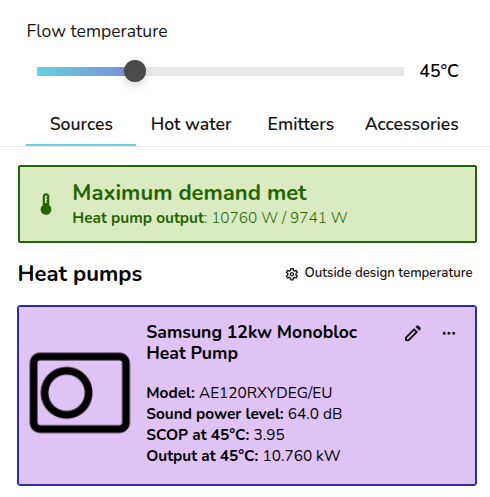
On the right-hand sidebar, you can:
 |
Edit outside design temperature S |
|
Edit heat pump C |
|
|
More options S |
Hot water
[gif showing dragging hot water - only when on staging because dev site has no component images]
Emitters
gif showing drag and drop and specifying underfloor and other