Using material palettes within projects
Choosing a palette
When you create a project, you will be prompted to select a material palette.
link: creating palette. NoteThis palette determines what walls, floors, windows, doors and radiators can be used within a project.
Click on each palette to preview what materials are selected for each section (external wall, internal wall, floor, etc.). You will be able to make adjustments to the selected palette from within the Plan task. Once selected, click Use Palette in the bottom left.
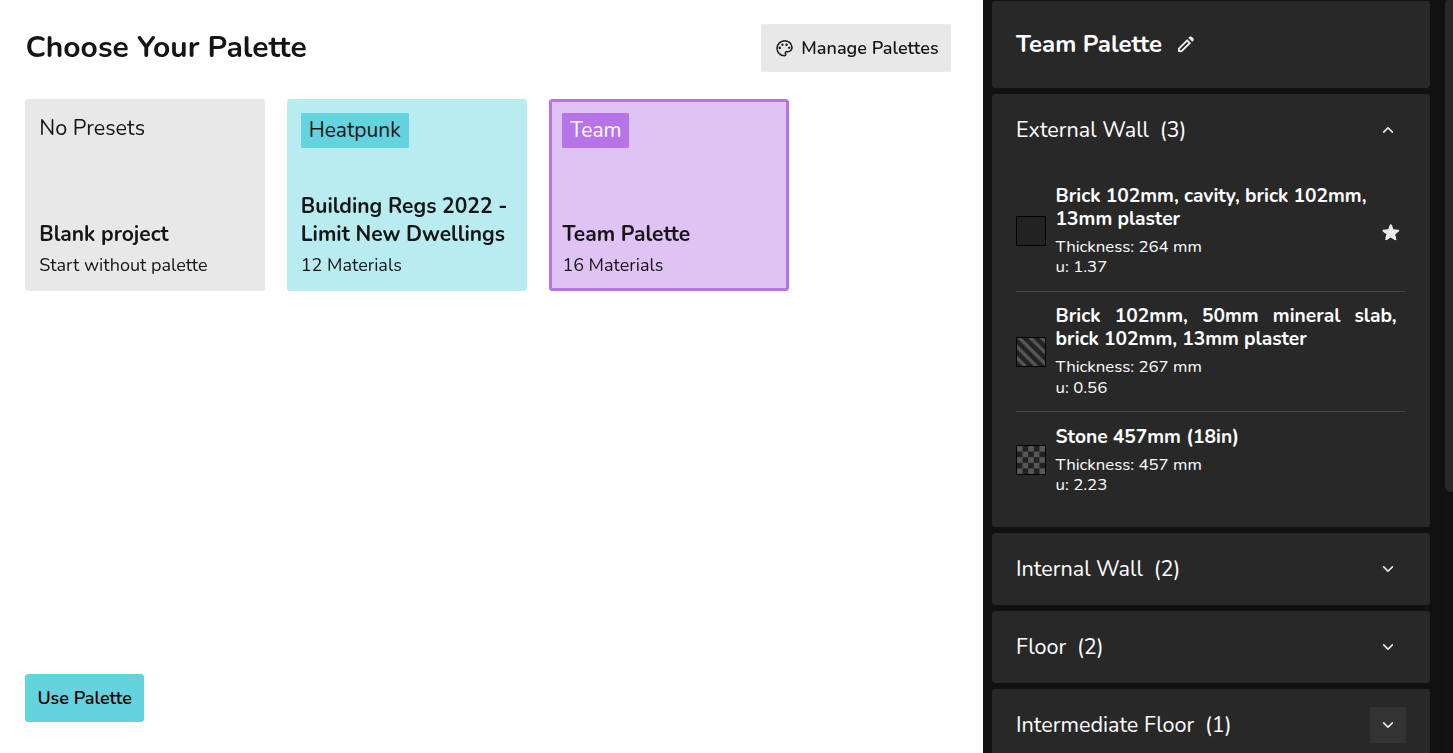
If you select No Presets you can build a palette from scratch but this will not save, if you'd likesave to createyour usermaterial orlibrary. teamClick levelManage tariff,palettes in the top right to navigate to your material library
Oncecreate selecteddefault -palettes or edit anyexisting details.ones. When all materials added, click next to start floor plan (link)
Using palette in floor plan
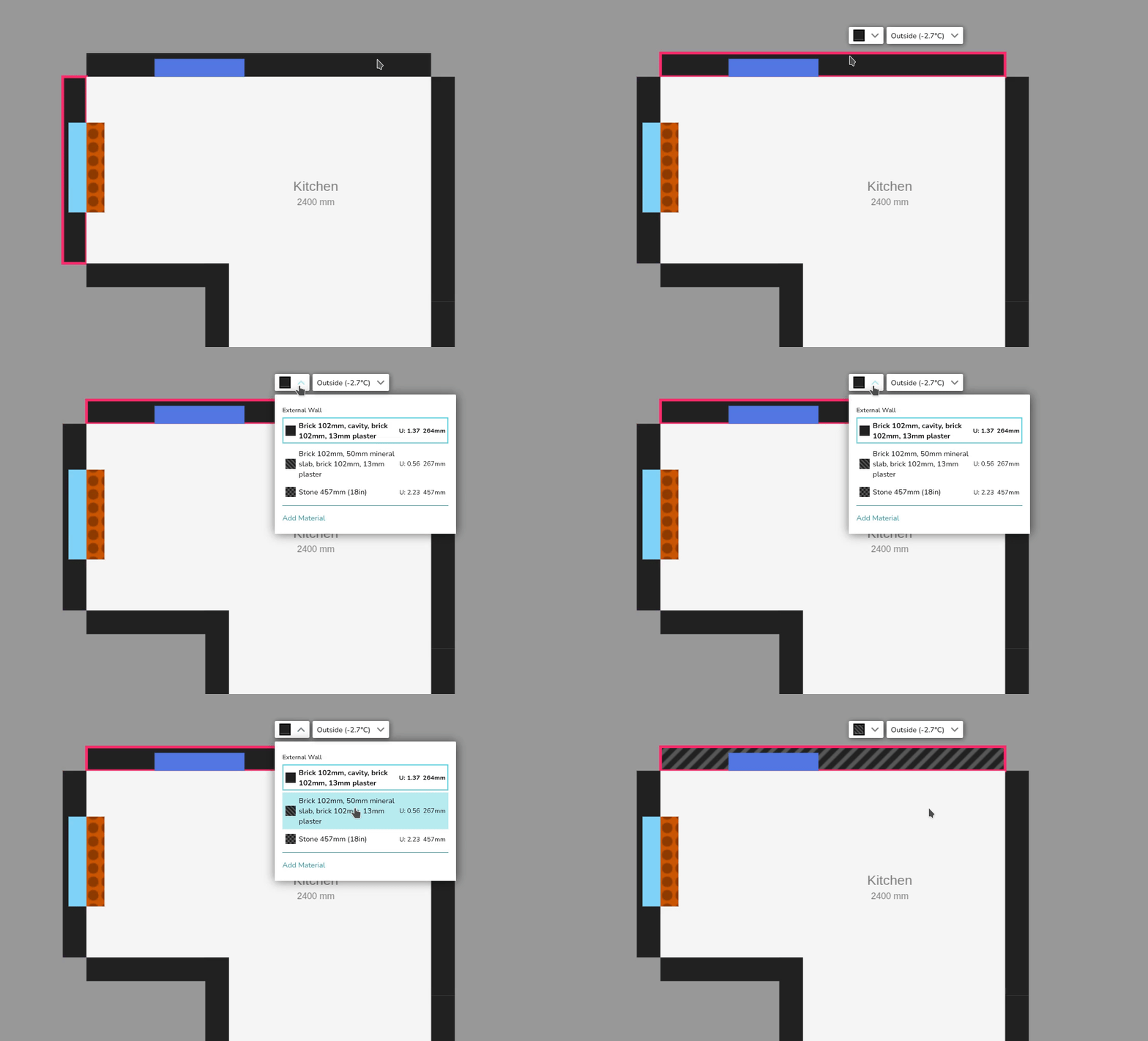
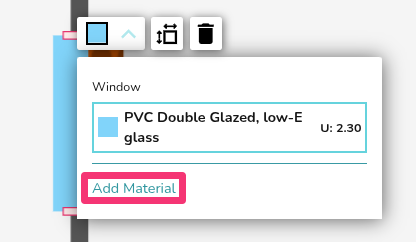
selectingWhen creating your floor plan, the default (starred) materials will be used for each external wall, internal wall, floor, etc. Click on each component to view the full material used - iconsdetails and namesmake changes.
explain