
Choosing a material palette
When you create a project, you will be prompted to select a material palette. This palette determines the composition of the walls, floors, windows, doors and radiators that can be used within a project.
Click on each palette to preview what materials are selected for each section (External Wall, Internal Wall, Floor, etc.). You will be able to make adjustments to the selected palette from within the Plan task. Once selected, click Use Palette in the bottom left.
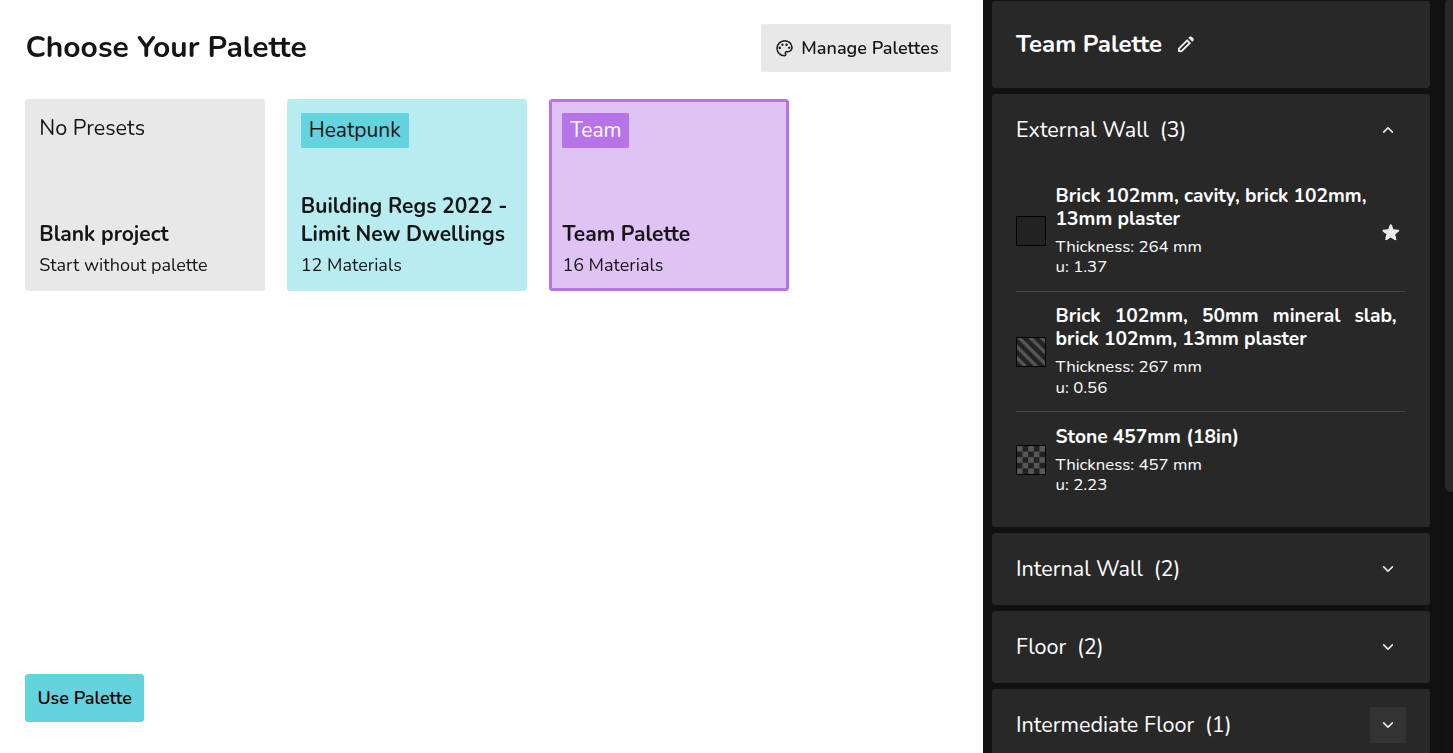
If you select No Presets, you can build a palette from scratch but this will not save to your material library. Click Manage palettes in the top right to navigate to your material library to create default palettes or edit existing ones.
Using a palette in a project
When creating your floor plan, the default (starred) materials will be used for each external wall, internal wall, floor, etc. Each material has a key (patterned square) so you can see where each is being used in the floor plan.
Click on each component to view the full material details and make changes.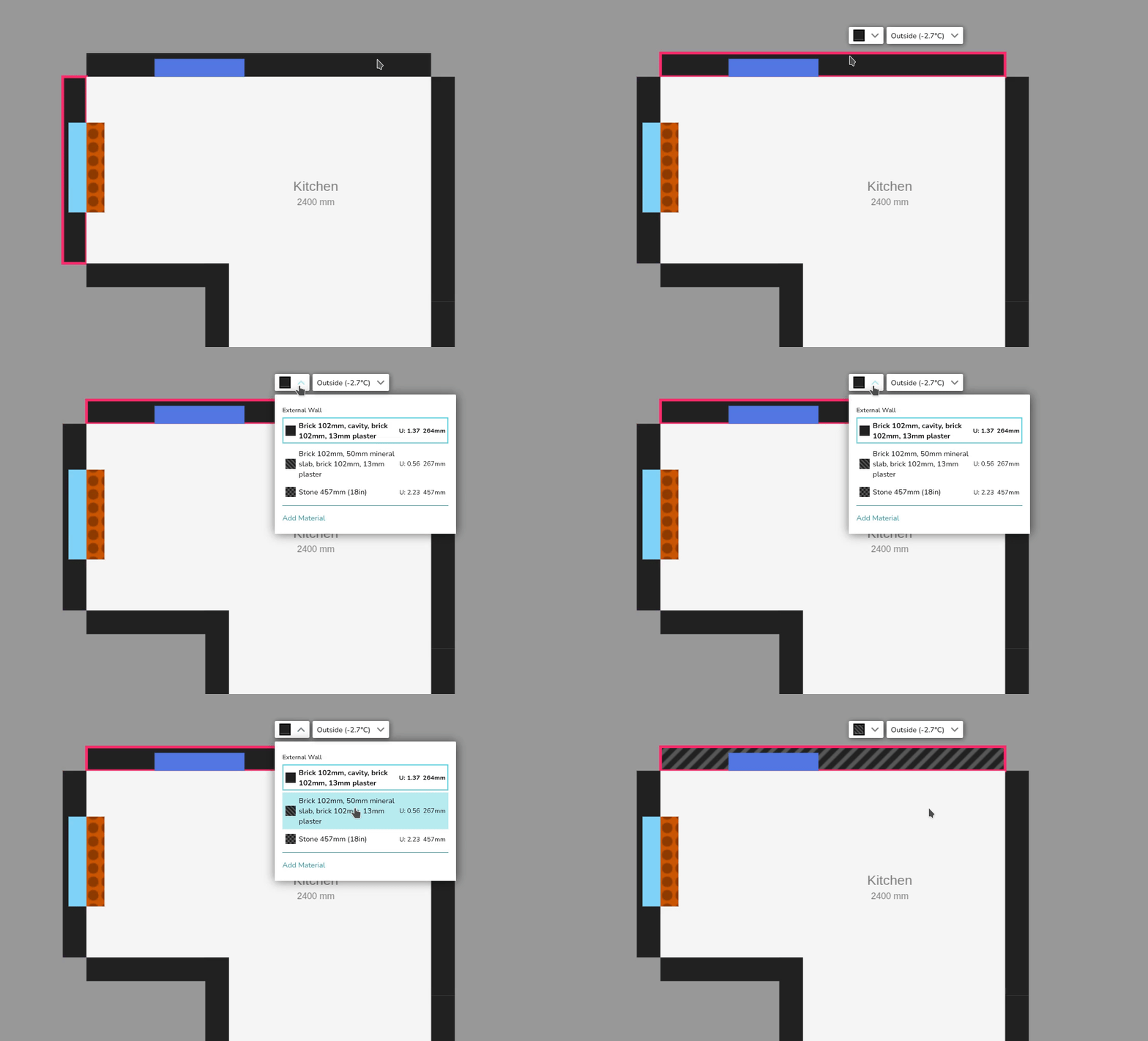
Editing palette within a project
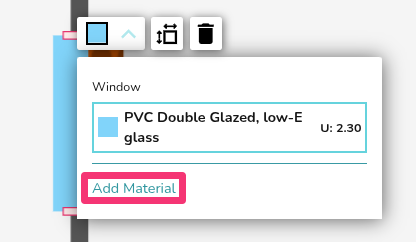
Click Close in the bottom left to save these changes.
Still Need Help? / Want to know more?
Contact Support: If you've got further questions, get in touch with our support team at help@heatpunk.co.uk (UK) or help@heatpunk.ie (IE). If you are experiencing a bug, to help us look into your issue faster, please include the email address of your account, the name of the project and screenshots of any unexpected behaviour.