
Heat sources
[gifAdding showing dragginga heat pump -
[gif] when
Heat pumps are added to the design in the Plan task.
While on staginga becausedesign devoption, sitedrag hasand nodrop componenta images]Pump from the left-hand sidebar to place the hot water storage in the plan. After placing it, you can select a heat pump from the recommendations or scroll through the sections on the left sorted by brand and type (monoblock and split). To add multiple heat pumps, simply drag multiple from the left-hand sidebar.
When you have an option selected, on the right you will see spec information, and Midsummer stock and pricing information. If your account is connected to Midsummer, you will also see your specific pricing.
Adjust the flow temperature from the right-hand sidebar.
Editing heat pump selection
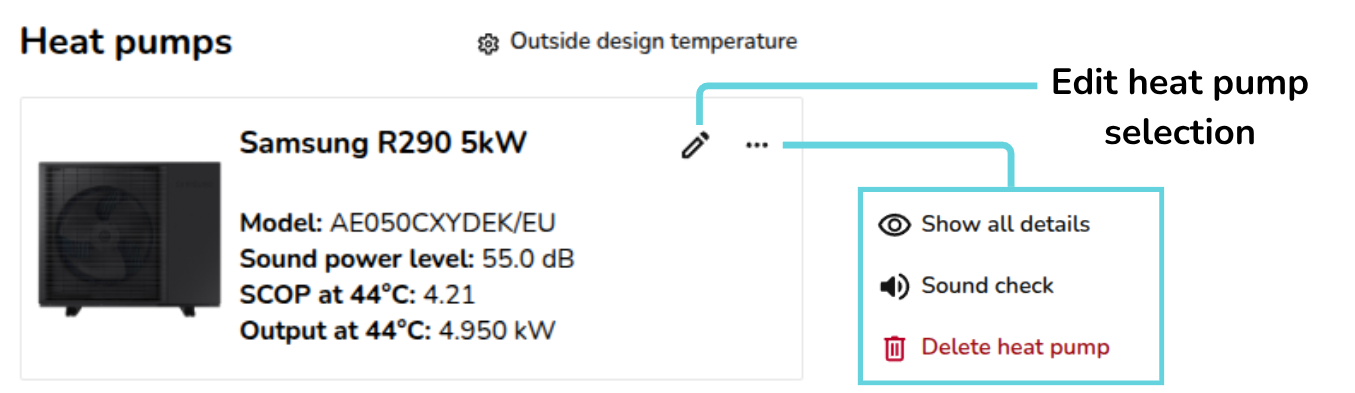
If you would like to edit or delete the chosen heat pump(s), either delete directly from the design option floor plan or navigate to the Sources tab where you have the following options:
 |
Pencil icon: Edit heat pump selection for this design option. |
|
|
Show all details: Show/hide the nominal capacity and ENA registration number. |
|
|
Sound check: complete sound check for this heat pump. Read more about this below. |
 |
Delete heat pump: Remove heat pump from this design option. |


Sources
On the Sources tab, you will see the following information:
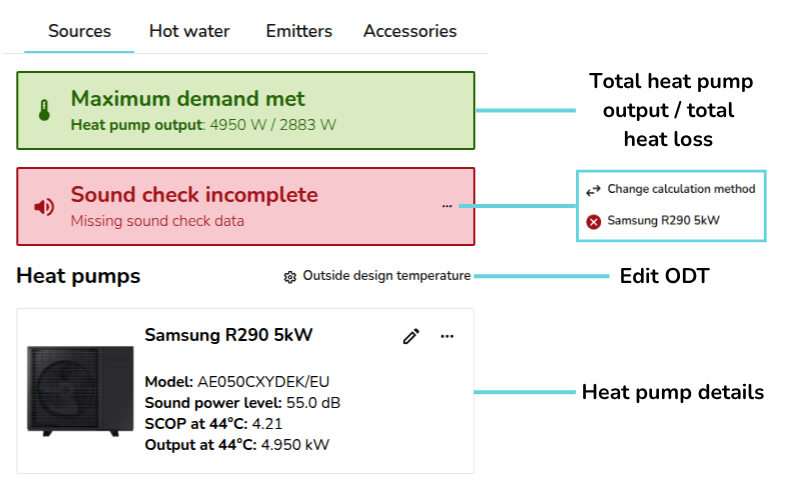
adding, removing, multiple/hybridTotal heatsourcepump output / maximum demandmodalSound check information (UK only) - choose sound check method and complete sound check for each heat pumpsizing/recommendationsOutside design temperature (ODT) settingsmore infoDetails onflowselectedtemp,heatscop, output power
pumpssidebar
Completing the sound check (UK only)
Once you have added a heat pump, you can then complete the sound check for that heat pump. On the sources tab, where it says Sound check incomplete, click the ⋯ three dots and then the name of the heat pump(s) where the sound check hasn't been completed. These will display with screenshotsa andred gifs.cross Usenext segmentto fromthem. main
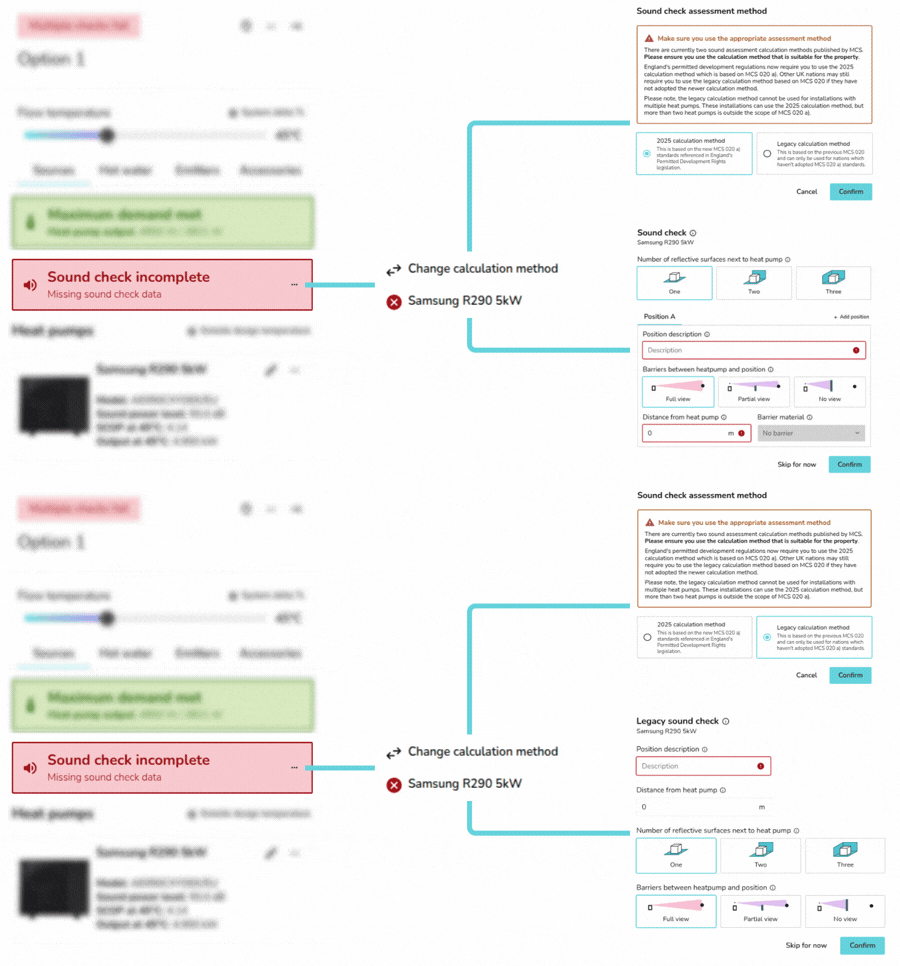
Once
you have completed the sound check for all heat pumps in the design option, the result will display in the same section:
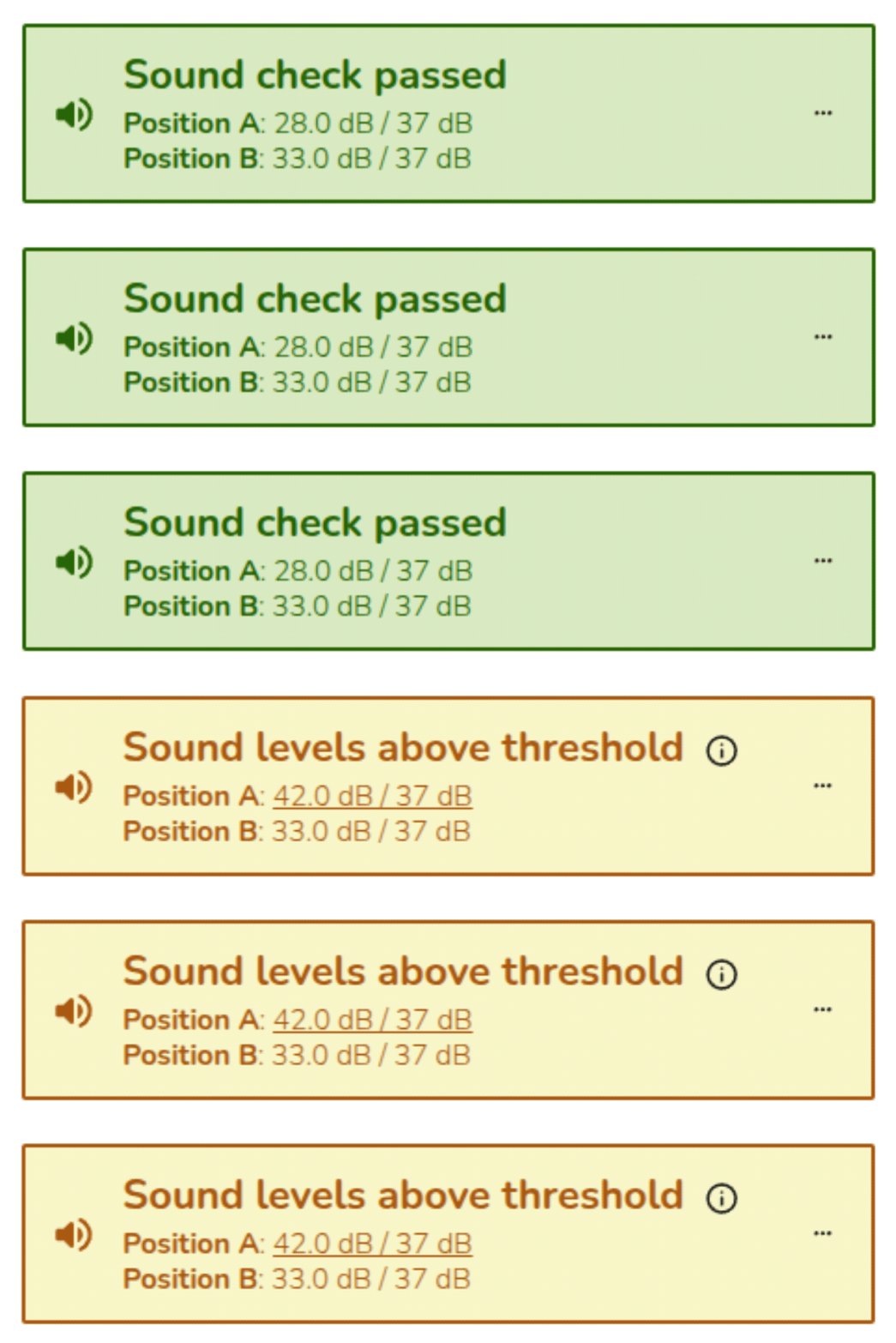
The sound check on multiple heat pumps can only be completed using MCS 020 a) (2025 method). Read more about the sound check.
Editing ODT settings